
Export VLC to MP4: The Convert Dialog, Step by Step
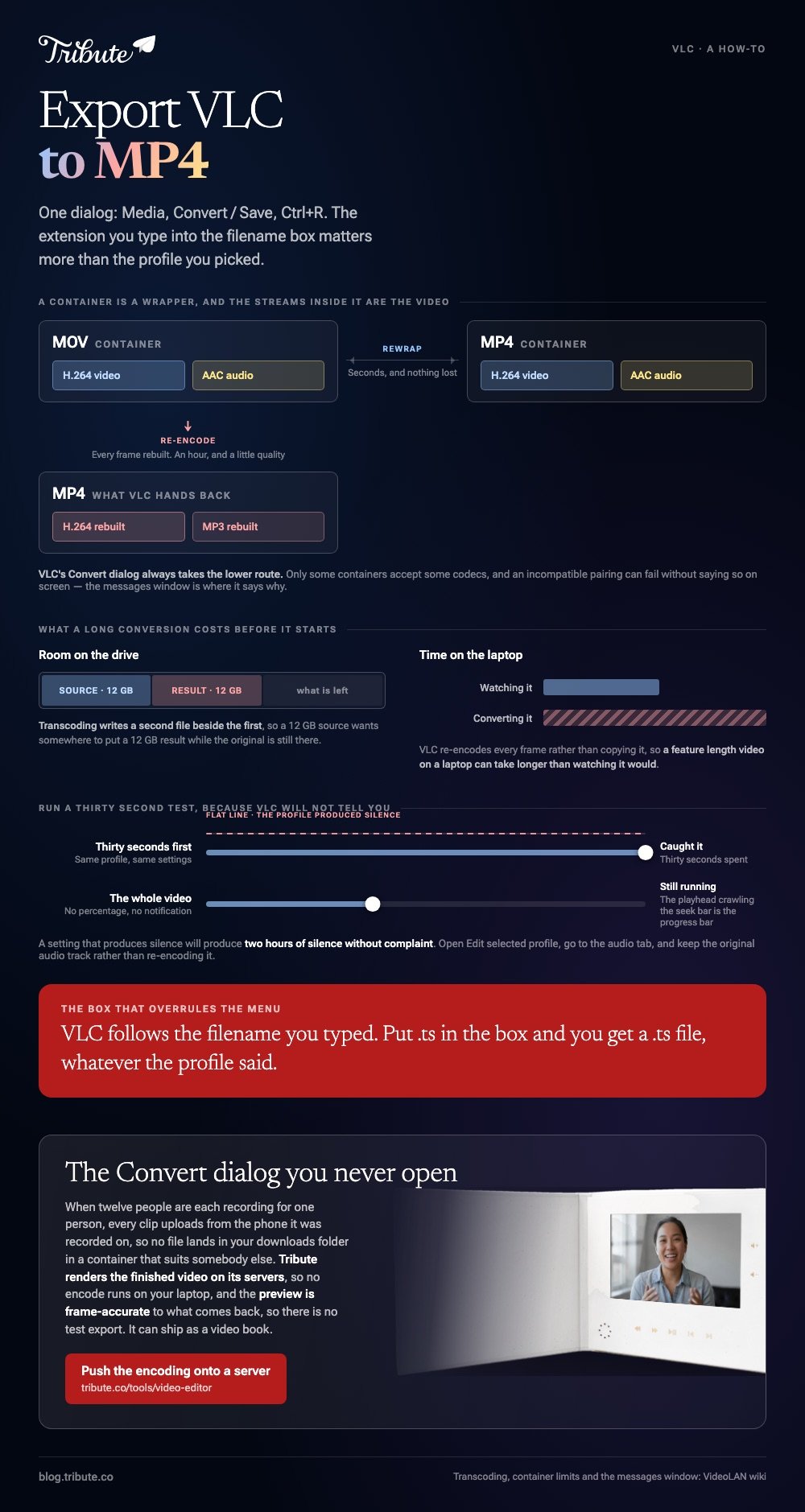
VLC converts through one dialog: Media, then Convert / Save, or Ctrl+R. Pick a profile with MP4 in its name, type a destination filename ending in .mp4, and press Start. The extension you type matters more than the menu you picked.

How do you export VLC to MP4 in one pass?
Through the Convert window, in six steps, with no plugin and no second program. To export video from VLC, that dialog is the whole story.
VideoLAN's own streaming and transcoding guide puts the whole route in one place, and it is shorter than most of the walkthroughs built around it.
- Open the Media menu and choose Convert / Save, or press Ctrl+R.
- Add your file in the dialog that opens, then click the Convert / Save button at the bottom.
- Choose a profile from the list. The H.264 and MP3 entry wrapped in MP4 is the one that plays almost anywhere.
- Press Edit selected profile if you want to check what that profile contains before you commit an hour to it.
- Type the destination filename, and type the .mp4 on the end yourself. VideoLAN's instruction says to include the extension, and it means it.
- Press Start. The playhead crawls along the seek bar instead of playing, which is VLC showing you progress.
There is no progress percentage and no notification. When the bar reaches the end, the file is written.
What to check before the long one
Run a thirty second test first.
Convert a short clip with the same profile, open the result, and listen to the first few seconds. A setting that produces silence will produce two hours of silence without complaint.
Why does export VLC to MP4 give you a .ts file or no sound?
Because the container and the codecs have to agree, and VLC lets you pick a pairing that cannot work.
VideoLAN's transcoding page is blunt about it: only some containers accept some codecs, and an incompatible choice can fail without saying so on screen. It points you at the messages window to find out what happened.
- No sound in the result: open Edit selected profile, go to the audio tab, and keep the original audio track rather than re-encoding it
- The wrong extension on the output: VLC follows the filename you typed, so .ts in the box produces a .ts file whatever the profile says
- Nothing at all: check the messages window before you change settings at random
Editing a profile is the step most people skip, and it is the one that rewards two minutes. Open it once, see which video codec and which audio codec the preset applies, and most conversion mysteries stop being mysteries.

What else does VideoLAN warn you about?
Two practical things, both of which bite on long videos.
The first is room on the drive. Transcoding writes a second file beside the first, so a 12 GB source wants somewhere to put a 12 GB result while the original is still there.
Time is the other one. VLC re-encodes every frame rather than copying it, so a feature length video on a laptop can take longer than watching it would.
Compared with a purpose-built converter, VLC is a media player that happens to transcode. A VLC player export video run re-encodes every frame, and it is on your machine already, which is the entire argument for using it.
When should you use something other than VLC?
When the job is a folder of files, or a conversion that should not touch the picture at all.
A MOV holding H.264 video and an MP4 holding H.264 video contain the same stream in a different wrapper. Rewrapping takes seconds and costs nothing in quality, while re-encoding takes an hour and costs a little.
HandBrake describes itself as an open source video transcoder for Linux, Mac and Windows that converts to MP4, MKV or WebM. It is free software, it queues a whole folder, and it tells you how long it has left.
| Job | Use | Why |
|---|---|---|
| One file, right now | VLC | Already installed, one dialog |
| A folder of files | HandBrake | Queues and reports progress |
| Joining clips first | Neither | VLC's own wiki warns its merges lose correct time signatures |
That last row is worth repeating: do not ask VLC to combine videos and then export the result. Use an editor for the joining, as in making a video montage.
Mac-specific wrinkles are in converting MOV to MP4 on a Mac, and the same question from the other side is in exporting MP4 from iMovie.

What if you never had one file to convert?
Half the people doing this are converting because somebody sent them something that would not play.
The Tribute video editor is a browser-based group video editor: contributors record clips on their phones and Tribute assembles them on a timeline with the music balanced under the voices.
It is ours, and it is the last thing on this page.
- Tribute renders the finished video on its servers, so no encode runs on your laptop and nothing competes for the drive
- The preview is frame-accurate to the video that comes back, so there is no test export
- A Tools panel carries the bulk jobs: render, re-generate captions, find photo duplicates, loop music to fill the timeline
- Clips arrive in order on the timeline, with a tick against the ones already placed

Best for: Anyone collecting video from people whose phones each save a different format.
Why it works: Unlike a folder of phone downloads, nothing arrives in a format you have to fix first.
Who deals with the file formats if you do not?
All of this starts with a file on your disk and a program that refuses it.
Someone recorded on an iPhone, someone else on a six year old Android, and the player you need to use accepts one of the two. There is a kind of video where that negotiation never reaches you.
The case: the clips go to a browser, not to you
Picture a dozen people recording one message each, on a dozen different handsets.
A grandmother turning eighty. A head of department retiring. A memorial where the people who should speak are in four time zones.
Each person uploads from their own phone through a link, so the files never land in your downloads folder and never need a container that suits you.
Why the Convert dialog never opens
Because the encode happens on a server and what you get back is a finished video.
No profile list, no audio tab, no filename extension to type by hand. That is how the Tribute video editor handles it: not a better convert dialog, but one you never see.
What you do not have to do
- Open a Convert window. Each clip uploads from the phone it was recorded on, whatever the format.
- Match twelve files to one codec. Tribute does the encode on its servers and tells you when it is done.
- Source music or a background. There are 39 licensed tracks and 83 occasion backgrounds.
- Do the edit, on a Concierge Tribute. Tribute's editors build the video, and Concierge Deluxe returns it as a video book.

When this is the wrong answer: you have one file on your disk that needs to be an MP4 by this afternoon. Then open VLC, press Ctrl+R and follow the six steps above.
Tribute is not a converter either: it lives inside a paid Tribute. Background on the format is in what a video tribute involves.
Frequently Asked Questions
Does VLC export video without re-encoding it?
Not through the Convert dialog, which transcodes. If you want a straight rewrap from one container to another, HandBrake or a dedicated remuxer is the better choice.
Why is there no progress bar when VLC converts?
Because VLC reuses the seek bar. The playhead moves along it as the conversion runs, and the file is complete when it reaches the end.
Does converting in VLC lose quality?
A little, every time, since the picture is re-encoded. Convert from the original rather than from an earlier conversion, and the loss stays invisible on a phone or a television.
Why does my converted file have no audio?
The profile re-encoded the sound with a codec the container would not carry. Open Edit selected profile, choose to keep the original audio track, and run it again.
Can VLC convert several files at once?
It will accept more than one file in the dialog, and it handles a queue worse than a converter built for batches. For a folder, use HandBrake.
What profile should I pick for MP4?
The H.264 and MP3 profile wrapped in MP4. H.264 plays on every phone, browser and television sold in the past decade, which is the whole reason to want an MP4.
Can I use VLC to join two videos and then export?
Better not to. VideoLAN's own wiki says the ways VLC offers to combine streams do not produce correct time signatures, which causes seeking errors even inside VLC.
👉 Push the encoding onto a server if twelve phones are each recording for one person, and the Convert dialog stops being part of your week.
