
VLC Convert MOV to MP4 Mac: The Steps, and When to Skip Them
The VLC convert MOV to MP4 Mac route works, and it is often more work than the job needs. MOV and MP4 are close relatives of the same container, so a full re-encode spends an hour and some quality to buy a new extension.

What does the VLC convert MOV to MP4 Mac route give you?
A second file, in a container more websites will accept.
That is the whole benefit, and it matters. Older upload forms, school portals and some editing apps read the extension before they read the file, and they stop at .mov.
| What you have | What VLC does | What it costs |
|---|---|---|
| A QuickTime MOV from an iPhone or a Mac | Decodes it and encodes it again into MP4 | Time, disk space, a generation of quality |
| An MKV from a download | The same, into MP4 | Subtitle and chapter tracks can drop |
| A VOB from a DVD folder | The same, into MP4 | Slow, and chapter structure is lost |
VideoLAN says so on its own transcoding page: if the input already matches the output you want, you do not need to transcode at all.
Why MOV and MP4 are not far apart
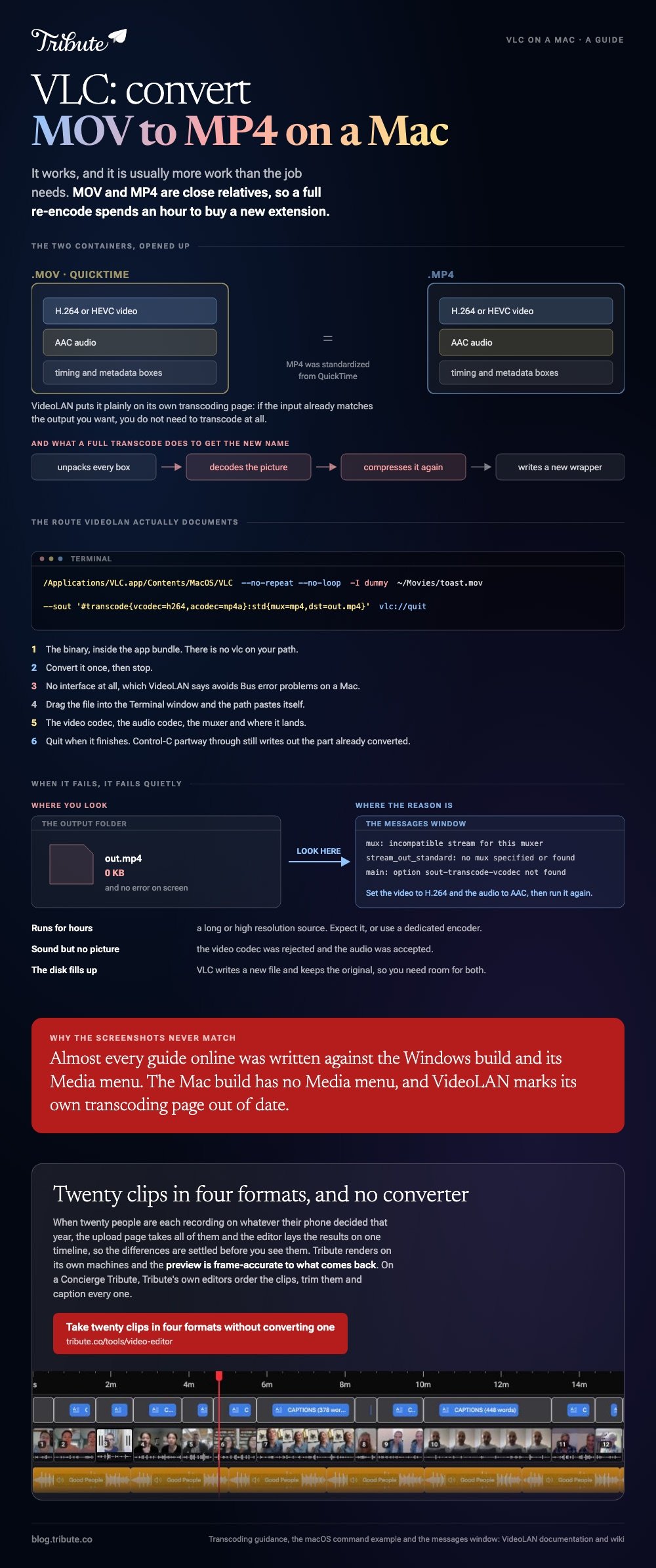
MP4 was standardized from Apple's QuickTime file format. The boxes inside are cousins, and an iPhone MOV holds H.264 or HEVC video with AAC audio, which is what an MP4 holds.
So the honest description of this job is a relabel, not a conversion. Unlike a true format change, nothing about the picture needs to be touched.
Where is the conversion window in VLC on a Mac?
In the File menu, not the Media menu.
This trips people because almost every guide online was written against the Windows build. VideoLAN's documentation shows the Media menu and Convert/Save, and its own macOS page describes a wizard in the File menu for capturing video to a file instead.
Two things follow from that.
- Do not hunt for a Media menu on your Mac. It does not exist in the Mac build.
- Expect the labels to differ from the screenshots you find. VideoLAN marks its own transcoding page as out of date, and the Mac menu list has not kept pace.
Open the File menu, pick the conversion or export item you see there, choose your source file, set the destination to an MP4 container with H.264 video and AAC audio, name the output file, and start it.
Three settings that decide the result
- Container: MP4. This is the only part of the job you came for.
- Video codec: H.264 for anything that has to play everywhere
- Bitrate: leave it alone unless the output looks soft, then raise it
Give the output a different name from the input. VLC writes a new file and keeps the original, so you need room on the disk for both.
How do you run the same conversion from Terminal?
This is the route VideoLAN documents in full, which makes it the one worth trusting.
The binary lives inside the app bundle at /Applications/VLC.app/Contents/MacOS/VLC. VideoLAN's page adds one piece of Mac-specific advice: run it with -I dummy so the interface never loads, which it says avoids Bus error problems.
- Open Terminal and type the path to the VLC binary, then a space.
- Add --no-repeat --no-loop -I dummy so it converts once and exits.
- Drag your MOV file into the Terminal window to paste its path.
- Add a --sout transcode block naming the video codec, the audio codec, the muxer and the destination path.
- Finish the line with vlc://quit and press Return.
VideoLAN's own example uses that shape, and it notes that pressing Control-C partway through still writes out the portion already converted. That is a useful way to test a long file.
Pulling the audio out instead
Same tool, different muxer. To convert MP4 to MP3 on a Mac with VLC, point the audio codec at MP3, set the container to raw audio and give the output an .mp3 name.
The picture is thrown away rather than shrunk, so the file lands small and fast.
Which files make the VLC convert MOV to MP4 Mac job fail?
Files where the container and the codec disagree.
VideoLAN warns that an incompatible stream and muxer pairing can fail with no error on screen, and tells you to check the messages window rather than the output folder. A zero-byte MP4 is the usual sign.
| Symptom | Probable cause | Fix |
|---|---|---|
| Output file is empty | Codec the MP4 muxer cannot carry | Set video to H.264 and audio to AAC |
| Conversion runs for hours | A long or high resolution source | Expect it, or use a dedicated encoder |
| Sound but no picture | Video codec rejected, audio accepted | Change the video codec and run again |
| Disk fills up | Original kept alongside the new file | Clear space before you start |
A DVD folder is the hardest case. Converting VOB to MP4 on a Mac with VLC works on one title at a time, and the chapter structure does not survive, so a two hour disc comes back as one unbroken file.
More on getting a finished MP4 out of the player in exporting from VLC to MP4.
Is there a better way to get an MP4 on a Mac?
For most people, yes.

HandBrake, when the file also needs to be smaller
HandBrake exists to do this one job, and it publishes the numbers VLC leaves to you. Its documentation recommends RF 20 to 24 for 1080p, where a lower number means higher quality and a larger file.
Compared with VLC, you get a progress estimate that is close to true and presets that already know what a phone wants.
iMovie, when the video needs an edit anyway
Drop the MOV on a timeline, cut what you do not want, then use Share, then Share Video, then Save Video. The result is an MP4 and you did the trimming in the same pass.
That path is covered step by step in exporting MP4 from iMovie, and the wider set of options in choosing a video editing program for a Mac.
If the converted clips are headed for one longer piece, start at making a video montage.
What happens when the files are coming from fifteen different phones?
The Tribute video editor is a browser-based group video editor: people record clips on their phones and Tribute lays them on a timeline with the music already balanced under the voices.
It is ours, and it is the last thing on this page.
- Clips arrive auto-assembled in order, with a tick against the ones already on the timeline
- Tribute renders the final video on its servers, and the preview is frame-accurate to what you get back
- A Tools panel handles the bulk jobs: render, re-caption, find photo duplicates, loop music to fill the timeline
- Autosave with restorable history, so a removed clip is recoverable rather than gone
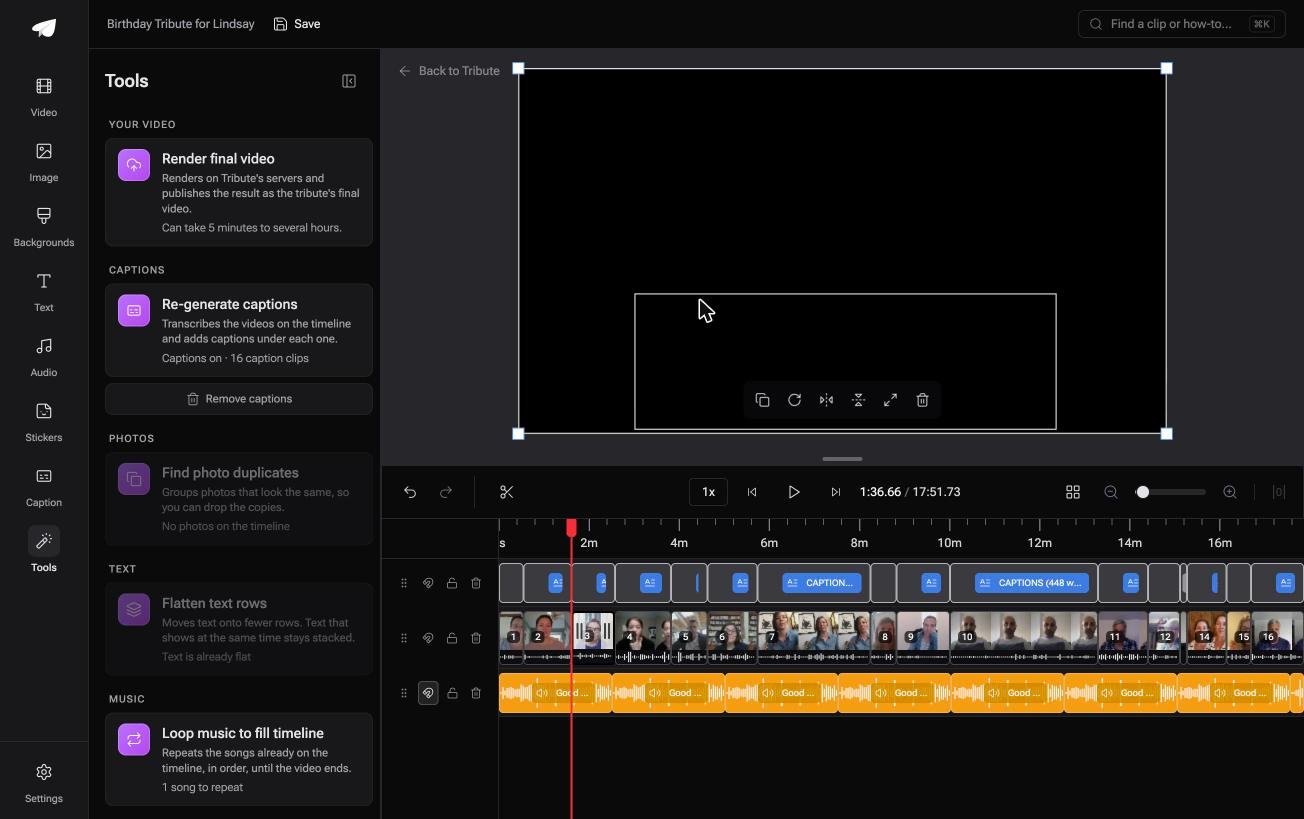
Best for: Anyone who has been emailed fourteen clips in five formats and told to make one video out of them by Friday.
Why it works: Unlike a desktop converter, nothing arrives on your Mac at all, so there is no folder of half-converted files to reconcile.
Which videos never need a converter at all?
You are reading a conversion guide because a file landed on your desktop with the wrong three letters at the end of its name.
Every step above is downstream of that one event. No file on the desktop, no container to argue with.
The case: the footage was never yours to collect
You are in it when several people each record something for one person.
A grandfather turning ninety. A coach leaving after eleven seasons. A friend moving abroad, and twenty people who want to say so out loud. Nobody is handing you files, because nobody is handling files.
Why the extension stops being your problem
Phones record whatever their maker decided that year. An iPhone gives you MOV, an Android gives you MP4, and a few give you something stranger.
Once the upload page takes all of them and the Tribute video editor lays the results on one timeline, the differences are settled before you see them. Compared with converting fifteen files by hand, there is nothing to reconcile.
What you do not have to do
- No conversion. Twenty clips in four formats land on one timeline.
- No ordering or trimming. On a Concierge Tribute, Tribute's own editors do both and caption every clip.
- No render here. Tribute builds the finished video on its own machines.

When this is the wrong answer: there is one MOV on your desktop and it has to be an MP4 today. Then VLC or HandBrake is the right tool, and the editor is no help, since it only exists inside a paid Tribute.
Frequently Asked Questions
Does converting MOV to MP4 lose quality?
A re-encode does, because the video is decoded and compressed again. The loss is small on one pass and visible after three or four, so keep the original.
Can VLC convert MKV to MP4 on a Mac?
Yes, with the same process and the same caveats. Subtitle and chapter tracks often do not survive the move, so check the output before deleting the source.
Why is my converted file bigger than the original?
Because the bitrate you chose is higher than the one the camera used. Lower it, or use an encoder that targets a quality level rather than a bitrate.
How long should a conversion take?
VideoLAN warns that transcoding can be very slow and tells you to expect it. A ten minute 4K clip on an older laptop can run longer than the clip itself.
Can I convert a DVD to MP4 on a Mac with VLC?
For a disc you own and are allowed to copy, yes, one title at a time. Chapters are flattened and the job is slow, so budget an evening.
Does QuickTime do this instead?
QuickTime Player exports MOV, not MP4, so it does not solve the extension problem. Use iMovie or HandBrake on a Mac when you want an MP4 without the command line.
Is the command line safer than the window?
It is better documented, which amounts to the same thing here. VideoLAN publishes a working macOS example and has not updated its Mac menu list in years.
👉 Take twenty clips in four formats without converting one if that is what twenty people are about to send you.
