
Video Editing Program for Mac: What to Use and What to Skip
The right video editing program for Mac is often the one already on it. iMovie is a free app from Apple that handles joining, trimming, titles and music. Move to DaVinci Resolve for color and audio tools at no cost, or Final Cut Pro at $299.99 when editing becomes a habit.

Which video editing program for Mac fits which job?
Prices came off Apple's and Blackmagic's own pages in October 2026. Three of these five cost nothing, and the two paid options are one-off purchases rather than subscriptions.
| Program | Best for | Price (as of October 2026) | Watch out for |
|---|---|---|---|
| iMovie | Joining, trimming, titles, music | Free app from Apple | Two video tracks at most |
| DaVinci Resolve | Color grading and audio repair | Free version; Studio $236 one-off | Demanding on hardware |
| Final Cut Pro | Long or layered projects | $299.99 one-off | Needs macOS 15.6 or later |
| Clipchamp in a browser | A locked-down or borrowed Mac | Free plan; 4K with Microsoft 365 | 1080p ceiling without a subscription |
| Tribute video editor | One video from many people's clips | Paid product | Browser only, not a Mac app |
Which free video editor mac owners already have?
iMovie, and most people never open it. It ships with the Mac, it costs nothing, and Apple keeps a full user guide for it, so the button names below are current rather than remembered.
iMovie
Apple's guide to creating a new movie project describes the start of the job, and two details in it save trouble later. iMovie saves automatically, so there is no save step.
And the resolution and frame rate of the whole project are set by the first clip you drop on the timeline, which means a 4K project needs a 4K clip first.
- Open iMovie, go to Projects view, click Create New, then Movie.
- Select an event in the Libraries list; its clips appear in the browser to the right.
- Drag your best clip to the timeline first, since it sets the project resolution.
- Click a clip, then click the Add button (+) on it, to send it to the end of the timeline.
- To use part of a clip, hold R and drag across the section you want, then drag that selection down.
- To drop a clip between two others, position the playhead and choose Edit > Insert.
- Choose File > Share > File, set the Resolution and Quality menus, click Next, then Save.
Clips already used in the project get an orange stripe in the browser, which is the quickest way to see what you have covered. A finished export opens in QuickTime Player on its own.
- Look for: the Resolution menu in the share dialog, since a 4K movie can be exported at its native resolution.
- Price: free app, included with the Mac.
- Time needed: about twenty minutes for ten clips and a music bed.
Best for: Anyone making one video from footage they shot themselves.
Why it works: The timeline is shallow on purpose, so there is almost nothing to learn before the first export.
DaVinci Resolve
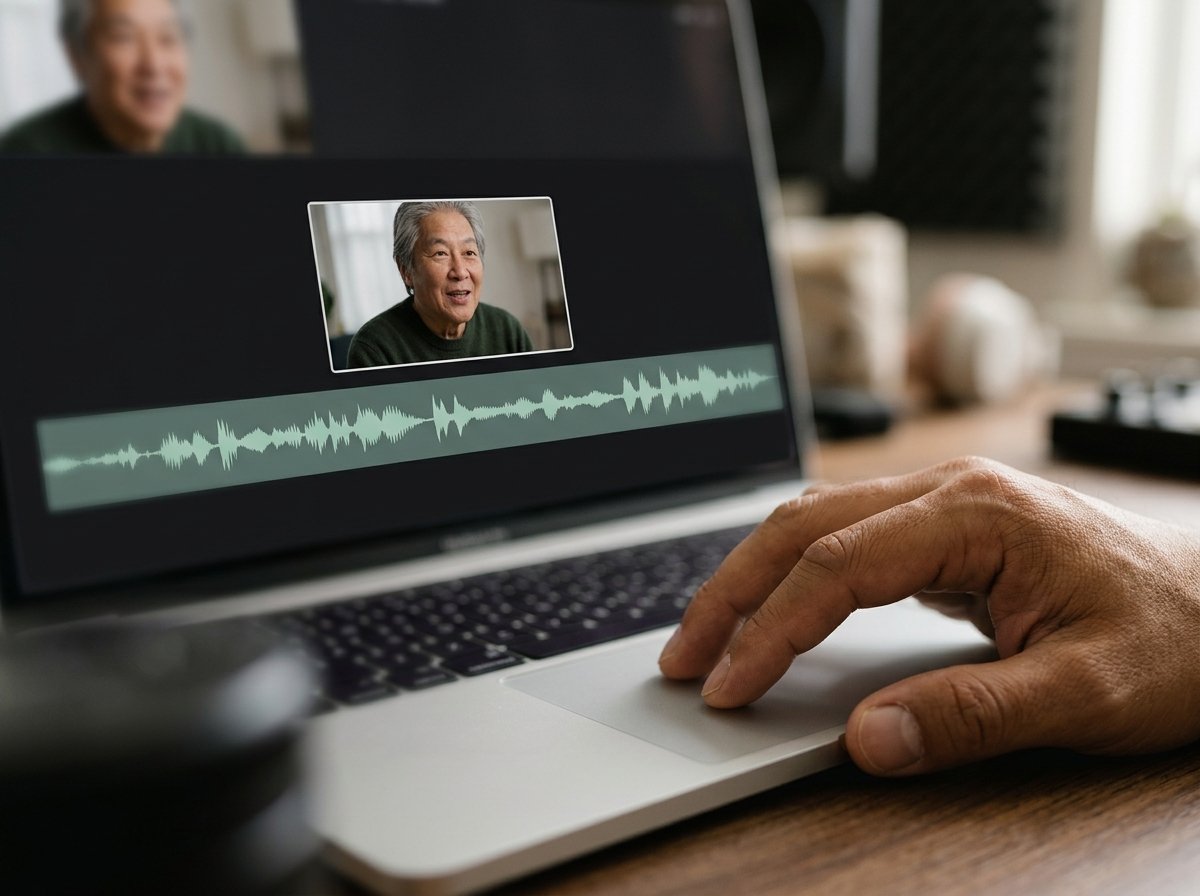
Blackmagic Design gives away DaVinci Resolve, and what it gives away is the program professional colorists use. The paid Studio edition is listed at $236, reduced from $295, as a one-off purchase, and version 21 runs on Mac, Windows and Linux.
Expect a steep first week. You get color grading, a dedicated audio page and multi-camera editing, and you pay in disk space, graphics demands and patience. For joining eight phone clips it is far more program than the job needs.
- Look for: the system requirements, because an older MacBook Air will struggle where iMovie does not.
- Price: free version; Studio $236 one-off as of October 2026.
Best for: A video where the picture needs grading and the sound needs repair.
Why it works: Nothing else at zero cost puts a color page and a full audio page in one window.
Final Cut Pro
Apple sells Final Cut Pro for Mac as a $299.99 one-off purchase on the App Store, and it needs macOS 15.6 or later.
There is also Apple Creator Studio, which bundles Final Cut Pro with other Apple apps at $12.99 a month or $129 a year after a 30 day trial, and which is how the iPad version is sold.
The magnetic timeline is the thing people either love or fight. Clips snap and reflow rather than leaving gaps, which saves hours on a long edit and feels wrong for a week if you learned editing anywhere else.
- Look for: the 30 day trial, which is long enough to finish a real project before paying.
- Price: $299.99 once, or $12.99 a month through Apple Creator Studio, as of October 2026.
Best for: Someone editing most weeks who has outgrown iMovie's two tracks.
Why it works: Compared with a subscription editor, a one-off purchase stops costing money the moment the project ends.
Clipchamp in a browser
If the Mac belongs to an employer and you cannot install anything, open a tab instead.
Microsoft's documentation says Clipchamp runs on Windows, Mac, Linux and Chromebook at app.clipchamp.com in Edge or Chrome, and that it processes video on your own device rather than uploading it to a server.
Exports are HD with nothing stamped on them, and 4K sits behind a Microsoft 365 subscription. For a borrowed machine or a locked-down work laptop, that is a complete answer.
- Look for: the export quality menu, where the no-cost ceiling is 1080p.
- Price: free plan; premium features come with Microsoft 365.
Best for: A Mac where you do not have permission to install software.
Why it works: Unlike most browser editors, nothing is uploaded, so a long video does not wait on a connection.
Tribute, if several people recorded the clips
None of the four above is built for this one. Fifteen people send fifteen files over text, email and WhatsApp, most of them squeezed by the app that delivered them, and the editing is the last and smallest piece of work.
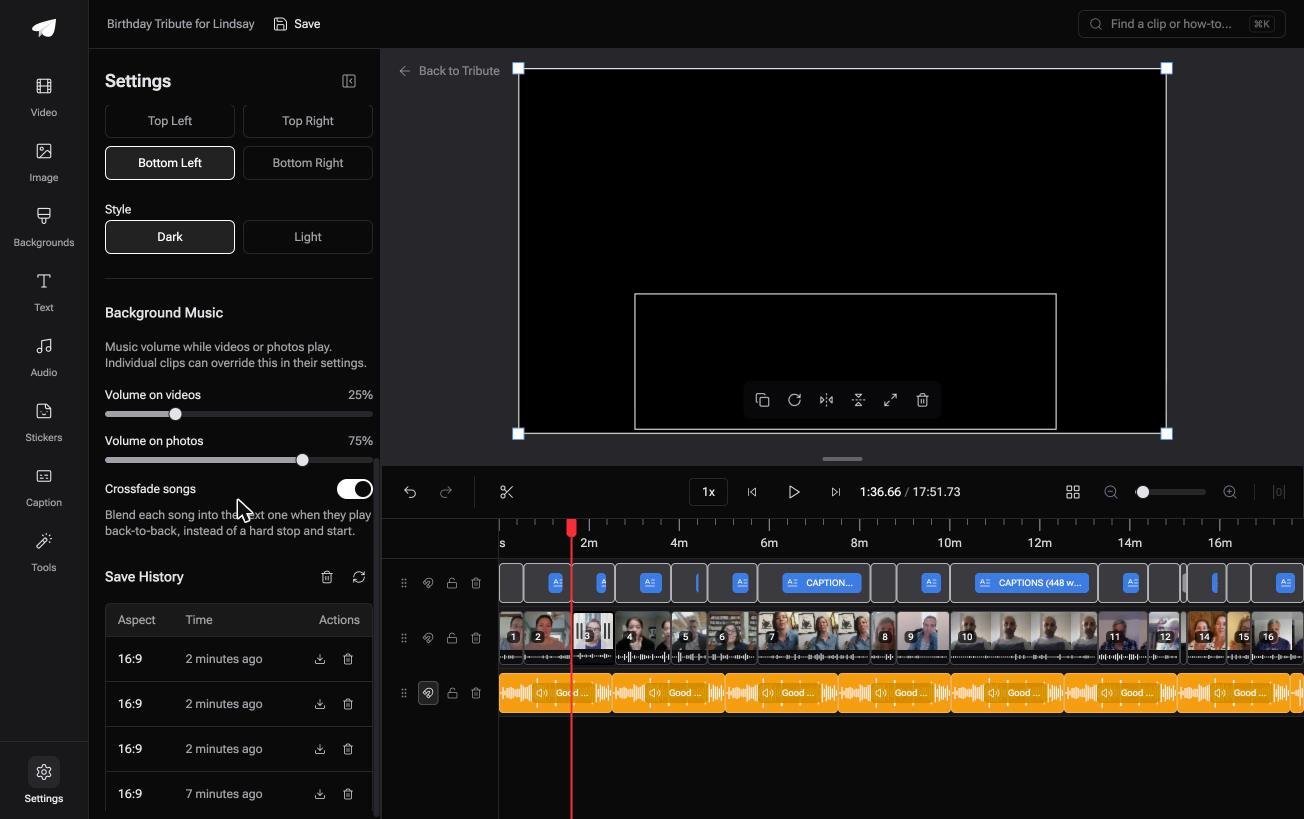
The Tribute video editor is a browser-based group video editor: contributors record clips on their phones and Tribute assembles them on a timeline with the music balanced under the voices.
Clips arrive in order before the organizer opens the editor, music sits at 25% under video and 75% under photos by default, and every version is kept in a restorable save history.
It lives inside a paid Tribute and it will not open a file from your Mac.
- Look for: the save history, where an earlier version of the edit can be restored.
- Price: part of a paid Tribute; there is no Mac download.
Best for: A video for one person where your Mac is just the screen you sit in front of.
Why it works: Unlike a folder you assemble yourself, the collecting, the ordering and the audio balance are done before the editing begins.
That case is covered in how a group video maker handles thirty phones and in our guide to making a video montage.
Should you pay for best video editing software for mac?
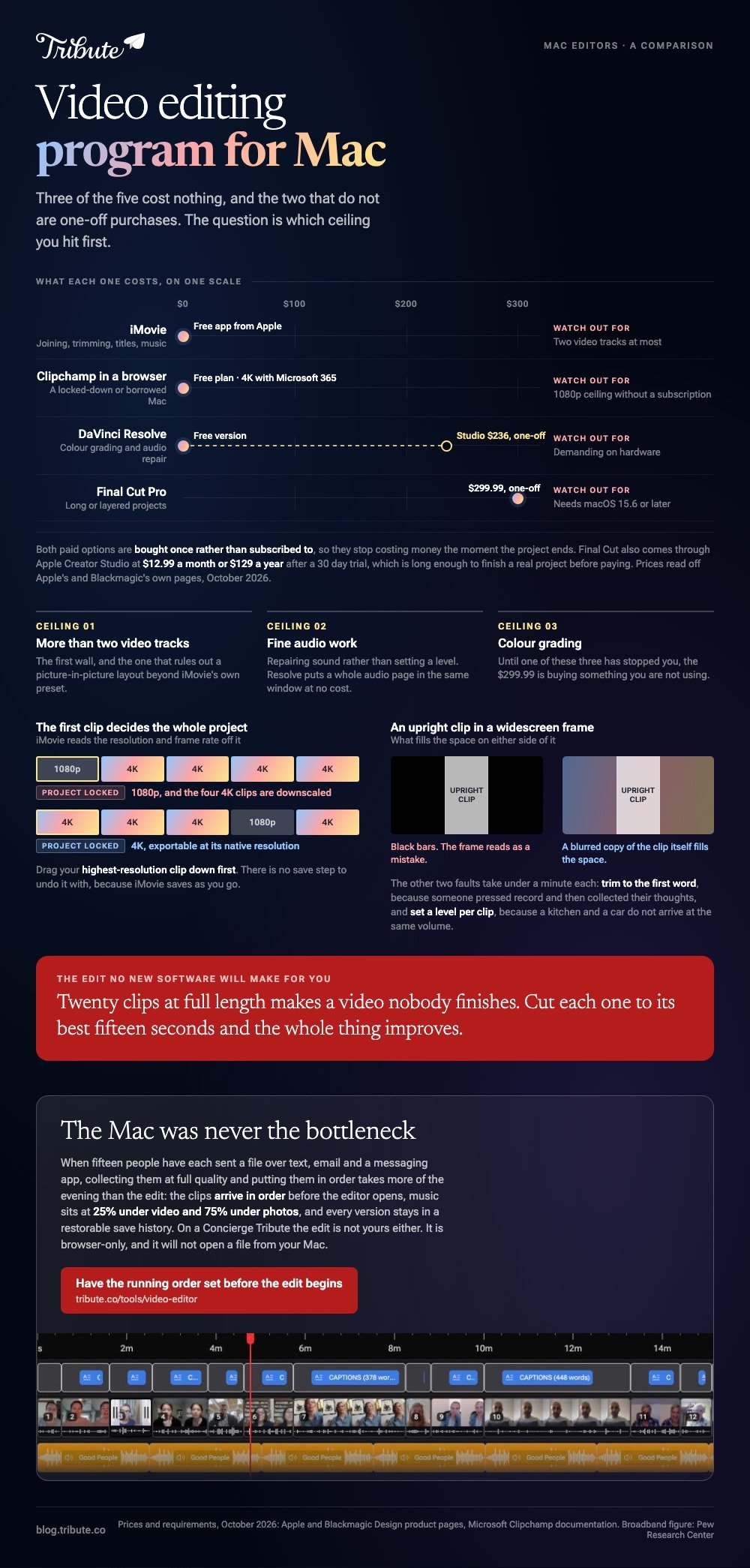
Only after iMovie has failed you, and it fails in predictable places. Two video tracks is the first ceiling, so a picture-in-picture layout beyond iMovie's own preset is out. Fine audio work is the second, and color grading is the third.
If none of those has stopped you yet, the $299.99 is buying something you are not using. Make one video in iMovie end to end, note what you could not do, and buy against that list rather than against a feature comparison.
Our guide to editing software for people who have never edited works through the same decision without the Mac filter.
Do you have to install anything on a Mac?
No, and that is worth knowing before you download three gigabytes of software. Clipchamp, Canva and CapCut all run in a Safari or Chrome tab, and for joining a handful of clips a browser is enough.
The catch is the upload on most browser tools.
Pew Research Center puts home broadband subscription at 78% of US adults, according to its internet and broadband fact sheet, so sending several gigabytes of 4K footage is an evening for a sizeable minority of readers.
We compare those tools in our roundup of online editors, and the joining step itself in how to merge videos into one file.
What goes wrong in a Mac edit?
Four things, and none of them is a skill problem:
- Dead air at the start of every clip, where someone pressed record and then collected their thoughts.
- Volume that jumps between a kitchen and a car.
- Black bars beside an upright phone clip in a widescreen frame.
- A project stuck at 1080p because the first clip on the timeline was a 1080p one.
Trim to the first word, set a level per clip, fill the space beside an upright clip with a blurred copy of itself, and in iMovie put your highest-resolution clip down first.
Each of those takes under a minute and all four together change how the video reads.
Watch the export before you send it. Compared with a photo, a video that lost quality in the render cannot be recovered from the output file.

Music is the fifth, and the one people overdo. A track at full volume under a person talking makes the speech hard to follow on a phone speaker, which is where most family videos are watched.
Drop the music well under the voices, then listen back on a phone rather than on headphones.
Length is the last. Twenty clips at full length makes a video nobody finishes, and nobody has ever complained that a tribute video was too short. Cut each clip to its best fifteen seconds and the whole thing improves without any new software.

Frequently Asked Questions
Is iMovie still a free app on a Mac?
Yes. It comes with the Mac at no cost, and Apple maintains a full user guide for it. The App Store listing shows version 3.0.6 for iPhone and iPad, with the Mac guide covering the desktop release.
What is the best free video editor for Mac?
iMovie for almost everyone, because it is already installed and exports clean. DaVinci Resolve is the better answer when color or audio work is the point and the machine can run it.
Can a Mac edit 4K without paying?
Yes. iMovie supports 4K at 30 frames per second and can export a 4K movie at its native resolution, and DaVinci Resolve handles 4K in its no-cost version.
Why is my iMovie project stuck at 1080p?
Because the first clip you added to the timeline was 1080p. iMovie sets the project resolution and frame rate from that clip, so start a 4K project with a 4K clip.
Do I need Final Cut Pro?
Only if iMovie has run out of room. The usual reasons are more than two video tracks, serious audio work, or a project long enough that the magnetic timeline pays for itself.
Can I move an iMovie project into Final Cut Pro?
Yes. Apple's guide lists sending projects to Final Cut Pro, so a video started in iMovie is not a dead end if you upgrade halfway through.
What if a dozen people are each sending me a clip?
Then the Mac is not your bottleneck. Collecting a dozen files at full quality and putting them in order will take more of your evening than the edit, and that is the problem a group video tool removes.
👉 Have the running order and the audio balance set before the edit begins if the footage reached the Mac through other people's phones, and every version stays in save history.
