
Final Cut Pro Auto Captions: Generate Them, Fix Them, Ship Them
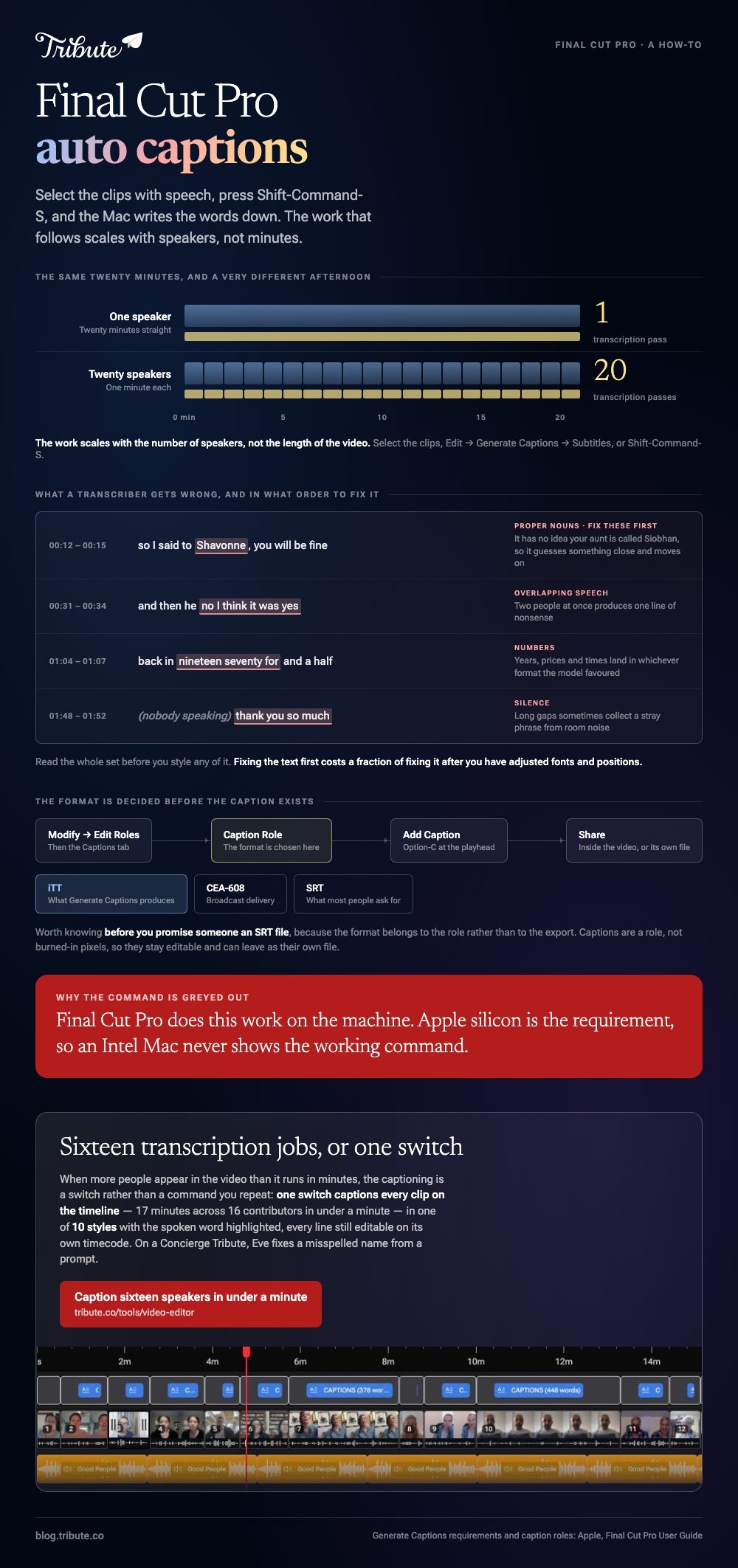
Final Cut Pro auto captions live under Edit, in a command Apple now calls Generate Captions. Select the clips that have speech, choose Generate Captions then Subtitles, and each clip comes back with a subtitle title attached to it. The transcription runs on the Mac.

| Route | Command | Needs |
|---|---|---|
| Menu | Edit then Generate Captions then Subtitles | A Mac with Apple silicon |
| Keyboard | Shift-Command-S | Clips selected in the timeline |
| Right-click | Control-click, Generate Captions, Subtitles | Nothing extra |
| By hand | Edit then Closed Captions then Add Caption | A caption role created first |
How do Final Cut Pro auto captions work now?
You select speech and the app writes it down.
- Select one or more clips in the timeline that contain speech.
- Choose Edit > Generate Captions > Subtitles, or press Shift-Command-S. Control-clicking the selection gets you there too, as does the Enhancements pop-up below the viewer.
- On a first run, Final Cut Pro downloads the language model. That happens once and it needs an internet connection.
- Each clip comes back with a subtitle title connected to it, starting and ending in time with the words.
Apple sets out that sequence in its guide to generating subtitles automatically, which also names the two conditions: a Mac with Apple silicon, and US English.
Best for: An interview or a talking head where the words matter more than the look of the type.
Why it works: The timings are derived from the audio, so nothing has to be nudged into place by hand.
The name changed, and that is why the menu looks wrong
This shipped as Transcribe to Captions in Final Cut Pro 11.
Apple's current help page calls the same command Generate Captions. If a tutorial sends you looking for the old name and the menu does not have it, you are on a newer version rather than a broken one.
If the command is missing altogether, the Mac is the reason. Final Cut Pro does this work on the machine, and Apple silicon is the requirement.
What do Final Cut Pro auto captions get wrong?
Names, places and anything said over a laugh.
A transcriber hears sound and picks the most probable words. It has no idea your aunt is called Siobhan or that the company is spelled with two capitals, so it guesses something close and moves on.
- Proper nouns. Fix these first. They are the ones a viewer notices.
- Overlapping speech. Two people at once produces one line of nonsense.
- Numbers. Years, prices and times land in whichever format the model favored.
- Silence. Long gaps sometimes collect a stray phrase from room noise.
Read the whole set before you style any of it. Compared to fixing captions after you have adjusted fonts and positions, fixing the text first costs a fraction of the time.

More on the detail work in subtitles for Final Cut Pro and auto captions in general.
How do you add a caption by hand, or in a second language?
Create the role first, then the caption.
- Choose Modify > Edit Roles, then click Captions.
- Click the Caption Role button and choose iTT, CEA-608 or SRT from the pop-up menu.
- Name the role and click Apply.
- Put the playhead where the caption belongs and choose Edit > Closed Captions > Add Caption, or press Option-C.
For another language, hover over the role in the Captions pane, click the Language button and pick one. A subrole appears beneath the role, as Apple describes in its guide to creating closed captions.
Generate Captions produces iTT. That is worth knowing before you promise someone an SRT file, because the format is chosen when the role is made rather than at the end.
Best for: A delivery spec that names a caption standard, or a video going out in two languages.
Why it works: Captions are a role rather than burned-in pixels, so they stay editable and can leave as their own file.
What if you are not on Apple silicon?
Then do the transcription somewhere else and bring the file back.
Clipchamp runs in a browser on any machine and hands back an SRT.
- Import the video from My media and drag it onto the timeline.
- Click the captions icon in the video preview, or open the captions tab in the property panel.
- Choose the transcription language, decide on the offensive-language filter, then click transcribe media.
- Double-click any misheard word in the transcript and retype it.
- Click download captions to save the .SRT.
Microsoft documents that path in its guide to using autocaptions in Clipchamp.
YouTube is the other fallback. Upload the video unlisted, let it caption the audio in one of more than sixty languages, download the track and import it.
What if the video is sixteen people rather than one speaker?
The Tribute video editor is a browser-based group video editor: contributors record clips on their phones and Tribute assembles them on a timeline with the music balanced under the voices.
It is ours, and it is the last thing on this page.
- One switch captions every clip: 17 minutes across 16 contributors in under a minute
- 10 caption styles, with the spoken word highlighted as it is said
- Every line editable, each with its own start and end timecode
- Re-generate captions and Remove captions sit in the Tools panel as bulk actions
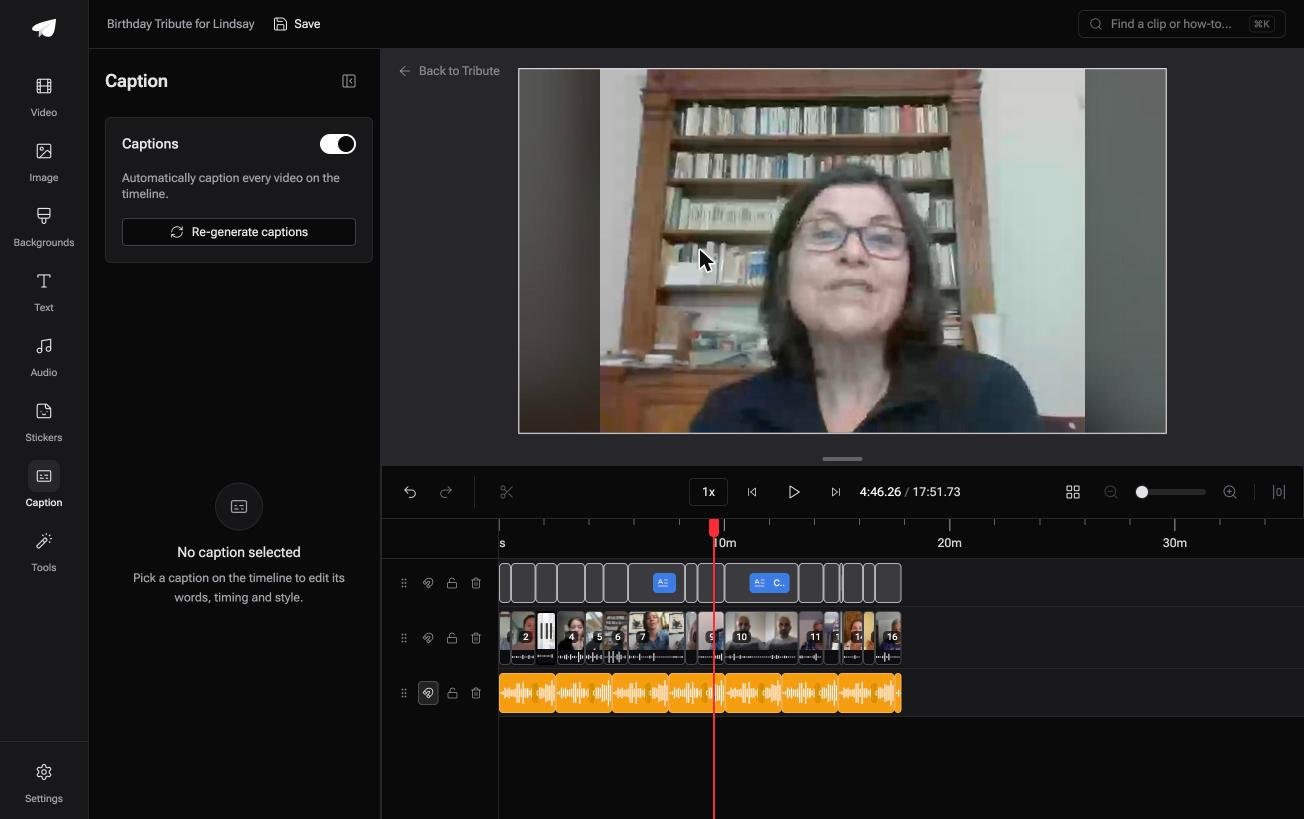
Best for: Sixteen one-minute clips from sixteen speakers, each of which would be its own transcription pass.
Why it works: Sixteen clips means sixteen transcription jobs in Final Cut Pro, and one switch here.
What if the captions were done before you opened the project?
Everything above is the work of turning speech into text and then correcting it.
That work scales with the number of speakers, not the length of the video. One person talking for twenty minutes is an easy job. Twenty people talking for one minute each is twenty jobs.
The case: many short clips, one person they are for
You are in it when the footage was recorded by the people in it.
A professor leaving a department after thirty years. A sixtieth wedding anniversary. Everyone sent sixty seconds from their own phone, in their own kitchen, with their own background noise.
Nobody is grading this or cutting to music. The captions are the only post-production this video needs.
Why the per-clip job collapses into one
The captioning is a switch rather than a command you repeat.
Turning it on covers the whole timeline at once, in a styled form, with each line still editable afterward. That is how the Tribute video editor treats it, and the names it mishears are fixed in the same panel.

What you do not have to do
- Caption clip by clip. One switch captions all of them, 17 minutes of footage in under a minute.
- Restyle each one. Ten caption styles, picked once and held across the video.
- Retype a misspelled name, on a Concierge Tribute. Eve, the AI assistant inside the editor, fixes the spelling and the timing from a prompt.
- Finish the edit. Concierge means Tribute's editors do it, and Concierge Deluxe returns it as a video book.
When this is the wrong answer: you are delivering to a broadcast spec, you need CEA-608 or a translated track, or the project is already cut in Final Cut Pro. Then stay where you are.
Unlike Final Cut Pro, the editor is not something you open on its own: it lives inside a paid Tribute.

The freeze frame trick is in freeze frames in Final Cut Pro, and assembly in making a video montage.
Frequently Asked Questions
Why is Generate Captions grayed out?
Nothing with speech is selected, or the Mac has an Intel processor. The transcription runs on the machine and Apple silicon is the requirement, so an Intel Mac never shows the working command.
Does the transcription upload my video?
The language model downloads once, and the transcribing happens on the Mac. After that first download the job needs no connection.
What format are the captions?
Generate Captions creates iTT. CEA-608 and SRT are available as well, and the format is chosen when you create the caption role rather than at export.
Can I caption a language other than English?
Not with Generate Captions, which Apple lists as US English. For other languages, transcribe elsewhere and import the file into a caption role you created for that language.
How do I change the look of the text?
Subtitles arrive as title clips built from the default Subtitle title, so they take the same font and position controls as any other title. Style one, then paste the attributes across the rest.
Will the captions survive export?
They are a role, so they travel with the project and can be shared inside the video or written out as their own file. Decide which the destination wants before you share.
Is there a faster way for a one-minute clip?
For something that short, Clipchamp in a browser tab is done before Final Cut Pro has opened the library. Reach for the app you already have open.
👉 Caption sixteen speakers in under a minute if more people appear in the video than it runs in minutes, and the only reading left is the names.
