
Freeze Frame Final Cut Pro: Option-F, Shift-H and Which One You Want
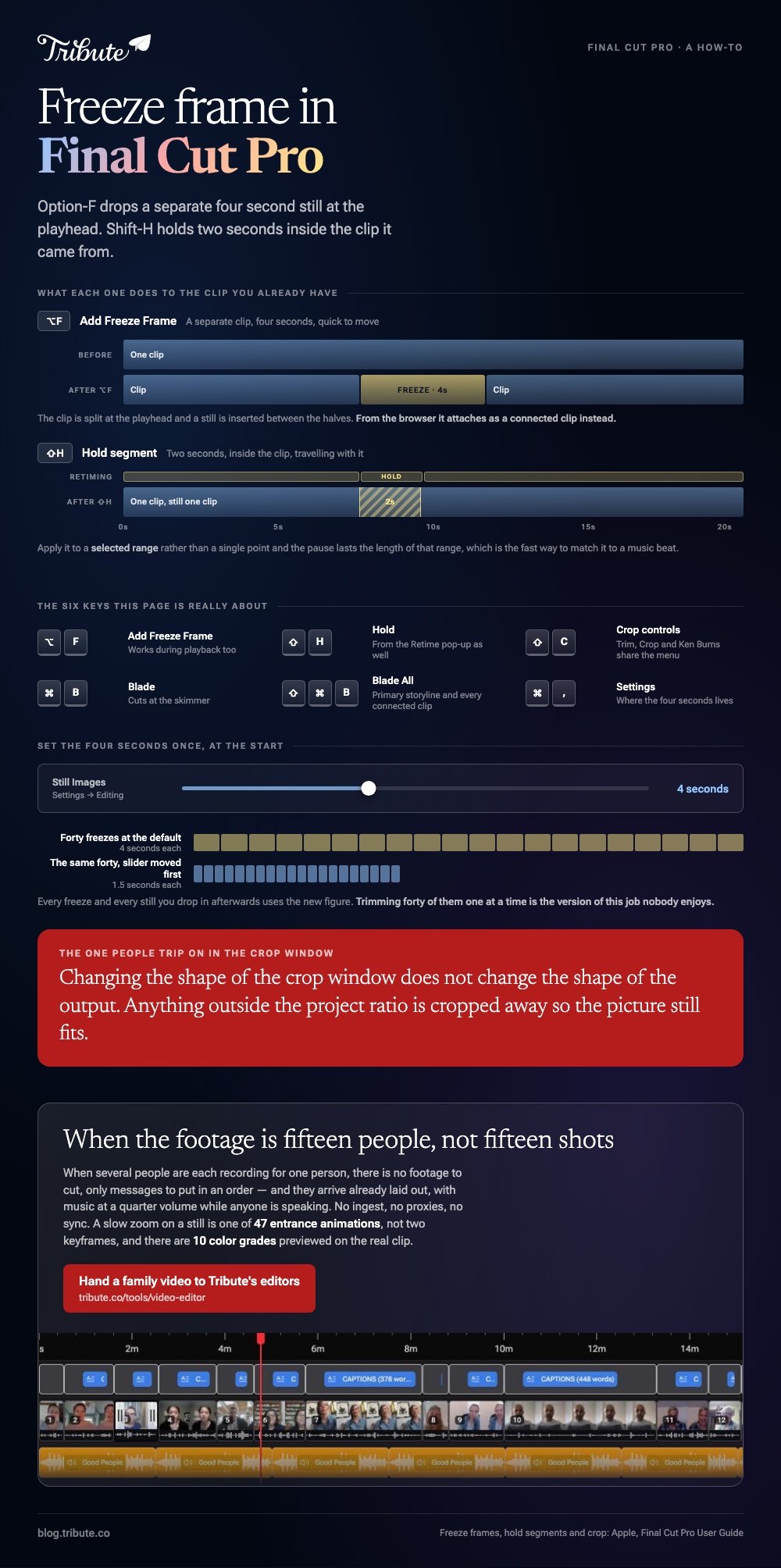
A freeze frame in Final Cut Pro is Option-F, and it drops a separate four second still at the playhead. A hold segment is Shift-H, runs two seconds and stays inside the clip it came from.

| Freeze frame | Hold segment | |
|---|---|---|
| Shortcut | Option-F | Shift-H |
| Default length | 4 seconds | 2 seconds |
| Where it lives | A clip of its own | Inside the original clip |
| Best for | A still you want to move around | A pause in a shot that keeps playing |
What is the freeze frame Final Cut Pro shortcut?
Option-F, with the playhead on the frame you want.
- In the timeline or the browser, move the skimmer or the playhead to the frame, or press Option-F during playback.
- Choose Edit > Add Freeze Frame, or press Option-F.
From the timeline, Apple inserts the freeze at the skimmer or playhead. From the browser, it attaches as a connected clip at the playhead instead.
Changing the four seconds
The freeze inherits the length Final Cut Pro gives a still image.
Choose Final Cut Pro > Settings, or press Command-Comma, click Editing, and move the Still Images slider. Every freeze and every still you drop in after that uses the new figure.
Set it once at the start of a project. Trimming forty freezes from four seconds to one and a half, one at a time, is the version of this job nobody enjoys.

Is a freeze frame Final Cut Pro clip the same as a hold segment?
No, and picking the wrong one is the usual reason a freeze will not behave.
A hold is a retiming effect applied to the clip you already have. The clip plays, stops on one frame for two seconds, then carries on.
- Select the clip and put the skimmer on the frame, or select a range inside it.
- Click the Retime pop-up menu below the viewer and choose Hold, or press Shift-H.
- Drag the retiming handle right to lengthen the pause and left to shorten it.
Apple draws the line this way: hold segments remain part of the original clip, while freeze frames are separate clips that are quick to make and easy to move.
So which do you reach for?
Hold, when the pause belongs to the shot.
A face landing on a punchline, a ball at the top of its arc, a hand about to open a card. The clip keeps its place in the edit and the pause travels with it.
Freeze frame, when the still has a job of its own: a title card, a portrait to hold under a name, a photograph to grade apart from the footage around it.
Applied to a selected range rather than a single point, a hold lasts the length of that range, which is the fast way to match a pause to a music beat you have already marked.
How do you crop video in Final Cut Pro?
Press Shift-C and work in the viewer.
The pop-up menu in the lower-left corner of the viewer holds Trim, Crop and Ken Burns. Control-clicking in the viewer offers the same three.
- Select the clip and move the playhead over it so the picture appears in the viewer.
- Press Shift-C, then click the Crop button at the bottom of the viewer.
- Drag a blue corner handle to crop that corner. Drag inside the window to reposition it.
- Fine-tune with the Left, Right, Top and Bottom values in the Crop section of the Video inspector.
- Click Done.
Apple notes one thing people trip on: changing the shape of the crop window does not change the shape of the output. Anything outside the project ratio is cropped away so the picture still fits.
Final Cut crop and Ken Burns share that menu, and the second one is the first one animated between a start rectangle and an end rectangle.
How do you cut a clip in Final Cut Pro?
Blade, from the Tools menu or from the keyboard.
To cut a clip in Final Cut Pro, put the skimmer where the cut goes and press Command-B. Shift-Command-B is Blade All, which cuts every primary storyline and connected clip at that position.
Pressing B switches the pointer to the Blade tool, and holding B switches for as long as you hold it. Compared to selecting the tool from the menu, the hold is the one that survives a long session.
With the picture settled, the text comes next: see automatic captions in Final Cut Pro and subtitles for Final Cut Pro.
What if the footage is fifteen people rather than fifteen shots?
The Tribute video editor is a browser-based group video editor: contributors record clips on their phones and Tribute assembles them on a timeline with the music balanced under the voices.
It is ours, it is not a Final Cut Pro replacement, and it is the last thing on this page.
- 47 entrance and 47 exit animations, including Slow zoom, Drift and Breathe for the Ken Burns look
- 9 3D layout effects for photos: Tilt, Book, Floating, Billboard, Skewed
- 10 color grades previewed on the real clip rather than on a thumbnail
- 83 occasion backgrounds grouped by Celebration, Retirement and Love
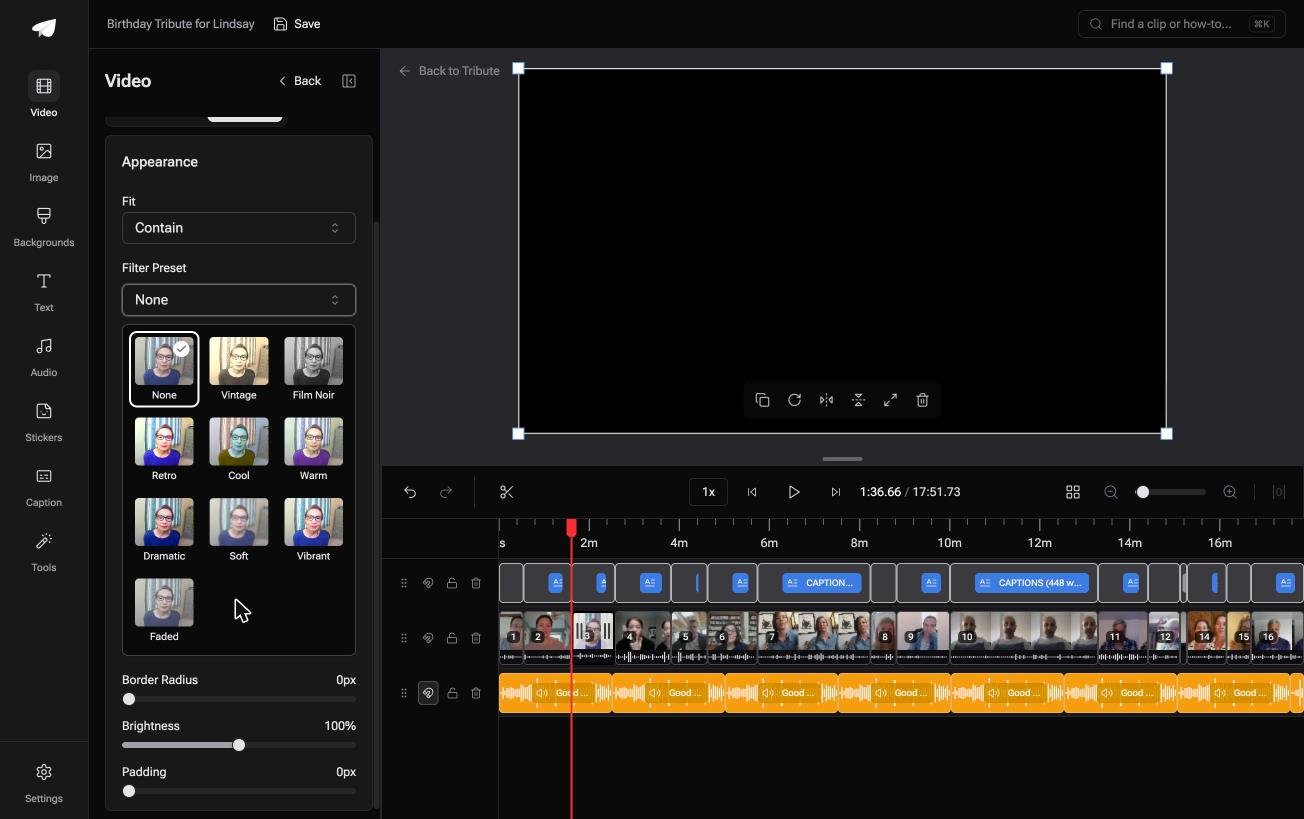
Best for: A family video you would rather not open a Final Cut Pro project for.
Why it works: Unlike a project you cut shot by shot, the clips are already in order when you open it, so the work is adjustment rather than assembly.
Is there a version of this with no timeline at all?
A hold segment takes two seconds to apply, and that is the smallest part of the job.
The hours go on ingest, ordering, levels and the fortieth pass over a sequence nobody else will ever watch twice. One kind of project skips most of that, and plenty of readers here are not in it.
The case: you opened a pro app for a family video
You are in it when several people each record something for one person, and you are the one with the editing software.
A seventieth birthday. A colleague leaving after eighteen years. A memorial where the people who should speak are in four time zones. There is no footage to cut, only messages to put in an order.

Why the timeline work shrinks
The clips arrive already laid out, in order, with music underneath at a quarter volume while anyone is speaking.
No ingest, no proxies, no sync. The Tribute video editor opens in a browser with the assembly done, and a slow zoom on a still is a preset rather than two keyframes.
What you do not have to do
- Import, sync or conform anything. Fourteen phones send fourteen clips and they arrive in order.
- Hold a frame to cover a gap. There are 47 entrance and 47 exit animations, and a Slow zoom that keeps a still moving.
- Cut or grade it, on a Concierge Tribute. Tribute's editors build the video, and Concierge Deluxe returns it as a video book.
What it turns into
On any screen, or as a video book: a hardcover case with a screen inside that plays when you open it.
The wider job is in building a video montage and the group version in making a video tribute.

When this is the wrong answer: you are cutting real footage, you need keyframes, compound clips or a grade you control. Stay in Final Cut Pro, where Option-F and Shift-H are waiting.
Frequently Asked Questions
What is the keyboard shortcut for a freeze frame?
Option-F, with the skimmer or playhead on the frame you want. It also works during playback, which is the quickest way to grab a moment you just watched go past.
How long is a freeze frame by default?
Four seconds, the same as any still image. Change it under Final Cut Pro, then Settings, then Editing, with the Still Images slider.
Why is my hold only two seconds?
That is the default when you apply one at the skimmer. Apply it to a selected range instead and it lasts as long as that range.
Can I export a freeze frame as a photo?
Share the current frame as a still from the Share menu. The freeze frame on the timeline is a video clip, not an image file.
Does a freeze frame keep the audio under it?
The freeze itself carries no sound. Keep the music or room tone on a separate connected clip so the pause does not fall silent.
What is the shortcut to crop?
Shift-C opens the Crop controls in the viewer, where the same pop-up also holds Trim and Ken Burns.
How do I cut every clip at once?
Shift-Command-B runs Blade All, which cuts the primary storyline and every connected clip at the skimmer position.
👉 Hand a family video to Tribute's editors if several people are each recording for one person, and Final Cut stays shut for this one.
