
Subtitles for Final Cut Pro: Generate, Edit and Export Them
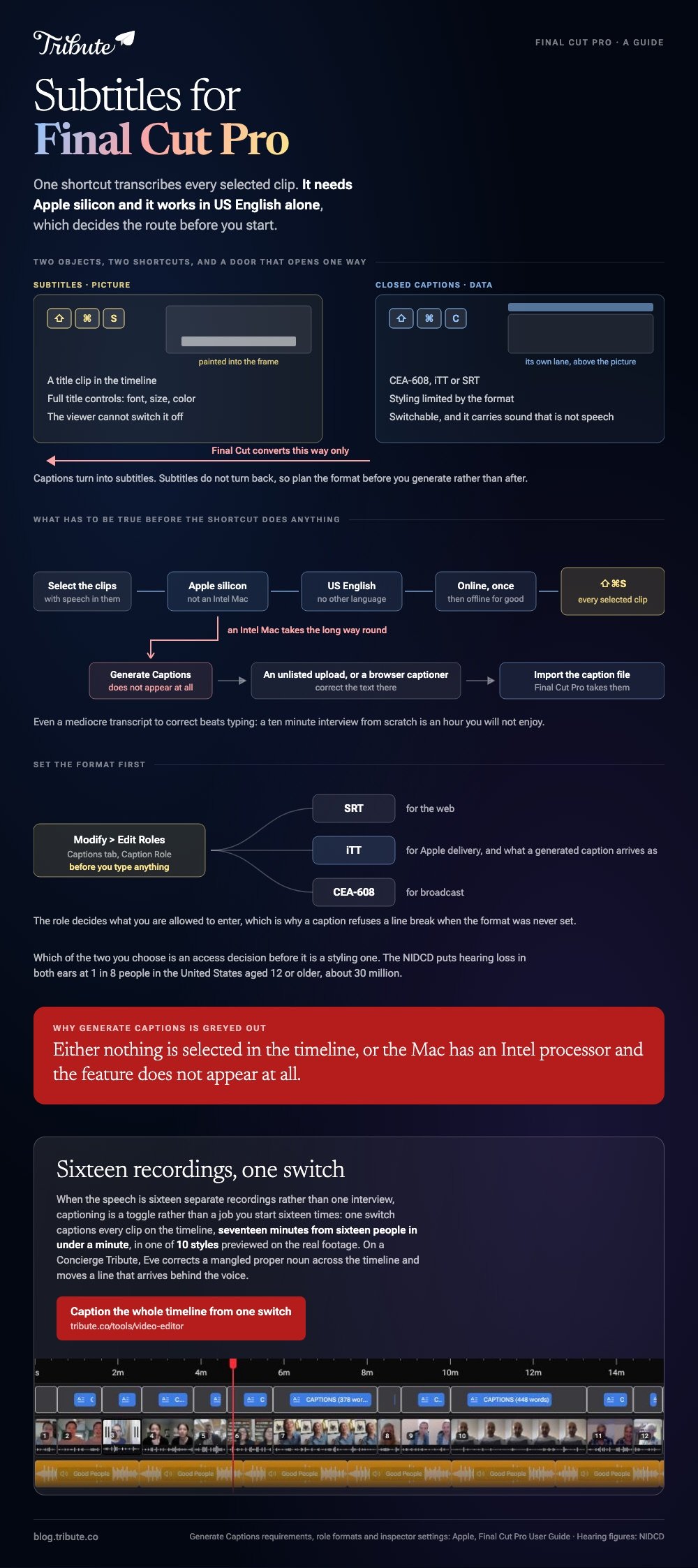
Final Cut Pro can transcribe your clips into subtitles with one shortcut, Shift-Command-S. It needs a Mac with Apple silicon and it works in US English alone, which decides the route for a lot of people before they start.

| Subtitles | Closed captions | |
|---|---|---|
| What they are | Title clips in the timeline | Clips in a captions lane |
| Shortcut to generate | Shift-Command-S | Shift-Command-C |
| Format | A title, baked into the picture | CEA-608, iTT or SRT |
| Viewer can switch off | No | Yes |
| Styling | Full title controls | Limited by the format |
What is the difference between subtitles and captions in Final Cut Pro?
One is picture, the other is data.
A subtitle in Final Cut Pro is a title clip. It uses the default Subtitle title from the Subtitles category of Titles and Generators, it carries the Subtitles role, and it becomes part of the frame when you export.
Closed captions are separate objects in their own lane, written in a caption format, and a viewer can turn them off. They also carry sound that is not speech, which is what a deaf or hard of hearing viewer needs.
The NIDCD puts that audience at 1 in 8 people in the United States aged 12 or older, 30 million, with hearing loss in both ears. Which way you go is an access decision before it is a styling one.
How do you generate subtitles for Final Cut Pro automatically?
Select the clips with speech in them, then pick one of three routes to the same command.
- Control-click the selection and choose Generate Captions > Subtitles.
- Or choose Edit > Generate Captions > Subtitles.
- Or use the Enhancements pop-up menu below the viewer.
- Or press Shift-Command-S, which is the one worth learning.
Final Cut Pro transcribes each selected clip and connects the resulting title clips to the clip they came from. Where you have a J-cut or an L-cut, it connects the caption to the adjacent clip that overlaps the audio it transcribed.
Three requirements Apple spells out
- A Mac with Apple silicon. Generate Captions does not run on an Intel Mac
- US English. No other language is supported
- An internet connection the first time, so the language model downloads. After that it is offline
Apple's page on generating subtitles is short and worth reading once, because the same menu also produces closed captions and the two are not interchangeable afterwards.
How do you edit and style the lines?
In the inspector, with the subtitle clips selected.
Select one or more subtitles in the timeline, or press Command-A to take all of them. Open the inspector with Command-4, then click the Title button at the top.
Three settings there are specific to subtitles and do most of the work.
- Animation Style: None, Fade, Scale, Highlight or Fill
- Animate By: Character, Word, Line or All
- Vertical Social Media Safe: keeps the line inside the area social platforms show on 9:16
Everything else is a normal title. Font, size, color and preset text styles all behave the way they do on any other title clip, which is the advantage of subtitles being pictures.

How do you add closed captions by hand?
Set the format first, because the role decides what you can type.
Apple documents the setup through the role editor, and it is the step people skip before wondering why a caption will not accept a line break.
- Choose Modify > Edit Roles, or click Edit Roles in the Roles pane of the timeline index.
- Click the Captions tab.
- Click the Caption Role button and choose a format: CEA-608, iTT or SRT.
- Name the role, then add a language subrole for each language version.
- Click Apply.
Then park the playhead where the caption starts and choose Edit > Closed Captions > Add Caption, or press Option-C. Apple's closed captions page covers the rest.
Generated captions land in a dedicated closed captions lane at the top of the timeline, in iTT format. Unlike a subtitle title, they stay separate from the picture all the way to export.
What if you are on an Intel Mac?
Then Final Cut Pro will not transcribe anything and you need a transcript from somewhere else.
Final Cut Pro imports caption files, so the route is to generate the text elsewhere and bring it in. Upload the video to YouTube as unlisted and correct its automatic captions, or run it through a browser captioning tool, then import the file.
Compared to typing captions by hand, even a mediocre transcript to correct saves most of the time. Typing a ten minute interview from scratch is an hour you will not enjoy.
Related: Final Cut Pro auto captions in more depth, the wider picture in subtitles for videos, and a different Final Cut job in freeze frames.
What if the speech came from sixteen different people?
The Tribute video editor is a browser-based group video editor: contributors record clips on their phones and Tribute assembles them on a timeline with the music balanced under the voices.
It is ours, and it is the last thing on this page.
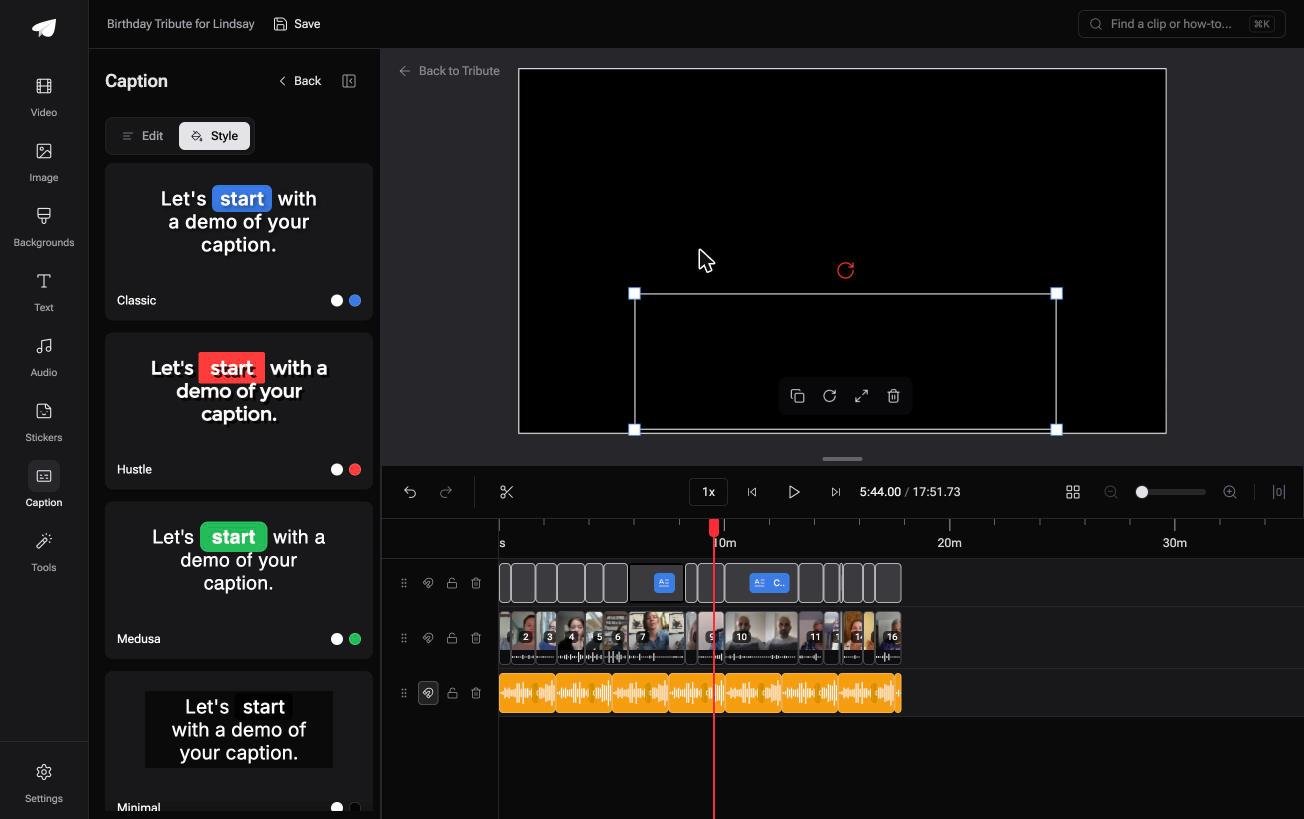
- One switch captions every clip on the timeline: seventeen minutes from sixteen people in under a minute
- 10 caption styles, with the spoken word highlighted as it lands
- Every line is editable, with its own start and end timecode
- Re-generate captions and Remove captions run across the whole video from the Tools panel
Best for: A video where the speech is sixteen separate recordings rather than one interview.
Why it works: There is no per-clip transcription job to queue, so the count of speakers stops mattering.
What if the transcription already happened?
The chain above assumes the speech and the edit both live on your machine.
Apple silicon, a language model, a role format, an inspector. That is a professional chain, and it is the right one when you are cutting a professional video alone.
The case: sixteen voices, one occasion
You are in it when several people each record something for one person.
A retirement with twelve colleagues. A ninetieth birthday with grandchildren in four cities. Every clip is a different voice in a different room on a different phone.
Which means the subtitles for Final Cut Pro workflow that brought you here would be run once per person, and the Intel question would stop the whole thing.
Why the per-clip pass never happens
Captioning is a toggle rather than a job you start sixteen times.
In the Tribute video editor one switch captions every clip at once, the lines stay editable with their own timecodes, and the style is picked from ten previewed on the real footage.

What you do not have to do
Three passes, and none of them is yours.
- Not the transcription. One switch captions all sixteen clips at once.
- Not the names. On a Concierge Tribute, Eve, the AI assistant inside the editor, corrects a mangled proper noun across the timeline.
- Not the timing. Point Eve at the line that arrives behind the voice and it moves.
When this is the wrong answer: you need a broadcast caption file, a second language, or captions on footage you shot and cut yourself. Then Final Cut Pro and its role formats are the right answer and the steps above are your route.

More on assembling that kind of video in a video montage maker.
Frequently Asked Questions
Does Final Cut Pro generate subtitles in other languages?
No. Apple states US English alone for Generate Captions. For another language you import a caption file made elsewhere.
Can I convert subtitles into closed captions?
Final Cut Pro converts in the other direction, from closed captions into subtitles. Plan the format before you generate, since that saves the round trip.
Which caption format should I choose?
SRT for the web, iTT for Apple delivery, CEA-608 for broadcast. Generated closed captions arrive as iTT and can be converted afterwards.
Why is Generate Captions greyed out?
Either nothing is selected in the timeline, or the Mac has an Intel processor. The feature needs Apple silicon and does not appear otherwise.
How accurate is the transcription?
Close enough that correcting beats typing, and never close enough to publish unread. Names and crosstalk are where it goes wrong.
Do subtitles show in the exported file?
Subtitles do, because they are titles in the picture. Closed captions travel as a separate track or a separate file, depending on how you export.
Can I caption a 9:16 export?
Yes, and switch on Vertical Social Media Safe in the inspector so the lines stay inside the area social platforms show.
👉 Caption the whole timeline from one switch if sixteen short recordings are waiting to be transcribed one at a time, and spend the hour reading instead.
