
Subtitles for Videos: How to Add Them and Fix What They Get Wrong
The fastest way to make subtitles for videos is to let a tool transcribe the audio, then correct what it misheard. YouTube does it for anything you upload, and CapCut and Adobe Express do it inside an edit. All of them get names wrong, so budget five minutes for the read-through.

What is the difference between subtitles and captions?
Captions carry everything a viewer needs who cannot hear the audio, including sound cues such as [applause]. Subtitles carry the dialogue alone. Most consumer tools use the two words for one feature, so read what the tool does rather than what it calls itself.
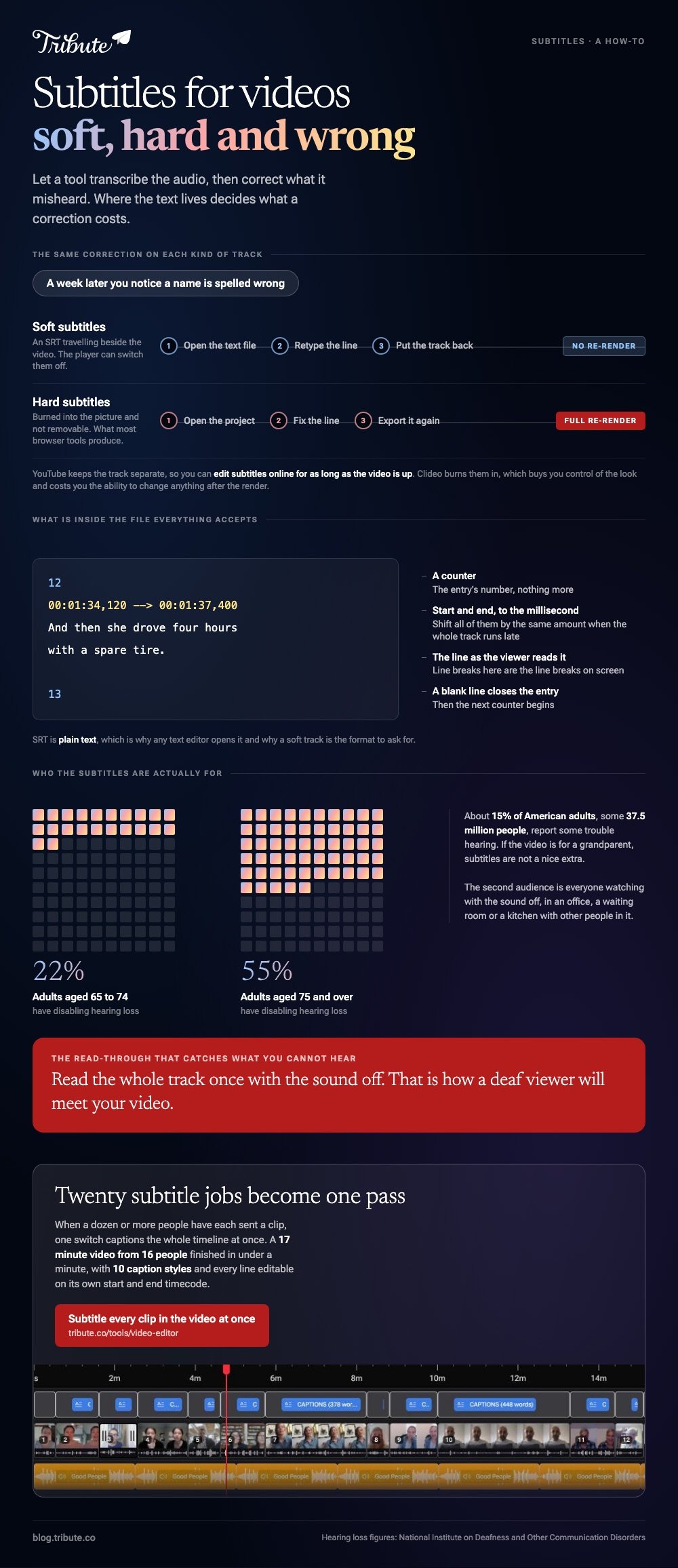
The split that changes your work is soft against hard. Soft subtitles travel beside the video as a separate file, almost always an SRT, and a player can switch them on or off.
Hard subtitles are burned into the picture and cannot be removed, which is what most browser tools produce.
That choice decides how you fix a mistake later. A soft track is a text file you edit and re-upload. A hard one means going back to the project and exporting the whole video again.
How do you generate subtitles for videos automatically?
If the video is going on YouTube, YouTube will do the transcription for you at no cost and with no upload beyond the video itself.
- Upload the video, then wait. Google says processing time depends on the complexity of the audio, so captions may not be there the moment the upload finishes.
- In YouTube Studio, select Subtitles in the left menu and click the video.
- Select Edit beside the language, then Duplicate and edit to make the automatic track editable.
- Click any line to retype it, and change the two timestamp boxes beside a line to move it in time.
- Select Publish. To keep a copy, use Options, then Download subtitles, which hands you the SRT.
Google is open about the limits in its page on automatic captions: the quality varies, and captions "might misrepresent the spoken content due to mispronunciations, accents, dialects, or background noise".
Its own advice is to review them and edit the parts that came out wrong.
Best for: A video that is going to live on YouTube anyway.
Why it works: The caption track stays separate from the video, so you can edit subtitles online for as long as the video is up.
How do you add subtitles to a video free online?
Clideo's Add Subtitles tool covers the three routes most people need: type them, import an SRT, or let the tool transcribe. It burns the result into the picture, which the help center states up front.
- Open the Add Subtitles tool and click Choose file, or drag the video onto the page.
- Click Auto subtitles and pick a language, or Add manually to type, or Upload .SRT to import a file you already have. Then click Generate.
- Edit in the right pane. Click a subtitle field to retype it, click the timestamp box to set the start and end, or drag the subtitle along the timeline.
- If the whole track is out of sync, click Start at at the top left of the timeline and set a new start point.
- Open the Styles tab for position, alignment, font, size, color and a background behind the text.
- Export, then download the video. You can also download the text as an SRT or TXT file from the Subtitles tab.
Two limits to know. Automatic generation needs a registered account and works on speech-only files, and the export carries a watermark until you pay. Compared to YouTube, you get control of the look and lose the ability to change anything after the render.
Best for: A video going to a group chat or a website, where the text has to be visible without a player setting.
Why it works: The timeline, the text field and the timecode boxes are on one screen, so a sync problem is a drag rather than a calculation.

Is there a subtitle maker online inside a video editor?
Yes, and if you are editing the video anyway it saves you a round trip. Two are worth knowing.
CapCut Auto Captions
CapCut calls the feature Auto Captions, also labeled Recognize Subtitles, and it runs on the web version, the desktop app and the phone app.
On the web you click Captions in the left panel, choose Auto Captions, then Recognize, pick a language and click Generate. On desktop the Captions button sits in the left toolbar and you select the audio source as well as the language.
On the phone you tap Captions in the bottom menu, then tap any subtitle box to change the text, timing or look.
Best for: A clip you are already cutting in CapCut for a social feed.
Why it works: The caption lines sit on the same timeline as the cuts, so trimming a clip takes its captions with it.
Adobe Express Caption video
Adobe keeps this as a quick action. From the Adobe Express homepage you open Quick actions, choose Video, then Caption video, pick the spoken language from the dropdown and upload the file.
The generated text appears in an Edit caption text field for corrections, and Choose a style plus Customize color set the look before you select Download. Adobe caps this action at 1 GB and five minutes of video.
Best for: A short clip where you want styled captions and no project to manage.
Why it works: The correction field sits next to the preview, so you fix a name and see it land.
How accurate are automatic subtitles?
Good on a clear voice in a quiet room, poor on everything else. The failures cluster: proper nouns, overlapping speech, strong accents and the first word after a pause.
Clideo gives the same advice from the other side, asking for good audio quality, minimal background noise, no overlapping speech and the right language setting before it will transcribe.
Read the whole track once with the sound off. That is how a deaf viewer will meet your video, and it is also when a wrong name stops hiding behind a voice you recognize.
About 15% of American adults, some 37.5 million people, report some trouble hearing, according to the National Institute on Deafness and Other Communication Disorders.
Age shifts those odds hard. Among adults aged 65 to 74, 22% have disabling hearing loss, and above 75 it is 55%, per the same source. If the video is for a grandparent, the subtitles are not a nice extra.

What if the video is twenty clips from twenty people?
Then the transcription job is twenty jobs. Twenty rooms, twenty microphones and twenty first names that no model has met, and the per-clip route turns into an evening.
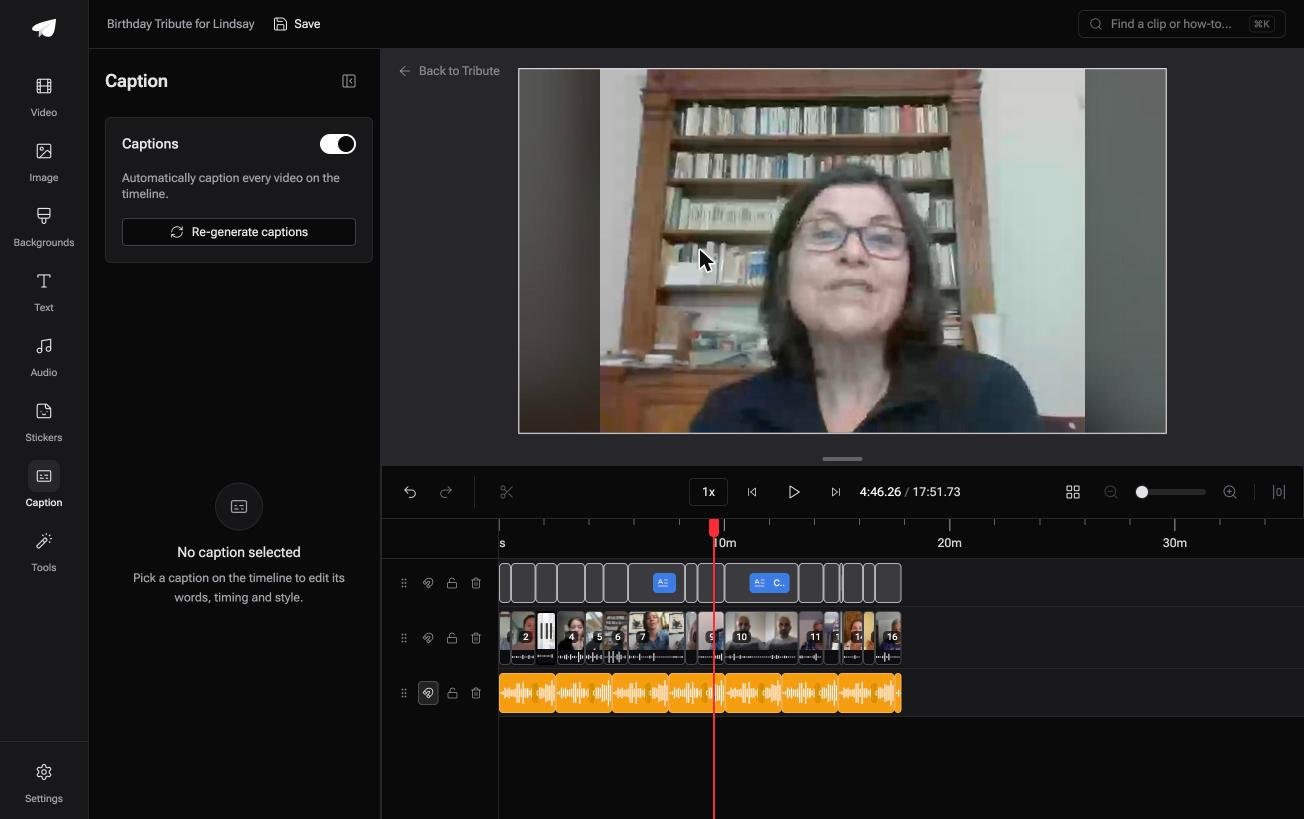
The Tribute video editor is a browser-based group video editor: contributors record clips on their phones and Tribute assembles them on a timeline with the music balanced under the voices.
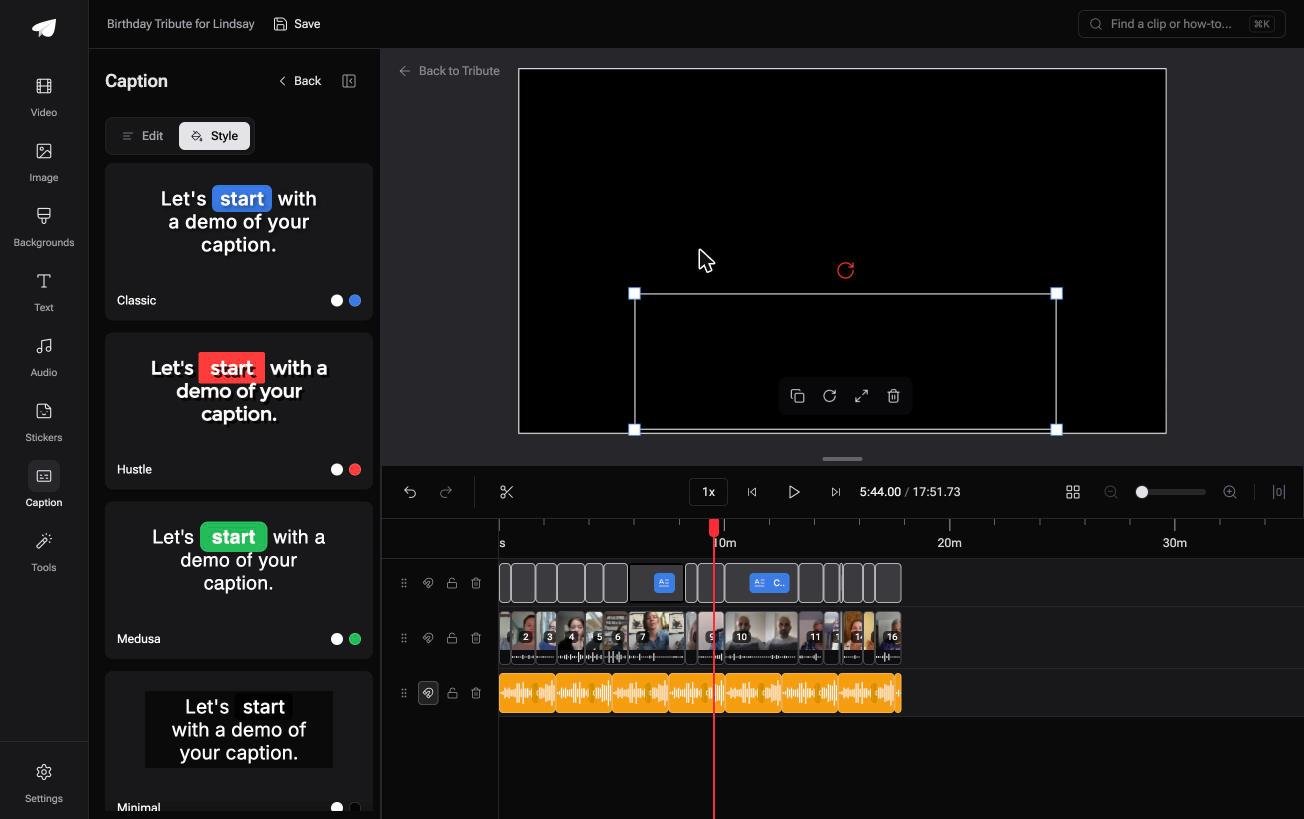
One switch captions every clip at once, a 17 minute video from 16 people in under a minute, with 10 caption styles that highlight the spoken word and every line editable with its own start and end timecode.
It lives inside a paid Tribute, so it is not a standalone subtitle tool.
Best for: Subtitles across a dozen phones and a dozen microphones, not on one clip you shot.
Why it works: Unlike a per-file tool, the transcription runs across the whole timeline, so your work is reading rather than uploading.
Fixing what it got wrong has its own guide: editing subtitles when the transcription gets a name wrong. For the surrounding work, see trimming a video, iPhone video editors and making a video montage.
Frequently Asked Questions
Can I get subtitles without typing them?
Yes. Every tool on this page will transcribe the audio for you, and the manual work shifts from typing to correcting. Expect to change a handful of words in a short clip and more in a noisy one.
What file format should subtitles be in?
SRT is the one everything accepts. It is plain text with a counter, a start and end time, the line itself and a blank line between entries, which means any text editor can open it.
Can I add subtitles to a video on my phone?
Yes, through a phone editor with an automatic captions feature. The transcription runs on the device or in the cloud depending on the app, and the result is burned into the export.
Do subtitles help a video get found?
On platforms that index them, the text gives a search engine something to read, which a video on its own does not. The stronger reason is that more people can watch it.
Why are my subtitles a little behind the speech?
A constant offset means the track was built against a different cut. Shift the whole track by the difference rather than moving each line, which most subtitle editors offer as one control.
Should subtitles sit at the top or the bottom of the frame?
Bottom, unless something important is down there. Phone players and social feeds overlay controls across the lower edge, so lift the text a little rather than pinning it to the bottom of the picture.
👉 Subtitle every clip in the video at once if the subtitle job is twenty uploads in a row, and twenty jobs become one pass.
