
iMovie Compress Video: The Export Settings That Decide the File Size
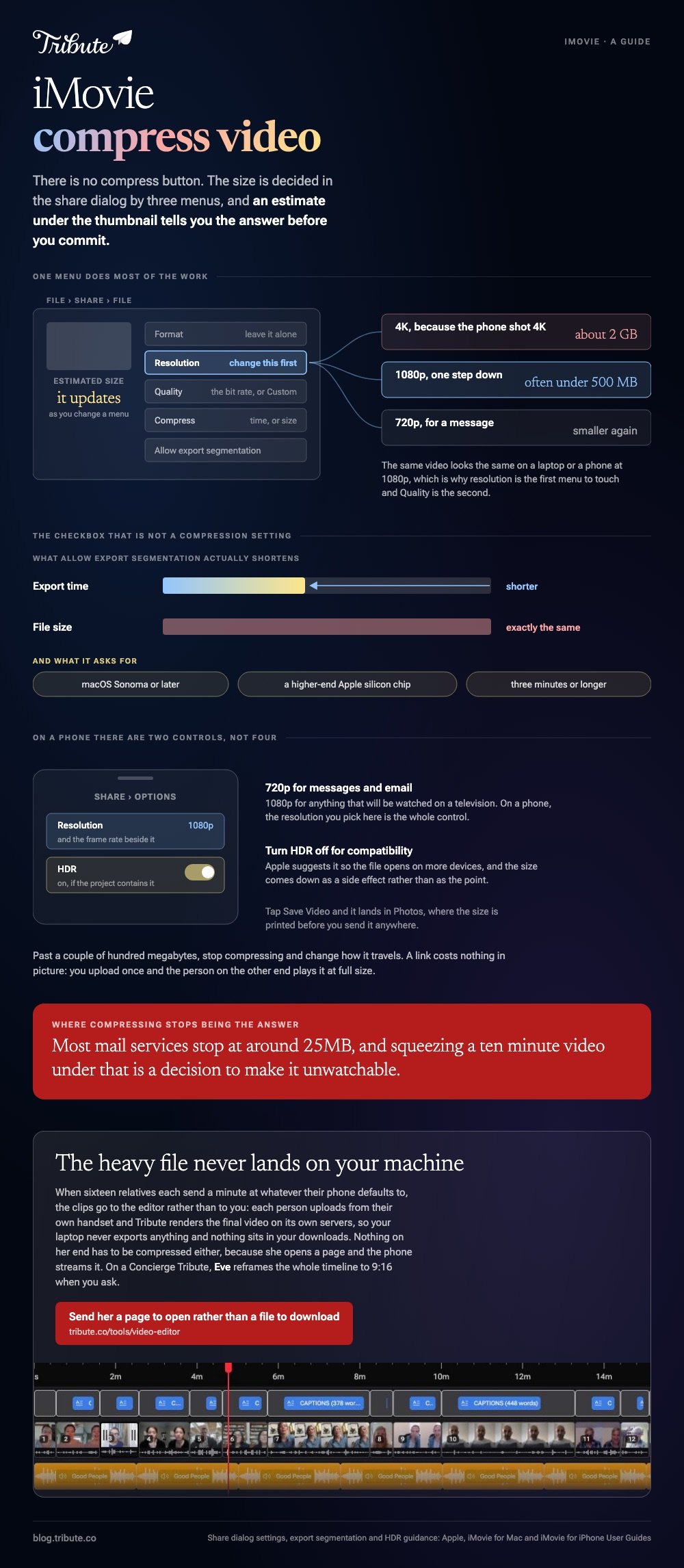
iMovie has no compress button. The size of the file is decided in the share dialog, by three menus: Resolution, Quality and Compress. Drop the resolution one step and a project that came out at 2GB often lands under 500MB.

Where is the iMovie compress video setting on a Mac?
Inside the export dialog, not in the editor.
Apple's guide to exporting a file from iMovie puts the controls behind File > Share > File. The dialog holds pop-up menus for Format, Resolution, Quality and Compress, with an estimated file size under the thumbnail.
That estimate is the part people miss. It updates as you change a setting, so you can see the size before you commit twenty minutes to the export.
| Menu | What it changes | What it costs you |
|---|---|---|
| Resolution | The pixel dimensions of the picture | Detail on a big screen |
| Quality | The bit rate, or a custom one you set | Clean edges in fast motion |
| Compress | How hard the encoder works | Time, or size |
Which settings should you change first?
Resolution, then Quality, and leave Format alone.
Most projects that feel enormous were exported at 4K because the phone that shot them records at 4K. A 1080p version of the same video is a fraction of the size and looks the same on a laptop or a phone.
- Select the project in the browser and choose File > Share > File.
- Set Resolution one step below what you shot. 1080p is the usual answer.
- Open Quality. For a target size, choose Custom and drag the bit rate slider.
- Watch the estimated file size under the preview as you drag.
- Use the Compress menu when you would rather wait longer for a smaller file.
- Click Next, name the file, choose a location and click Save.
Apple also offers an Allow export segmentation checkbox for projects of about three minutes or longer. It wants macOS Sonoma or later and one of the higher-end Apple silicon chips, and it shortens the export rather than the file.

How do you run an iMovie compress video pass on an iPhone?
The resolution you choose when you share is the whole control.
To compress a video in iMovie on an iPhone, open the project, tap Share, then Share Video, then Options. Apple's iPhone sharing guide describes picking a resolution and a frame rate there before you save.
Two details decide the size on a phone.
- Resolution. 720p for messages and email, 1080p for anything that will be watched on a television.
- HDR. On by default when the project contains HDR video. Apple suggests turning it off for compatibility with more devices, and the file gets smaller as a side effect.
Tap Save Video and the finished file lands in Photos, where you can check the size before you send it anywhere.
What if the file is still too big to send?
Then stop compressing and change how it travels.
Most mail services stop at around 25MB, which no watchable video of a birthday party will ever fit under. Squeezing a ten minute video into that is a choice to make it unwatchable.
Unlike a second export pass, a link costs you nothing in picture. Upload once, send the address, and the person on the other end plays it at full size.
- A cloud link for anything over a couple of hundred megabytes.
- A dedicated tool when the file has to stay a file: see compressing with HandBrake.
- A browser when you would rather install nothing: compress a video file online for free.
Compared with iMovie's own export, HandBrake gives you a target size and a constant quality setting. It is the better tool once the compression itself is the job rather than a step on the way out.
More on the surrounding work in building a montage and in putting together a video tribute.
What if sixteen people each sent you a clip?
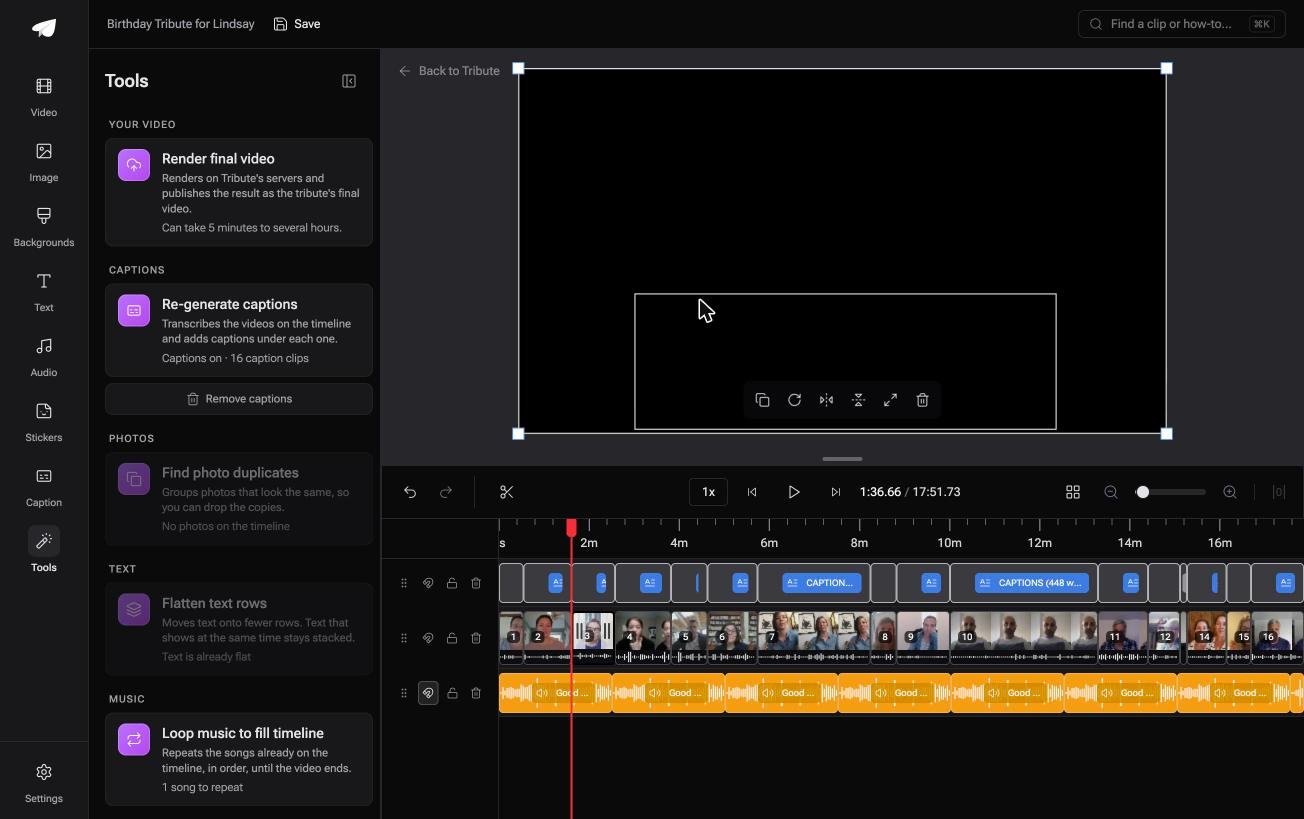
The Tribute video editor is a browser-based group video editor: contributors record clips on their phones and Tribute assembles them on a timeline with the music balanced under the voices.
It is ours, and it is the last thing on this page.
- Clips arrive in order on a timeline, with a tick against the ones already placed
- Tribute renders the final video on its own servers, so nothing encodes on your laptop
- A Tools panel handles the bulk jobs: render, re-generate captions, find photo duplicates, loop music to fill the timeline
- Autosave and restorable version history, with removed clips recoverable rather than deleted
Best for: The person collecting a folder of 4K clips from relatives who have never heard the word bit rate.
Why it works: The heavy file never lands on your machine, so there is nothing to shrink before you can share it.
What if nobody has to send a file at all?
Compression is a shipping problem wearing a video costume.
You are not trying to make the video smaller. You are trying to get it to your mother, who is on a phone, on a slow connection, and who will not download a 2GB file to watch her grandson.
The case: the video is a present from a group
This is the case where several people each record something for one person.
Sixteen relatives send a minute each. Nobody shot coverage, nobody owns a camera, and the organizer is the one who ends up with a folder of enormous clips from sixteen different phones.
Every one of those clips was recorded at whatever quality that phone defaults to, which is how a nine minute video turns into a file nobody can send.

Why the file size question never comes up
Because the clips go to the editor rather than to you.
Each person uploads from their own phone, and the Tribute video editor assembles them in the browser. Rendering happens on Tribute's servers, so your laptop never exports anything and there is no 2GB file sitting in your downloads.
Nothing on her end has to be compressed either. She opens a page, and the phone streams the video the way it streams anything else she watches.
What you are not doing
- Not the collecting. Sixteen people upload from their own phones rather than sending you files.
- Not the export. Rendering happens on Tribute's servers, so nothing lands in your downloads.
- Not the edit. On a Concierge Tribute, Tribute's editors reorder, trim, caption and name every speaker.
- Not the version for her phone. Eve, the assistant on Concierge and Concierge + Video Book, reframes the whole timeline to 9:16 when you ask.

When this is the wrong answer: you shot one long video yourself and you need the file itself to be smaller, for an upload limit or a submission form. Then iMovie's export dialog, or HandBrake, is the right place to be.
Frequently Asked Questions
Does iMovie have a compress option?
Yes, as a pop-up menu in the share dialog rather than a tool in the editor. Resolution and Quality do more for the file size than the Compress menu does.
How do I make an iMovie export smaller without ruining it?
Drop the resolution one step and leave the quality alone. A 1080p export of a 4K project is a fraction of the size and holds up on every screen most people own.
What does the Quality setting change?
The bit rate, which is how much data each second of video is allowed. Choosing Custom gives you the slider and shows the estimated file size as you drag it.
Why is my iMovie file so large?
Because the project is exporting at the resolution and frame rate it was shot at, and modern phones shoot 4K at 60 frames per second. Both settings are changeable at export.
Can I compress a video after exporting it?
Yes. HandBrake or a browser tool will take the finished file and re-encode it to a size you choose, which is the better route when the export has already happened.
Does compressing a video lose quality?
Some, always. The question is whether anyone watching on a phone would notice, and below a certain size the answer turns into yes.
What size should a video be for email?
Under about 25MB, which is a minute or two at a modest resolution. Anything longer belongs on a link.
👉 Send her a page to open rather than a file to download if sixteen people are each recording a minute for one person, and the export queue disappears.
