
Kapwing Crop: The Three Steps, the Presets and the Watermark
To use Kapwing crop, upload the video, select the video layer, then choose Crop in the Edit sidebar and drag the dotted outline or apply a preset. On the free plan the export carries a watermark and caps at 720p.

How does Kapwing crop a video, step by step?
Three moves in the browser, and no download before you start.
- Open the Kapwing crop tool and add your video. The page also takes a pasted link from sites such as Vimeo or TikTok.
- Click the video on the canvas so the layer is selected. Nothing in the sidebar responds until it is.
- Choose Crop in the Edit sidebar. A dotted outline appears over the frame.
- Drag a corner to set the keep area by eye, or apply a preset for a platform shape.
- Click Export and wait. Rendering takes a few minutes on a long clip.
Drag the picture inside the outline rather than the outline itself when the subject sits off to one side. The box stays the shape you chose and the framing moves under it.
Crop, resize or fill: which one do you want?
They sound alike and they throw away different things.
| Tool | What it does to the picture | Use it when |
|---|---|---|
| Crop | Cuts the edges off | The subject is in the middle and the sides are dead space |
| Resize | Keeps the whole frame and pads around it | Nothing in the shot can be lost |
| Fill | Scales up until the frame is covered | A soft zoom is better than a bar |
Kapwing's own resizer exists because of this: it changes the shape of the output without clipping anything out. Reach for it on footage where a head sits near the top of the frame.
What does Kapwing crop cost, and where does the free plan stop?
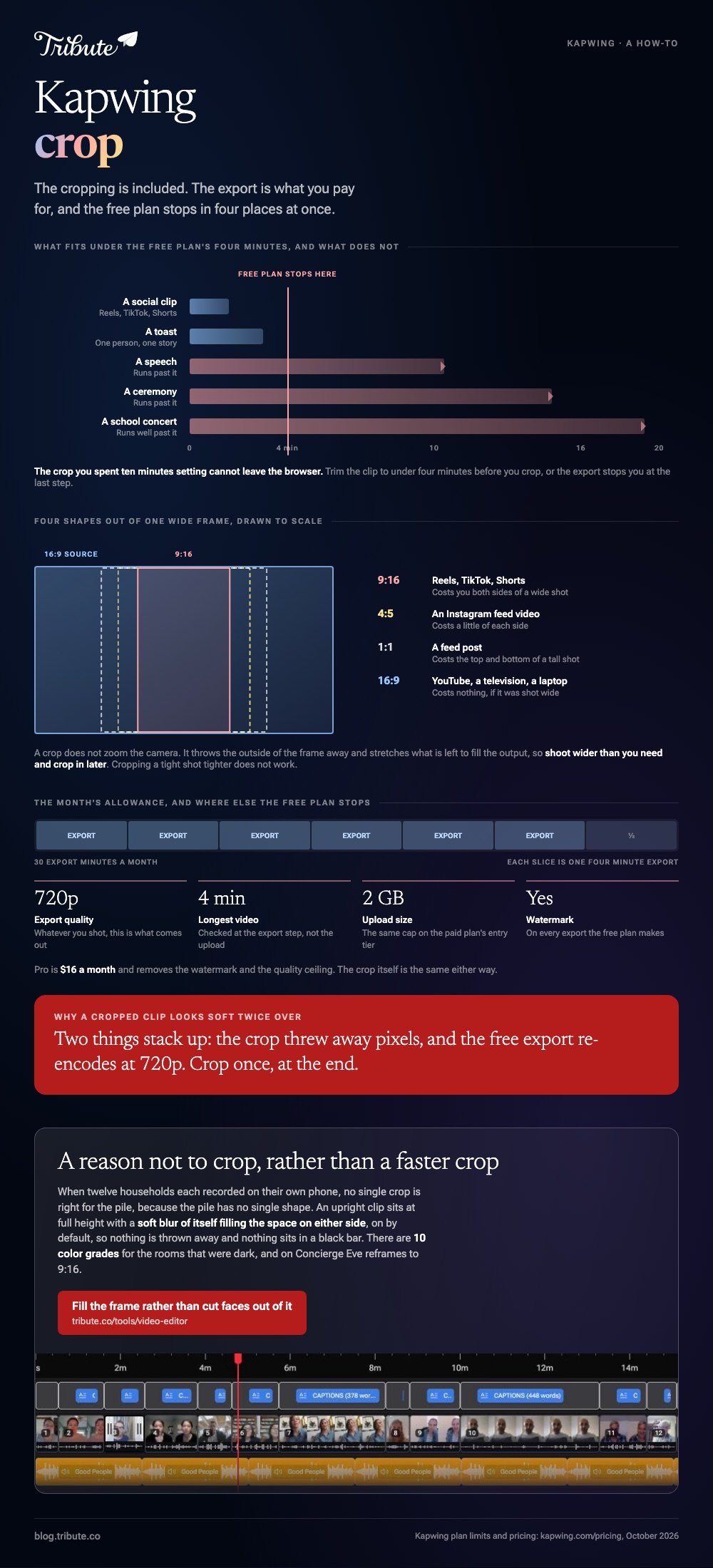
The cropping is included. The export is what you pay for.
Prices and limits read off Kapwing's pricing page in October 2026.
| Limit | Free plan | Pro, $16 a month |
|---|---|---|
| Watermark on exports | Yes | No |
| Export quality | 720p | Higher |
| Longest video | 4 minutes | Longer |
| Upload size | 2 GB | 2 GB and up |
| Export minutes a month | 30 | More |
The four minute ceiling is the one that catches people. A speech, a ceremony or a school concert runs past it, and the crop you spent ten minutes setting cannot leave the browser.

Which shape should you crop a video to?
Whichever shape the destination wants, chosen before you cut anything.
| Shape | Where it goes | What it costs you |
|---|---|---|
| 9:16 | Reels, TikTok, Shorts | Both sides of a wide shot |
| 1:1 | A feed post | The top and bottom of a tall shot |
| 4:5 | An Instagram feed video | A little of each side |
| 16:9 | YouTube, a television, a laptop | Nothing, if it was shot wide |
Crop once, at the end. Every pass through a browser encoder costs a little picture, and a clip cropped for a Reel and then cropped again for YouTube has been through two.
What gets lost when you crop a video?
Pixels, and more of them than the preview suggests.
A crop does not zoom the camera. It throws away the part of the frame outside the box and stretches what is left to fill the output.
Take a 1080p clip, crop it to a vertical sliver, and you are asking about 600 pixels of width to cover a full-height frame. It holds up on a phone and falls apart on a television.
Shoot wider than you need and crop in later is the version of this advice that works. Cropping a tight shot tighter does not.
Where should you crop a video instead?
Whichever tool you are already in, because they all do this now.
- Google Photos on a phone: open the video, tap Crop, and you get aspect ratio, rotate and mirror in one panel.
- Clipchamp on Windows: set the project ratio first, then fill or crop each clip to match.
- CapCut on either phone: the canvas ratio is a project setting rather than a per-clip edit.
Compared to all three, Kapwing's advantage is that it opens in a tab on a borrowed computer. Its disadvantage is the watermark, and the watermark is on every export the free plan makes.
Browser versions of this job are in cropping a video online and cropping video on line. For the version with keyframes and a mask, see cropping in Premiere Pro.

What if the clips arrived from twelve different households?
The Tribute video editor is a browser-based group video editor: contributors record clips on their phones and Tribute assembles them on a timeline with the music balanced under the voices.
It is ours, and it is the last thing on this page.
- Blurred edges fill the frame behind upright phone footage, on by default, so nothing is cut and no black bars appear
- 10 color grades previewed on the real clip, which matters when twelve rooms had twelve different lamps
- 83 occasion backgrounds grouped by occasion, for the gutters and the title cards
- Per-clip appearance controls covering fit, filter, border radius and brightness
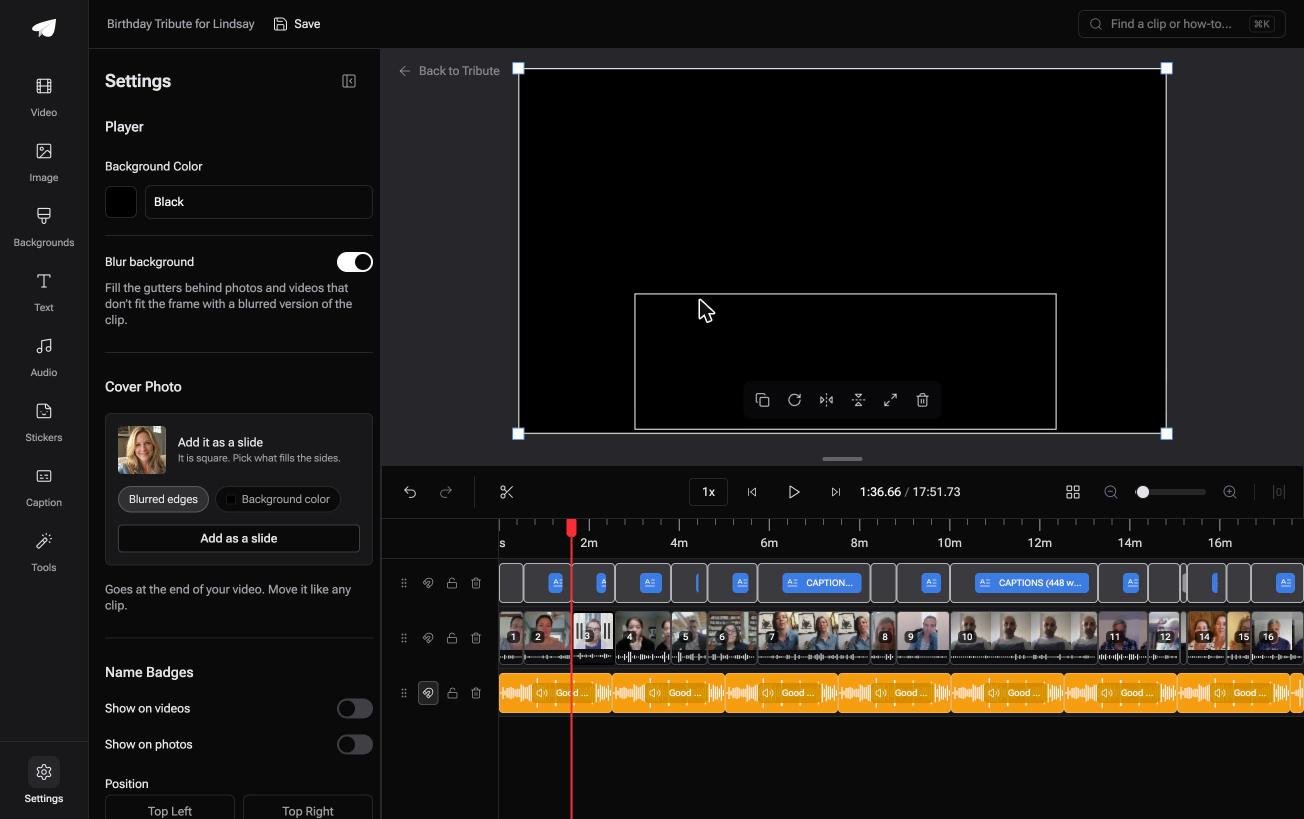
Best for: Mixed footage where half the clips stand upright and no single crop box suits all of them.
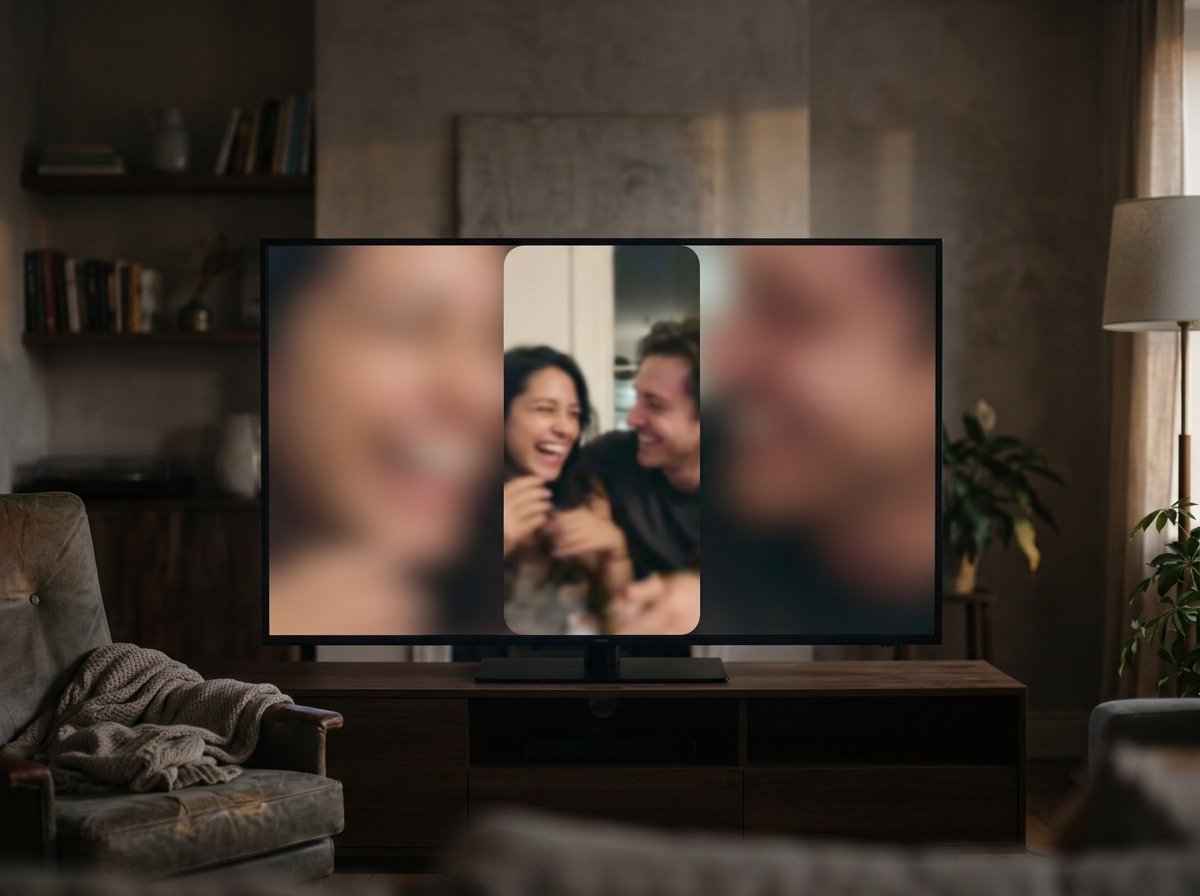
Why it works: Unlike a crop, the blurred fill keeps every face whole and still hands you a frame with no empty sides.
What happens to an upright clip when nobody crops it?
A crop is a decision about somebody else's framing.
Deciding what to lose means ruling on a shot you did not set up, on a phone you were not holding. There is one case where that ruling belongs to nobody.
The case: twelve cameras, twelve framings
You are in it when the footage came in from people nobody was directing.
Six of them hold the phone upright. Four turn it sideways halfway through. One props it against a kettle. No single crop is right for that pile, because the pile has no single shape.
Why the outline never appears
Because the frame is filled rather than cut.
An upright clip sits in the middle at full height, and a soft blur of the same clip fills the space on either side. Nothing is thrown away and nothing sits in a black bar.
That is how the Tribute video editor handles mixed footage: not a faster crop, but a reason not to crop.
What you do not have to do
- No crop box to drag. Blurred edges fill the frame behind an upright clip, on by default.
- No per-clip repair. Fit, brightness and grade are there when a room was dark.
- No aspect ratio to rebuild. On a Concierge Tribute, Eve reframes the video to 9:16 or another shape.
- No edit at all, if you want none. Tribute's editors build it and hand it back for approval.
When this is the wrong answer: you shot one clip and want a logo out of the corner. Kapwing does that in a browser tab in two minutes. The editor is also not a cropper on its own: it lives inside a paid Tribute.
Frequently Asked Questions
Does Kapwing crop put a watermark on the video?
On the free plan it does, and it sits on every export. Removing it means a paid plan; the crop itself is the same either way.
Can Kapwing crop a video without an account?
You can upload and set the crop, and the export asks you to sign in. Expect the watermark and the 720p ceiling on whatever comes out.
Is there a length limit on a Kapwing crop?
Four minutes on the free plan, per Kapwing's pricing page in October 2026. Trim the clip to under that before you crop, or the export stops you at the last step.
Why does my cropped video look soft?
Two things stack up: the crop threw away pixels, and the free export re-encodes at 720p. A shorter crop on a higher plan fixes the second one.
Can I crop only part of a video?
Split the clip at the point where the framing should change, then crop the pieces on their own. A single crop applies to the whole layer.
What is the fastest way to crop several clips the same way?
Set the project ratio once and let every clip fill it, rather than cropping each by hand. That is how an assembled montage works, as in making a video montage.
👉 Fill the frame rather than cut faces out of it if half the clips are upright and half turned sideways, and no crop box opens.
