
Merge YouTube Videos: Why Studio Cannot Do It and What Can
You cannot merge YouTube videos inside YouTube. The Studio editor trims and cuts a single upload and offers no join at all. Merge the clips on your computer first, then upload the one file.

Can YouTube Studio merge YouTube videos?
No. There is no merge, no append and no second timeline.
The Studio editor is a trimmer. Google's own documentation for it covers trimming the start or end and cutting a middle section, and nothing on that page combines two uploads.
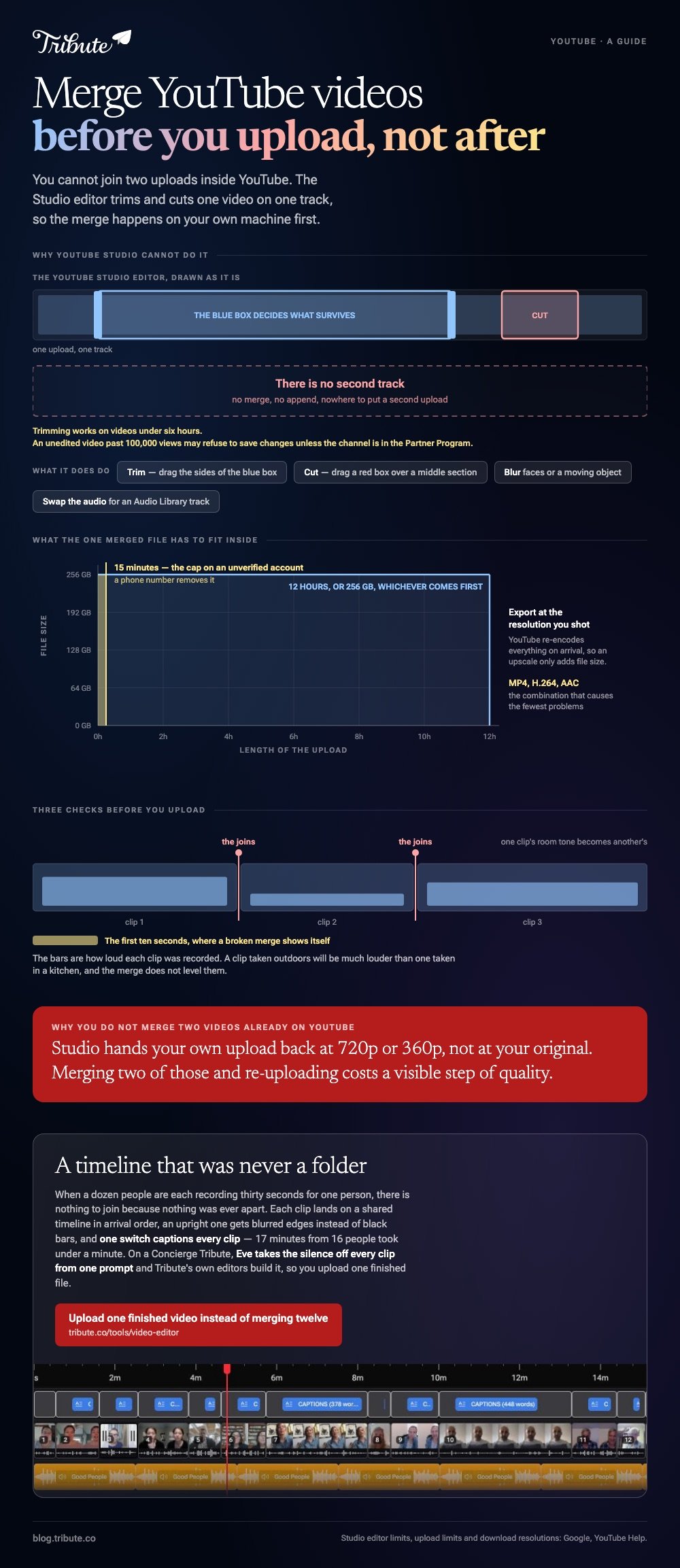
People search for a YouTube Studio merge 2 videos option because the editor looks like a timeline. It is one video on one track, and the blue box only decides what survives.
What the Studio editor can do
- Trim: drag the sides of the blue box over the part you want to keep
- Cut: add a new cut and drag the red box over a middle section to remove
- Blur faces or a moving object, in a separate tool
- Swap the audio for a track from the Audio Library
Two limits are worth knowing before you edit anything live. Trimming works on videos under six hours, and an unedited video past 100,000 views may refuse to save changes unless the channel is in the Partner Program.
How do you merge YouTube videos into one upload?
On your own machine, in whatever editor is already installed.
The job is the same in all of them: put the clips in a row, check the joins, export one file. Nothing here needs a subscription.
| You are on | Use | Time |
|---|---|---|
| Windows | Clipchamp | 10 minutes |
| Mac or iPhone | iMovie | 10 minutes |
| Chromebook or a shared computer | A browser joiner | 15 minutes, upload time included |
| Dozens of identical files | FFmpeg | 5 minutes once it is written |
Windows: Clipchamp
- Open Clipchamp and create a new video.
- Click Import media and add every clip at once.
- Select them all and drag them onto the timeline. They sit end to end in the order you dropped them.
- Drag any clip left or right to change the order, and drag its edge to trim the dead air at the start.
- Click Export and choose 1080p.
Clipchamp ships with Windows and exports up to 1080p on the free plan, with 4K reserved for a paid tier. For a YouTube upload, 1080p is the resolution most viewers will see anyway.
Mac or iPhone: iMovie
- Open iMovie and start a Movie project.
- Import the clips and drag them into the timeline in order.
- Tap or click between two clips to set how one becomes the next.
- On a Mac, choose File > Share > File. On iPhone, tap Done, then the share button, then Share Video, then Save Video.

Unlike the browser tools, iMovie handles mixed formats without asking you to convert anything first. That matters when the clips came off three different phones.
Other routes in merging videos online, merging video clips online and merging videos in VLC, plus the wider list in video montage makers.
What should the file look like before you upload it?
One container, one frame rate, and under the limits.
YouTube accepts uploads of 256 GB or 12 hours, whichever is less, and caps unverified accounts at 15 minutes per video. Verifying the account with a phone number removes the length cap.
MP4 with H.264 video and AAC audio is the format that causes the fewest processing problems. Export at the resolution you shot in rather than upscaling, because YouTube re-encodes everything on arrival and an upscale only adds file size.
Three checks before the upload
- Watch the joins. A merge that works still sounds wrong where one clip's room tone becomes another's.
- Check the levels. A clip recorded outdoors will be much louder than one recorded in a kitchen.
- Watch the first ten seconds. That is where a broken merge shows itself.
Can you merge two videos already on YouTube?
Only by getting the files back first.
Studio lets you download your own uploads, which gives you something to merge, and the download is 720p or 360p rather than your original. Merging two of those and re-uploading costs a visible step of quality.
Use the files you exported in the first place where you still have them. Compared to a Studio download, your own export keeps the full resolution and the original audio.
What if the clips came from a dozen different people?
The Tribute video editor is a browser-based group video editor: contributors record clips on their phones and Tribute assembles them on a timeline with the music balanced under the voices.
It is ours, and it is the last thing on this page.
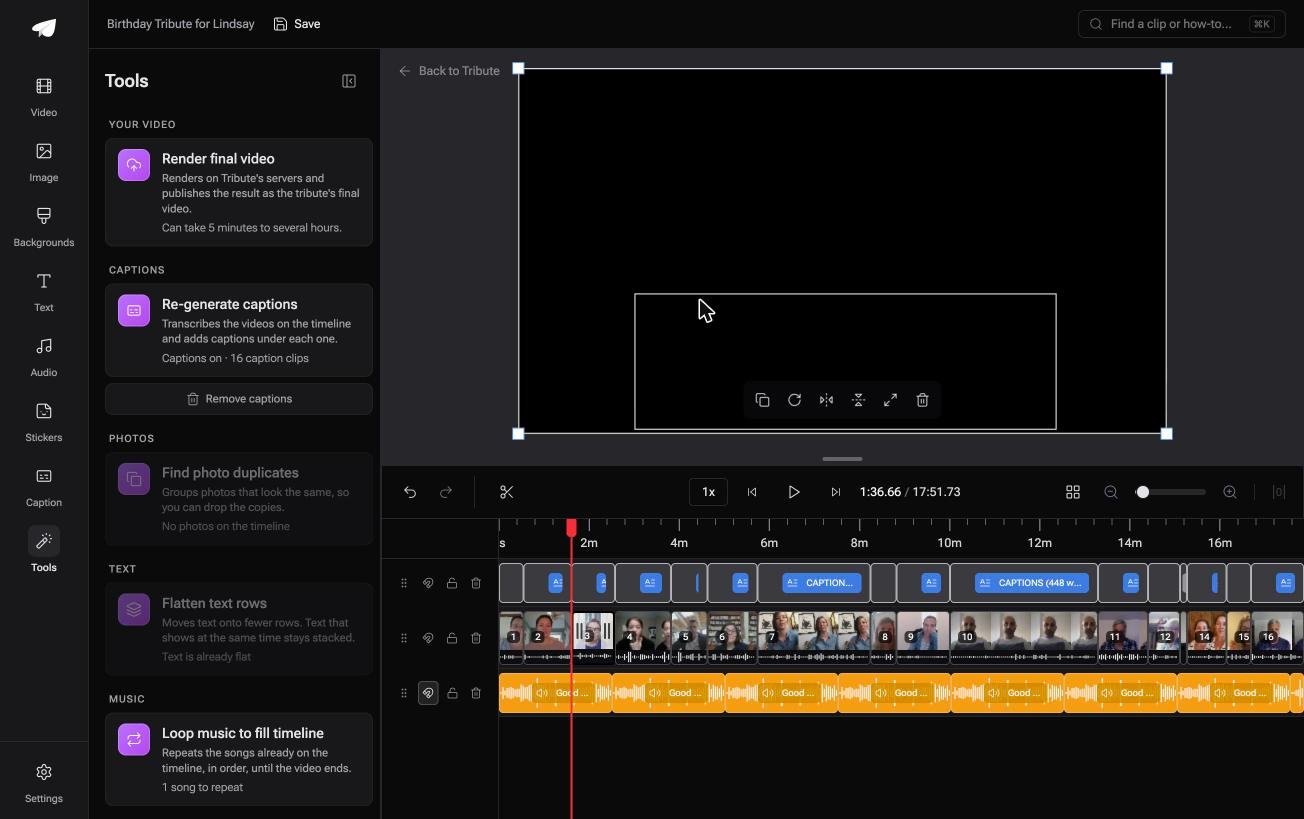
- Clips arrive in order on one timeline, with a tick marking which are already placed
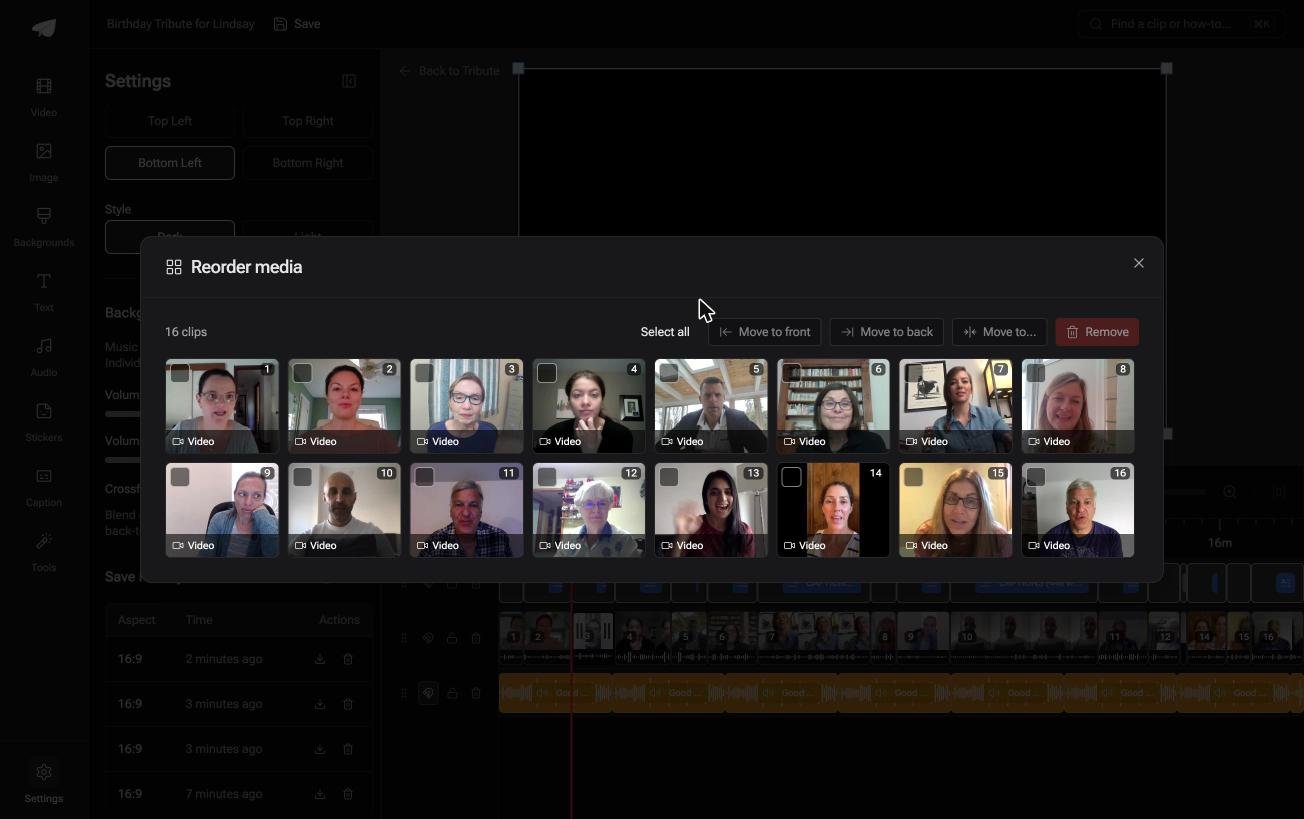
- Reorder media numbers every clip and offers move to front, move to back, move to position and bulk remove
- One switch captions every clip: 17 minutes from 16 people took under a minute, in any of 10 styles
- Tribute renders the final video on its servers, and the preview matches it frame for frame
Best for: A set of clips that has to end up as one video, none of them shot by you.
Why it works: The clips are in one place and in one order before anyone opens an editor.
Can you skip the merge step altogether?
Everything above begins with files scattered across an inbox.
One arrived over WhatsApp at 480p, one is a 2GB original from a newer phone, one is sideways. The merge takes ten minutes; getting to the point where you can start it takes two days.
There is one case where the files never scatter.
The case: several people recording for one person
You are in it when each clip is a message to somebody rather than footage of something.
A coach retiring after twenty seasons. A grandmother turning ninety. Nobody is making a YouTube video: everyone is recording thirty seconds, and your job is assembly, not production.
Why the merge never happens
There is nothing to join, because nothing was ever apart.
Each person records on their own phone and the clip lands on a shared timeline in arrival order. An upright clip gets blurred edges behind it rather than black bars.
That is what the Tribute video editor is for: not a faster merge, but a timeline that was never a folder.

What you do not have to do
- Not the gathering. One link reaches everyone who should record.
- Not the merging. The clips land on one timeline in arrival order.
- Not the trims. On a Concierge Tribute, Eve, the AI assistant inside the editor, takes the silence off every clip from one prompt.
- Not the edit. Tribute's own editors build it, and you upload one file to YouTube.

When this is the wrong answer: you shot the clips yourself and the video is for a channel. Then merge them in Clipchamp or iMovie and upload. The Tribute editor is also not a standalone app: it lives inside a paid Tribute.
Frequently Asked Questions
Is there a YouTube video editor that can merge videos?
Not on YouTube itself. The Studio editor trims, cuts, blurs and swaps audio on one upload at a time, so a merge has to happen before you upload.
Can you add a second video to the end of one you already published?
No. You would merge the two source files on your computer and upload the result as a new video. The original keeps its URL, views and comments; the new one starts at zero.
Does merging reduce quality?
Only if the clips are re-encoded, which most editors do on export. Export once at the resolution you shot in and the loss is invisible at normal viewing size.
How do you merge 2 videos on a phone?
iMovie on iPhone and CapCut on either platform both do it in about five minutes. Add both clips to one project, drag them into order, then export and upload from the phone.
Why did my merged upload fail to process?
Most often a container or timestamp problem rather than a size problem. Re-export as MP4 with H.264 video and AAC audio, which is the combination YouTube handles with the fewest surprises.
Can you merge videos from other people's channels?
Not without permission. Downloading and re-uploading somebody else's video is a copyright matter, and Content ID tends to find it within hours.
👉 Get one finished video without merging anything if a dozen people are recording thirty seconds each for one person.
