
OpenShot Crop Video: The Crop Effect, the Handles, and the Black Bars
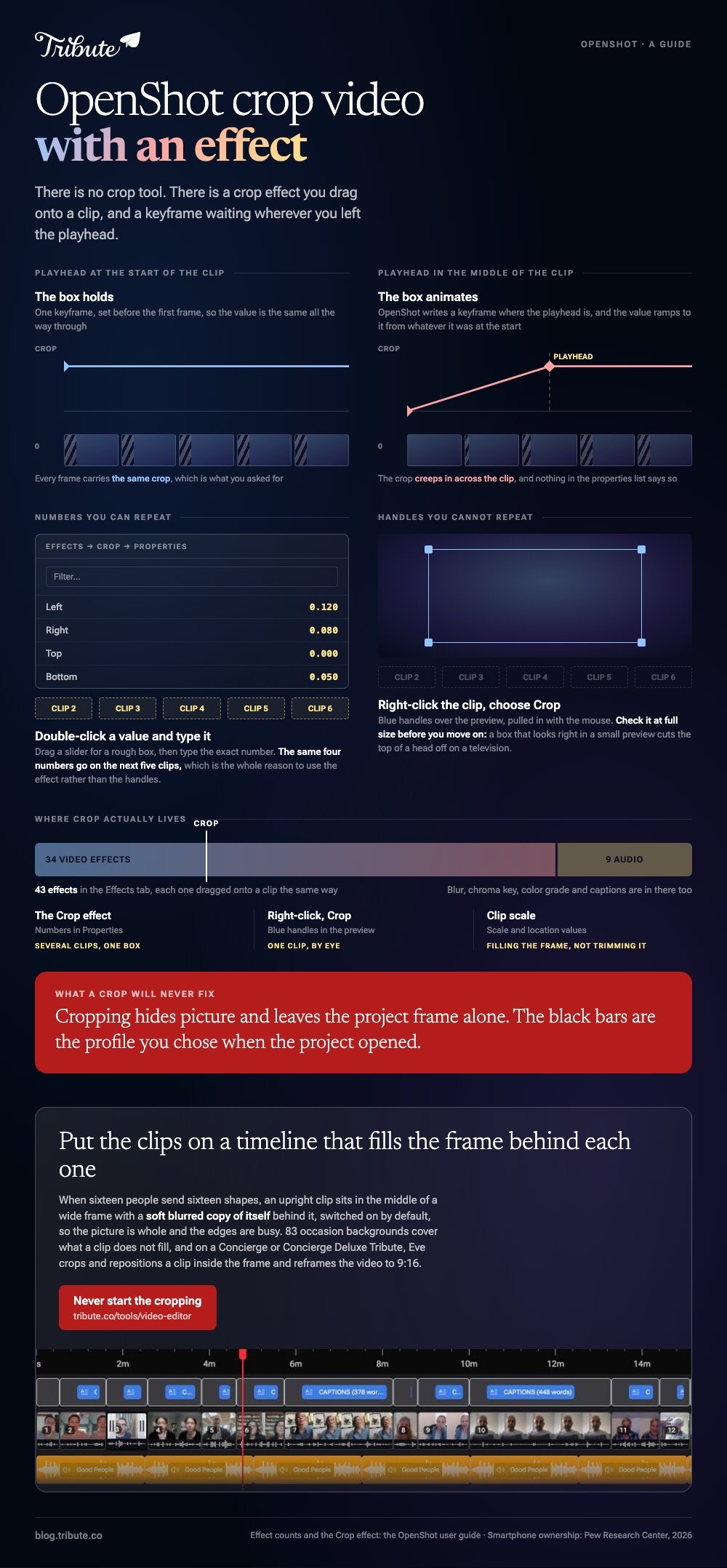
OpenShot crops with an effect rather than a tool. Drag the Crop effect from the Effects tab onto a clip, then set its edges in Properties. A right-click on the clip gives you blue crop handles in the preview instead.

Does OpenShot crop video with a tool or an effect?
An effect, and the project's own user guide says so.
The OpenShot user guide calls the Crop effect the primary method for cropping a clip, and lists 43 effects in total: 34 for video and 9 for audio. Crop sits among the video ones.
There are two routes to the same result, and knowing which you are in saves an argument with the preview window.
| Route | How you set it | Best when |
|---|---|---|
| Crop effect | Numbers in Properties | Several clips need the same box |
| Right-click, Crop | Blue handles in the preview | One clip, by eye |
| Clip scale | Scale and location values | Filling the frame, not trimming it |
How do you apply the Crop effect to a clip?
Park the playhead before you touch a value.
This is the step that catches people, and it has nothing to do with cropping. OpenShot creates a keyframe at the playhead, so a value you change in the middle of a clip animates from whatever it was at the start.
- Move the playhead to the start of the clip, or before it.
- Open the Effects tab and drag Crop onto the clip in the timeline.
- Right-click the small effect icon on the clip and choose Properties.
- Use the filter box at the top of the property list to find the edge you want.
- Drag a slider for a rough box, or double-click a value and type an exact number.
- Play the clip through to confirm the box holds for its whole length.
For one clip done by eye, right-click it and choose Crop. Blue handles appear over the preview and you pull the edges in with the mouse.
Check the result at full size before you move on. A box that looks right in a small preview can cut the top of someone's head off on a television.
Unlike the handles, typed numbers can be repeated on the next clip, which matters the moment you have six shots that should match.
Why does an OpenShot crop video still show black bars?
Because cropping hides picture and leaves the project frame alone.
Your project has a profile with a fixed size and ratio. A clip that does not match it is fitted inside that frame, and the space left over renders black, cropped or not.
- Match the profile to the footage when every clip is the same shape.
- Scale the clip up in its own properties when you would rather fill the frame than trim it.
- Accept the bars on one upright clip in a wide video, which is what most people do.
Compared with cropping, scaling keeps the whole frame busy and costs you the edges of the picture. One removes, the other enlarges, and neither changes the profile you chose when the project opened.
When should you crop somewhere other than OpenShot?
When the job is one clip and the install has not happened yet.
Almost all of this footage came off a phone. The Pew Research Center puts smartphone ownership at 91% of US adults, and a phone held upright is the single most common reason a crop gets opened.
Picture a cousin's thirty second message arriving in a group chat, wrong way up for the video you are building. Downloading a desktop editor for that is a long way around.
Shorter routes: crop a video online, or compare the browser croppers first. The same job in Premiere Pro runs on an effect too, and a montage comes after the shapes agree.
What if sixteen phones sent you sixteen shapes?
The Tribute video editor is a browser-based group video editor: contributors record clips on their phones and Tribute assembles them on a timeline with the music balanced under the voices.
It is ours, and it is the last thing on this page.
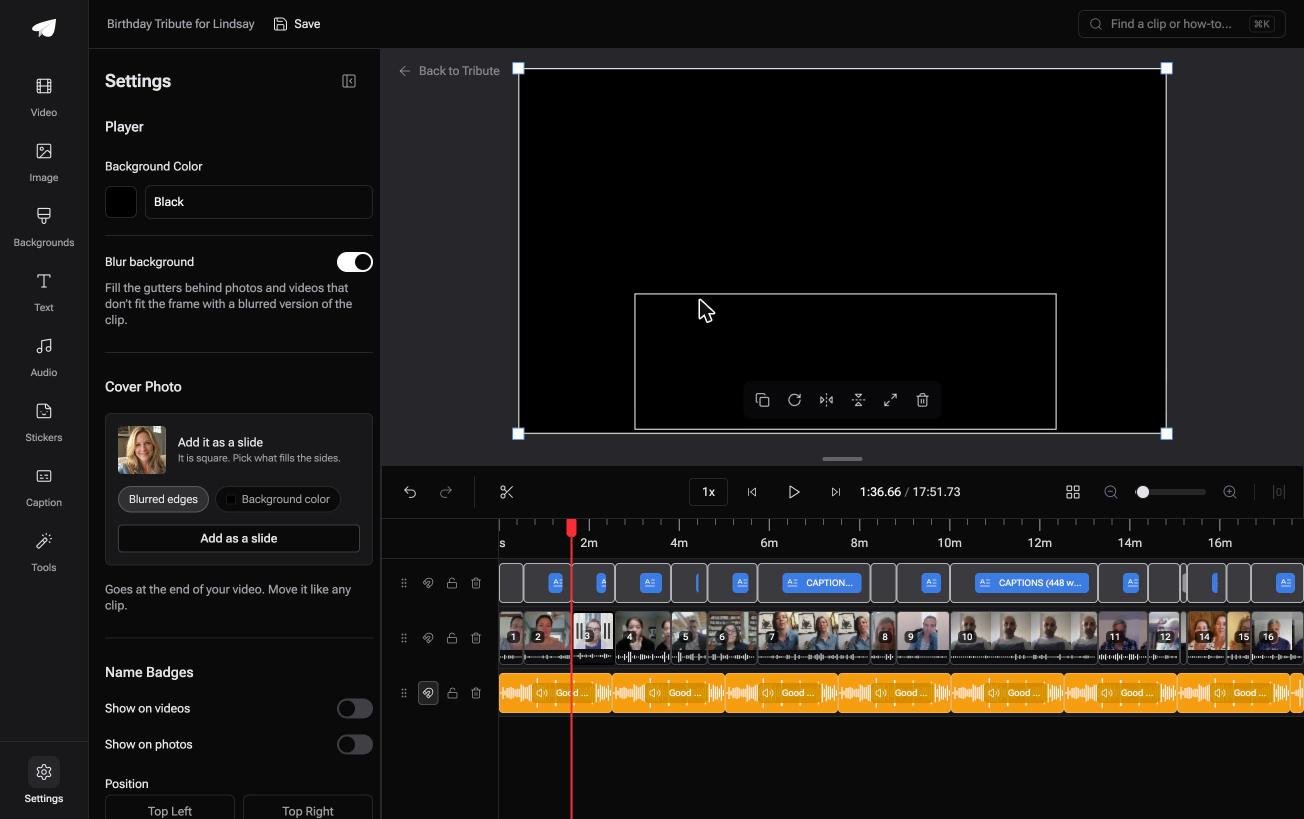
- Blurred edges fill the frame behind upright phone footage, on by default, so nothing lands in black bars
- Per clip appearance controls for fit, brightness and one of 10 color grades, previewed on the real clip
- 83 occasion backgrounds grouped by occasion, for the gaps a clip does not fill
- Clips arrive in order, already on the timeline, with a tick against the ones placed
Best for: The person who asked everyone to hold the phone sideways and got sixteen clips that ignored it.
Why it works: The gutters behind an upright clip are filled before you arrive, so there is no shape to repair.
Is there a timeline where mixed shapes need no fixing?
Nobody sets out to crop. They set out to make one video out of footage that does not match.
An effect, a profile and a keyframe are three answers to a question the reader never wanted to ask. There is a kind of video where the question is settled before the footage arrives.
The case: you are collecting, not shooting
This is the case where several people each record something for one person.
A ninetieth birthday with messages from four countries. A colleague's last day, recorded between meetings. Half of it comes in upright, some of it sideways, and one person will hold the phone at an angle nobody has a name for.

Why the shape stops mattering
Because the frame is filled rather than cut.
An upright clip sits in the middle of a wide frame with a soft blurred copy of itself behind it, switched on by default. The picture is whole, and the edges are busy.
That is how the Tribute video editor treats a mixed pile: not a faster crop effect, but a timeline where no clip is the wrong shape.
What you do not have to do
- No crop keyframes. The frame fills behind each clip instead of being trimmed.
- No look per clip. One grade and one background apply across the video.
- No order or trim pass. On a Concierge Tribute, Eve handles both across the timeline from a prompt.
- No build. Tribute's own editors make the video on that tier and send it back.

When this is the wrong answer: you shot the footage and the crop is a framing decision you want to make yourself. Then OpenShot is the right place, and it costs nothing to install.
A DIY Tribute has no crop control at all. It fills the frame instead of trimming it, and it sits inside a paid Tribute rather than standing on its own.
On a Concierge or Concierge Deluxe Tribute, Eve crops and repositions a clip inside the frame, and reframes the video to 9:16 or another aspect ratio.
Frequently Asked Questions
Where is the crop tool in OpenShot?
In the Effects tab, as an effect called Crop that you drag onto a clip. A right-click on the clip also offers Crop, which puts blue handles over the preview.
Why did my crop animate across the clip?
Because the playhead was in the middle of the clip when you changed the value, and OpenShot made a keyframe there. Move the playhead to the start of the clip and set it again.
Can I crop several clips at once?
Not in one action. Apply the effect to the first clip, note the numbers in Properties, and type the same ones on the rest so the boxes match.
Does cropping change the size of the exported video?
No. The export follows the project profile, so a cropped clip is a smaller picture inside the same frame unless you change the profile.
How do I get rid of the black bars around a clip?
Either scale the clip up until it fills the frame, which trims the edges, or change the project profile to match the footage. Cropping on its own will not do it.
Is OpenShot good enough for a family video?
For a short one, yes, and it costs nothing. For sixteen clips from sixteen people, the assembling is the work, and an editor that does the assembling saves more time than any effect.
What else can the Effects tab do?
Quite a lot: the guide lists 34 video effects and 9 audio ones, including blur, chroma key, color grade and captions. Each one is dragged onto a clip the same way.
👉 Put the clips on a timeline that fills the frame behind each one if sixteen people sent them and no two are the same shape, and the cropping never starts.
