
OpenShot Video Editor Text Overlay: Titles, Tracks, and Animated Text
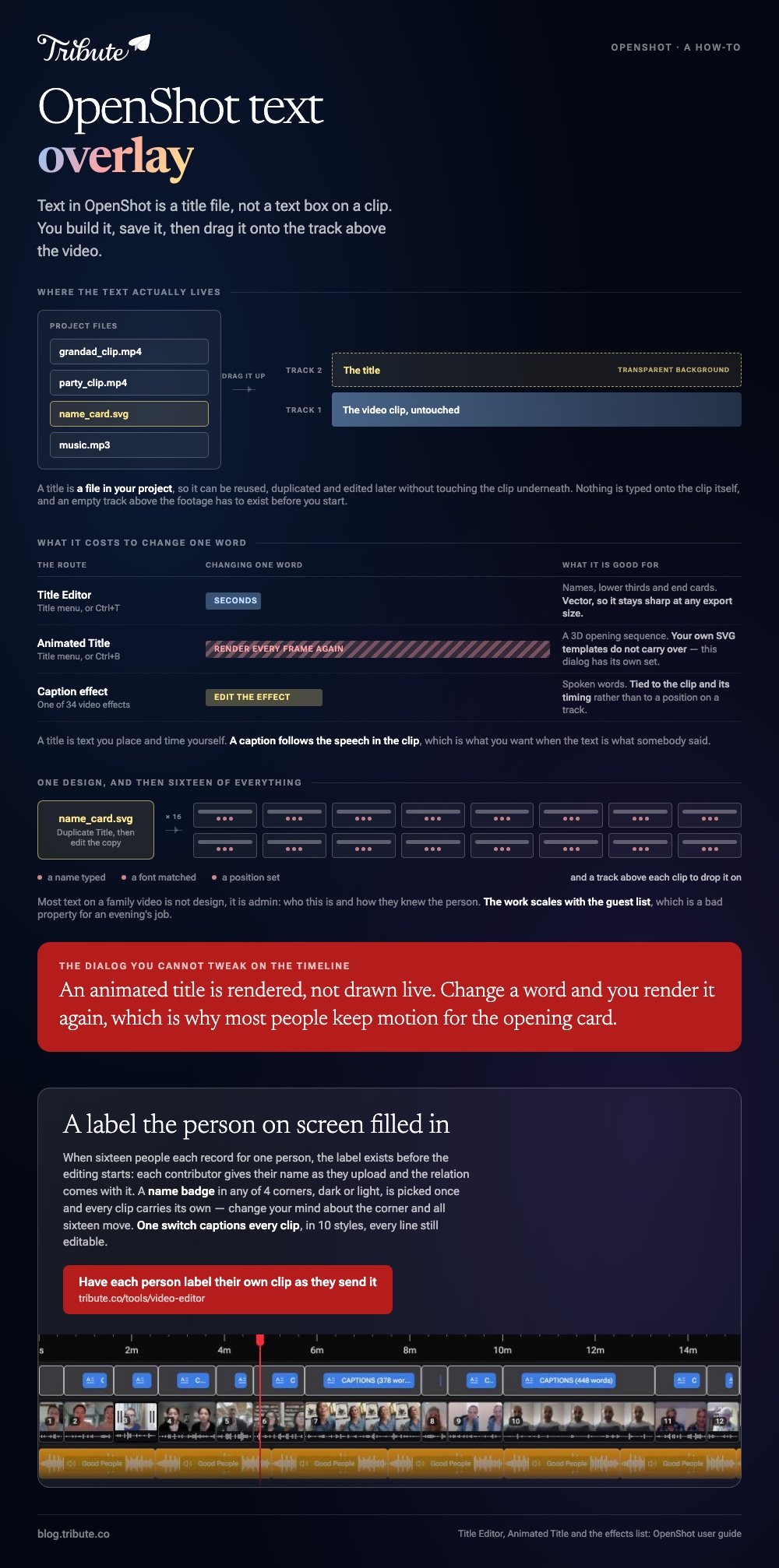
Text in OpenShot is a title file, not a text box on a clip. You build it in the Title Editor, save it, then drag it onto a track above the video, where its transparent background lets the picture show through.

Where is the OpenShot video editor text overlay tool?
Under the Title menu, as its own editor.
The OpenShot user guide opens the Title Editor from the Title menu or with Ctrl+T. You pick a vector template, change the words and colors in Title Properties, and the preview updates while you work.
That is the part worth understanding before you start. A title is a file in your project, so it can be reused, duplicated and edited later without touching the clip underneath.
| Route | Where it opens | Best for |
|---|---|---|
| Title Editor | Title menu, or Ctrl+T | Names, lower thirds, end cards |
| Animated Title | Title menu, or Ctrl+B | A 3D opening sequence |
| Caption effect | The Effects tab | Spoken words on screen |
How do you put text over a clip step by step?
Build the title first, place it second.
In the OpenShot video editor you add text over a video clip by putting a title on the track above it, and nothing is typed onto the clip itself.
The order matters. An empty track above your footage is where the title has to land, so make one before you start designing.
- Choose Title from the menu, or press Ctrl+T.
- Pick a template from the list of vector titles.
- In Title Properties, change the text, the font, the size and the colors.
- Watch the preview above the properties as you type.
- Click Save. The title joins your Project Files.
- Drag it onto a track above the video clip and set its length on the timeline.
To change it later, right-click the title in Project Files and choose Edit Title. Duplicate Title gives you a copy to rename, which is the fast way to make sixteen name cards from one design.
For anything the properties panel cannot do, the guide points to an external SVG editor such as Inkscape, with its path set in Preferences on the General tab.
Your own SVG files work too. Drop them into the title templates folder and they appear in the list next time the editor opens.

Can an OpenShot video editor text overlay move or animate?
Yes, through a second dialog with its own requirements.
Animated Title opens from the Title menu or with Ctrl+B. You choose a 3D template, adjust the text and colors, then click Render to build the animation and add it to the project.
Two things to know before you plan a title sequence around it.
- Blender is required, version 5.0 or later, with its path set in Preferences.
- Rendering takes time, because each frame is built rather than drawn live.
- Your SVG templates do not carry over. The Animated Title dialog uses its own 3D set.
Unlike a plain title, an animated one cannot be tweaked on the timeline. Change a word and you render it again, which is the reason most people keep motion for the opening card and use flat titles everywhere else.
What if you want captions rather than a title?
Then you want the Caption effect, not the Title Editor.
A title is one piece of text you place by hand. Captions follow speech, and the effects list includes a Caption effect among its 34 video effects, applied to a clip the same way every other effect is.
Compared with a title, a caption is tied to the clip and its timing rather than to a track position, which is what you want when the text is what somebody said.
Nearby jobs: cutting clips down before you label them, a free video and audio editor if OpenShot is more than you need, the options on Windows, and building the montage once the text is on.
What if every clip came from a different person?
The Tribute video editor is a browser-based group video editor: contributors record clips on their phones and Tribute assembles them on a timeline with the music balanced under the voices.
It is ours, and it is the last thing on this page.
- Name badges built from an uploaded by name and a relation, in any of 4 corner positions, dark or light
- A text panel that leads with ready-made styles grouped as Simple, Title and Styles, rather than a raw font list
- Captions from one toggle, with 10 caption styles and the spoken word highlighted
- Every caption line editable, with its own start and end timecode
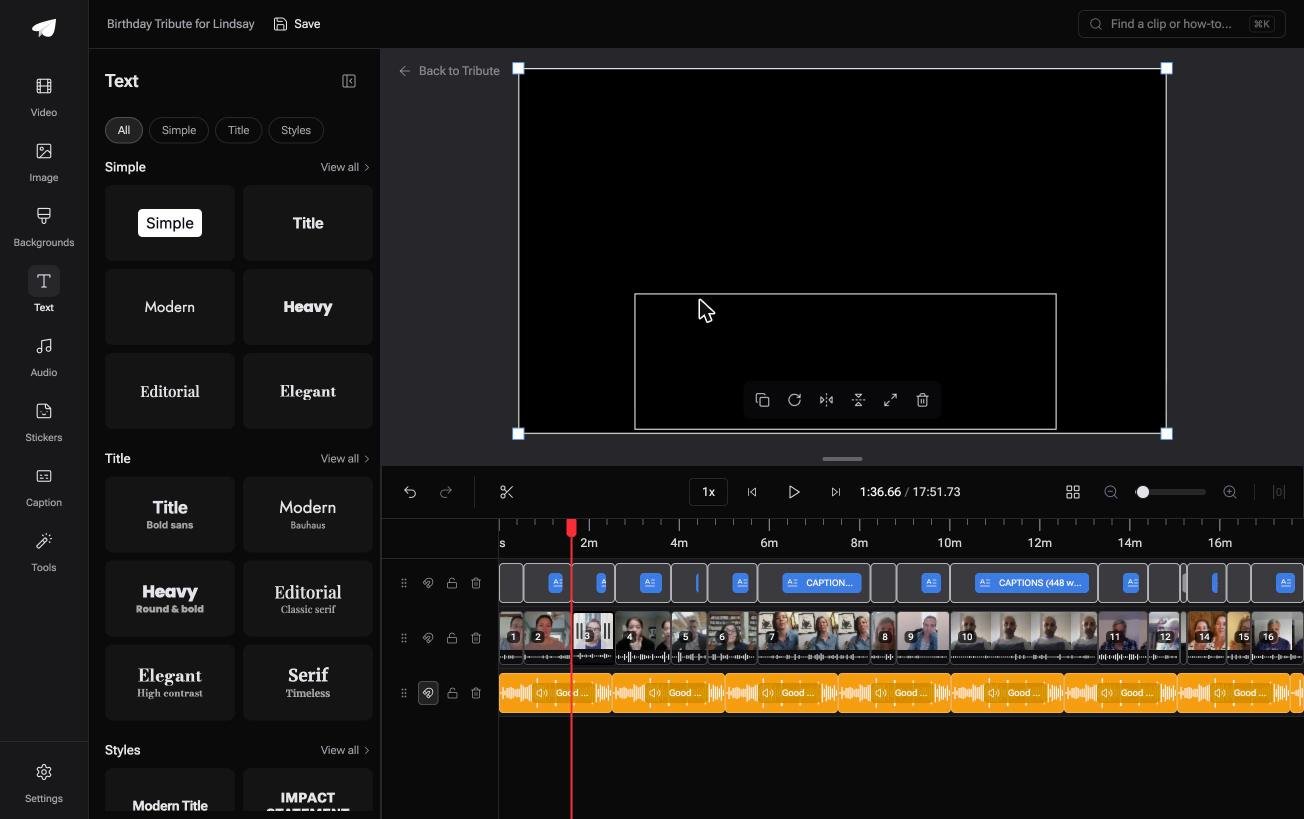
Best for: A video where the text is sixteen people's names and nobody wants to design sixteen cards.
Why it works: The name and the relation travel with the clip, so the label is right without anyone matching a title to a face.
Who puts the names on screen when there are sixteen of them?
Most text on a family video is not design. It is admin: who this is, and how they knew the person.
Building that by hand means one title per clip, each with a name typed, a font matched and a position set. The work scales with the guest list, which is a bad property for an evening's job.
The case: the clips arrive with their own labels
This is the case where several people each record something for one person.
Each contributor gives their name when they upload, and the relation comes with it. The label exists before the editing starts, because the person it belongs to typed it.

Why the title pass disappears
Because the badge is a setting rather than a file.
Pick a corner and a style once and every clip carries its own name there. Change your mind about the corner and all sixteen move, which no title track will do for you.
That is how the Tribute video editor handles on-screen text: not a better title editor, but a label that was filled in by the person on screen.
What you do not have to do
- Type sixteen names. Each person names themselves as they upload and the badge carries it.
- Place or keyframe a title. Ready-made styles, four badge corners, dark or light, chosen once.
- Caption by hand. One switch captions every clip, and each line stays editable.
- Do the title pass, on a Concierge Tribute. Tribute's editors handle it, and Concierge Deluxe returns it as a video book.
When this is the wrong answer: you want a designed title sequence with your own typeface and a 3D build. OpenShot and Blender will do that, and no badge setting is a substitute for it.
The editor has no font picker of the kind a title designer expects, and it lives inside a paid Tribute rather than standing alone.
Frequently Asked Questions
How do I add text to a video in OpenShot?
Open the Title Editor from the Title menu, pick a template, set the words and colors, then save. The title lands in Project Files, and you drag it onto a track above your clip.
Why can I not type text onto a clip?
Because OpenShot keeps text in its own title files rather than as a property of a clip. The upside is that one title can be reused and edited without touching the footage.
How do I change the font of a title?
In Title Properties, next to the text, size and color controls. For anything beyond that, the guide points you to an external SVG editor such as Inkscape.
Why is my animated title not working?
The Animated Title dialog needs Blender installed, version 5.0 or later, with its path set in Preferences on the General tab. Without that path it cannot render.
Can I reuse one title for several clips?
Yes. Right-click it in Project Files and choose Duplicate Title, then edit the copy. That is the quick route to a set of name cards that match.
What is the difference between a title and a caption?
A title is text you place and time yourself. A caption follows the speech in the clip and is applied as an effect, which suits names of things said rather than names of people.
Does the text overlay affect export quality?
No. Titles are vector files, so they stay sharp at whatever resolution the project exports at.
👉 Have each person label their own clip as they send it if there are sixteen clips and sixteen names, and the title pass never lands on you.
