
The Video Editor Windows Already Has, and Four Alternatives
Windows 11 ships with a video editor called Clipchamp, and for joining clips, trimming them and adding captions it is enough for most people. DaVinci Resolve is the no-cost step up for color and audio tools, Shotcut is the lightweight open source option, and CapCut Desktop suits social clips.

Which video editor PC users should start with?
Everything below was checked on each maker's own site in October 2026. Three of the five cost nothing at all, and the one paid desktop option is a one-off purchase rather than a subscription.
| Tool | Best for | Price (as of October 2026) | Watch out for |
|---|---|---|---|
| Clipchamp | Everyday joining and captions | Free plan; 4K with Microsoft 365 | 1080p ceiling without a subscription |
| DaVinci Resolve | Color and audio work | Free version; Studio $236 one-off | Hardware demands and a long learning curve |
| Shotcut | Older or low-spec machines | Free software, open source | Plain interface, no stock library |
| CapCut Desktop | Social clips and captions | Free plan; Pro $19.99/month | Export rules not stated on the pricing page |
| Tribute video editor | One video from many people's clips | Paid product | Runs in a browser, not on Windows |
Where is the video editor Windows 11 installs for you?
It is called Clipchamp and it is already installed.
Microsoft's support page for creating videos with a video editor says Clipchamp comes preinstalled on Windows 11 and gives two ways to open it: type Clipchamp into the taskbar search box, or open Start, choose All apps and scroll to it.
You can also launch it from the Photos app, or download it from the Microsoft Store on Windows 10. The same editor runs at app.clipchamp.com in Edge or Chrome if you would rather not install anything.
Which free video editor for Windows should you use?
Four of these five are genuine options for a home video. Work down the list in order and stop at the first one that covers your job.
Clipchamp
Microsoft's documentation describes the whole workflow, and the button names below come from it rather than from memory.
- Open Clipchamp from the Start menu and click create a new video.
- Drag your files into My media, or click the import media button.
- Click the green + on each clip to place it on the timeline in order.
- Select a clip and drag the green bars at its ends to trim it.
- To cut a clip in half, move the seeker, the white vertical line with a circle on top, then click split.
- Open the content library tab, choose audio, and drag a track under the clips.
- Click the audio, open the audio tab in the property panel, and drag the volume slider down.
- Click export at the top right and pick a quality.
One line in that documentation matters more than the rest: Clipchamp processes your video on your own device instead of uploading it to a server. Projects also save as you work, so there is no save step before you close the window.
- Look for: the export quality menu, where 4K is reserved for Microsoft 365 Personal and Family subscribers.
- Price: free plan; premium features arrive with a Microsoft 365 subscription.
- Time needed: about fifteen minutes for eight clips and a music track.
Best for: Anyone on Windows 11 who wants a finished video tonight.
Why it works: It is already there, it has a real timeline, and nothing is uploaded or watermarked.

DaVinci Resolve
Blackmagic Design gives away DaVinci Resolve, and the version it gives away is the same program professional colorists use.
The paid Studio edition is listed at $236, reduced from $295, as a one-off purchase rather than a subscription, and version 21 runs on Windows, Mac and Linux.
The trade is honest and steep. You get color grading, a proper audio page and multi-camera editing, and you pay for it in disk space, graphics card requirements and several evenings of learning.
For joining eight phone clips, it is more machine than the job needs.
- Look for: the system requirements, since Resolve is the one tool here that an older laptop will refuse.
- Price: free version; Studio $236 one-off as of October 2026.
Best for: A project where the picture needs grading and the sound needs real repair.
Why it works: Nothing else at zero cost puts a color page and a Fairlight audio page in the same window.
Shotcut
Shotcut is free software, open source and cross-platform, running on Windows, Mac and Linux, and the current release is version 26.9. There is no account, no cloud and no upsell.
The interface is plain and the stock library does not exist, which is the point. On a machine that struggles with Resolve, Shotcut will still cut, join and export without complaint.
- Look for: the export presets, which are named by device and format rather than by quality.
- Price: free software, with no paid tier at all.
Best for: An older PC, or anyone who wants an editor with no account attached.
Why it works: Compared with a cloud editor, nothing leaves the machine and nothing expires.
CapCut Desktop
CapCut's desktop app is a free app to download, and it shares the phone version's strengths: automatic captions, trending effects, a color wheel, keyframes and a cloud Space that syncs projects between devices.
It also changes a video's aspect ratio and keeps the subject in frame.
Pricing follows the phone app: a free plan at $0, Pro at $19.99 a month or $179.99 a year, and Ultra at $79 a month.
It does not state a watermark rule or an export ceiling for the free plan, so open the export panel before you build something long.
- Look for: template-based projects, which are the ones that have added branding in the past.
- Price: free plan at $0; Pro $19.99 a month as of October 2026.
Best for: Clips for TikTok, Reels or Shorts where captions and pacing matter.
Why it works: The caption tool and the aspect ratio tool are two taps each, which is where social edits stall.
Tribute, if several people recorded the clips
This is the job none of the four above was designed for. Twenty people send twenty files over text, email and WhatsApp, most of them compressed by the app that delivered them, and the editing is the last and smallest part of the work.
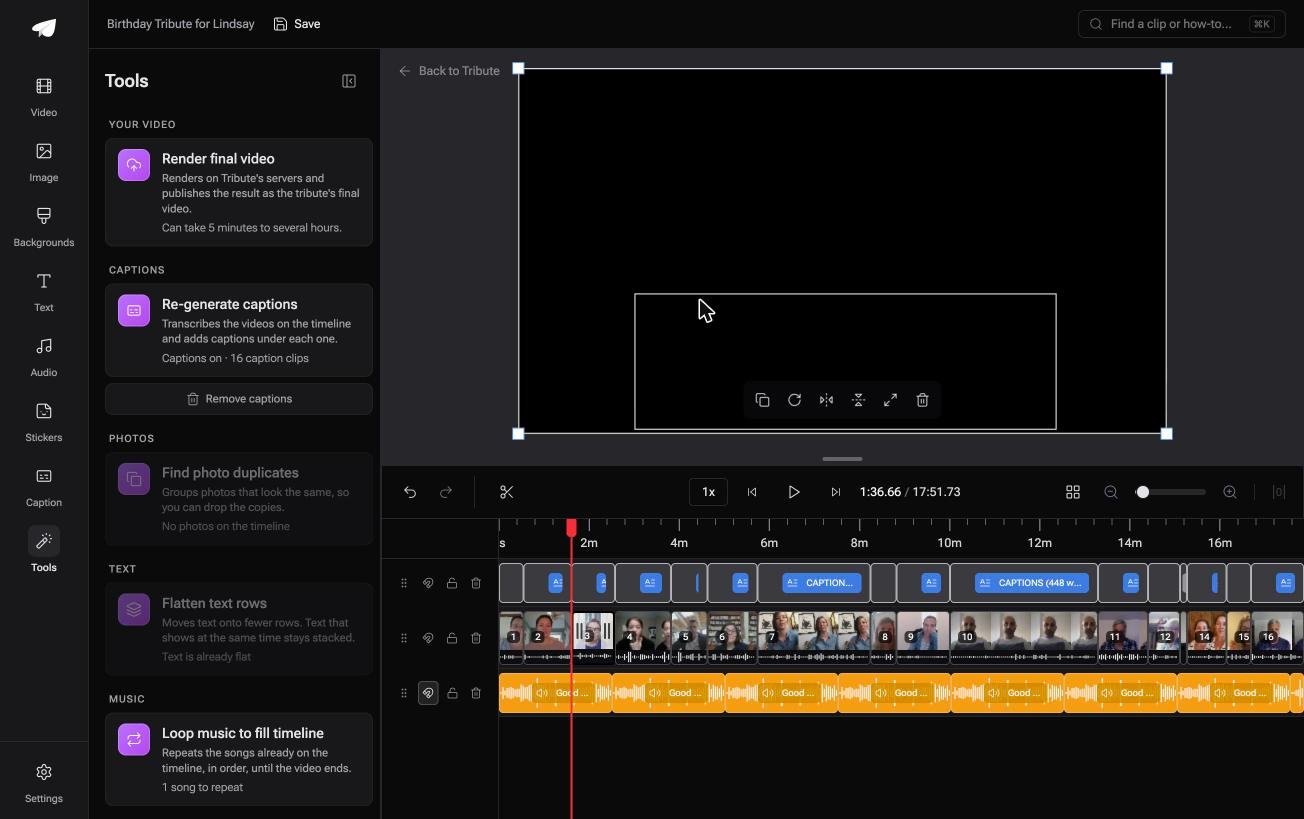
The Tribute video editor is a browser-based group video editor: contributors record clips on their phones and Tribute assembles them on a timeline with the music balanced under the voices.
Clips arrive in order with a tick showing which are placed, one switch captions every clip, and the Tools panel will re-generate captions, find duplicate photos or loop music to fill the timeline.
It lives inside a paid Tribute and it will not open a file from your Windows desktop.
- Look for: the Reorder media window, where every clip is numbered and can be moved to front, moved to back or sent to a position.
- Price: part of a paid Tribute; there is no Windows download.
Best for: A PC where nothing needs installing, because the footage never reaches the desktop.
Why it works: Unlike a folder you assemble yourself, the collecting, the ordering and the audio balance are finished before the editing starts.
That case is covered in how a group video maker handles thirty phones and in our guide to making a video montage.

Do you need to install anything at all?
Often not. The browser versions of Clipchamp, CapCut and Canva run in a Chrome or Edge tab on the same machine, which suits a work laptop where installing software is blocked.
On a shared family PC it also keeps the project out of someone else's documents folder.
The catch is the upload. Server-side tools send your footage away to edit it, and 78% of US adults subscribe to home broadband, according to the Pew Research Center internet and broadband fact sheet.
For the rest, sending 3 GB of 4K clips is an evening, not a background task.
Our roundup of browser editors covers the trade in detail, and joining clips in a browser handles the cut and join on its own.

What makes a Windows edit look stitched together?
Three giveaways, and all three are quick to fix. Silence at the front of every clip, where the person pressed record and then thought about what to say. Volume that jumps between a kitchen and a car.
Black bars either side of an upright phone clip in a widescreen frame.
None of them is a skill problem. Each one is a setting somebody did not know to look for, which is why a fifteen minute pass over a finished video is worth more than another evening of learning the software.
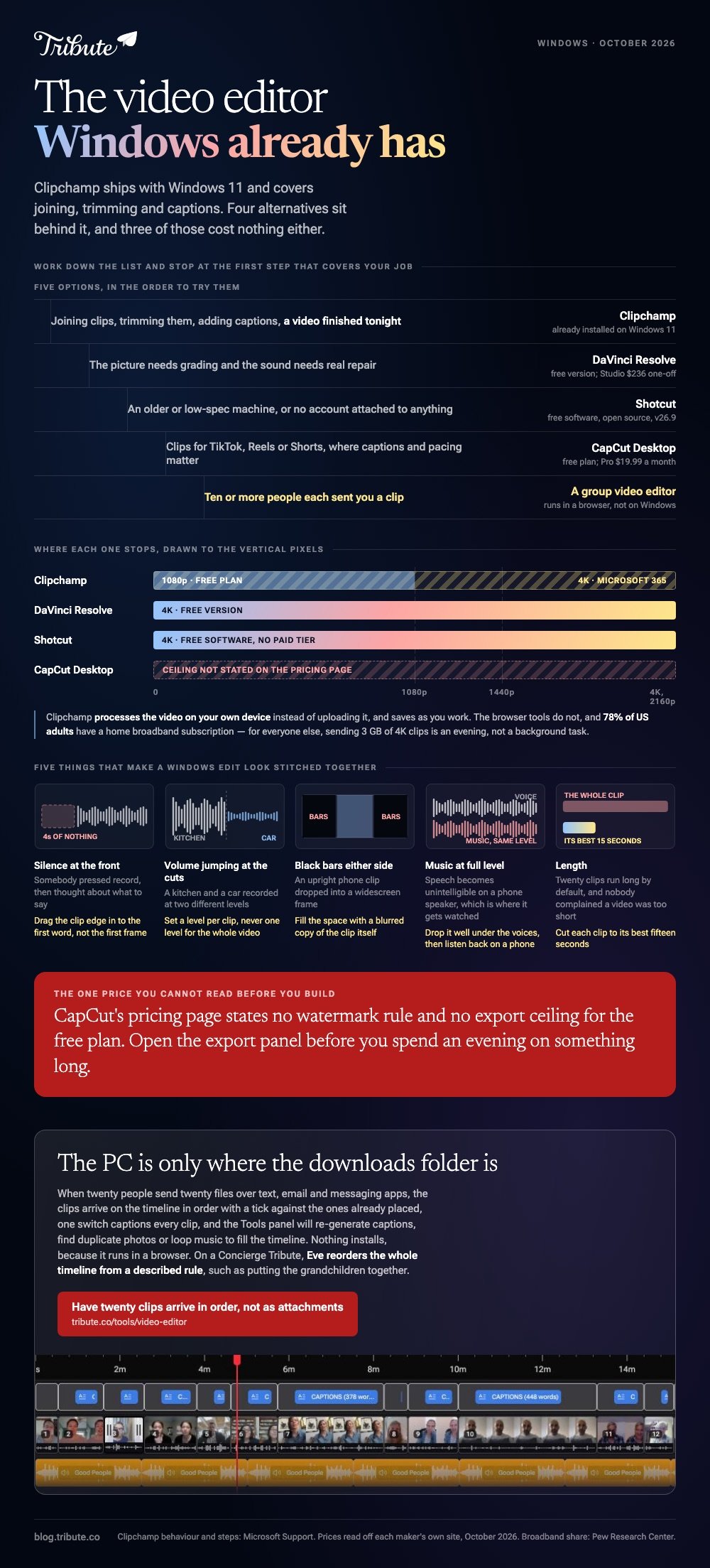
Drag the clip edge in to the first word rather than to the first frame. Set a level per clip instead of one level for the video.
Fill the space around an upright clip with a blurred copy of itself, which every editor with a background setting can do.
Exporting is the last trap. Pick the highest resolution the tool offers, then watch the first and last thirty seconds before you send it anywhere.
Music is the fourth giveaway and the easiest to overdo. A track at full volume under a person talking makes the speech unintelligible on a phone speaker, which is where most of these videos get watched.
Drop the music well under the voices and listen back on a phone rather than on headphones.
Length is the last one. A video built from twenty clips runs long by default, and nobody has ever complained that a tribute video was too short. Cut each clip to its best fifteen seconds and the whole thing improves.

Frequently Asked Questions
Does Windows 11 come with a video editor?
Yes. Microsoft's support page says Clipchamp is preinstalled on Windows 11 and can be opened from taskbar search, from All apps in the Start menu, or from the Photos app. Windows 10 users install it from the Microsoft Store.
What happened to Windows Movie Maker?
It was retired years ago and Microsoft now points people to Clipchamp as the official editor. Nothing from a Movie Maker project transfers across, so old projects are best rebuilt from the source clips.
Is there a video editor for PC with no watermark?
Clipchamp, DaVinci Resolve and Shotcut all export clean. Watermarks on Windows tend to come from browser tools and from trial versions of paid software, so read the export screen before you render.
What specification do I need?
Clipchamp and Shotcut run on an ordinary laptop. DaVinci Resolve is the demanding one, and a discrete graphics card makes the difference between a usable timeline and a slideshow.
Can I edit 4K on Windows without paying?
Shotcut and DaVinci Resolve both export 4K at no cost. Clipchamp caps the no-cost export at 1080p and puts 4K behind a Microsoft 365 subscription.
Which Windows video editing software is easiest to learn?
Clipchamp, by a wide margin. The timeline has one row, the trim handles are visible, and the export button sits in the top right where you expect it.
What if twenty people are each sending me a clip?
Then the editing is not your problem. Gathering twenty files at full quality and putting them in a sensible order is, and that is what a group video tool is built to remove.
👉 Let the clips arrive in order instead of as a folder of attachments if the PC is only where the downloads folder is, and nothing needs installing on Windows at all.
