
QuickTime Player Crop Video: Why There Is No Crop Button
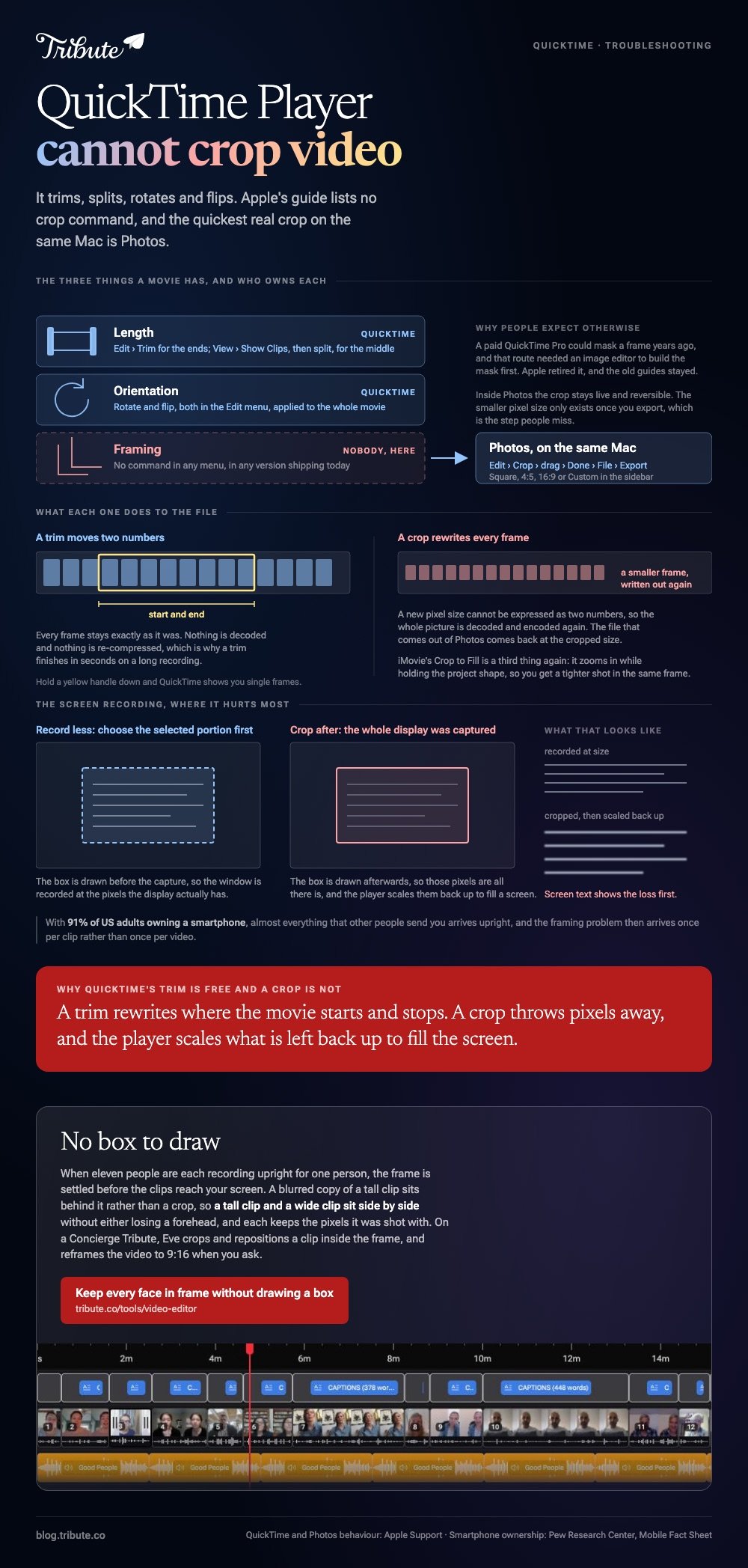
QuickTime Player cannot crop a video. It trims, splits, rotates and flips, and Apple's own guide lists no crop command. The quickest real crop on the same Mac is the Photos app: Edit, Crop, drag, Done, Export.
QuickTime Player crop video: is there a crop tool at all?
There is not, in any menu or any version shipping today.
People assume otherwise because QuickTime opens every clip on a Mac and has a short Edit menu that looks like it should hold one. What that menu holds is length and orientation, never framing.
| Job | QuickTime Player | Where it lives instead |
|---|---|---|
| Trim the ends | Yes | Edit > Trim |
| Split into clips | Yes | View > Show Clips |
| Rotate or flip | Yes | Edit menu |
| Crop the frame | No | Photos, iMovie or a browser |
A paid QuickTime Pro could mask a frame years ago, and that route needed an image editor to build the mask first. Apple retired it.
What can QuickTime Player edit instead?
Length and orientation, both without a re-encode.
Apple's guide to trimming a movie or clip gives the path. Choose Edit > Trim, drag the yellow handles on the trimming bar to set the start and end, then click Trim.
- To cut a section out of the middle, choose View > Show Clips first.
- Put the playhead where the cut belongs and split the movie there.
- Repeat for the far edge of the section, then select the middle piece and delete it.
- Click Done, then save.
Hold a yellow handle down and QuickTime shows you individual frames, which is the difference between cutting on a breath and cutting through a word.
Best for: Topping and tailing a long recording before it goes anywhere else.
Why it works: A trim rewrites the file's start and end points rather than the picture, so nothing is re-compressed.
The full set of trim options is in trimming a video in QuickTime Player.
How do you crop the same clip in Photos?
Photos has edited video since macOS Ventura and it does a true crop: the exported file comes back at the cropped size.
- Drag the clip into Photos, or use File > Import.
- Double-click it, then click Edit.
- Click Crop.
- Drag the selection rectangle, or choose a ratio in the sidebar: Square, 4:5, 16:9 or Custom.
- Click Done, then File > Export.
Apple covers the whole panel in its guide to cropping and straightening photos and videos on Mac, including Auto, Flip and a Reset button that clears the crop.
Export is the step people miss. Inside Photos the crop stays live and reversible, and the smaller pixel size only exists once you write out a new file.
Best for: Anyone who searched for crop in QuickTime and wants it done in the next two minutes.
Why it works: Revert to Original sits behind the edit, so the clip you imported is never the clip you lose.
Can QuickTime Player crop video from a screen recording?
No, and screen recordings are the case where it hurts most.
QuickTime makes the recording, so the file opens in QuickTime and everyone expects to finish the job there. A recording of one window tends to capture the whole display, and the part worth keeping is a rectangle in the middle of it.
Two ways out, and neither is in QuickTime:
- Record less. In the capture overlay, choose the selected-portion option and drag a box before you hit record.
- Crop after. Send the finished recording to Photos and crop it there.
The first is better. A crop throws pixels away and the player scales what is left back up, and screen text is the content that shows that loss first.
What about VLC, iMovie and the browser tools?
All three will crop, and all three cost you something QuickTime did not.
iMovie has a Cropping button with Crop to Fill, which zooms into the picture while holding the project shape. The export comes back at the project size, so it is a tighter shot in the same old frame rather than a new one.
VLC crops through a video filter in Preferences, and the setting applies to playback until you change it back. Compared to Photos, it is several screens of work for the same result.
Browser croppers want an upload and a download and nothing from your library, which suits a 3GB export you plan to delete tomorrow.
The VLC route is set out in cropping a video in VLC, and the browser options in cropping a video online.

What if the clips came from a dozen different phones?
Then the framing problem arrives twelve times and no crop tool solves it.
The Tribute video editor is a browser-based group video editor: contributors record clips on their phones and Tribute assembles them on a timeline with the music balanced under the voices.
- Blurred edges on by default behind upright footage, so a tall clip fills a wide frame without black bars
- Per-clip appearance controls for fit, brightness, border radius and 10 color grades
- 83 occasion backgrounds behind the video, grouped by occasion
- A waveform under every clip, so trimming to the first spoken word is a drag rather than a guess
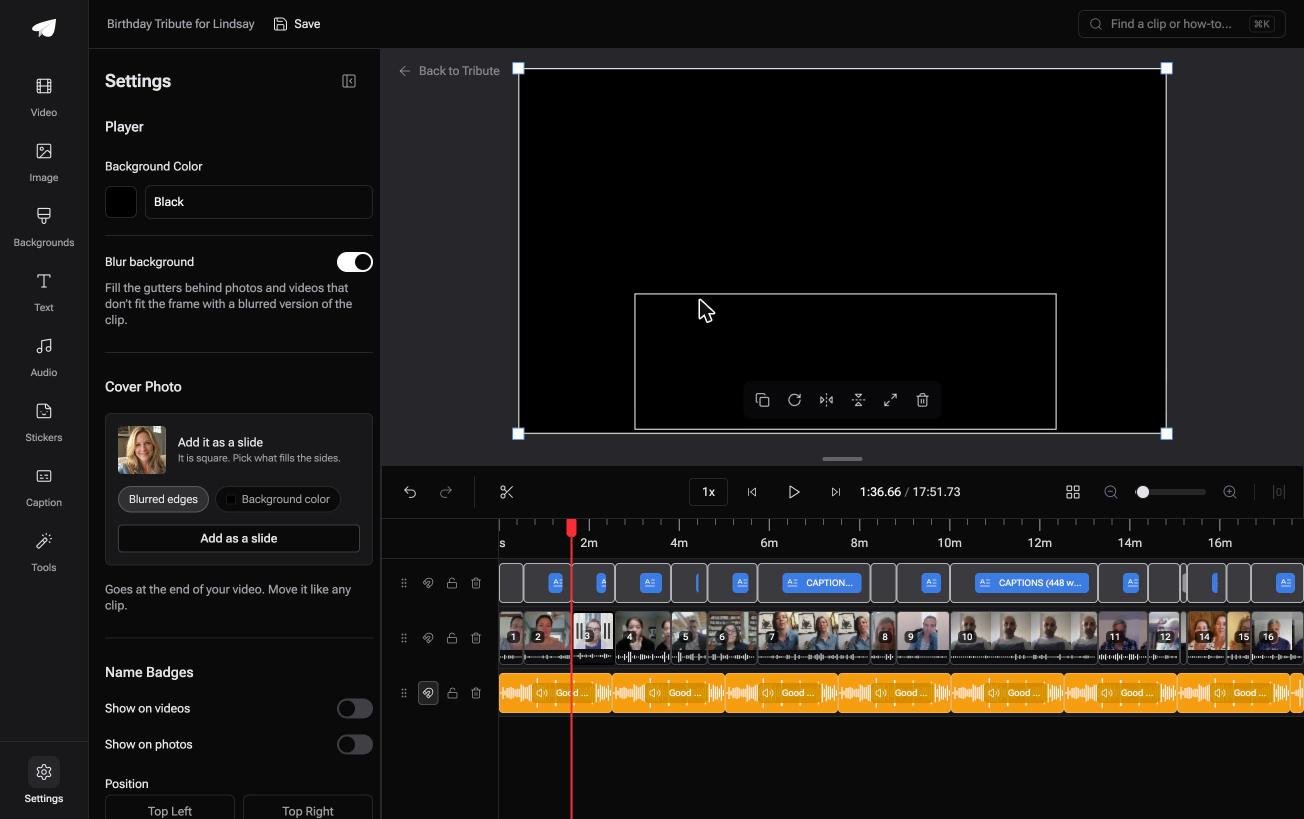
Best for: Clips from twelve people in every shape a phone can produce, and no crop tool that settles it.
Why it works: Unlike a crop, filling the frame behind an upright clip keeps the whole face and every pixel it was shot with.
What if nothing needed cropping in the first place?
QuickTime sent you looking for another app, and so does every answer above.
That is fine for one clip. It stops being fine at fifteen, when each one arrives a different shape and each one needs its own box drawn. There is a case where no box is drawn at all.
The case: the clips were recorded for you
You are in it when several people each record something for one person.
An uncle turning seventy. A colleague's last week after eighteen years. Nobody shot a scene, and 91% of US adults own a smartphone, according to the Pew Research Center mobile fact sheet, so almost all of it arrives upright.
If you are editing one recording of your own, the Photos route above is where this page ends for you.
Why the crop question stops arising
Because the frame is settled before the clips reach your screen.
Upright footage gets a blurred copy of itself behind it rather than a crop, so a tall clip and a wide clip sit side by side without either losing a forehead.
That is the default in the Tribute video editor, not a setting you have to go and find.

What you do not have to frame
Four jobs disappear, and drawing a box is the first.
- No crop on any clip. A blurred copy widens the frame behind upright footage, by default.
- No app to go and find. The clips are in order on one timeline when you open it.
- No per-clip pass. Captions, names and music levels are set across the whole video at once.
- No afternoon at the laptop, on Concierge: Tribute's editors build the video and send it back.

When this is the wrong answer: you recorded the video yourself, or the crop is a creative choice rather than a chore. Then Photos is the tool. A DIY Tribute has no crop control and lives inside a paid Tribute.
On a Concierge or Concierge Deluxe Tribute, Eve crops and repositions a clip inside the frame, and reframes the video to 9:16 or another aspect ratio.
For the wider job of turning many clips into one piece, see making a video montage.
Frequently Asked Questions
How do I crop a movie in QuickTime on a Mac?
You cannot. QuickTime Player offers trim, split, rotate and flip, with no crop among them. Open the same clip in Photos and use its Crop tool instead.
Why does everyone say QuickTime can crop?
Because QuickTime Pro could mask a frame before Apple retired it, and old guides still describe that version. The masking route also needed a separate image editor to build the mask.
Can I crop a QuickTime screen recording?
Only in another app. Choose the selected-portion option in the capture overlay before you record, or crop the finished recording in Photos.
Does QuickTime re-encode a trimmed video?
No. A trim changes the start and end points rather than the picture, which is why it finishes in seconds on a long recording.
What is the quickest crop on a Mac with nothing installed?
Photos: Edit, Crop, drag the rectangle, Done, Export. Five clicks, no upload, and a file that comes back at the cropped size.
Can I rotate a video in QuickTime Player?
Yes. Rotate and flip both sit in the Edit menu, and they apply to the whole movie rather than to one clip inside it.
Will cropping lower the quality of my video?
It does. A crop discards pixels and the player scales what remains back up to full size. Screen recordings and 720p footage show that loss before 4K footage does.
👉 Keep every face in frame without drawing a box if eleven people are each recording upright for one person, and no crop button is ever missing.
