
QuickTime Player Trim Video: The Yellow Handles and What They Cost
To make QuickTime Player trim video, open the clip and choose Edit > Trim. Drag the yellow handles to the part you want to keep, then click Trim. It is the fastest cut on a Mac and the least forgiving.
How does QuickTime Player trim video, step by step?
Four moves, and the whole thing takes under a minute.
- Open the video in QuickTime Player. Double-clicking a .mov or .mp4 on a Mac does it in most cases.
- Choose Edit > Trim. A yellow trimming bar appears over the bottom of the window.
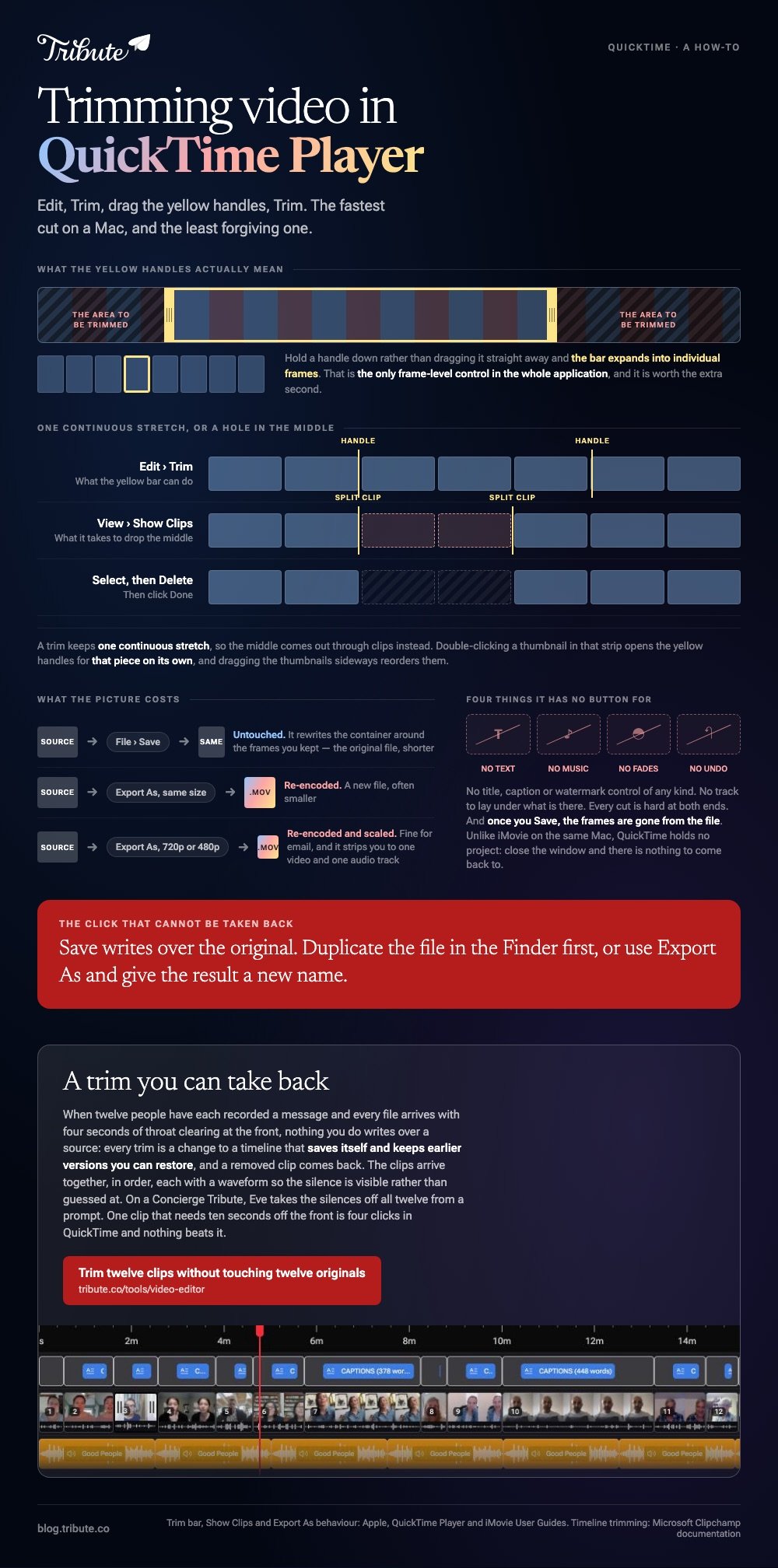
- Drag the handles inward. Apple's guide says it in one line: the area outside of the yellow handles is the area to be trimmed.
- Click Trim, then File > Save.
Hold a handle down rather than dragging it straight away and the bar expands into individual frames. That is the only frame-level control in the whole application, and it is worth the extra second.
Save writes over the original. If the source matters, duplicate the file in the Finder first, or use File > Export As and give the result a new name.
What about a screen recording you just made?
Same handles, one step earlier.
A recording started from File > New Screen Recording opens in its own window the moment you stop it. Choose Edit > Trim there and cut the fumbling off both ends before the file goes anywhere.
Anything on screen is part of the picture, including a clock in the corner. If a timestamp is the thing you want gone, trim the section out rather than reaching for a crop.
Can QuickTime Player trim video from the middle of a clip?
Yes, but through clips rather than through the trim bar.
A QuickTime trim keeps one continuous stretch. To drop something out of the middle, you split the movie first and then delete the piece you do not want.
- Choose View > Show Clips. The movie appears as a strip of thumbnails.
- Move the playhead to the first cut point and choose Edit > Split Clip.
- Move to the second cut point and split again.
- Select the middle piece and press Delete, then click Done.
Double-clicking a clip in that strip opens the yellow handles for that piece on its own, which is how you tidy one section without touching the rest.
Dragging the thumbnails sideways reorders them. It is crude next to a timeline, and for two or three pieces it beats opening anything larger.
Does a QuickTime trim lose quality?
Not if you save, and sometimes if you export.
Save rewrites the container around the frames you kept, so the picture is untouched. Export As offers 4K, 1080p, 720p and 480p, and anything below the source resolution re-encodes the video.
| What you click | What happens to the picture | What you get |
|---|---|---|
| File > Save | Untouched | The original file, shorter |
| Export As, same size | Re-encoded | A new .mov, often smaller |
| Export As, smaller size | Re-encoded and scaled | A file for email or a phone |
Export also strips you down to one video and one audio track, which is fine for a holiday clip and wrong for anything you plan to edit again.

What can QuickTime not do to a video?
Almost everything that comes after the cut.
- No text. There is no title, caption or watermark control of any kind.
- No music bed. You cannot lay a track under what is already there.
- No fades. Every cut is hard at both ends.
- No undo after Save. The frames are gone from the file.
Unlike iMovie, which is already on the same Mac, QuickTime holds no project. Close the window and there is nothing to come back to.
That is the trade. A QuickTime trim costs four clicks, and the moment you want a second thing done you are opening something else anyway.
Which tool should you reach for instead?
Whichever one matches the next thing you want to do.
| Tool | Good for | Cost of entry |
|---|---|---|
| QuickTime Player | One clip, one cut, right now | Already open |
| iMovie | Several clips, titles, music | A project and a save location |
| Clipchamp | The same job in a browser tab | An account |
| VLC | Nothing, for this | No handles, no preview |
In iMovie you select the clip and choose Window > Show Clip Trimmer, then drag an edge in or out, and press Return to close it. Clipchamp does the same job with green bars you drag on the timeline.
Compared to both, VLC is the wrong answer: see trimming video in VLC for why. The general version of this job is in how trimming a video should work, and the frame itself is a different problem in cropping in QuickTime.
What if the clips came from a dozen different people?
The Tribute video editor is a browser-based group video editor: contributors record clips on their phones and Tribute assembles them on a timeline with the music balanced under the voices.
It is ours, and it is the last thing on this page.
- A waveform under every clip, so the silence before the first word is visible rather than guessed at
- Autosave and a restorable save history, which is the undo QuickTime never had
- Reorder media, with every clip numbered and bulk moves to front, back or any position
- Music at 25% under speech and 75% under photos, overridable per clip
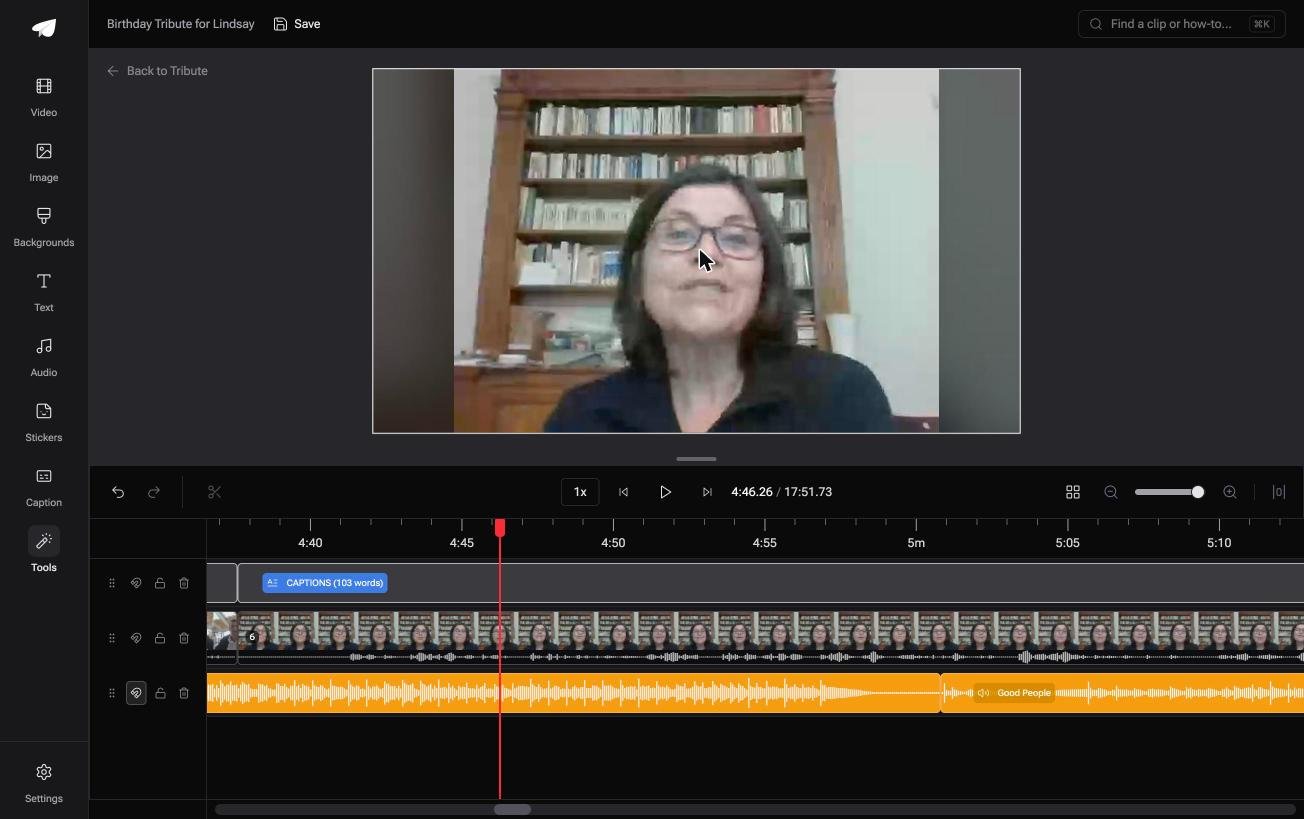
Best for: A dozen clips that each need two seconds off the front, one window at a time.
Why it works: The clips are already in order with the sound balanced, so dragging an edge in is the only job left.
Who trims the other eleven clips?
QuickTime assumes one file, open on your desk, belonging to you.
That assumption holds for a clip off your own phone. It falls apart the moment a video is something a group of people made. There is one case where the pile never reaches your desk at all.
The case: you are collecting, not shooting
You are in it when several people each record a message for one person.
A grandmother turning eighty. A colleague leaving after fifteen years. Twelve files land in your inbox, each with four seconds of throat clearing at the front and a wave goodbye at the end.

Why the Save warning never appears
Because nothing you do writes over a source file.
Every trim is a change to a timeline that saves itself and keeps earlier versions you can restore. That is how the Tribute video editor handles it: not a better trim than QuickTime's, but a trim you can take back.
What you do not have to do
- Open twelve files one at a time. They arrive together, on one timeline, in order.
- Write over anybody's original. Autosave keeps a restorable history and a removed clip comes back.
- Trim the silences, on a Concierge Tribute. Eve, the AI assistant inside the editor, takes them off all twelve clips from a prompt.
- Make the video yourself. Concierge means Tribute's editors cut it, and Concierge Deluxe returns it as a video book.

When this is the wrong answer: you shot one clip and want ten seconds off the front. QuickTime does that in four clicks and nothing beats it. The editor is not a standalone trimmer: it lives inside a paid Tribute.
Frequently Asked Questions
What is the keyboard shortcut for trimming in QuickTime?
Command T opens the trim bar on a clip that is already open. Apple's guide lists the menu route, Edit then Trim, as the one that always works.
Does QuickTime trim overwrite the original video?
Saving does. Duplicate the file in the Finder before you start, or use Export As and give the trimmed version its own name.
Can I trim an MP4 in QuickTime Player?
Yes, as long as QuickTime can open it. A file it refuses is carrying a codec it does not decode, and converting it first is the only route.
Why is there no Trim option in my Edit menu?
The window has to hold a movie rather than an audio file or a still, and the file has to be open in QuickTime Player rather than previewing in the Finder.
How do I trim several videos at once?
QuickTime takes one file at a time. For a batch, use an editor with a timeline, where the clips sit end to end and each one trims in place.
Can I add music after trimming in QuickTime?
No. QuickTime has no way to lay a track under a video, so the next step is iMovie, Clipchamp or a montage tool.
👉 Trim twelve clips without touching twelve originals if several people are each recording a message for one person, and no Save writes over anybody's file.
