
Trim Movie in iMovie: Four Ways to Shorten a Clip on Mac and iPhone
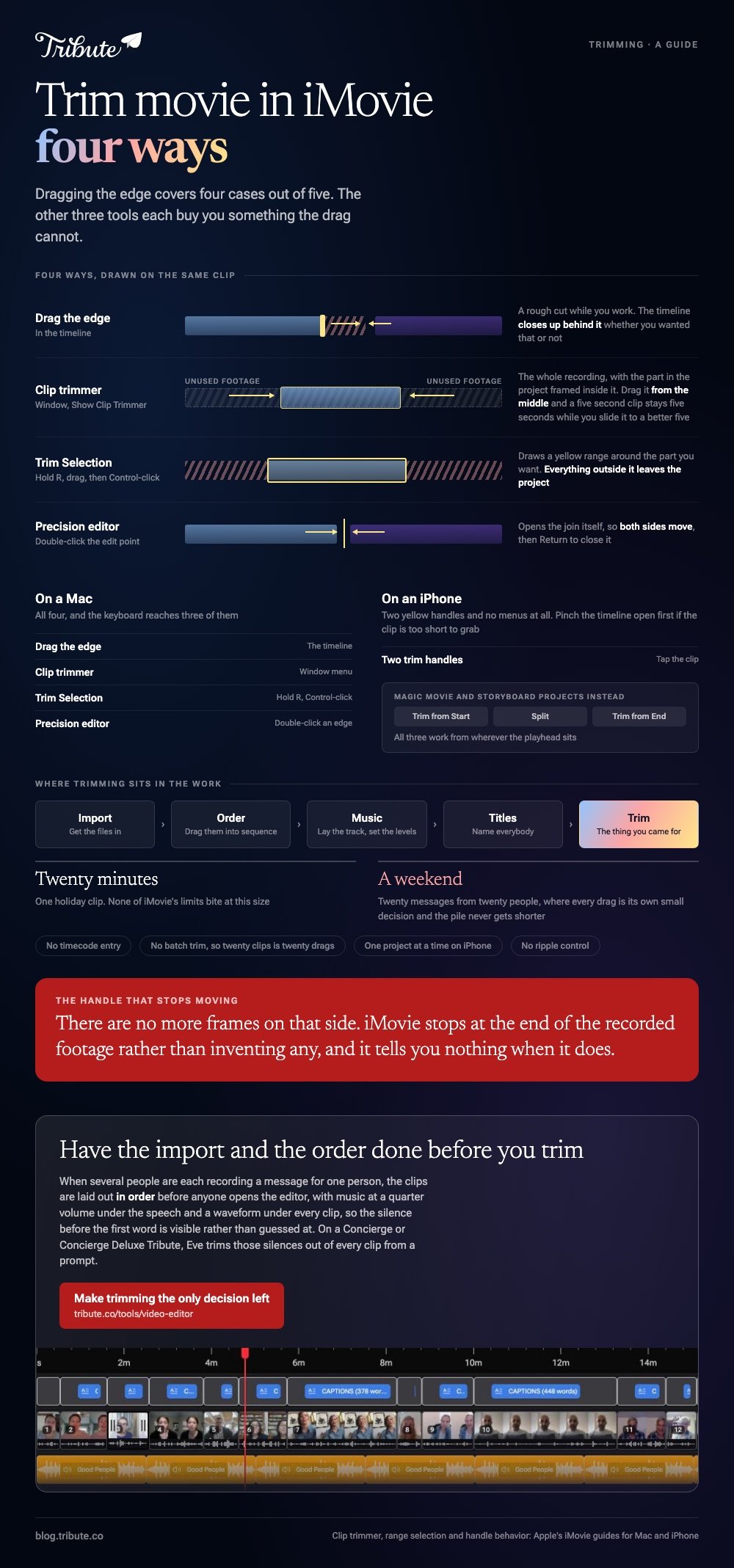
To trim a movie in iMovie, drag the clip's edge toward its center in the timeline. That is the fast version. The clip trimmer, a range selection and the precision editor are the other three, and each one buys you something the drag does not.

Which way to trim movie in iMovie fits your clip?
It depends on whether you are cutting seconds or finding a frame.
| Method | What it is good for | Where it lives |
|---|---|---|
| Drag the edge | A rough cut while you work | The timeline |
| Clip trimmer | Keeping the length, moving the content | Window menu |
| Trim Selection | Keeping one chunk out of the middle | Hold R, then Control-click |
| Precision editor | The join between two clips | Double-click an edge |
Drag first and go further only when the drag fails you. iMovie trim video work is one of those jobs where the simple tool covers four cases out of five.
Extending a clip back out works the same way, with one condition: there has to be unused footage past the edge. If the handle stops moving, you have reached the end of what was recorded.
How does the iMovie clip trimmer work?
It shows the whole recording while the project holds only part of it.
- Click the clip in the timeline to select it.
- Choose Window > Show Clip Trimmer. Apple's guide describes the trimmer appearing over the timeline with the clip's unused footage either side.
- Drag an edge inward to shorten, outward to extend.
- To keep the same duration but change which seconds you are using, drag the clip from its middle, left or right.
- Press Return to close it.
That fourth step is the reason the clip trimmer iMovie ships with is worth learning. A clip cut to five seconds stays five seconds while you slide it to a better five.
Keeping one stretch out of the middle
Hold the R key and drag across the clip to draw a yellow range around the part you want.
Control-click inside it and choose Trim Selection. Everything outside the range leaves the project, and the clip closes up behind it.
For the join between two clips, double-click the edit point to open the precision editor, drag either side, and press Return.

How do you trim movie in iMovie on an iPhone?
With two yellow handles and no menus at all.
- Open the project and tap the clip in the timeline. A yellow border appears around it.
- Apple's iPhone guide says to drag either yellow trim handle to shorten or lengthen the clip.
- Pinch the timeline open first if the clip is too short to grab.
- Tap Done, then the Share button, then Save Video.
A handle that refuses to move means there are no more frames on that end. It is the same rule as the Mac, with no message to explain it.
Magic Movie and storyboard projects carry three separate buttons instead: Trim from Start, Split and Trim from End, all working from where the playhead sits.
Where does iMovie trimming video run out of room?
At the point where you want the cut to be exact and repeatable.
- No timecode entry. You cannot type in an in point and an out point.
- No batch trim. Twenty clips means twenty drags.
- One project at a time on iPhone, and the library lives on that device.
- No ripple control. Trimming closes the gap whether you wanted that or not.
None of this bites on a single holiday clip. It bites on twenty messages from twenty people, where each drag is its own small decision and the pile never gets shorter.
Compared to a command line tool, iMovie is slower on a list of files and faster on a single decision. The opposite trade is in trimming with FFmpeg, where you type the times and never see the frame.
Unlike VLC, which has no handles at all, iMovie wins before the conversation starts: trimming video in VLC explains why. The general shape of the job is in how trimming a video should work.
What if the clips came from a dozen different people?
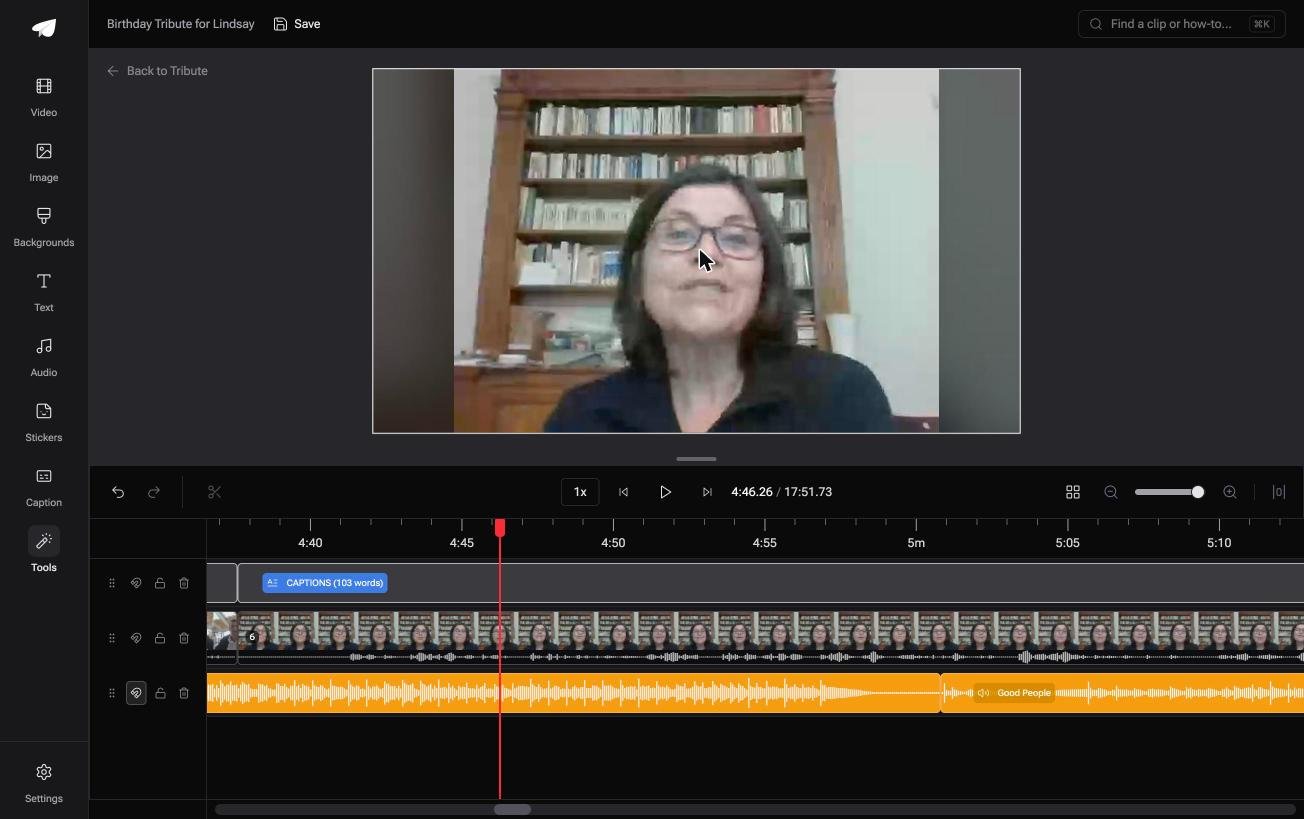
The Tribute video editor is a browser-based group video editor: contributors record clips on their phones and Tribute assembles them on a timeline with the music balanced under the voices.
It is ours, and it is the last thing on this page.
- A waveform under every clip, so the silence before the first word is visible rather than guessed at
- Clips arrive in order, with a tick against the ones already on the timeline
- Autosave and a restorable save history, and removed clips are recoverable rather than deleted
- Reorder media, with every clip numbered, select all, move to front, move to back, bulk remove
Best for: A set of clips where the only thing wrong is the dead air at each end.
Why it works: The order and the sound are settled before you arrive, so trimming is the one decision left.
Does somebody else build the project for you?
Trimming is the fourth thing you do in iMovie, not the first.
Before it come the import, the ordering, the music and the titles. On a holiday clip that is twenty minutes. On twenty messages from twenty people it is a weekend. There is one case where the first three are done for you.
The case: the video is a collection, not a shoot
You are in it when several people each record a message for one person.
A grandmother turning eighty. A colleague leaving after fifteen years. Nobody is shooting anything: each person talks to their own phone for forty seconds and sends it.

Why there is no project to build
Because the clips are laid out before anyone opens the editor.
They arrive in order, with music underneath at a quarter volume while somebody is speaking. That is how the Tribute video editor handles it: nothing to import, nothing to arrange, and trimming is the whole of the work rather than the end of it.
What you never touch
- Not the import. The clips are on a timeline, in order, before you open it.
- Not the silences. On a Concierge or Concierge Deluxe Tribute, Eve, the AI assistant inside the editor, trims them out of every clip from a prompt.
- Not the trimming that follows. Concierge means Tribute's own editors cut the video and hand it back.
- Not the names. Each badge carries the name and relation of whoever sent the clip.

When this is the wrong answer: you shot the footage yourself and want one clip shortened. iMovie is already on the Mac and does it in one drag. The editor is not a standalone trimmer: it lives inside a paid Tribute.
Frequently Asked Questions
How do I trim a clip in iMovie without changing the others?
Select the one clip and drag its edge, or open the clip trimmer from the Window menu. Both act on the selected clip, and the rest of the timeline closes up behind it.
Can I undo a trim in iMovie?
Yes. Command Z steps back, and dragging the edge outward again restores frames as long as the original recording had them.
What is the difference between trimming and splitting?
A trim shortens a clip from one end. A split cuts one clip into two pieces that both stay in the project, which is what you want before deleting a section in the middle.
How do I trim a photo in an iMovie project?
The same yellow handles work on a still. Photos arrive with a default duration of six to twelve seconds, and dragging a handle changes how long the picture holds.
Why will my trim handle not move any further?
There are no more frames on that side. iMovie stops a handle at the end of the recorded footage rather than inventing anything, and it gives you no message when it does.
Where did my trimmed clip go when I exported?
The project exports what is on the timeline, not the source file. On iPhone the route out is Share, then Share Video, then Save Video, which writes a new video to Photos.
Can I trim several videos before joining them?
You can, and it is the usual order of work. Trim each clip on the timeline, then arrange them: building a video montage covers the second half.
👉 Get the import, the order and the trim done for you if several people are each recording a message for one person, and iMovie never has to open.
