
Trim Video iPhone: Where Photos Stops and iMovie Starts
Photos trims the start and the end of a video on an iPhone and nothing else. Taking a piece out of the middle needs iMovie, which is one more app and about four more taps.

| What you want | Where it lives | What it costs you |
|---|---|---|
| Cut the start or end | Photos, Edit | Nothing, about 15 seconds |
| Cut out the middle | iMovie, Split | A download and a project |
| Keep both versions | Save as New Clip | Storage, twice over |
| Undo it later | Revert to Original | Only if you saved in place |
How do you trim video iPhone footage in Photos?
Four taps, and the app is already on the phone.
- Open Photos and tap the video.
- Tap the Edit button, the slider icon.
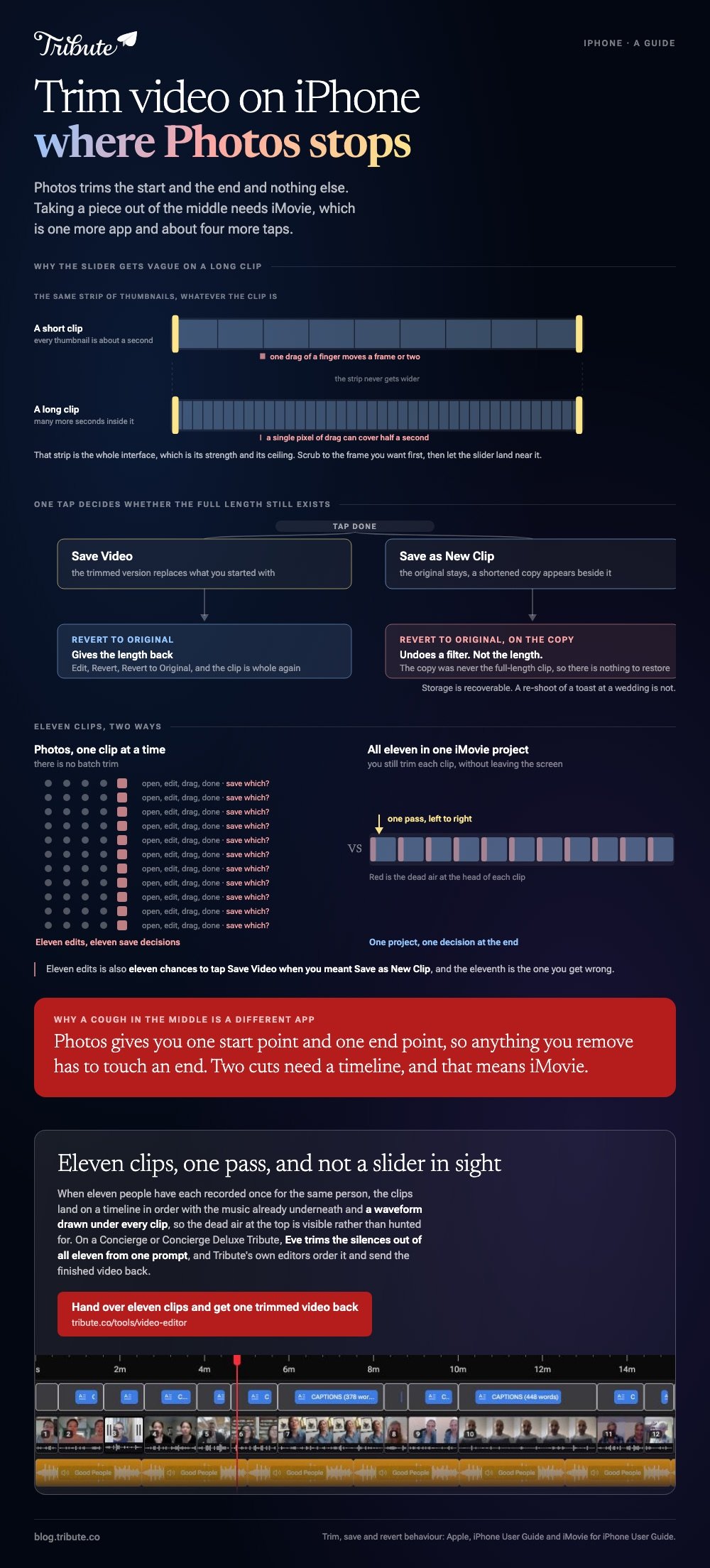
- Drag the sliders at either end of the strip of thumbnails under the video to set the new start and stop points. Tap Play to check it.
- Tap Done, then choose a save option.
That strip is the whole interface, which is its strength and its ceiling. Apple's own guide describes those two sliders and no other control.
On a long clip the strip is coarse, so a single pixel of drag can cover half a second. Scrub to the frame you want first and let the slider land near it.
Which save option should you choose?
Save as New Clip unless you are certain.
The difference is what happens to the file you started with. Save Video keeps only the trimmed version, while Save as New Clip leaves the original where it was and adds the shortened copy beside it.
| Option | Original | Can you get the length back? |
|---|---|---|
| Save Video | Replaced | Yes, through Revert to Original |
| Save as New Clip | Untouched | Not on the copy |
To undo a trim saved in place, open the video, tap Edit, tap Revert, then Revert to Original.
Apple is blunt about the exception. On a video saved with Save as New Clip, Revert to Original undoes edits such as exposure or a filter, and it will not restore the length.
Can you trim video iPhone clips from the middle?
Not in Photos. The job moves to iMovie.
Photos offers one in point and one out point, so anything you remove has to touch an end. A cough in the middle of a two minute message needs two cuts, which is a different tool.
The iMovie route, step by step
- Open iMovie, start a Movie project and add the clip.
- Scroll the timeline so the playhead sits where the first cut goes. Keep it off the very first frame.
- Tap the clip, tap the Actions button in the inspector, then tap Split. Swiping down over the playhead does the same thing.
- Repeat at the end of the stretch you are removing.
- Tap the middle piece and delete it.
Apple notes one side effect: iMovie drops a cut between the two new clips, and you can swap that for a cross dissolve later.
Compared to the Photos slider, this is slower and it is the only route on the phone that removes a middle section without sending the file anywhere.
Does trimming on an iPhone cost you quality?
Apple does not publish an answer, so treat the trimmed copy as a new encode.
A phone trim is quick enough that nobody questions it, and a clip that has been through three rounds of editing and sharing looks softer than the one that came out of the camera.
Save as New Clip is the cheap insurance. Storage is recoverable and a re-shoot of a toast at a wedding is not.
For a cut on a computer that leaves the picture untouched, see trimming in VLC and the wider options in trimming a video.
How do you trim a whole batch of clips on a phone?
One at a time in Photos, or all of them in one iMovie project.
Photos has no batch trim. Eleven clips means eleven edits, eleven save decisions and eleven chances to tap Save Video when you meant Save as New Clip.
Dropping all eleven into a single iMovie project turns that into one pass down a timeline. You still trim each clip, and you do it without leaving the screen.
Music is the other job that gets easier in a project: see adding music on an iPhone.
What if the clips came from eleven different people?
The Tribute video editor is a browser-based group video editor: contributors record clips on their phones and Tribute assembles them on a timeline with the music balanced under the voices.
It is ours, and it is here at the end for one kind of reader.
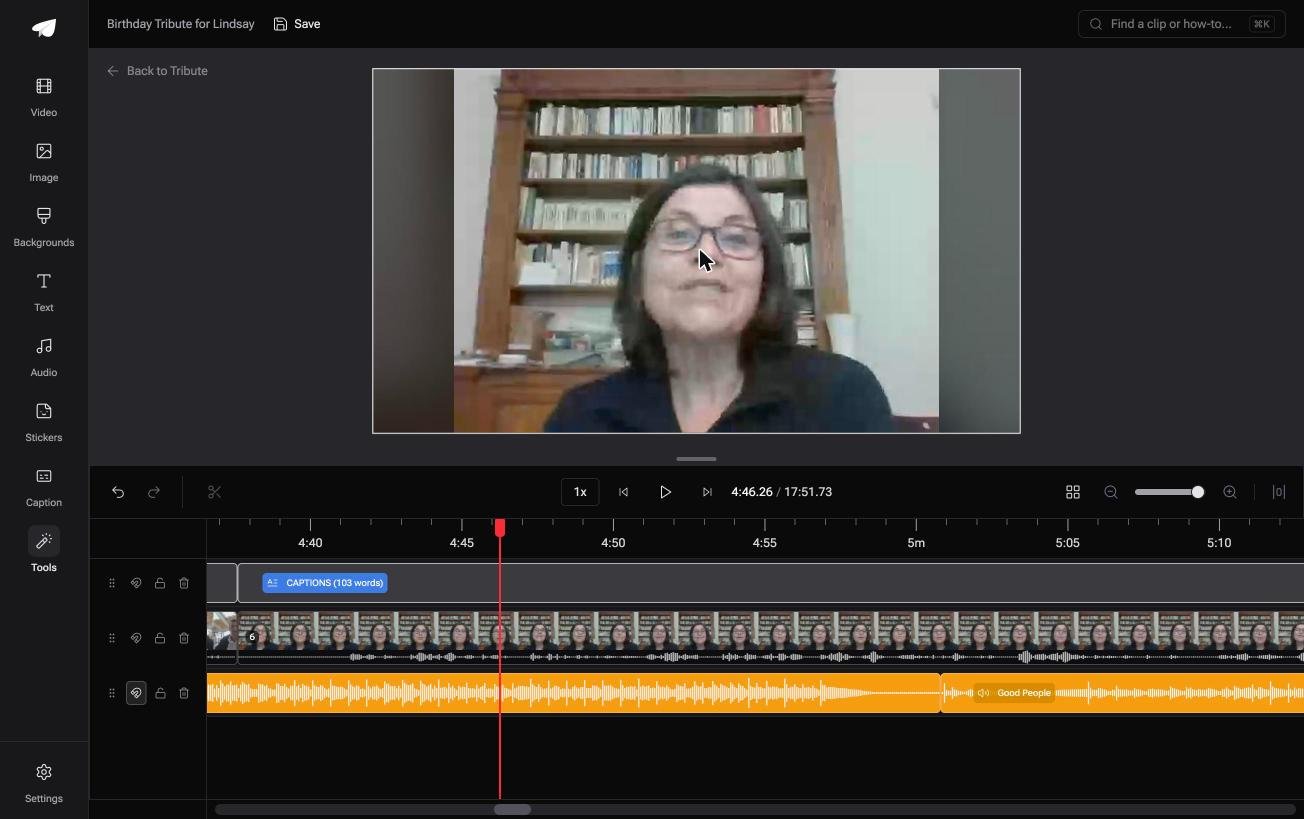
- A waveform under every clip, so you trim to the first word instead of hunting for it
- Clips arrive in order on the timeline, with a tick against the ones already placed
- Blurred edges fill the frame behind upright phone footage, on by default, so nothing needs reshaping
- Autosave and restorable version history, and a removed clip is recoverable rather than gone
Best for: Eleven clips from eleven phones and one evening to do something with them.
Why it works: Unlike eleven separate trims in Photos, the clips sit on one timeline and the silence is visible before you drag anything.
What if nobody has to trim anything?
Count the clips on your phone and the work above repeats once for each of them.
Trimming one video is fifteen seconds. Trimming fifteen videos that fifteen people sent you is an evening, and that is the version of this job most people are stuck in.
The case: the clips were recorded for one person
You are in it when several people each record a message for the same someone.
A ninetieth birthday. A nurse retiring from a ward she opened. A memorial where half the people who should speak cannot be in the room. Each person records once, and nobody opens an editor.

Why the trimming shrinks to one pass
The clips land on a timeline in order, with the music already underneath.
Dead air at the top of a clip is the one thing you still fix, and the Tribute video editor draws the waveform so you can see where the speech begins. Drag the edge to the first word and move on.
A Concierge or Concierge Deluxe Tribute does not need that pass: Eve, the AI assistant inside the editor, trims the silences out of all eleven clips from a prompt.
What you do not have to do
- Not the collecting. Each person records from the link, wherever they are.
- Not the trimming. Eve takes the dead air off all eleven clips from one prompt.
- Not the edit. On Concierge, Tribute's own editors order it and send back the finished video.
What you hand over at the end
On a screen in a room full of people, or as a video book: a hardcover case with a screen inside that plays when you open it.
The wider job is covered in building a video montage.

When this is the wrong answer: the clip is yours, there is one of it, and you want eight seconds off the front. Open Photos and use the sliders.
Frequently Asked Questions
Where is the trim tool in the iPhone Photos app?
Open the video, tap Edit, and the strip of thumbnails under the picture is the trimmer. Drag either end to set a new start or stop point.
Can I trim a video on an iPhone without losing the original?
Yes. Tap Done and choose Save as New Clip, which leaves the original in your library and adds the trimmed version next to it.
How do I undo a trim?
Open the video, tap Edit, tap Revert, then Revert to Original. This works on a video saved in place and not on a copy saved as a new clip.
Why can I not cut the middle out in Photos?
Photos gives you one start point and one end point, which can only shorten a clip from its ends. Two cuts need a timeline, so the job moves to iMovie.
Does iMovie put the trimmed clip back in my camera roll?
Only when you export it. The project lives inside iMovie until you share the finished video to Photos or to another app.
Can I trim a video someone sent me in Messages?
Save it to Photos first. A video playing inside a message thread has no edit controls until it is in your library.
What is the quickest way to trim several clips at once?
Put them all in one iMovie project and trim down the timeline. Photos handles one clip per edit and offers no batch option.
👉 Hand over eleven clips and get one trimmed video back if they came from eleven different phones, and the evening is not spent on sliders.
