
Trim Video Snapchat: The Timeline Editor, Memories, and the PC Route
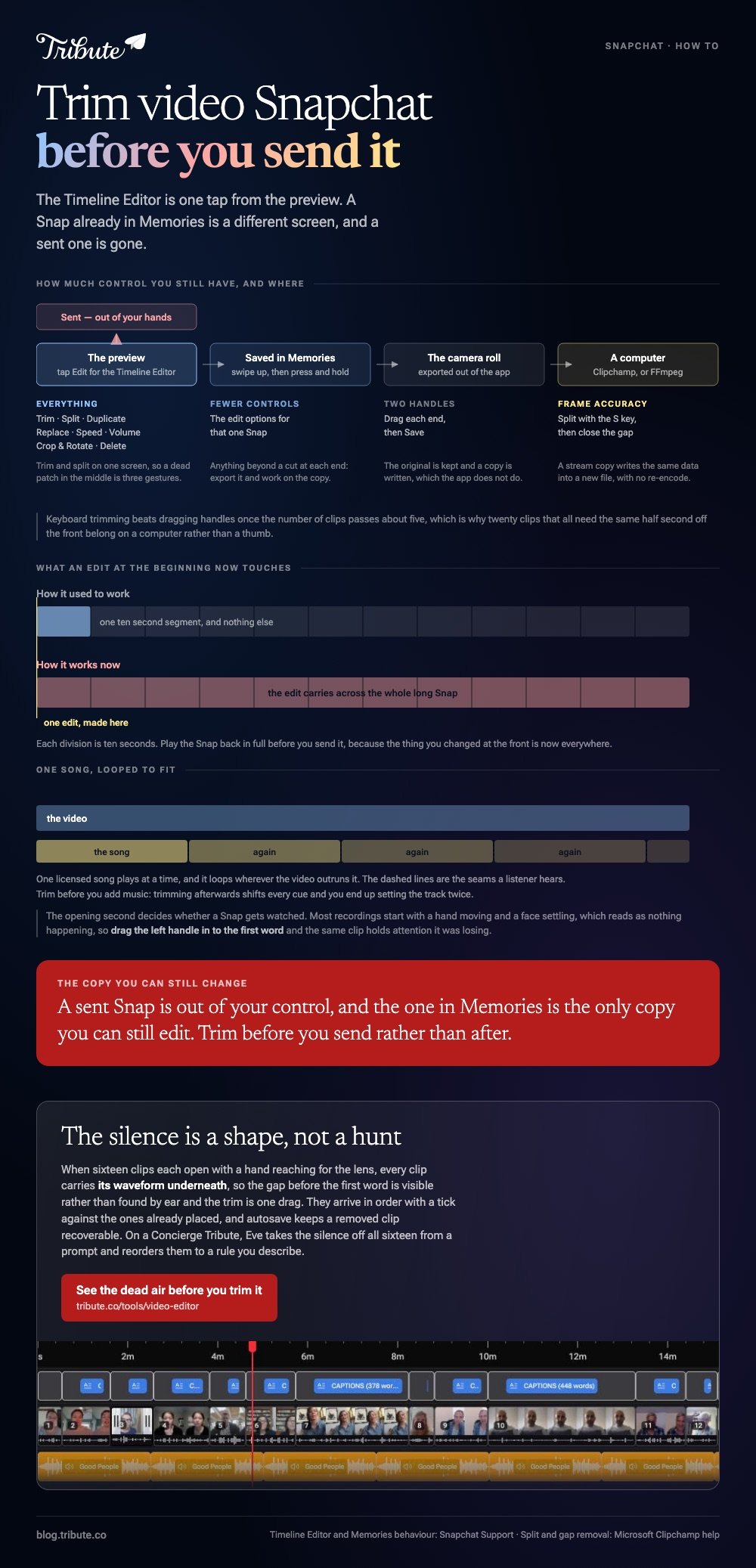
To trim video Snapchat has just recorded, open the Timeline Editor from the preview screen and drag either end of the clip. A Snap already sitting in Memories is a different screen with fewer controls. Anything longer than a Snap belongs on a computer.
| Where the video is | What to open | What you get |
|---|---|---|
| Just recorded | Timeline Editor, from the preview | Trim, split, speed, volume, crop |
| Saved in Memories | Press and hold the Snap | The edit options for that Snap |
| In the camera roll | Photos or Google Photos | Two handles and a Save button |
| On a computer | Clipchamp, or FFmpeg for a clean cut | Frame accuracy and no re-encode |
How do you trim video Snapchat just recorded?
In the Timeline Editor, which is one tap from the preview.
- Record a video Snap from Camera or Director Mode.
- On the preview screen, tap the video thumbnail labeled Edit.
- Drag either end of the clip to trim it.
- Tap a clip for the rest: Split, Duplicate, Replace, Speed, Volume, Crop & Rotate and Delete.
- Leave by tapping the preview, dragging the tray down, or tapping the back arrow.
Snapchat sets out that sequence in its guide to editing videos with Timeline Editor, which also notes that one licensed song plays at a time and loops where the video outruns it.
Best for: A Snap you are about to send, where the first two seconds are you reaching for the button.
Why it works: Trim and split sit on the same screen, so a clip with a dead patch in the middle is three gestures rather than a trip to another app.
Trim the front, not the back
The opening second decides whether a Snap gets watched.
Most recordings start with a hand moving and a face settling, and all of that reads as nothing happening. Drag the left handle in to the first word or the first movement and the same clip holds attention it was losing.
Can you trim video Snapchat already saved to Memories?
You can edit it, through a press and hold.
- Swipe up from the Camera screen to open Memories.
- Press and hold the Snap you want to change.
- Tap the option you want from the menu that appears.
Snapchat documents that in its page on editing a Snap in Memories, with one warning worth reading twice.
On a long video Snap, an edit made at the beginning now applies across the whole thing, where it used to touch a single ten second segment. Play the Snap back in full before you send it.

For anything beyond a cut at each end, export the Snap to the camera roll and trim it in the editor that came with the phone. Compared to working inside a messaging app, a camera roll editor keeps the original and writes a copy.
What about a video trimmer for PC?
The video trim software for PC most people already own is Clipchamp, and no trimmer needs installing.
- Import the clip and drag it onto the timeline.
- Select the asset so it highlights, then drag the sidebars inward to trim each end.
- To cut a piece out of the middle, move the seeker to the cut point and click the scissors split button, or press S.
- Select the piece you do not want and press Delete.
- Close the hole with the gap removal control, then export.
Microsoft documents the split step in its guide to splitting or cutting videos and audio assets.
Best for: Twenty clips that all need the same half second taken off the front.
Why it works: Keyboard trimming beats dragging handles once the number of clips passes about five.
When you want no quality loss at all
Use FFmpeg and cut on a keyframe.
A stream copy writes the same video data into a new file instead of re-encoding it, so the trimmed clip is pixel for pixel what went in. The cost is a cut that lands on the nearest keyframe rather than the exact frame you picked.
Commands are in trimming video with FFmpeg, the open source player route in trimming in VLC, and the general version in trimming a video.
Where the time goes
Not in the dragging. In the deciding.
Each clip asks the same two questions: where does this start, and is the ending worth keeping. Answering them sixteen times is the job, and no trimmer shortens it.
One habit helps. Watch every clip once, straight through, before you cut anything, so you know which ones carry the video and which are filler.
What if there are sixteen clips rather than one Snap?
The Tribute video editor is a browser-based group video editor: contributors record clips on their phones and Tribute assembles them on a timeline with the music balanced under the voices.
It is ours, and it is the last thing on this page.
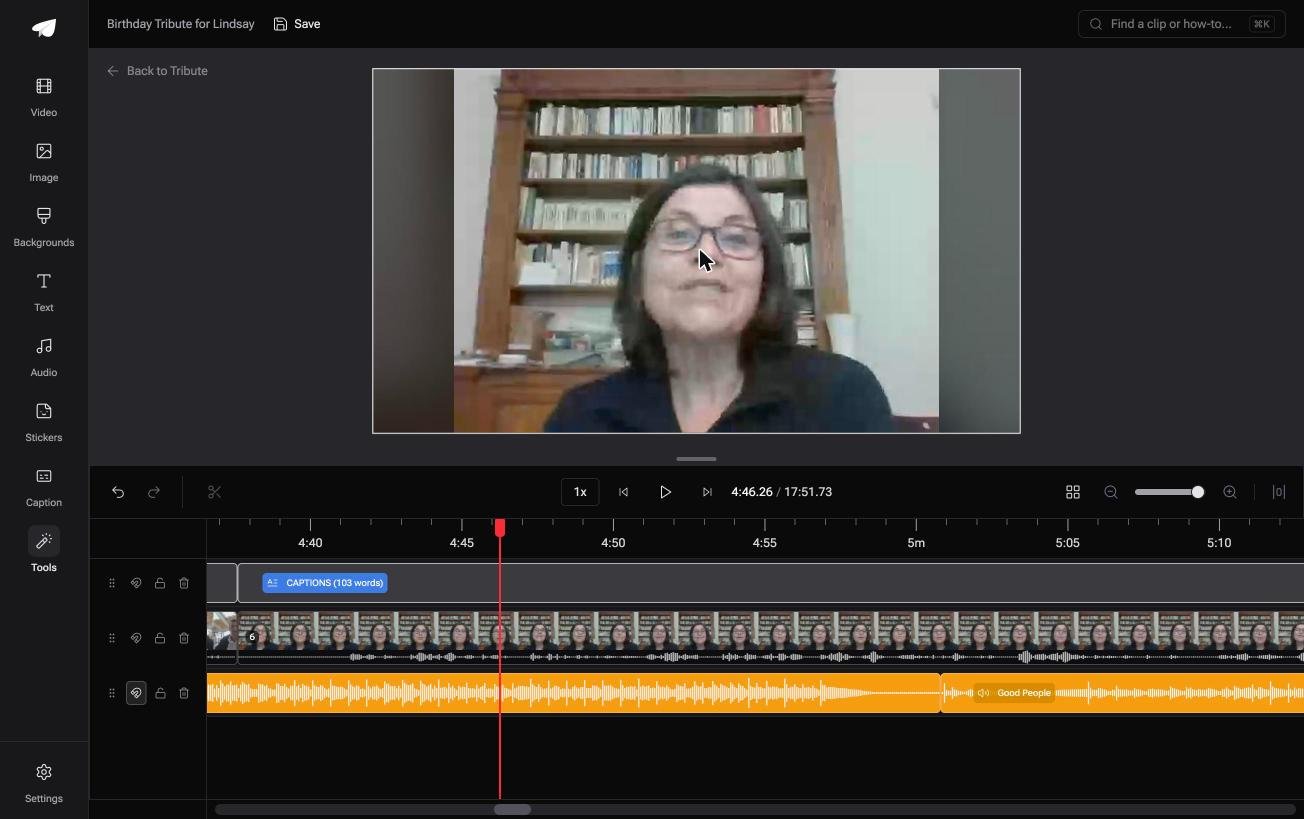
- A waveform under every clip, so the silence before the first word is visible rather than guessed at
- Clips arrive in order, with a tick against the ones already on the timeline
- Reorder media: every clip numbered, with move to front, move to back and move to position
- Autosave and restorable version history, so a clip you removed is recoverable
Best for: A stack of contributor clips that each open with somebody reaching for the record button.
Why it works: Every one of those clips opens with someone finding the record button, and the waveform shows you where that ends.
Who trims the clips when sixteen people sent them?
Every second cut above is cut by hand, with a thumb, on a phone.
For one Snap that is nothing. For a set of clips from different people it is the same gesture repeated until you stop caring, and the last four get less attention than the first four.
The case: the clips are messages for one person
It describes any video whose clips arrived rather than being shot.
A new baby, and twelve relatives who have not met her. A colleague's last day. Everyone sent a minute from their own phone, and every minute starts with a hand reaching toward the lens.
Nobody is making a Snap. There is one video, and it gets watched once, in a room.
Why the trimming stops being a hunt
You can see the silence instead of scrubbing for it.
Each clip in the Tribute video editor carries its waveform underneath, so the gap before the first word is a shape on screen and the trim is one drag. Unlike scrubbing a phone timeline with a thumb, nothing has to be found by ear.

What you do not have to do
- No scrubbing. A waveform under each clip shows the dead air rather than hiding it.
- No trimming pass at all, on Concierge. Eve, the AI assistant inside the editor, takes the silence off all sixteen clips from a prompt.
- No reordering by hand. Eve moves them to a rule you describe, across the whole timeline.
- No names to retype. One switch captions the lot, and Eve fixes the ones it misheard.
When this is the wrong answer: the video is a Snap going to a story today, you shot it yourself, or the cut is the creative work. Then the Timeline Editor is already open.
The editor is also not a standalone trimmer: it lives inside a paid Tribute.

Assembly itself is covered in making a video montage.
Frequently Asked Questions
Can I trim a Snap after sending it?
No. A sent Snap is gone from your control, and the copy in Memories is the only one you can still edit. Trim before you send rather than after.
Does trimming in Snapchat lose quality?
The app re-encodes what you save, so each round costs a little. For anything you plan to keep, save the original to the camera roll first and trim that copy.
How long can a Snap video be?
Long Snaps run well past the old limit, which is why the Timeline Editor exists. The practical ceiling is attention rather than the app.
Why did my edit change the whole video?
On a long Snap, an edit at the beginning now carries across the whole video instead of one ten second segment. Play the Snap back in full before sending.
Can I trim a Snapchat video on a computer?
Save it to the camera roll, move it to the computer, then use Clipchamp or FFmpeg. There is no desktop Snapchat editor for this.
What is the best video trimmer for a PC with no install?
Clipchamp in a browser tab, which handles trim, split and gap removal. FFmpeg is the better answer when the goal is no re-encode at all.
Should I trim before or after adding music?
Before. Trimming afterward shifts every cue in the track and you end up setting the music twice.
👉 See the dead air before you trim it if sixteen clips all open with a hand reaching for the lens, and on Concierge Eve takes it off for you.
