
Using iMovie to Make a Slideshow: Photos, Music and the Ken Burns Setting
Using iMovie to make a slideshow takes four moves: start a Movie project, add the photos, drop a soundtrack underneath, then export. iMovie zooms every photo for you, and that is the first thing most people want to change.
What do you need before using iMovie to make a slideshow?
Three things, and two of them are already on the device.
iMovie is Apple's own editor and it is free to use on iPhone, iPad and Mac. If it is not installed, it is in the App Store under your Apple Account at no cost.
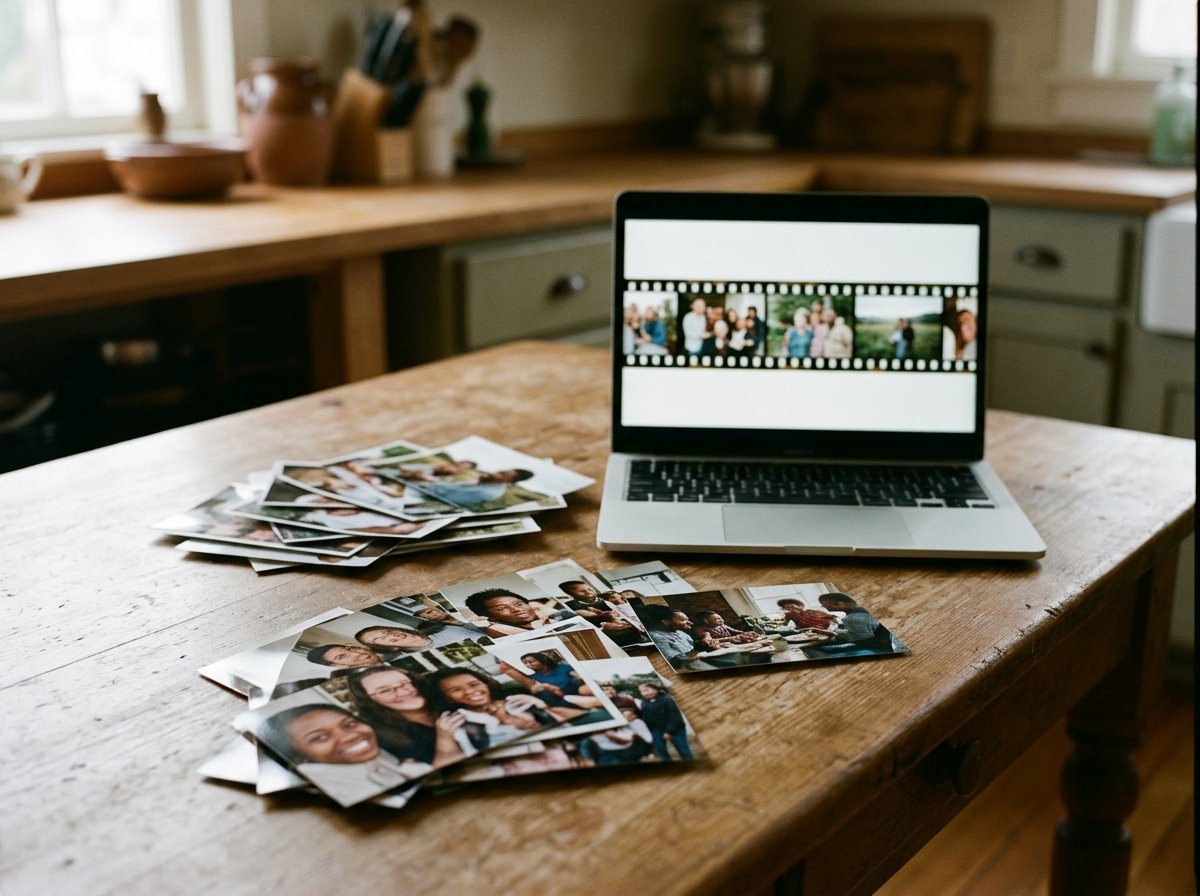
The third thing is the photos, in one place. Pull them out of messages and email first, because an iMovie photo slideshow is much faster to build when every image is already in the Photos app.
Most of them will be on a phone to begin with: Pew Research Center puts smartphone ownership among US adults at 91% in its 2026 survey. Start on the device holding the pictures and you skip a transfer step.
How many photos is the right number?
Divide the song by four seconds a photo.
A three minute track carries about forty-five images. Past sixty the room goes quiet in the wrong way, and people start looking at their phones.
How do you make an iMovie photo slideshow on iPhone?
Nine taps, start to finish.
- Open iMovie and tap Start New Project.
- Tap Movie. Magic Movie builds something for you; Movie leaves you in control.
- Tap Media, then Photos, and tap each image in the order you want it to appear. iMovie respects that order.
- Tap Create Movie. Every photo lands on the timeline at a default length.
- Tap a photo in the timeline, then drag either end to stretch or shorten it.
- Tap the + between two photos to change the join. A cross dissolve reads as calm; a slide reads as busy.
- Add music (the next section).
- Tap Done.
- Tap the share button, then Share Video, then Save Video. The video lands in Photos.

Why is every picture moving?
Because iMovie turns it on for you.
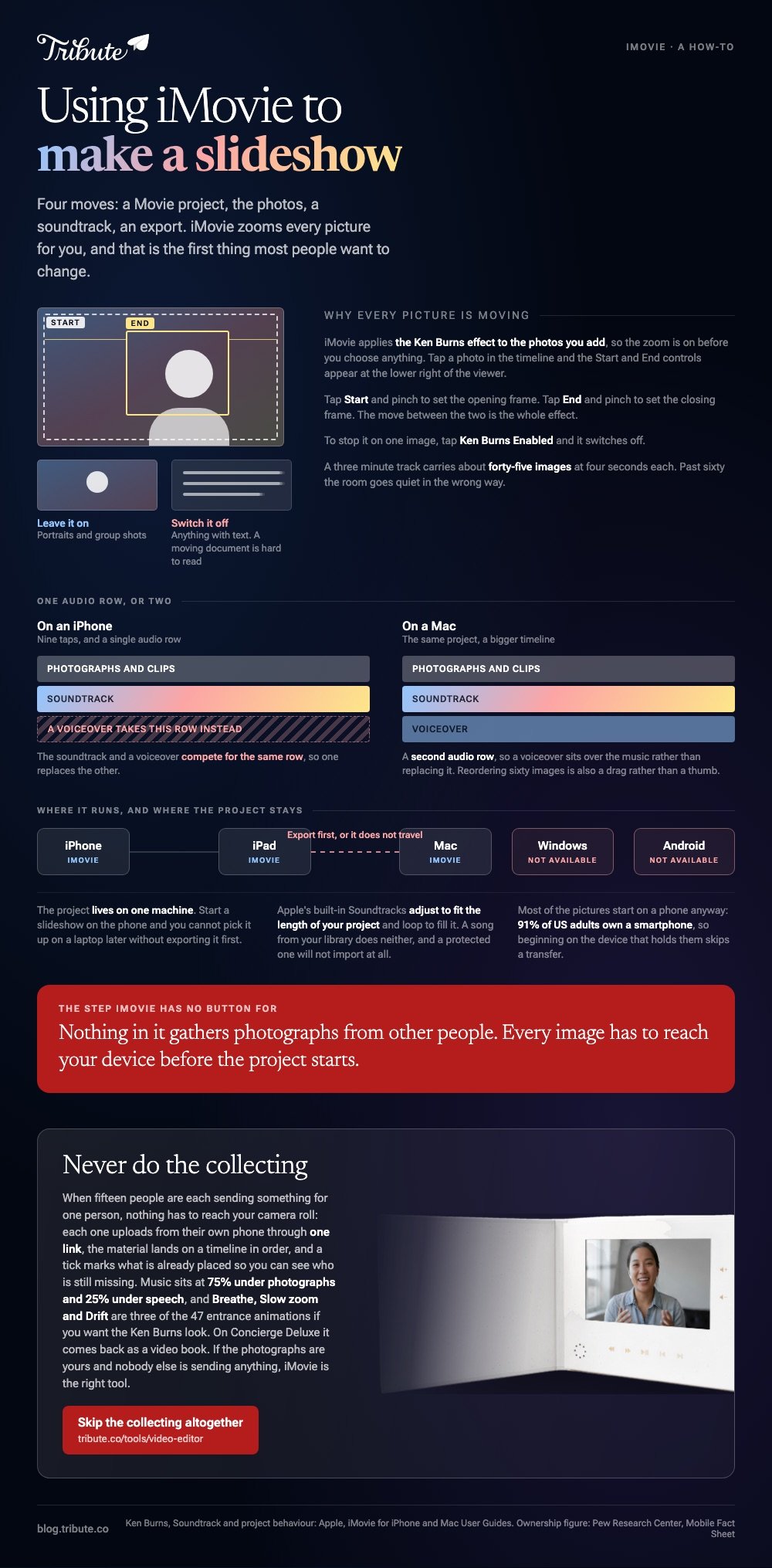
Apple states that iMovie applies the Ken Burns effect to the photos you add. Tap a photo in the timeline and the Start and End controls appear at the lower right of the viewer.
Tap Start, pinch to set the opening frame. Tap End, pinch to set the closing frame. To stop the movement on one image, tap Ken Burns Enabled and it switches off.
Leave the zoom on for portraits and group shots. Switch it off for anything with text in it, because a moving document is hard to read.
How do you build a photo slideshow with iMovie on a Mac?
The same project, with a bigger timeline and faster reordering.
- Open iMovie and choose File > New Movie.
- Drag a folder of images straight into the browser at the top, or use File > Import Media.
- Select them all and drag them into the timeline in one go.
- Drag a photo left or right to reorder it. This is where a Mac beats the phone: an iMovie picture slideshow of sixty images is painful to reorder with a thumb.
- Choose File > Share > File to export, then pick a resolution and click Next.
Using iMovie for a photo slideshow on a Mac also gives you a second audio row, so a voiceover can sit over the music rather than replacing it.
More on the ready-made route in iMovie templates for a photo slideshow.
How do you add music to an iMovie slideshow?
Through the same Media button you used for the photos.
Tap +, then Audio, then Soundtracks. Apple's built-in tracks sit there, some with a download arrow beside them. Tap a track, then tap Add Audio.
Apple says those soundtracks adjust to fit the length of your project, and that background music loops to fill the video by default. That is the whole reason to use them rather than a song from your library.
Can you use a song you own?
Sometimes, and it depends where the song came from.
My Music shows what is stored on the device. Tracks protected by digital rights management will not import, and a streaming subscription does not count as a copy.
Unlike the built-in soundtracks, a commercial release carries a copyright risk the moment the slideshow goes on YouTube. For a video played once in a room, nobody will ever know. See making a slideshow with music for the longer version.
Where does using iMovie to make a slideshow fall short?
At scale, and at collection.
iMovie is built for one person editing their own material. Nothing in it gathers photos or clips from other people, so every image has to reach your device before the project starts.
| The job | iMovie |
|---|---|
| Your own photos, one device | Good |
| Sixty images, heavy reordering | Use the Mac |
| Windows or Android | Not available |
| Clips from fifteen people | You collect them yourself |
Compared to a browser tool, iMovie also keeps the project on one machine. Start an iMovie slideshow on the phone and you cannot pick it up on a laptop later without exporting first.
Browser alternatives are covered in making a slideshow in Canva and the video montage makers.
What if the clips came from a dozen different people?
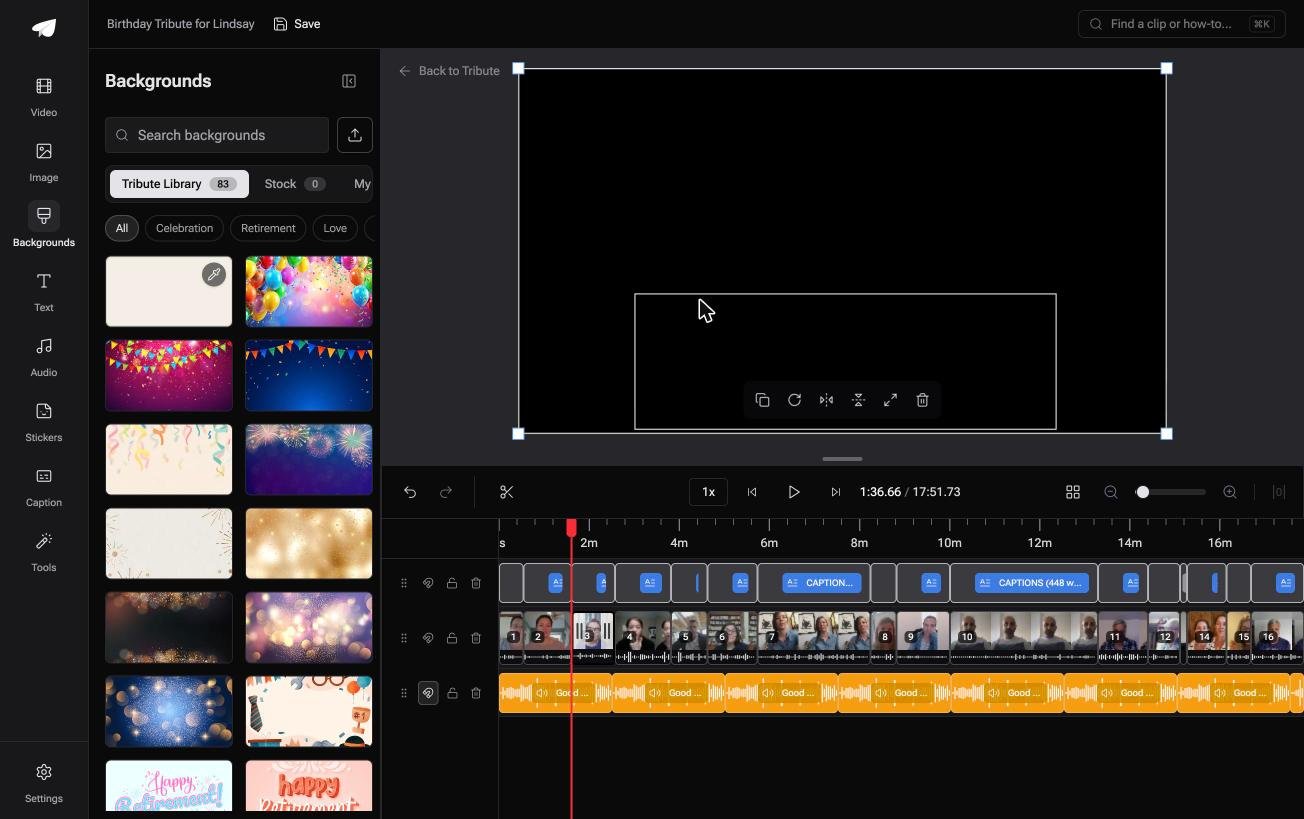
The Tribute video editor is a browser-based group video editor: contributors record clips on their phones and Tribute assembles them on a timeline with the music balanced under the voices.
It is ours, and it is the last thing on this page.
- Clips arrive already in order, on a timeline, before you open anything
- Music sits at 75% under photos and 25% under speech by default, and you can set it per clip
- 47 entrance and 47 exit animations, including Slow zoom, Drift and Breathe, which is the Ken Burns look
- 9 3D layout effects for photographs: Tilt, Book, Floating, Billboard, Skewed
Best for: A slideshow nobody can finish because half the photographs sit on other people's phones.
Why it works: The collecting is the long part, and it happens before you sit down.
Can the slideshow build itself?
Everything above starts from a folder you already own.
You gathered the images, put them in order, and chose the music. That work is the slideshow, and the editor is only where you do it.
There is one case where the gathering does not land on you.
The case: other people are sending the material
You are in it when several people each record or send something for one person.
A teacher retiring after thirty years. A grandmother turning ninety, with family in four states. Nobody is building a slideshow: everyone is sending a photo or a short message, and your job is assembly, not authorship.
Why the import step disappears
Nothing has to reach your camera roll.
Each person records or uploads from their own phone, and the material lands on one timeline in the order it arrived. A tick marks what is already placed, so you can see who is still missing.
That is how the Tribute video editor handles it: not a faster way to build an iMovie photo slideshow, but a way of never doing the collecting.

What you do not have to do
- Gather the photos and clips. Each person uploads from wherever they are, through one link.
- Decide a running order. One is there when the timeline opens, and you change what you disagree with.
- Hunt for the first word. A waveform under each clip shows the silence before it.
- Assemble it, on a Concierge Tribute. Tribute's own editors cut the slideshow, and Concierge Deluxe returns it as a video book.

When this is the wrong answer: the photos are yours, the event is yours, and nobody else is sending anything. Then iMovie is the right tool and this page is done.
The Tribute editor is also not a standalone app: it lives inside a paid Tribute.
Frequently Asked Questions
Can iMovie make a slideshow with photos and video together?
Yes. A Movie project takes both on the same timeline, and photos get the Ken Burns zoom while video clips keep their own motion. Set the photo lengths to match the pace of the clips around them.
How long should each photo stay on screen?
Four seconds suits most images, and two to three seconds works when there is no voiceover. Hold the last image a little longer so the music can resolve under it.
Can you make an iMovie slideshow on Windows?
No. iMovie is Apple software and runs on iPhone, iPad and Mac only. On Windows, Clipchamp is the built-in equivalent and sits in the browser as well.
Why does my iMovie photo slideshow look stretched?
Because a vertical photo is being cropped to a horizontal frame. Tap the photo, tap the crop button, and choose Fit rather than Crop to Fill so the whole image stays visible.
How do you add titles between sections?
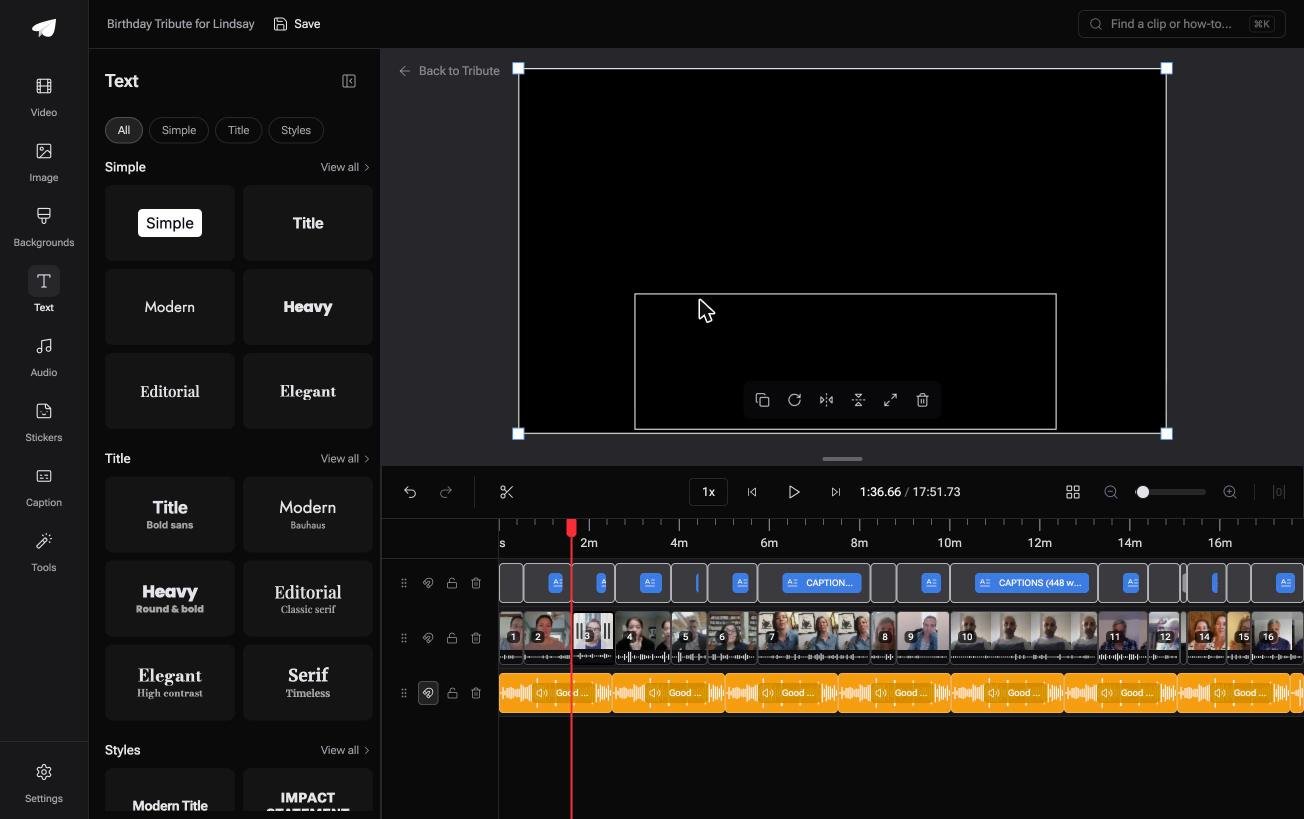
Tap a photo, tap the T button, and pick a title style; the text sits over that image. For a card on its own, add a plain background from the Backgrounds row in Media first.
Where does the exported video go?
On iPhone, Share Video then Save Video puts it in the Photos app. On a Mac, File then Share then File asks you where to put it and names the resolution before it starts.
👉 Skip the collecting altogether if fifteen people are each sending something for one person, and the running order is set before you look.
