
VEED Video Compress: What It Does to the File and When to Use Something Else
VEED compresses in the browser: drop the file in, move the quality slider, watch the estimated size change, download. Files up to 1GB are covered on the free plan. For anything larger, or for a folder of them, a desktop encoder finishes sooner.

What does the VEED video compress tool do to your file?
It re-encodes the video at a lower bitrate, and sometimes at a smaller frame size.
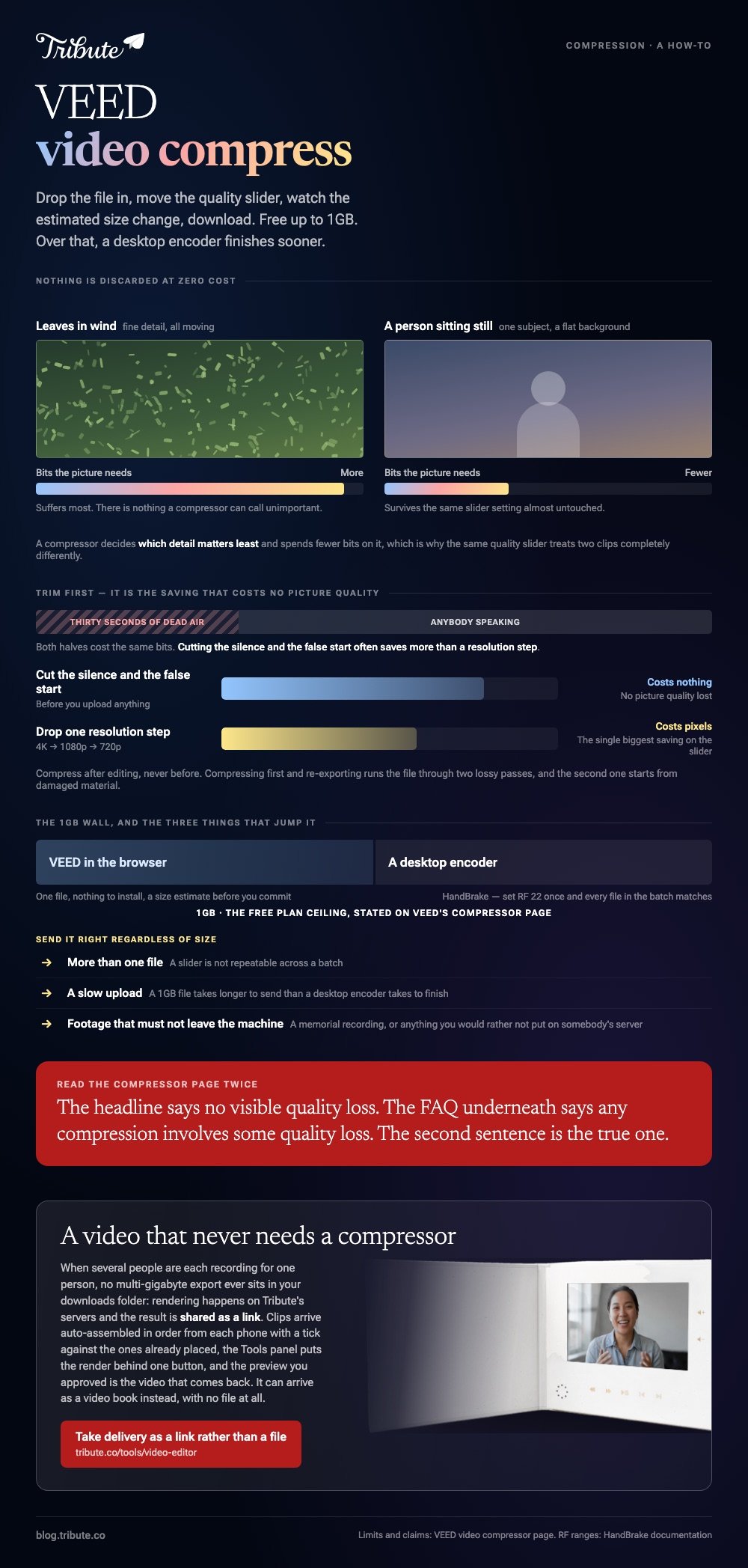
Nothing is discarded at zero cost. A compressor decides which detail matters least and spends fewer bits on it, which is why a busy shot of leaves in wind suffers more than a person sitting still.
VEED gives you two handles on that trade. Its compressor page describes a quality slider, left for a smaller file and right for higher quality, plus Advanced Settings for resolution or bitrate, with a size estimate that updates as you move them.
There is one claim on that page worth reading twice. The headline says no visible quality loss, and the FAQ underneath says any compression involves some quality loss. The second sentence is the true one.
How do you run a VEED video compress in four steps?
- Upload. Drag the file into the compressor. VEED names MP4, MOV, AVI, MKV, WEBM, WMV and GIF as supported inputs.
- Pick a resolution. The list runs 4K, 1080p and 720p. Dropping one step is the single biggest saving available.
- Move the quality slider until the estimated size sits under whatever limit you are fighting.
- Export and download. The result appears in a popup you can download straight away.
On VEED.io the compress step sits inside the same editor as the MP4 export, so you can trim first and shrink second, which is the order that saves the most.
Best for: One file, under 1GB, on a machine where you would rather not install anything.
Why it works: The size estimate updates before you commit, so you stop guessing at bitrates.
Trim before you compress
Thirty seconds of dead air at the head of a clip costs the same bits as thirty seconds of anybody speaking.
Cutting the silence and the false start often saves more than a resolution step, and it costs nothing in picture quality.
What are the limits before you upload?
Three of them matter, and only one is published as a hard number.
- 1GB on the free plan. VEED states this on the compressor page. Larger files need a paid plan.
- Your upload speed. A 1GB file on a slow connection takes longer to send than a desktop encoder takes to finish the whole job.
- The watermark question. VEED markets watermark-free exports as a paid plan benefit and does not state outright what a free export carries, so check the download screen before you rely on it.

That third point is not a criticism of VEED alone. Every browser tool keeps its real rules on the export screen rather than on the page that sold you the idea, and the video compressor VEED runs is no exception.
How small does the file need to be?
Work backwards from where it is going rather than compressing by feel.
| Destination | Target | Note |
|---|---|---|
| Under 25MB | Gmail swaps bigger files for a Drive link | |
| A messaging app | Varies by app and tier | Check before you compress twice |
| A shared link | No limit worth chasing | Upload the full quality version |
| A television | No compression at all | Shrinking it is the only way to ruin it |
Google puts the email ceiling in writing: for personal Gmail accounts the limit is 25MB, and anything over it is removed from the message and replaced with a Drive link.
Which is the quiet answer most people need. If the video only has to reach one person, a link beats a compressed attachment, and nothing gets degraded on the way.
The browser alternatives are compared in compressing a video file online.
When is a desktop encoder the better answer?
Over 1GB, over one file, or when the footage must not leave the machine.
HandBrake is the usual answer, and its Constant Quality setting is the control that matters.
The HandBrake documentation recommends RF 18 to 22 for standard definition, RF 19 to 23 for 720p, RF 20 to 24 for 1080p and RF 22 to 28 for 4K, where a lower number means higher quality.
Compared to a slider labeled quality, an RF number is repeatable: set 22 once and every file in the batch comes out consistent.
Unlike a browser tool, a desktop encoder never uploads anything, which matters for a memorial recording or anything else you would rather not put on somebody's server.
A full walkthrough sits in compressing a video with HandBrake.
What if the file is huge because a dozen people sent clips?
The Tribute video editor is a browser-based group video editor: contributors record clips on their phones and Tribute assembles them on a timeline with the music balanced under the voices.
It is ours, and it is the last thing on this page.
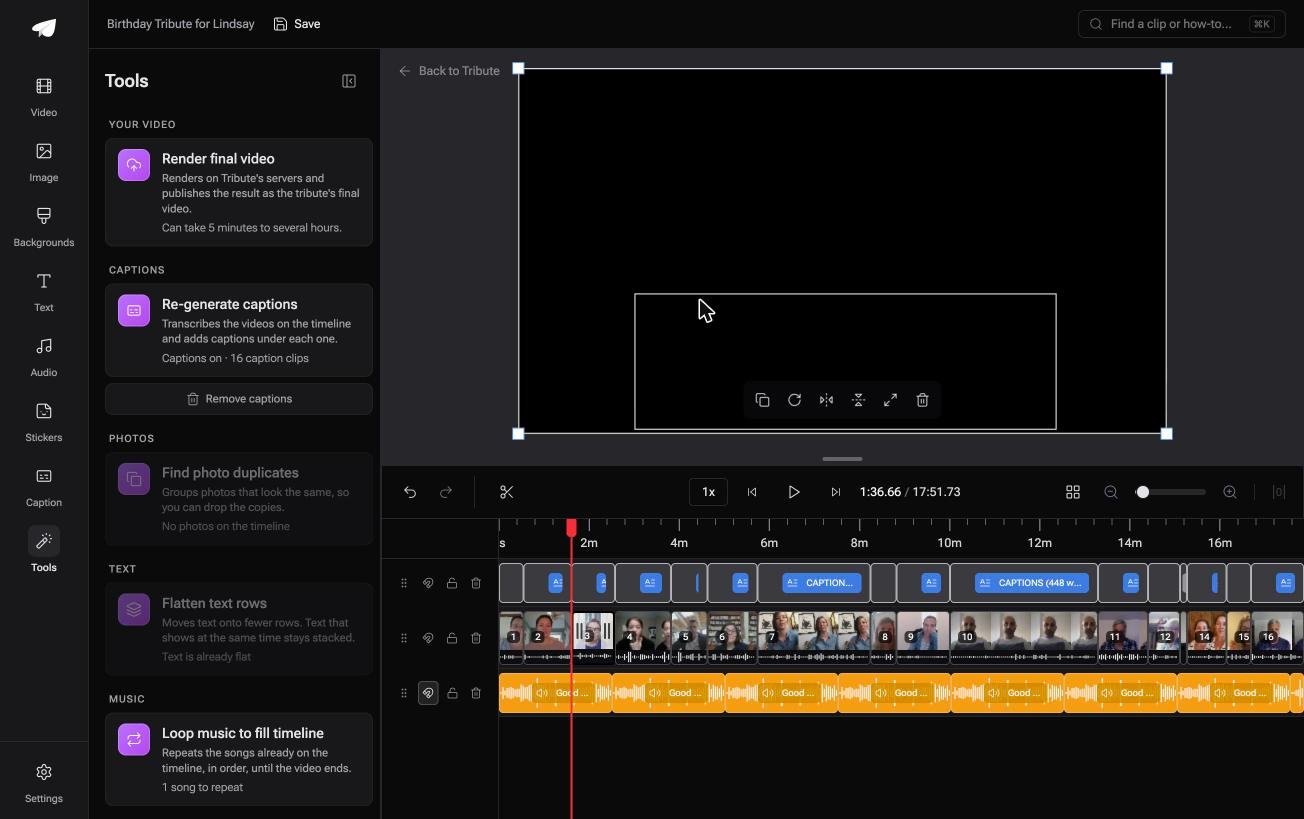
- Tribute renders the final video on its servers, so the heavy encode does not run on your laptop
- The Tools panel carries Render final video, Re-generate captions, Find photo duplicates and Loop music to fill timeline as bulk actions
- Clips arrive auto-assembled in order from each person's own phone, with a tick against the ones already placed
- Preview is frame-accurate to the video that comes back, so you are not rendering twice to check
Best for: A file that breaks the upload limit of the site meant to shrink it.
Why it works: There is no twenty-file folder on your machine, so there is nothing to compress before you can send it.
Can you skip the compression step altogether?
Compression is a symptom. Something is too big for the pipe you chose.
You gathered twenty clips, merged them into one long file, and then spent an evening shrinking the result so it would fit in a message. The compression was the last link in a chain you built yourself.
There is one case where the chain never starts.
The case: several people each recorded for one person
You are in it when the footage arrives from other people rather than from your camera roll.
A grandmother turning eighty. A colleague leaving after fifteen years. A memorial where the people who should speak are in four states.
Nobody is managing files. Everyone is recording a message, and your job is assembly, not logistics.
Why the file size never becomes your problem
Rendering happens on Tribute's servers and the result is shared as a link, so no multi-gigabyte export sits in your downloads folder waiting to be squeezed.
The Tools panel puts the render behind one button, and the preview you approved is the video that comes back.
That is how the Tribute video editor handles it: not a better compressor, but a video that never needs one.

It does not have to stay a file at all
The finished video can arrive as a video book: a hardcover case with a screen inside that plays when the cover opens.
No attachment, no link, no size limit to work around. For an eightieth birthday or a retirement, the object is the point.

When this is the wrong answer: you have one large file that already exists and has to get smaller today. Then open VEED or HandBrake. The editor is not a compressor, and it lives inside a paid Tribute.
What it is for is covered in making a video tribute and in making a video montage.
Frequently Asked Questions
Does VEED compress video without losing quality?
No tool does, and VEED's own FAQ says so. Every compression discards detail; the aim is to discard the detail nobody watching will notice.
What is the file size limit on the VEED MP4 compressor?
1GB on the free plan, as stated on the compressor page, with larger uploads on paid plans. Check the figure on the day, because browser tools move these caps without announcing it.
Which is better, a compress video VEED job or HandBrake?
VEED for a single file on a machine you do not want to install software on. HandBrake for anything over 1GB, for a batch, or for footage that should not be uploaded anywhere.
Why is my compressed video blurry?
The bitrate went too low for the amount of movement in the shot. Raise the quality slider a step, or keep the bitrate and drop the resolution instead, which often looks better.
Should I compress before or after editing?
After. Compressing first and then re-exporting runs the file through two lossy passes, and the second one starts from damaged material.
How do I send a long video without compressing it?
Share a link instead of an attachment. Any cloud drive will hold the full quality file, and the person watching gets the version you made rather than the version that fit.
👉 Take delivery as a link rather than a file if several people are each recording for one person, and the size limit stops being yours to solve.
