
Video Collage Apps for iPhone: Five That Do Grids, Splits and Stacks
For a true grid, PicPlayPost holds up to 12 frames. For two clips side by side, iMovie is already on the phone. CapCut, Canva and InShot sit in between, and the Photos app does none of it.

| App | Best for | Frames at once | Price as of October 2026 |
|---|---|---|---|
| PicPlayPost | A real grid of clips | Up to 12 | Free app, packs from $1.99 |
| CapCut | Stacked layouts and templates | As many as you stack | Free app, $7.99 a month and up |
| iMovie | Two clips, side by side | 2 | Free app from Apple |
| Canva | Templates and a designed look | Depends on the template | Free plan, paid Pro tier |
| InShot | Photo grids, video stacking | Up to 20 photos | Free app, Pro from $4.99 a month |
What counts as a video collage on an iPhone?
Two different things, and the apps seldom say which one they mean.
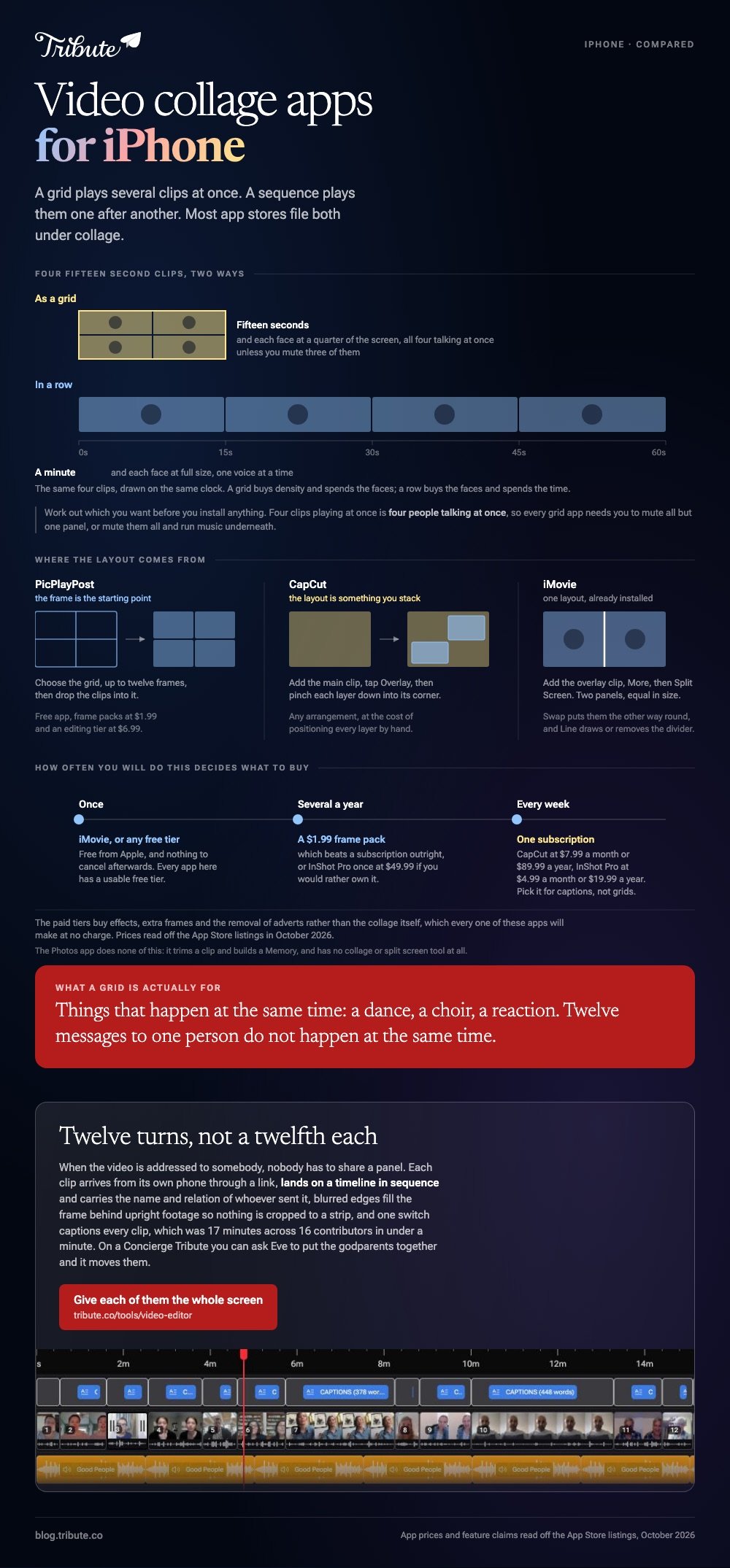
A grid plays several clips at once in separate panels, the way a choir video does. A sequence plays them one after another, which most app stores also file under collage.
Work out which you want before you install anything. A grid of four fifteen-second clips lasts fifteen seconds; the same four in a row last a minute, and the two are different videos for different reasons.
The question nobody answers first: whose voice wins?
Four clips playing at once means four people talking at once.
Every grid app needs you to mute all but one panel, or the result is noise. If each clip has a message in it, a sequence is the honest format and a grid is a poster.
Which video collage apps for iPhone are worth installing?
Five, and the right one depends on whether you want a grid or a look.
1. PicPlayPost
The dedicated one, and the closest thing to a purpose-built video collage maker on iOS. Its App Store listing promises up to 12 frame photo and video collages, plus crossover collages and multi-collage slideshows.
Look for: The frame picker, which is where you choose the grid before you add anything.
Price: Free app, with frame packs at $1.99 and an editing tier at $6.99, as of October 2026.
Best for: A nine or twelve panel grid of people doing the same thing at once.
Why it works: Unlike a stack of overlays, the layout is the starting point rather than something you assemble by hand.
2. CapCut
No fixed grid tool, and a stack of overlays instead. You add the main clip, tap Overlay, tap Add overlay, then pinch each layer down and drag it into its corner.
CapCut's own guides disagree on whether Overlay sits on the bottom toolbar or under Edit, so look in both. Split-screen templates in the Templates tab skip the layout work when one of them fits.
Look for: The overlay track under the main clip, which is where timing is set.
Price: Free app, with subscriptions from $7.99 a month and $89.99 a year on the US App Store, as of October 2026.
Best for: A layout nobody else has, and captions on top of it.
Why it works: Stacking gives you any arrangement, at the cost of positioning each layer by hand.
3. iMovie
Already installed, and it does one layout well. Apple's guide to video overlay effects lists Split Screen among four overlay types, and says the two clips appear side by side, equal in size, with an option to swap them above and below.
Add the overlay clip, tap the More button, choose Split Screen, then use the Swap and Line buttons in the viewer.
Look for: The Line button, which draws or removes the divider between the two panels.
Price: Free app from Apple.
Best for: A before and after, a duet, or two people reacting to the same thing.
Why it works: Two panels is the layout people read without effort, and iMovie asks for no account to make one.
4. Canva
A design tool with a video timeline under it, so a collage here is a template you fill. Grids, frames and loose scattered layouts all exist, and clips drop into them the way photos do.
Compared to the dedicated apps, Canva gives you typography and a palette, and asks you to learn an editor built for posters.
Look for: Frames and grids in the Elements panel, which accept video as well as stills.
Price: Free plan, with a paid Pro tier for premium elements and resizing.
Best for: A collage that has to carry text, a logo or brand colors.
Why it works: The layout and the look arrive together instead of being two jobs.
5. InShot
Worth knowing what its collage feature is. The App Store description sells a photo grid collage maker with up to 20 photos and 500 layouts, and the grid tools are built for stills.
For video, InShot is a strong one-track editor: trim, split, join, speed and captions. Treat it as a sequence tool with a photo collage attached rather than a video grid app.
Look for: The canvas control, which sets the frame before you add anything.
Price: Free app, Pro at $4.99 a month, $19.99 a year or $49.99 once, as of October 2026.
Best for: Clips one after another with a photo grid somewhere in the middle.
Why it works: The editing side is quick and the export is clean.
How do you make a video collage on an iPhone step by step?
Pick the frame first, then the clips, then the sound.
- Decide the shape. A 1:1 square suits a four-panel grid. Upright 9:16 suits two panels stacked.
- Trim every clip to the same length before you place it. Panels that end at different moments look like a fault.
- Place the layout, not the clips. In PicPlayPost choose the frame; in CapCut or iMovie add the first clip, then overlay the rest.
- Mute all but one panel. Pick the clearest voice, or mute everything and run music underneath.
- Check it at phone size. Four faces in a square are small, and text inside a panel is unreadable.
- Export at 1080p and watch it through once before sending.
What should a video collage app cost?
Nothing, for one video.
Every app on this page has a usable tier at no charge. The paid tiers buy effects, extra frames and the removal of adverts rather than the collage itself.
A monthly subscription earns its keep if you post every week, and is hard to justify for a birthday.
- One-off project: iMovie or a free tier, and cancel nothing afterward.
- Several a year: a $1.99 frame pack beats a subscription.
- Weekly posting: one subscription, chosen for its captions rather than its grids.
What goes wrong in a video collage?
Sound, scale and timing, in that order.
Say four cousins each recorded fifteen seconds for an uncle's sixtieth. In a grid they all speak at once, their faces are a quarter of a phone screen each, and whoever recorded in landscape gets cropped to a strip.

None of that is the app's fault. A grid is a format for things that happen at the same time, and messages to one person do not.
With 91% of US adults owning a smartphone, per the Pew Research Center mobile fact sheet, and 97% among adults aged 18 to 29, the clips will keep arriving whichever format you choose.
Other routes are in video collage makers, combining videos on an iPhone and video montage apps for iPhone.
What if twelve people each sent a clip?
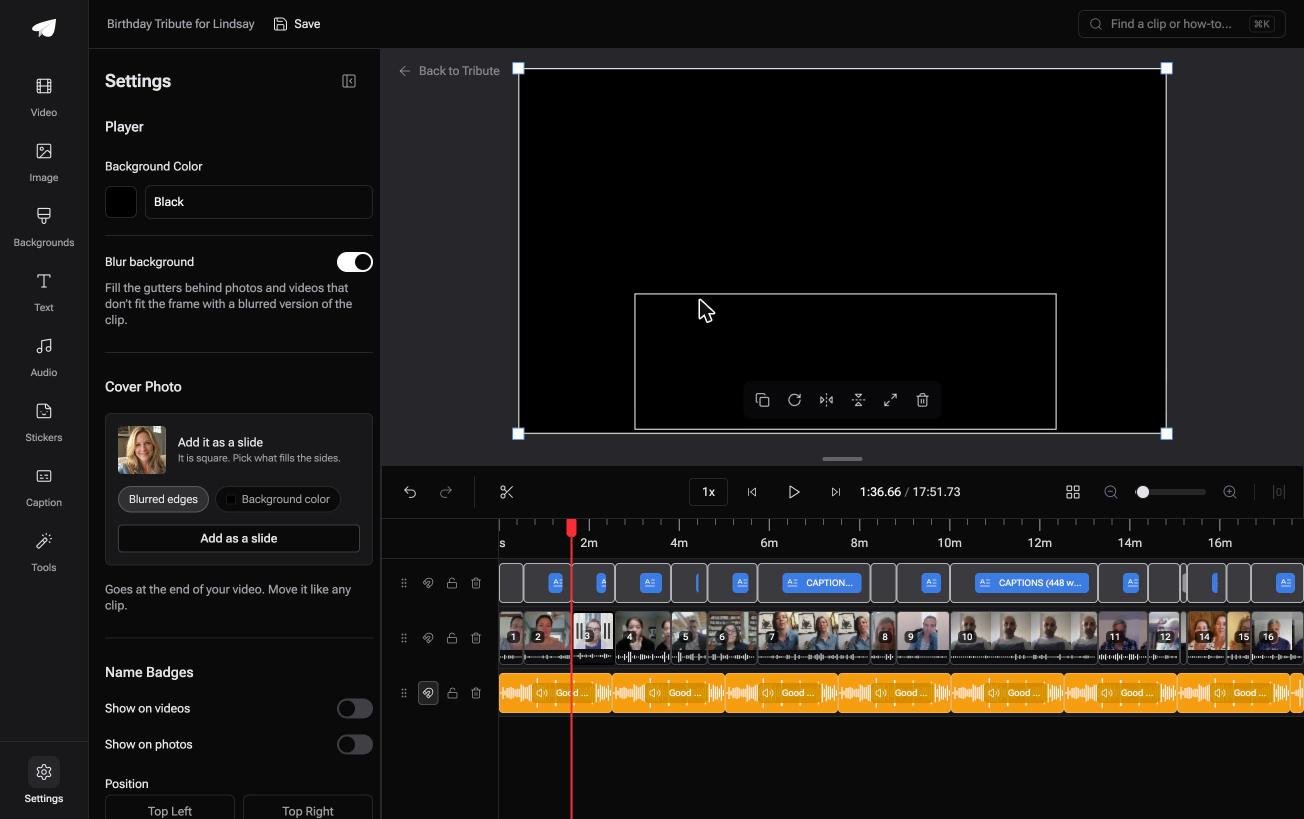
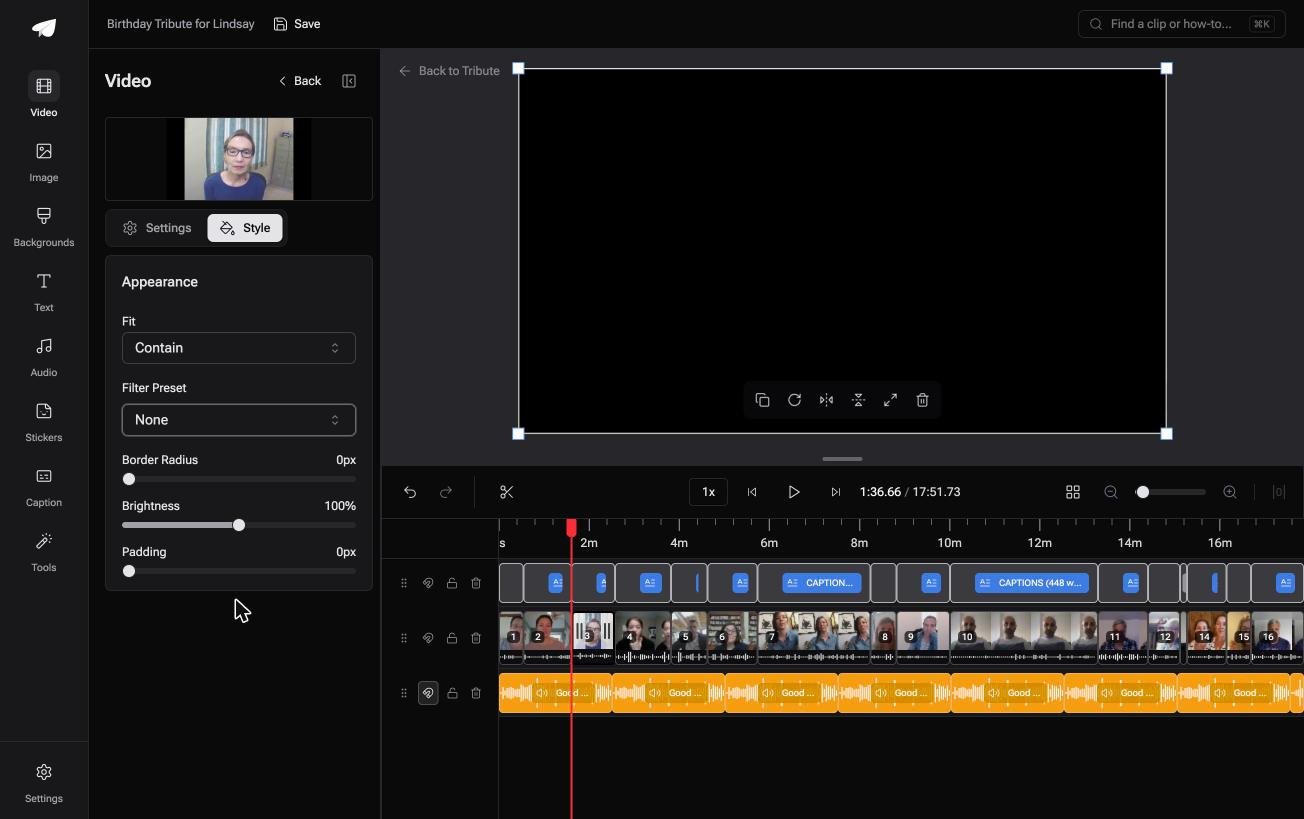
The Tribute video editor is a browser-based group video editor: contributors record clips on their phones and Tribute assembles them on a timeline with the music balanced under the voices.
It is ours, and it is the last thing on this page.
- Clips arrive in order from whatever phone recorded them, with a tick against the ones on the timeline
- Blurred edges fill the frame behind upright footage by default, which is the cropping problem a grid cannot solve
- Name badges from an uploader name and relation, in four corner positions, dark or light
- Captions on every clip from one switch, 17 minutes across 16 contributors in under a minute
Best for: A grid that stopped being readable at the fourth person added.
Why it works: Each person gets the whole frame and their own moment, which is what a panel of twelve takes away.
What if the point is everyone, not the grid?
A grid exists because screen time is scarce.
You reach for one when there are more people than seconds, and the compromise is that nobody is heard and everybody is small. That is a fair trade for a dance video and a poor one for a message.
There is one case where the trade is unnecessary.
The case: several people each recorded for one person
You are in it when the video is addressed to somebody.
A christening the godparents missed. A grandmother turning eighty. A team saying goodbye to someone who moved away.

Why the layout question goes away
Nobody shares a panel.
Each clip arrives from its own phone through a link, lands on a timeline in sequence and carries the name and relation of whoever sent it. Twelve people get twelve turns rather than one twelfth of the screen each.
That is the choice the Tribute video editor makes for you: length over density.

What you do not have to lay out
- No grid. Each clip takes the whole screen in turn, with a badge for whoever sent it.
- No per-clip captioning. One switch subtitles every clip, in 10 styles.
- No reshuffling by hand on a Concierge Tribute: ask Eve, the assistant inside the editor, to put the godparents together and it moves them.
- No ordering of the turns on Concierge, where Tribute's editors build the whole video.
It does not have to stay a file
The finished video can arrive as a video book: a hardcover case with a screen inside that plays when the cover opens.
No app to install on the other end, and nobody has to find the link again. For an eightieth birthday or a retirement, the object is the point.
When this is the wrong answer: you want four clips on screen at once for a reel. Then PicPlayPost or CapCut is the tool, and the editor is not a grid maker. It also lives inside a paid Tribute.
The wider job is covered in making a video montage.
Frequently Asked Questions
Can the iPhone Photos app make a video collage?
No. Photos will trim a clip and build a Memory, and it has no collage or split screen tool. Every option on this page is a separate app.
Is there a free app for video collages on iPhone?
PicPlayPost for a real grid and iMovie for two panels. iMovie costs nothing at all, and PicPlayPost is a free app whose paid packs add frames and editing tools rather than the collage.
How many videos can go in one collage?
Twelve in PicPlayPost, two in iMovie, and as many as you can stack in CapCut. Past six, faces on a phone screen are too small to read.
Can I put video and photos in the same collage?
Yes, in all five. A still in one panel is a steady reference point beside a moving clip, which reads better than six moving panels.
How do I stop all the clips talking over each other?
Mute every panel except one, or mute them all and put music underneath. This is the single decision that separates a watchable grid from noise.
Will a collage post well on Instagram?
Make it square or upright rather than widescreen. A horizontal collage shrinks to a band in the middle of a phone screen and the panels become unreadable.
Can several people contribute to one collage from their own phones?
Not inside these apps. They all expect the clips to be on your device, so collecting them is a separate job before the editing starts.
Does a collage lose quality?
Each panel is being shrunk, so detail drops with every extra frame. Export at the highest setting offered and keep the number of panels low.
👉 Give each of them the whole screen instead of a corner of it if there are more people than panels, and the layout stops being a compromise.
