
Video, No Audio in Premiere Pro: How to Find the Sound
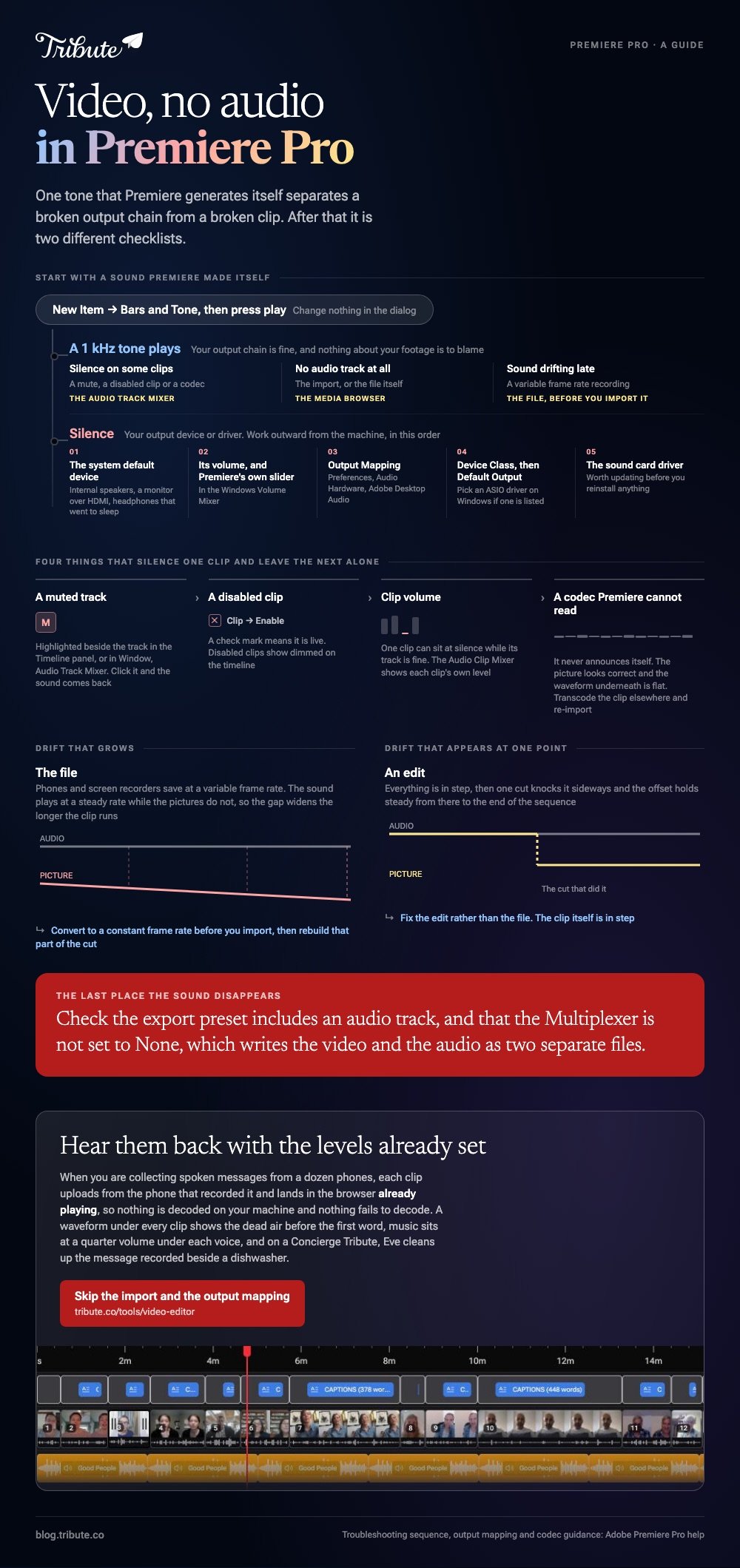
Start by proving whether the silence is Premiere or the clip. Make a Bars and Tone clip and play it. If that is silent too, the fault is your output device rather than your footage.
| What you get | Where the fault sits | First thing to open |
|---|---|---|
| Silence on every clip | Your output device or driver | Audio Hardware preferences |
| Silence on some clips | A mute, a disabled clip or a codec | The Audio Track Mixer |
| No audio track at all | The import, or the file itself | The Media Browser |
| Sound drifting late | A variable frame rate recording | The file, before you import it |
Why is there video, no audio in Premiere Pro?
Four causes account for almost all of it, and one test separates them.
Adobe's own troubleshooting sequence starts by making a clip whose sound Premiere generated itself. If a tone Premiere built will not play, nothing about your footage is to blame.
- In the Project panel, right-click empty space and choose New Item > Bars and Tone.
- In the New Bars and Tone dialog, change nothing and select OK.
- Double-click Bars and Tone so it opens in the Source Monitor, or drag it to the timeline.
- Press play. A 1 kHz tone means your output is fine and the problem is a clip.
Adobe publishes this as the first step in finding clips without sound, and it saves an hour of guessing.
What do you check when no clip has sound?
The route out of the application, in the order Adobe lists it.
Your machine has more than one thing that can make noise. Internal speakers, a monitor over HDMI, headphones that went to sleep. Premiere picks one and holds on to it.
Set the system device first
Choose the device you are listening through as the system default, then check its volume is neither muted nor near zero. On Windows, open the Volume Mixer from the taskbar and confirm Premiere's own slider is up.
Then point Premiere at it
- Open a project that has audio clips or a Bars and Tone clip in it.
- Go to Preferences on Windows, or Settings on macOS, then Audio Hardware.
- Under Output Mapping, choose your device from the Adobe Desktop Audio settings.
- On Windows, pick an ASIO driver in Device Class if one is listed, then set Default Output.
- Select OK and play a clip. Still nothing? Go back and try a different device.
Adobe's page on sound missing from all clips ends with the sound card driver, which is worth updating before you reinstall anything.
What do you check when only some clips are silent?
Three switches and one file problem, in that order.
When Premiere Pro video audio is not playing on one clip and runs fine on the next, the fault is in the timeline rather than the hardware.

1. A muted track
Open Window > Audio Track Mixer, or look at the boxes on the left of the Timeline panel. A highlighted M next to a track means that track is muted, and clicking it turns the sound back on.
2. A disabled clip
Select the clips and check Clip > Enable. A check mark means they are live, and disabled clips show up dimmed on the timeline.
3. Clip volume
A single clip can sit at silence while its track is fine. The Audio Clip Mixer shows each clip's own level.
4. A codec Premiere cannot decode
If the switches are all clear, Adobe's guidance is blunt: the clip may carry an audio codec Premiere cannot read, and the fix is to transcode it elsewhere and re-import.
Unlike a muted track, a codec problem never announces itself. You get a video that looks correct with a flat, empty waveform underneath it.
Why is Premiere not importing the audio at all?
Because the container, not the sound, is what failed.
Adobe has deprecated a set of older QuickTime codecs, so some MOV files land in the bin as video alone. MTS files need their original folder structure to come in whole.
Adobe's own checklist for a half-imported file is worth running in order.
- Check your read and write permissions on the drive holding the files
- Move one file somewhere else and import that copy
- Clear the media cache by hand, then restart the machine
- Open the Media Browser and see whether the file shows as an A/V file there
- Rename a MOV to MP4, or an MTS to M2TS, and try again
Premiere is not importing the audio from this video in a way you can argue with. Compared to reinstalling, transcoding the file takes ten minutes and works far more often.
What if the audio is out of sync instead of missing?
That is a different fault with a different cause.
If the Premiere Pro video audio is out of sync rather than absent, the recording itself is the usual suspect. Phones and screen recorders save at a variable frame rate, and the sound plays at a steady rate while the pictures do not.
Adobe does not publish a fix page for this one. The move that works is converting the clip to a constant frame rate before you import it, then rebuilding that part of the cut.
Drift that grows over a long clip points at the file. Drift that appears at one point in the timeline points at an edit.
More on working with phone footage in an iPhone video with no audio, and on reframing the same clips in cropping video in Premiere Pro.
What if the audio you need is on twelve different phones?
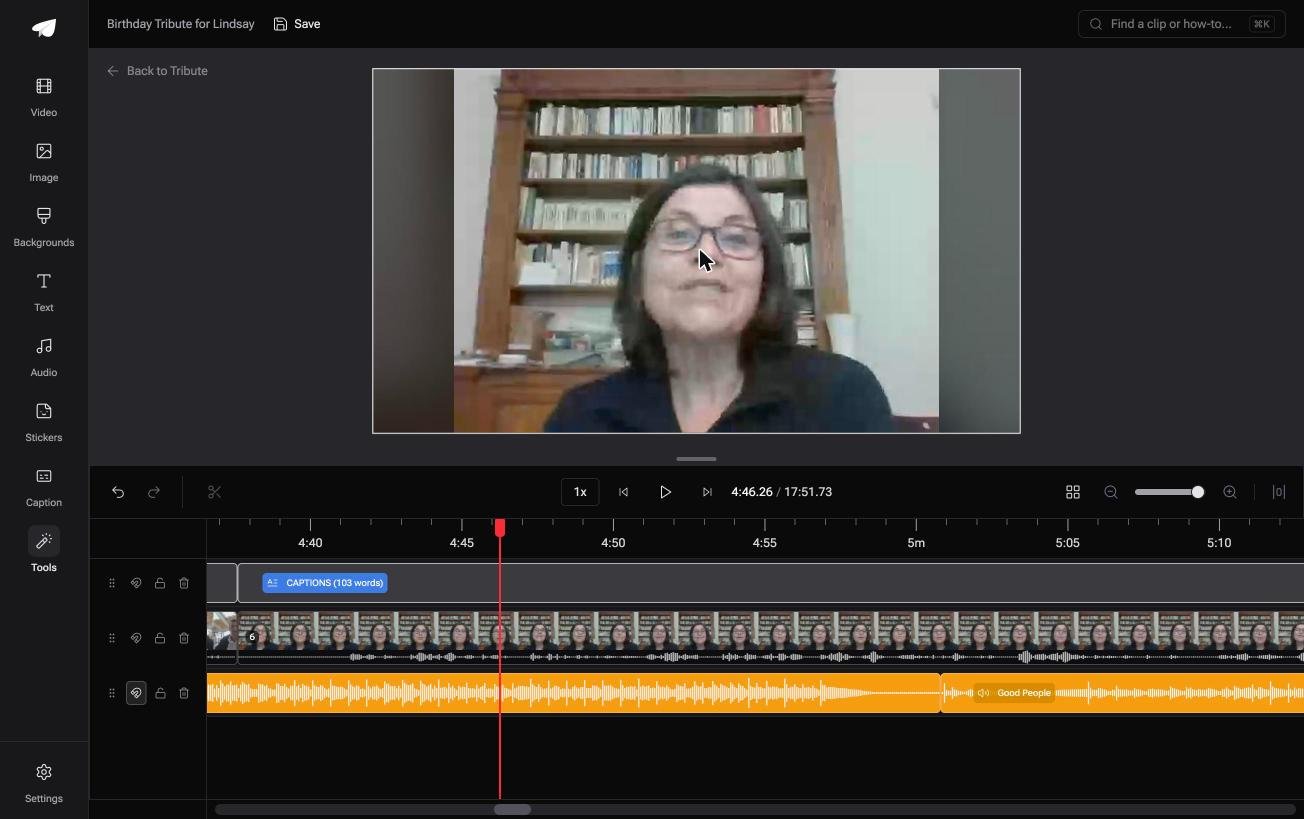
The Tribute video editor is a browser-based group video editor: contributors record clips on their phones and Tribute assembles them on a timeline with the music balanced under the voices.
It is ours, and it is the last thing on this page.
- A waveform under every clip, so silence is visible before you play anything
- Music at 25% under speech and 75% under photos by default, overridable per clip
- Clips arrive in order on the timeline, with the audio already attached
- Autosave and restorable version history, so a bad fix is not permanent
Best for: Spoken messages recorded on a dozen phones you would otherwise be importing one at a time.
Why it works: Unlike a desktop edit, there is no output device to configure and no codec to transcode.
What if nobody has to open an audio setting?
Every step above exists because you are running the editor and the playback chain at the same time.
Drivers, output mapping, codecs, cache: none of that is editing. It is the cost of the software sitting on your machine, and one kind of project avoids it.
The case: twelve people, twelve recordings
You are in it when several people each record something for one person.
A father turning seventy. A nurse leaving a ward after thirty years. Each person speaks into their own phone, and nobody imports anything.
Which means the search that brought you here, video with no audio in Premiere Pro, describes a problem that needs an import to exist.
Why the silence never happens
Nothing is decoded on your computer, so nothing fails to decode.
The clips upload from the phone that recorded them and land in the browser already playing. In the Tribute video editor each one shows its waveform, so you can see the dead air before the first word and drag the edge in.

What you do not have to do
Three things, and none of them is a setting.
- Not the import. The clips upload from the phone that recorded them and play on arrival.
- Not the levels. The music sits under each voice at a quarter volume already.
- Not the noise. On a Concierge Tribute, Eve, the AI assistant inside the editor, cleans up the message recorded beside a dishwasher.

When this is the wrong answer: you are cutting footage you shot, or the project needs keyframed audio and submixes. Then Premiere is the right tool and the checklist above is your route.
More on building one of these from scratch in a video montage maker and making a video tribute.
Frequently Asked Questions
Why does my clip play sound in the Source Monitor but not the timeline?
That points at the track rather than the file. Check for a highlighted M in the Audio Track Mixer, then check that the clip is not disabled under Clip > Enable.
Does clearing the media cache fix missing audio?
Sometimes, and it is cheap to try. Adobe lists it among the steps for a file that imports without its audio, after permissions and before renaming.
Why did the audio track not appear on the timeline?
Either the file arrived without it, or source patching sent it nowhere. Open the clip in the Source Monitor and check which track the source patch indicator is pointing at.
Will converting the file lose quality?
A small amount, since you are re-encoding. It is a fair trade against a clip you cannot use, and the loss is invisible at normal viewing sizes.
Can I edit the video now and fix the sound later?
You can, but sync work has to be redone once the real audio appears. Solve the import first and cut once.
My exported video has no audio even though the timeline does.
Check that the export preset includes an audio track and that the Multiplexer is not set to None, which writes video and audio as separate files.
👉 Hear them back with the levels already set if you are collecting spoken messages from a dozen phones, and no import ever happens on your machine.
