
Video Quality Enhancer Free Online: What Improves a Video and What Cannot
No video quality enhancer free online can add detail a camera never recorded. What the good ones do is fix exposure, stop the file being re-compressed, and hold the resolution you started with. That covers most of what people mean by blurry.
| What you mean by bad | What a tool can do about it | Where |
|---|---|---|
| Soft or blurry | Sharpen edges. No new detail appears | Clipchamp, Google Photos |
| Dark or flat | Raise exposure and contrast. This one works | Any editor on the device |
| Too big to send | Re-encode at a constant quality | HandBrake |
| Worse after uploading | Export once, at the size you will post | Your editor's export screen |
What does a video quality enhancer free online change?
Three things: brightness, edges and file size.
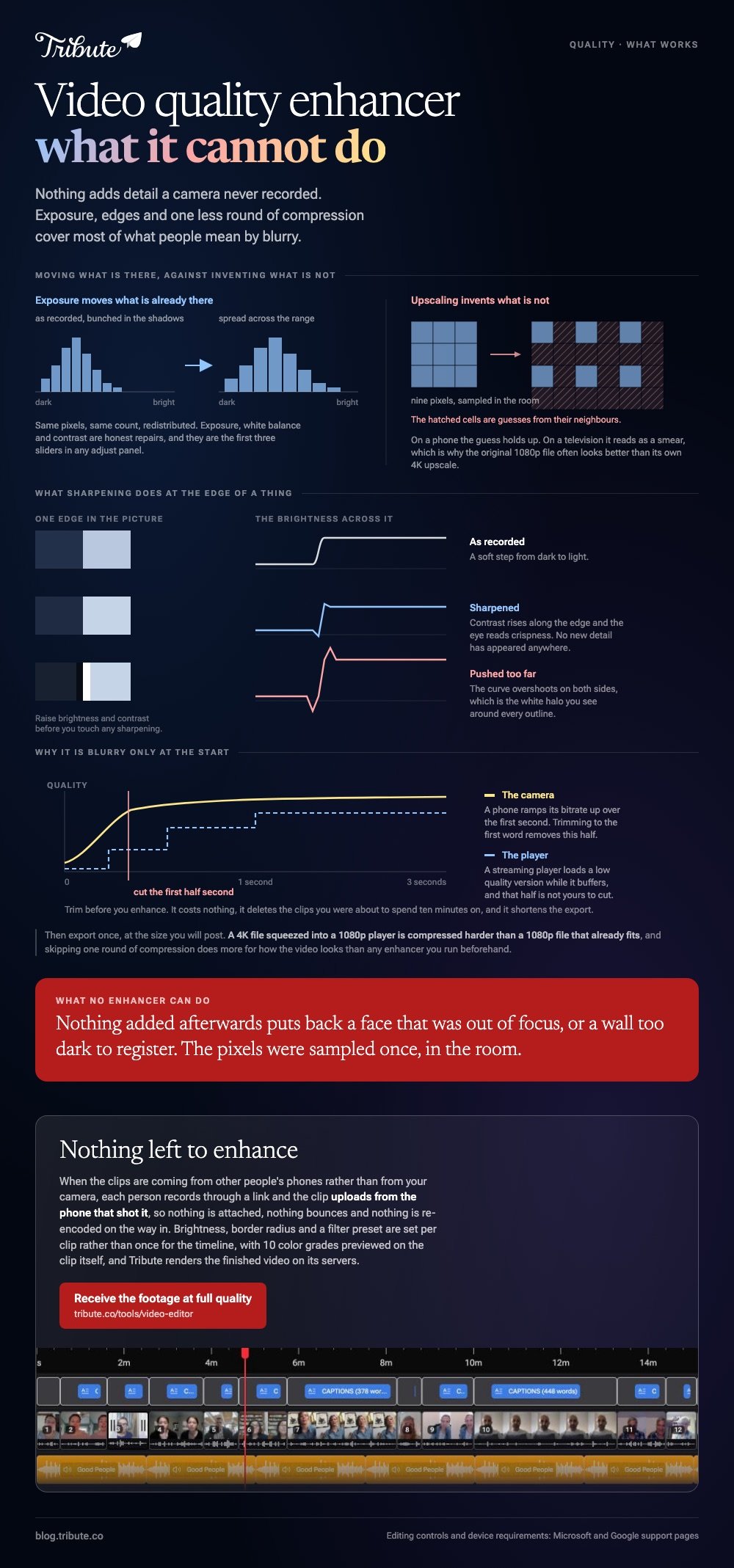
A video is a grid of pixels sampled once, in the room, at the moment of recording. Nothing added afterward puts back a face that was out of focus or a wall too dark to register.
Upscaling guesses the missing pixels from the ones around them. On a phone the guess holds up, and on a television it reads as a smear: the original 1080p file often looks better than its own 4K upscale.
Sharpening is the same trick at a smaller scale. It raises contrast along edges so the eye reads crispness, and pushed too far it leaves white halos around every outline.
What does work
Exposure, white balance and contrast are honest repairs.
The information is already in the file and you are redistributing it rather than inventing it. A free online video editor is enough for the high quality work most clips need, and the controls are the first three sliders in any adjust panel.
Which video quality enhancer free online should you open?
Clipchamp, because it runs in a browser tab and lets you set the export resolution yourself.
Clipchamp, in a browser tab
- Open My media on the toolbar and import the clip from your device or OneDrive.
- Click the green + button, or drag the clip onto the timeline.
- Select the clip and open the property panel, which holds filters, colors, speed and volume.
- Raise brightness and contrast there before you touch any sharpening.
- Click export and choose a quality.
Microsoft documents those controls in its guide to editing a video in Clipchamp, where the export step asks for a quality before it renders.
Best for: A dark clip from a phone that has to look presentable tonight.
Why it works: Nothing installs, and the output size is your decision rather than the platform's.
Google Photos, on the phone holding the clip
- Open the video in Google Photos and tap Edit.
- Tap Auto, then Stabilize where shake is the real problem.
- Tap Crop to straighten the horizon or rotate the frame.
- Tap Save at the top to keep a copy and leave the original alone.
Google lists those steps in its guide to editing videos in Google Photos, along with the requirement: crop, straighten and filters need an Android device with at least 1 GB of RAM on Android 6.0 or later.
Best for: A handheld clip that is shaky rather than soft.
Why it works: The file never leaves the phone, so nothing uploads and nothing is re-encoded on the way.
Can you reduce video size without losing quality?
Close enough to count, with the right setting.
A video size reducer that is free online will cut a file in half without losing quality you can see, because it re-encodes rather than dropping resolution.
HandBrake does the same job on your own machine, which starts to matter once a file passes a gigabyte.
The setting is called constant quality, and it aims at a look instead of a bitrate.
| Source | RF value |
|---|---|
| 480p or 576p | 18 to 22 |
| 720p | 19 to 23 |
| 1080p | 20 to 24 |
| 2160p | 22 to 28 |
Those are HandBrake's own recommended ranges for the x264 and x265 encoders, where a lower RF number means higher quality and a bigger file.
Take the top of the range for a clip heading into a longer video, since it will be encoded again at the end. Unlike a fixed bitrate, constant quality spends data on the shots that move and skips the ones that sit still.
The longer version lives in compressing video with HandBrake, and the opposite job in reducing video quality on purpose.
Why does the video look worse after you upload it?
Because the site re-encodes it against its targets, not yours.
That happens to every upload, on every platform, and you have two levers.
- Export once. Each pass through an encoder costs something, and three apps in a row cost three times.
- Export at the posting size. A 4K file squeezed into a 1080p player is compressed harder than a 1080p file that already fits.
Compared to any enhancer you run beforehand, skipping one round of compression does more for how the video looks.

What if the clips came from a dozen different phones?
The Tribute video editor is a browser-based group video editor: contributors record clips on their phones and Tribute assembles them on a timeline with the music balanced under the voices.
It is ours, and it is the last thing on this page.
- Per-clip appearance controls: fit, border radius, brightness and a filter preset, previewed on the clip itself
- 10 color grades, among them Vintage, Video Noir, Warm and Faded
- Blurred edges behind upright phone footage, on by default, so nothing is stretched to fill the frame
- Tribute renders the video on its servers, and the preview is frame-accurate to the file that comes back
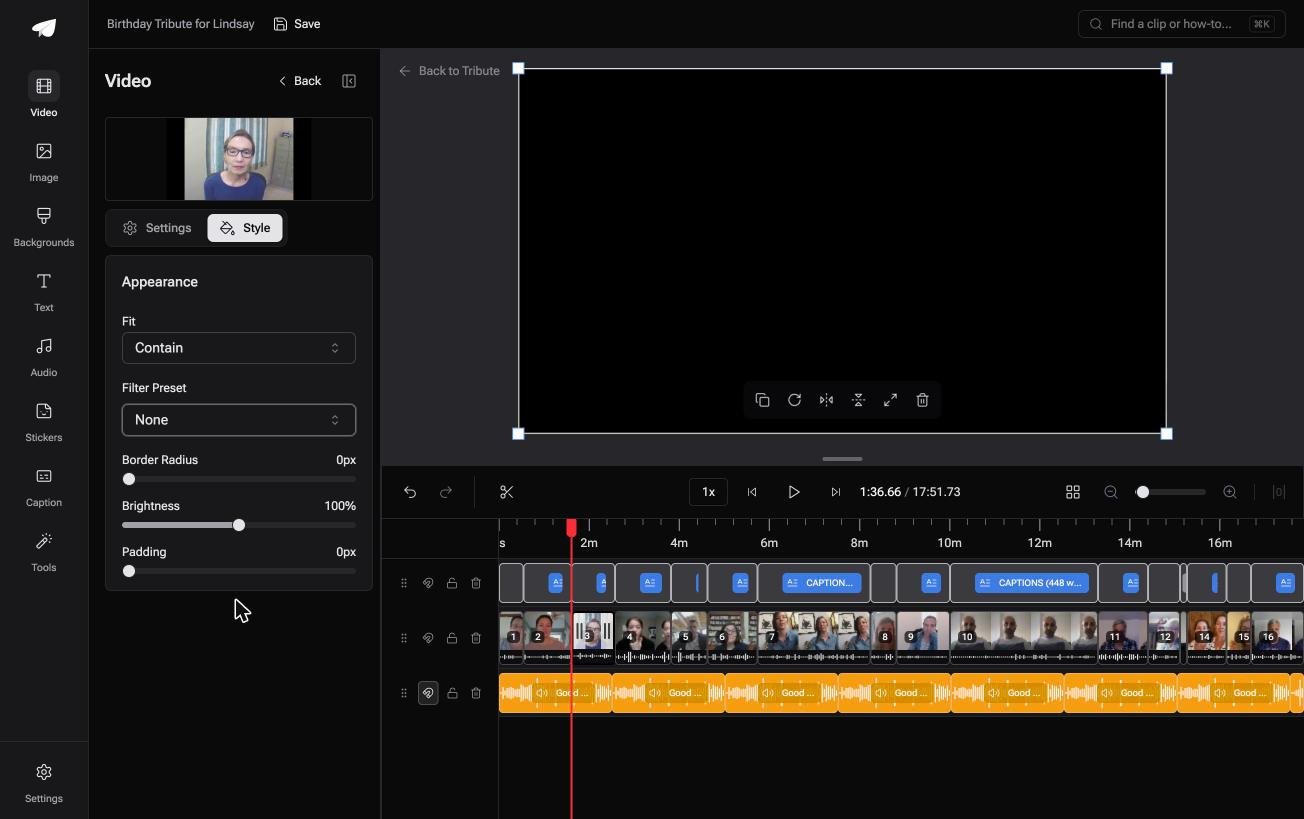
Best for: Fifteen clips shot in fifteen rooms, a third of them too dark to post as they are.
Why it works: Every clip arrives from a different phone in a different room, so brightness is set per clip rather than once for the whole timeline.
What if nothing needed enhancing in the first place?
Every step above is repair work.
Repair assumes a file that already exists, shot by someone who was not thinking about light. That is the normal case. There is one case where it does not apply.
The case: the clips are messages, not footage
That case starts when the footage is recorded by the people appearing in it.
A ninetieth birthday with four generations in it. A head teacher retiring in June. Everyone is holding a phone at arm's length, in a lit room, talking to the camera.
Clips recorded that way arrive bright and close. The enhancing question that brought you here does not come up, because the picture was never the hard part.
Why the file size question goes away too
Nobody sends you files.
Each person records through a link and the clip uploads from their own phone. No 2 GB attachment bounces out of an inbox, and no reducer sits in the middle.
The Tribute video editor has them in order before you open it, with a tick against the ones already on the timeline.

What you do not have to do
- Re-upload anything to an enhancer. Each clip arrives at full quality, straight off the phone that recorded it.
- Treat sixteen clips to rescue two. Brightness moves per clip, not across the whole timeline.
- Wait on your own machine. Tribute renders the finished video on its servers.
- Do the edit, on a Concierge Tribute. Tribute's editors handle it, and Concierge Deluxe sends it back as a video book.
When this is the wrong answer: you shot the footage yourself, or the thing you are rescuing is one old camcorder file. Then you are back on the tools above.
The editor is not a standalone enhancer either: it lives inside a paid Tribute.

Assembly itself is covered in making a video montage, and the occasion version in a video tribute.
Frequently Asked Questions
Is there a video quality enhancer free online with no watermark?
Clipchamp and Google Photos both export without one. Most dedicated enhancer sites stamp the free export and sell its removal, which is a business model rather than a technical limit.
Can AI upscaling recover a blurry face?
It can invent a plausible face at a higher resolution, which is a different thing. On a video of someone you know, that difference shows.
Should I enhance before or after trimming?
After. Trimming costs nothing and deletes the clips you were about to spend ten minutes on. It also shortens the export.
What resolution should I export at?
The one you will post at, and no higher. A 1080p export into a 1080p player goes through one less round of compression than a 4K file the site has to shrink first.
Why is my video blurry only at the start?
Phone cameras ramp their bitrate up over the first second, and streaming players load a low quality version while they buffer. Cutting the first half second removes the camera's half of that.
Does converting to MP4 improve quality?
No. Changing container can help a file play on more devices, and the re-encode it takes to get there costs a little quality rather than adding any.
Is there a size limit on browser tools?
Most set one, and it bites on anything long. HandBrake has no limit because the file never leaves your computer, which is the main reason to install it.
👉 Receive the footage at full quality in the first place if the clips are coming from other people's phones rather than your camera, and there is nothing left to enhance.
