
Video Quality Reducer: Three Levers That Shrink a Video on Purpose
A video quality reducer moves one of three things: resolution, bitrate or frame rate. Choose the right one and a 400 MB clip fits through email with nobody noticing a difference on the screen it will be watched on.

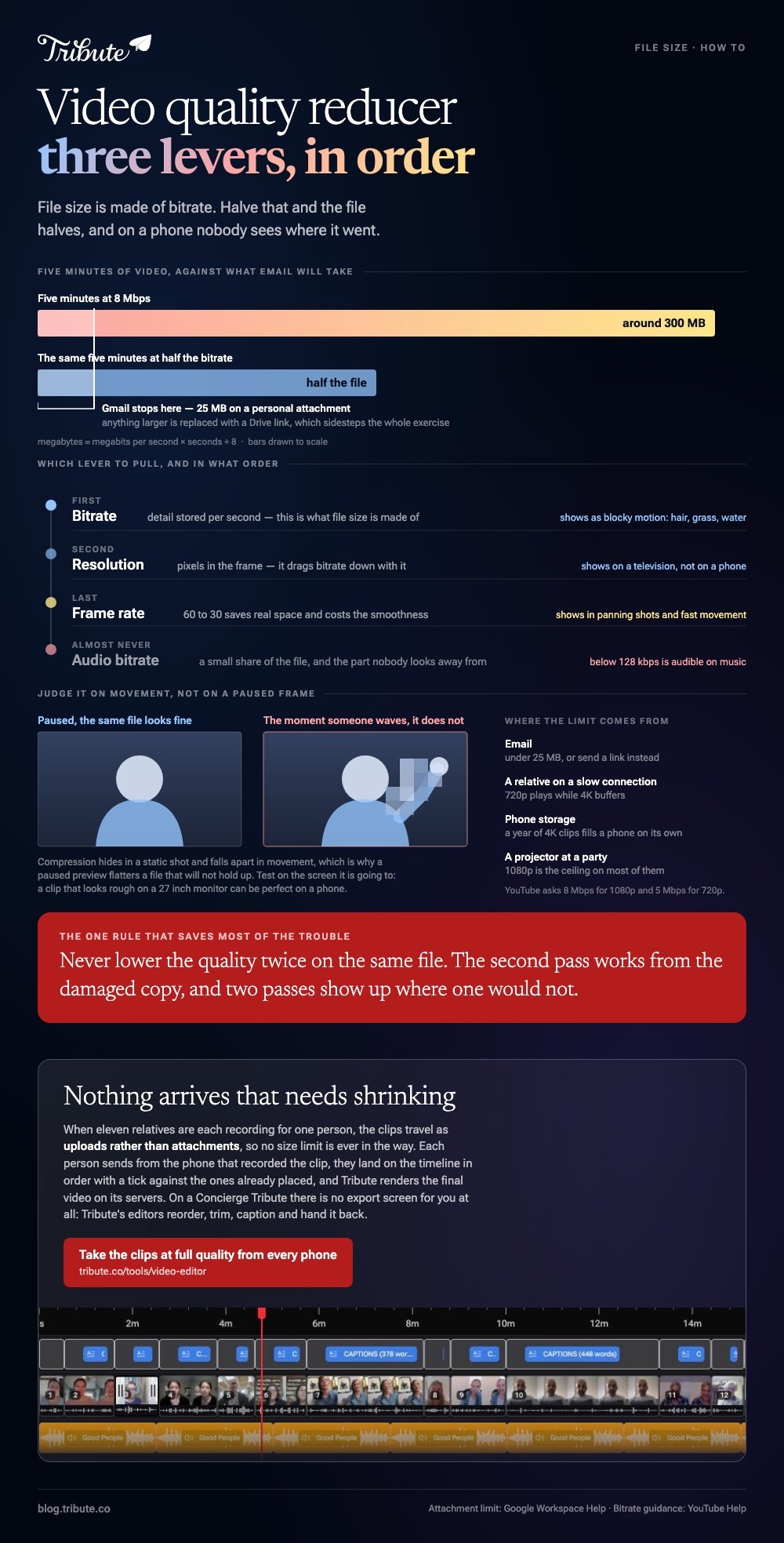
| Lever | What it changes | Where it shows |
|---|---|---|
| Resolution | Pixels in the frame | On a television, not on a phone |
| Bitrate | Detail stored per second | Blocky motion, hair, grass, water |
| Frame rate | Smoothness | Panning shots and fast movement |
| Audio bitrate | Sound | Cymbals and room tone |
What does a video quality reducer change?
Bitrate, in almost every case, because that is what file size is made of.
Size in megabytes is close to bitrate in megabits per second, times the length in seconds, divided by eight. Five minutes at 8 Mbps is around 300 MB, and halving the bitrate halves the file.
Resolution is the second lever and it drags bitrate down with it. A 1080p frame holds four times the pixels of a 720p one, so the same footage needs far less data to look as sharp at the smaller size.
Frame rate is the lever to touch last. Going from 60 to 30 frames saves real space and costs you the smoothness that made 60 worth shooting.
Audio is the lever almost nobody needs. It accounts for a small share of a video file, and stripping it to save a few megabytes ruins the one part a viewer cannot look away from.
Why would you lower video quality on purpose?
Because something at the other end has a limit.
Gmail caps personal attachments at 25 MB and replaces anything larger with a Drive link. That one number is behind most attempts to decrease video quality, and a shared link sidesteps the whole exercise.
- Email: under 25 MB, or send a link instead
- A relative on a slow connection: 720p plays while 4K buffers
- Phone storage: a year of 4K clips fills a phone on its own
- A projector at a party: 1080p is the ceiling on most of them
The searches split between a video quality reducer and a video quality decreaser, and both describe the same job. What differs is how much you can give away before anyone sees it.
How do you reduce video quality in HandBrake?
With the constant quality slider, which is the only control most files need.
- Open Source and choose the video.
- Pick a preset that matches the source, such as Fast 1080p30.
- On the Video tab, drag Constant Quality to a higher RF number. Higher means smaller and softer.
- On the Dimensions tab, drop the resolution if the file is still too large.
- Set Save As and press Start Encode.
HandBrake's documentation gives the RF ranges per resolution: 20 to 24 for 1080p and 22 to 28 for 4K. To make videos lower quality on purpose, go a few points above those ranges rather than leaping to 35.
There is a fuller walk through of the app in compressing a video with HandBrake, and the assembly step that comes before it in building a video montage.
Can you decrease video quality without installing anything?
Yes, and the export dialog is where it happens.
Clipchamp runs in a browser and offers 480p, 720p, 1080p and 4K at export. Dropping one step down that list is the fastest video quality reducer available to anyone, since it needs no settings and no second tool.
VLC does the same job on a desktop through Media, then Convert / Save. Add the file, choose a profile, use the edit button beside it to check the settings, name a destination and press Start.
Compared with HandBrake, both give you fewer dials and a result in one pass. Unlike HandBrake, neither tells you what quality you are about to end up with before it runs.
How far can you go before it looks bad?
Further than you expect on a phone, and not far at all on a television.
YouTube recommends 8 Mbps for 1080p at standard frame rates and 5 Mbps for 720p. Those numbers are for uploads, where the platform re-encodes anyway, so they make a sensible ceiling rather than a target.
Test on the screen the video is going to. A clip that looks rough on a 27 inch monitor can be perfect on the phone your aunt will watch it on.
Judge it on movement rather than a still frame. Compression hides in a static shot and falls apart the moment someone waves, which is why a paused preview flatters a file that will not hold up.
One rule saves most of the trouble: never lower video quality twice on the same file. Each pass works from the damaged copy, and two passes show up where one would not.
Going the other way is harder than it sounds, which is covered in video quality enhancers online.
What if the clips came from a dozen different people?
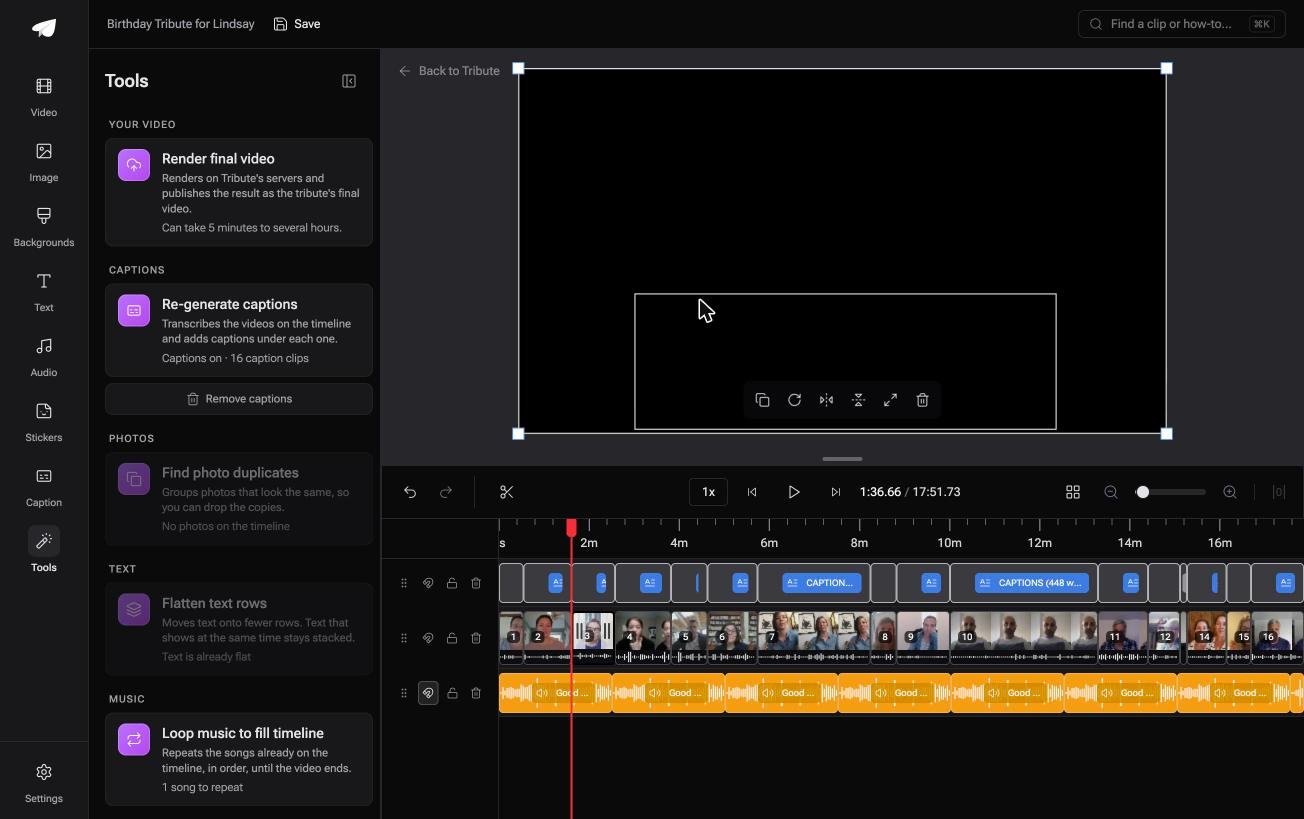
The Tribute video editor is a browser-based group video editor: contributors record clips on their phones and Tribute assembles them on a timeline with the music balanced under the voices.
It is ours, and it is the last thing on this page.
- Clips upload from each phone and land on the timeline in order, so nothing is emailed to you
- Tribute renders the final video on its servers, which the Tools panel puts at 5 minutes to several hours
- The preview is frame accurate to the video that comes back
- Autosave with restorable history, so no version is lost to a bad export
Best for: A video that has to get smaller before a relative can open it.
Why it works: The heavy file is handled on a server, not on a laptop that has to stay awake for three hours.
Can the enormous file never reach you at all?
Everything above starts with a video on your machine that has to get smaller to move.
There is a common case where it never arrives in the first place.
The case: several people recording for one person
A retirement after twenty years. A ninetieth birthday. A memorial where the people who should speak live four time zones apart.
Each person records a message on their own phone. Nobody is shooting footage, and the work in front of you is assembly.
Which is where this search tends to begin: eleven relatives trying to email you 4K clips, and most of those messages bouncing.
Why the shrinking step disappears
Because the clips travel as uploads rather than attachments.
Each person sends from the phone that recorded the clip, and the Tribute video editor puts them on a timeline in order. The render runs on Tribute's servers, so quality is never traded for a size limit on your end.
What you do not have to do
- No shrinking. Each person uploads from their own phone at full quality.
- No hunting for what is missing. A tick shows which clips are already on the timeline.
- No edit at all, on Concierge. Tribute's editors reorder, trim, caption and name people, then hand it back for approval.
- No export settings. No preset, no bitrate, no second pass.

It does not have to stay a file
A finished group video can arrive as a video book: a hardcover case with a screen inside that plays when the cover opens.
Nothing to download, nothing to compress, nothing for a relative to fail to open. The wider form is covered in making a video tribute.

When this is the wrong answer: you have one long video of your own and a hard size limit tonight. Then HandBrake or a browser export is the right tool, with the settings above.
Frequently Asked Questions
What is the quickest way to make a video smaller?
Export it one resolution step down, from 1080p to 720p. It needs no settings and often halves the file.
Does lowering the resolution hurt more than lowering the bitrate?
It is more visible on a large screen and less visible on a phone. Bitrate damage shows as blockiness in movement, which looks worse everywhere.
Can I reduce video quality on an iPhone?
Not in Photos. Record at a lower setting in Settings, Camera, Record Video, or run the clip through a browser editor and export at 720p.
Why is my video still too big for email?
Long videos outrun compression. Past about ten minutes, send a link rather than squeezing an hour of footage under 25 MB.
Will lowering quality fix a video that stutters?
Often, since stutter during playback is a device struggling with the bitrate. A 720p copy plays on hardware that chokes on 4K.
Does a video quality decreaser affect the audio?
Only if you change the audio settings, which most presets leave alone. Dropping audio below 128 kbps is audible on music.
Can I undo a quality reduction?
No. Keep the original file, because upscaling invents detail rather than restoring it.
👉 Take the clips at full quality from every phone if a dozen people are each recording for one person, and nothing arrives that needs shrinking.
