
Video Speed Editor Online: Change the Pace Without Installing Anything
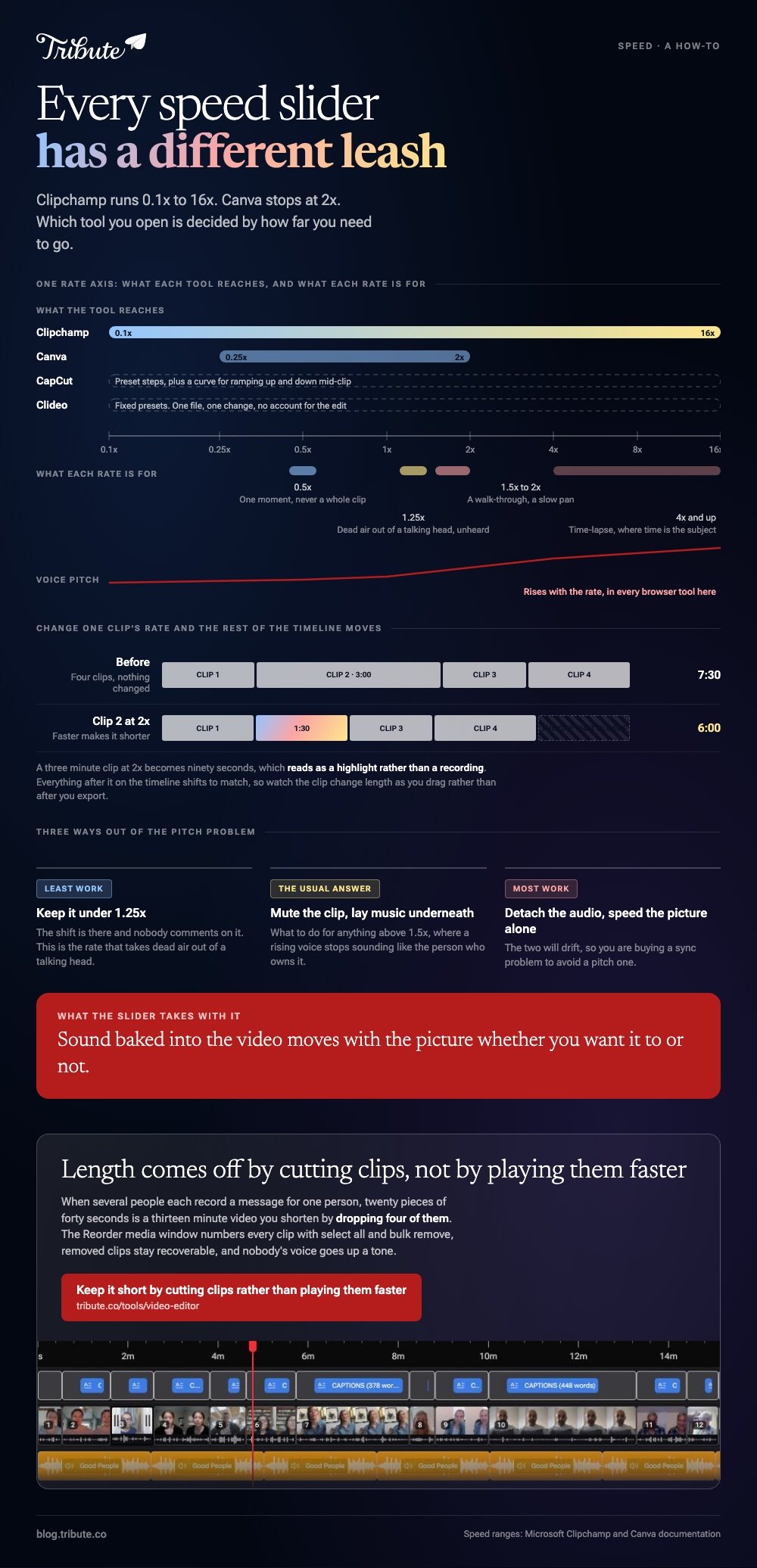
A video speed editor online changes how fast a clip plays and hands the file back from a browser tab. Clipchamp runs from 0.1x to 16x, Canva from 0.25x to 2x. Speeding video online is two decisions: which tool, and how much faster.

Which video speed editor online should you open?
The one whose range covers what you need, because the ranges are not close.
| Tool | Range | Account needed? | Best at |
|---|---|---|---|
| Clipchamp | 0.1x to 16x | Yes | Long recordings and time-lapse |
| Canva | 0.25x to 2x | Yes | A clip inside a design you are already making |
| CapCut on the web | Preset steps plus a curve | Yes | Ramping speed up and down mid-clip |
| Clideo | Fixed presets | No, for the edit | One file, one change, nothing else |
Anything past 2x rules Canva out before you start. Anything below 0.25x leaves Clipchamp as the only one of the four that will do it.
How do you speed up a video in Clipchamp?
Four steps, and the slider is where the whole feature lives.
- Open Clipchamp in a browser and start a new project, then drag your file into the media panel.
- Drop the clip onto the timeline and click it so the property panel opens on the right.
- Open the speed tab. Microsoft documents a range of 0.1x to 16x on the speed slider, and you can type a number instead of dragging.
- Click Export and pick a resolution.
Watch the clip change length on the timeline as you drag. Faster makes it shorter, slower makes it longer, and everything after it on the timeline shifts to match.
Audio sitting on its own track takes the same 0.1x to 16x treatment. Sound baked into the video moves with the picture whether you want it to or not.
How do you change the speed in Canva?
Two clicks further in, and with a much shorter leash.
- Open the design and click the video on the page.
- Click Edit in the toolbar above, then find Video speed in the side panel.
- Drag the slider or type a value. Canva's help page sets the range at 0.25x at the slowest and 2x at the fastest.
- Share, then Download, and pick MP4.
Canva will not let you touch playback settings until the upload has finished, which looks like a broken panel and is a progress bar you cannot see.
Unlike Clipchamp, Canva treats the video as one element in a page rather than a clip on a timeline, so the speed control sits with the fonts and the shapes.

What does a video speed editor online do to the sound?
It pitches it, unless the tool says otherwise.
Double the rate of a recording and every voice rises with it. Halve it and the room fills with a slow drone. Most browser editors apply the change to picture and sound together, with no pitch correction switch.
Three ways out, in order of how much work they are:
- Mute the clip and lay music underneath. The usual answer for anything above 1.5x.
- Detach the audio onto its own track, then speed up the picture alone. The two will drift.
- Keep it under 1.25x. At that rate the pitch shift is there and nobody comments on it.
Compared to a desktop editor, which will hold the pitch while it changes the rate, every browser tool in this list is doing the cheap version.
Which speed should you pick?
Start at 1.25x and stop before anybody notices.
Speed up video 2x and a three minute clip becomes ninety seconds, which reads as a highlight rather than a recording. Past 2x, speech turns to noise and a face stops reading as a face.
- 1.25x: takes the dead air out of a talking head without anybody hearing it
- 1.5x to 2x: a long walk-through, a slow pan, a demonstration
- 4x and up: time-lapse, where the subject is the passing of time
- 0.5x: one moment worth a second look, never a whole clip
A free online tool to speed up a video should hand it back with no watermark, and several of the better known ones will not without a paid plan.
One note on the search itself. People looking for a video speed editor online land next to people looking for lightspeed training videos, which is a company's staff training library and a different job.
More on the neighbors of this task in cutting clips in a browser, editing picture and sound together and the desktop options on Windows.
What if the clips came from a dozen different people?
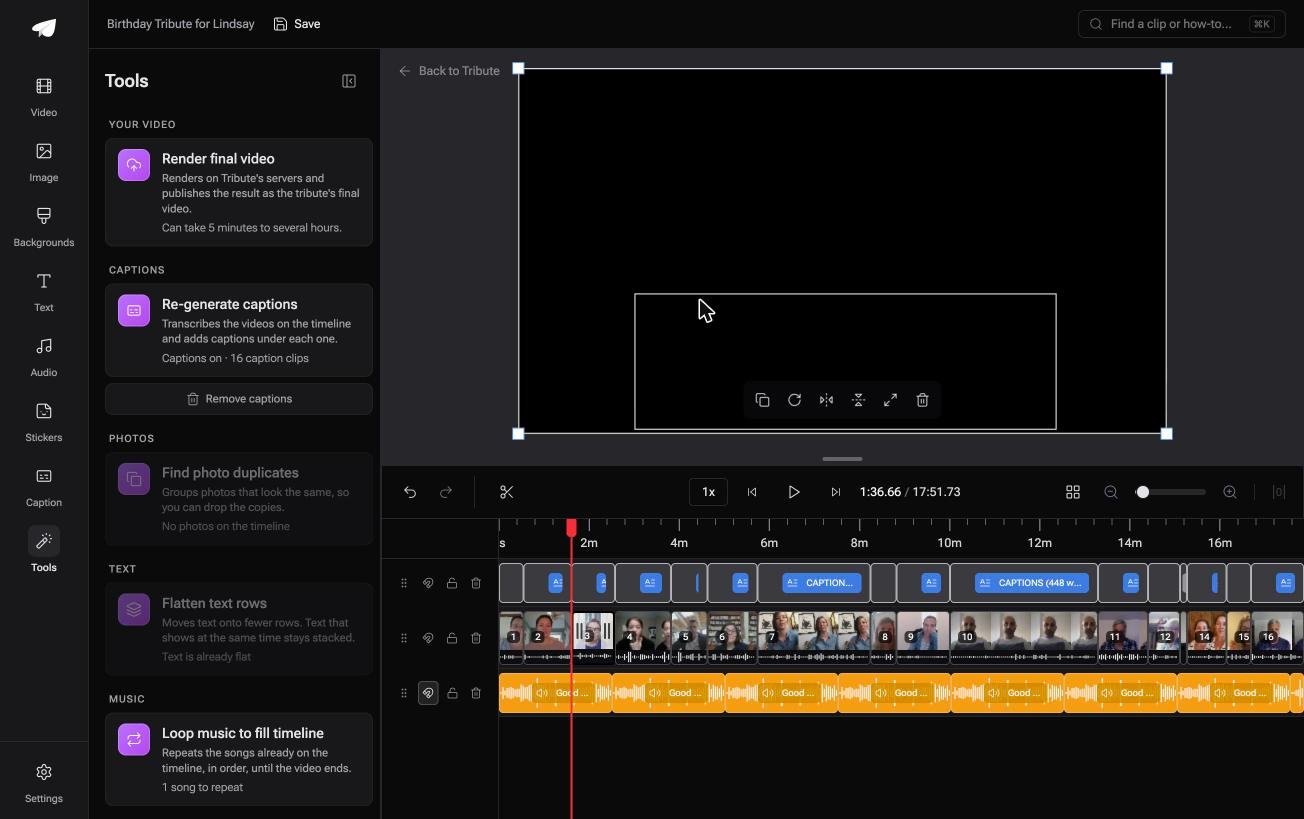
The Tribute video editor is a browser-based group video editor: contributors record clips on their phones and Tribute assembles them on a timeline with the music balanced under the voices.
It is ours, and it is the last thing on this page.
- Clips arrive in order on the timeline, with a tick against the ones already placed
- A waveform under every clip, so you trim to the first word instead of speeding past the silence
- Tools panel bulk actions: re-generate captions, find photo duplicates, loop music to fill the timeline
- 47 entrance and 47 exit animations, including Slow zoom, Drift and Breathe
Best for: A long video built from many short messages rather than one long recording.
Why it works: Length is managed by cutting the slow parts out, which is the thing speeding up was standing in for.
What if the video was never too long?
Nobody speeds a clip up because it looks better fast.
Most people reach for it because the thing runs nine minutes and they know what happens at minute four. Speed is a length problem wearing a different hat. There is one case where the length never gets away from you.
The case: short clips from many people
You are in it when several people each record a message for one person.
A grandfather turning ninety. A teacher leaving after twenty years. Nobody records nine minutes to camera on their own phone: they say a sentence, laugh, and stop.

Why the speed slider never comes out
Because the total was never one file in the first place.
Twenty pieces of forty seconds each is a thirteen minute video you shorten by dropping four of them, not by playing all twenty faster.
That is how the Tribute video editor handles length: a Reorder media window with every clip numbered, select all, and bulk remove.
What you do not have to do
- No speeding anything up. Length comes off by cutting clips, so nobody's voice goes up a tone.
- No trimming pass. On a Concierge Tribute, Eve takes the silence off every clip from a prompt.
- No fear of cutting too much. Removed clips are recoverable, and save history restores an earlier version.
- No shorter cut to assemble. Eve cuts a shorter version of the whole timeline when the first one runs long.

When this is the wrong answer: you have one long recording of your own and a deadline. Then open Clipchamp, drag the slider and move on. The editor has no speed control and is not a standalone tool: it lives inside a paid Tribute.
Frequently Asked Questions
Can I speed up a video online without downloading software?
Yes. Clipchamp, Canva, CapCut and Clideo all run in a browser tab, and the file is uploaded rather than installed. Each one asks for an account before it will export.
What is the fastest a browser editor will play a clip?
Clipchamp goes to 16x, which is the widest range of the four. Canva stops at 2x, so anything beyond a mild trim of dead air needs a different tool.
Will speeding up a video make the voices sound strange?
Yes, because the pitch rises with the rate. Mute the clip and put music underneath if you are going above 1.5x, or keep the change small enough that nobody asks.
Does changing speed reduce the quality of the picture?
Not by itself. Quality is lost at export, where the resolution and bitrate are set, so pick the largest size the destination accepts.
How do I slow a clip down for a moment and then return to normal?
You split the clip either side of that moment and change the speed of the middle piece only. Some editors also offer a speed curve, which ramps rather than jumps.
Is there a limit on file size in these tools?
Every browser editor has one, and it moves with the plan you are on. A long recording from a phone is the usual thing that hits it, and a montage tool is where people land next.
👉 Keep it short by cutting clips rather than playing them faster if several people each recorded a message for one person, and nobody's voice goes up a tone.
