
VLC Media Player Compress Video: Does It Hold Up?
VLC media player can compress video through Convert/Save, where you pick a profile and lower the bitrate in the profile editor. It works, and it is awkward: VideoLAN's own wiki marks its transcoding page outdated. For size targets, HandBrake is the better tool.

VLC media player compress video: can it do it at all?
It can, because compressing is a side effect of transcoding and VLC transcodes.
What VLC does not give you is a size target. There is no box that says "make this 20 MB". You change a bitrate, run the encode, look at what came out, and change it again.
| What you want | VLC | HandBrake |
|---|---|---|
| Change the container | Yes, and fast | Yes |
| Lower the bitrate | In the profile editor | On the Video tab |
| Aim at a quality level | No | Constant Quality RF |
| See a size estimate first | No | No, but RF is predictable |
So a video compressor VLC can replace exists, and it is the one you already have open. Whether it should is the rest of this page.
How do you compress a video in VLC step by step?
Through the conversion dialog, which sits in a different menu on each platform.
- On Windows, open Media > Convert/Save. On a Mac, open File > Convert/Stream.
- Add the clip, then click Convert/Save.
- Choose a profile. Video H.264 + MP3 (MP4) is the most compatible one, and the one to use to compress mp4 files.
- Click the wrench beside the profile list to open the profile editor.
- On the Video codec tab, lower Bitrate. Set Scale to 0.5 if you also want half the width and height.
- Name a destination file and click Start. VLC plays nothing while it works: the progress bar is the playback bar.
VideoLAN's transcoding page carries three warnings worth reading first: it takes a while, it writes a second file, and an incompatible codec and container pair can fail without an obvious error.
Check the Messages window if the output file turns up empty.
That page also carries a notice that it is outdated and may be incorrect, which tells you how much attention the GUI conversion path gets.
Best for: A format change, or one clip you want a bit smaller with no other software installed.
Why it works: It is already on the machine, and remuxing to another container finishes in seconds because nothing is re-encoded.
Why does VLC media player compress video to the wrong size?
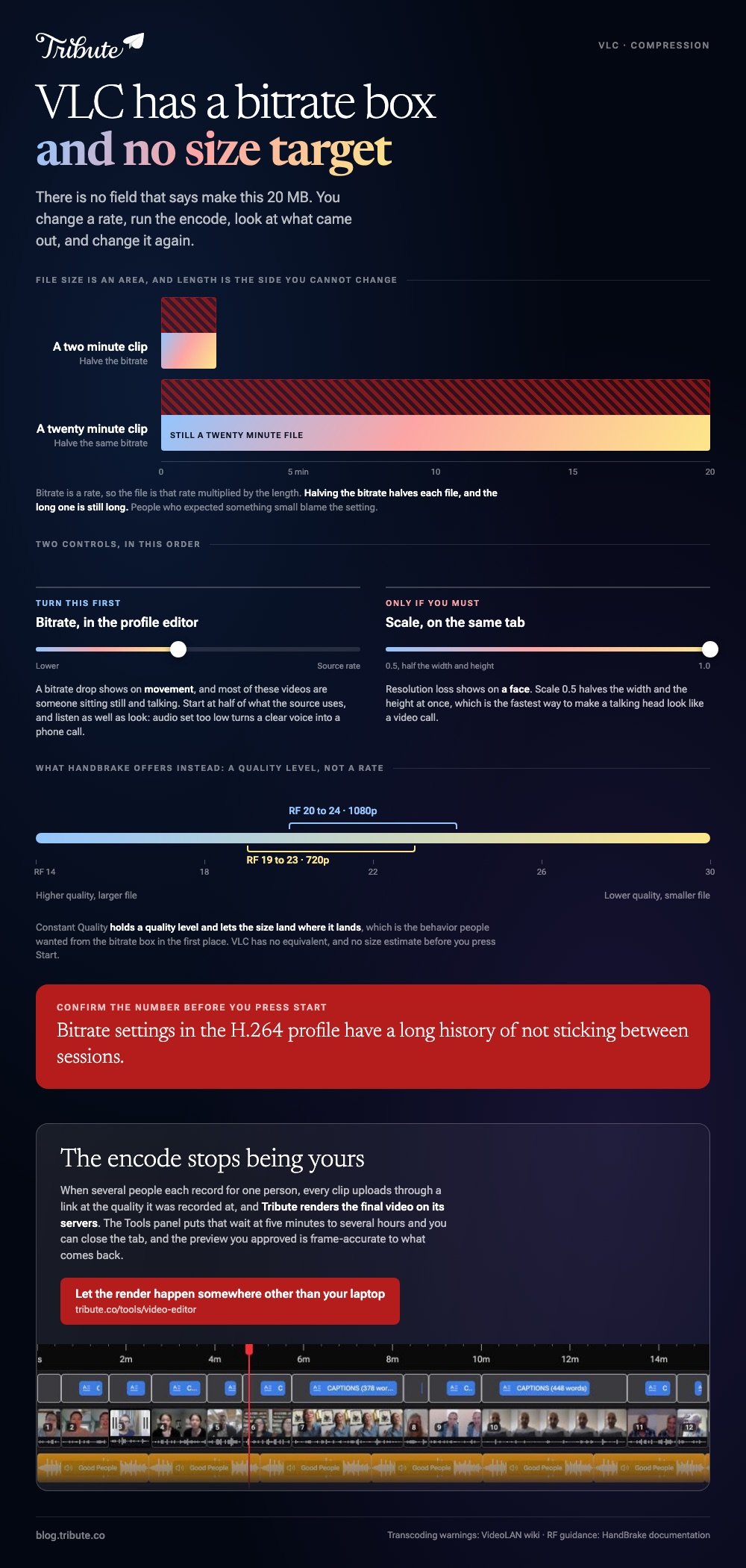
Because bitrate is a rate, and the file size is that rate multiplied by the length.
Halving the bitrate of a two minute clip halves the file. Halving the bitrate of a twenty minute clip still leaves you with a twenty minute file, and people who expected a small one blame the setting.
To compress video in VLC without losing quality you can see, lower the bitrate before you lower the resolution. Resolution loss shows on a face. A bitrate drop shows on movement, and most of these videos are someone sitting still and talking.
There is a second trap. Bitrate settings in the H.264 profile have a long history of not sticking between sessions, so reopen the profile editor and confirm the number before you press Start.
With 91% of US adults owning a smartphone, according to the Pew Research Center mobile fact sheet, most source files now arrive at a phone's 4K bitrate, which is why a VLC compress video size estimate made from habit is almost always wrong.
Is there a VLC video compressor online?
No. VLC is a desktop application and VideoLAN publishes no browser version of it.
Searches for a VLC video compressor online land on browser tools that have nothing to do with VideoLAN and borrow the name for traffic. They work, and they are not VLC, and they want your file uploaded to a server first.
If a browser is what you have, the honest options are set out in compressing a video file online.
What should you use instead for a size target?
HandBrake, which is the tool VLC users end up at anyway.
Pick a preset, then set Constant Quality on the Video tab. HandBrake's guide to adjusting quality suggests RF 20 to 24 for 1080p and 19 to 23 for 720p, and explains that a higher quality setting makes a larger file.
Compared to VLC's bitrate box, RF holds a quality level and lets the size land where it lands, which is the behavior people wanted in the first place. Unlike VLC, HandBrake also shows you the preset it is using and what that preset changed.
The full walkthrough is in compressing a video with HandBrake.
What if the clips came from a dozen different people?
Then you are transcoding twelve files that were each compressed once already on the way to you.
The Tribute video editor is a browser-based group video editor: contributors record clips on their phones and Tribute assembles them on a timeline with the music balanced under the voices.
- Tribute renders the final video on its servers, so no encode runs on your laptop
- Clips arrive in order through a link, with a tick on the ones already on the timeline
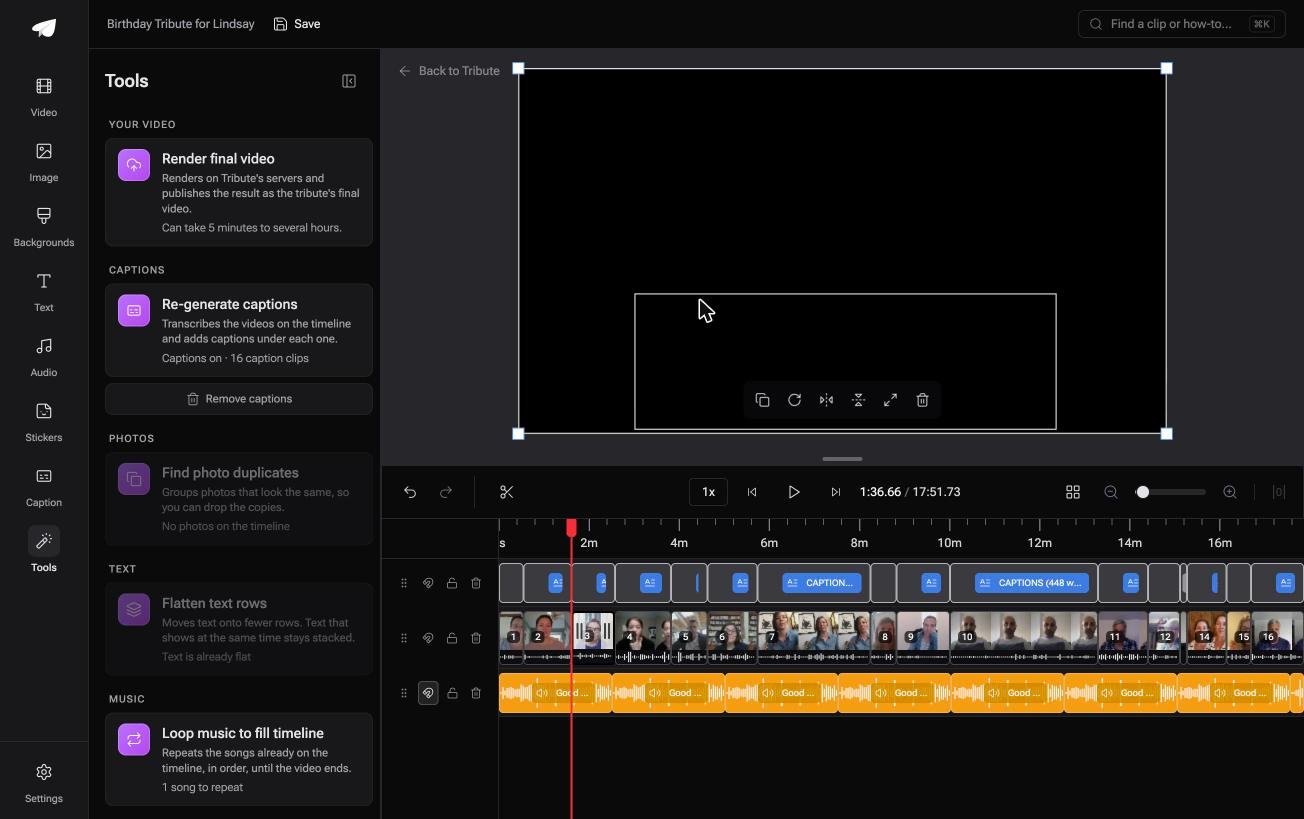
- A Tools panel with bulk actions: render, re-generate captions, find photo duplicates, loop music to fill the timeline
- The preview is frame-accurate to the delivered video, so there is no test export
Best for: Twelve recordings squeezed once before they reached you, which should not be squeezed twice.
Why it works: Compared to a local encode, a server render means the length of the video decides the wait rather than the age of your machine.
Is there a version of this with no export at all?
Transcoding is a tax you pay for building the video on your own machine.
Every pass costs time, disk space and a little detail, and the second pass cannot recover what the first one threw away. There is one case where no pass runs on your side.
The case: the clips were recorded for one person
You are in it when several people each record something for the same person.
A grandfather turning ninety. A manager leaving after eleven years. Nobody shot a scene and nobody is going to hand you a master file.
If you are shrinking one clip of your own, the VLC and HandBrake routes above are the whole of this page for you.
Why the encode stops being yours
Because it happens somewhere else.
Clips upload through a link, sit on a shared timeline, and the render runs on Tribute's servers rather than on your laptop.
The Tools panel in the Tribute video editor puts that wait at five minutes to several hours, and you can close the tab while it runs.

What you do not have to do
Four jobs, and setting a bitrate is the first to go.
- No compressing. Each person uploads from their own phone at the quality they recorded.
- No assembling. The clips arrive in order with music underneath.
- No encode on your laptop. Tribute renders on its servers, and the preview you approved is the video you get.
- No edit at all, on Concierge. Tribute's editors reorder, trim and caption, then hand it back for approval.

When this is the wrong answer: the file is yours and the job is a format change. VLC does that in under a minute. The editor is not a converter either: it lives inside a paid Tribute.
Related: what a video tribute is and making a video montage.
Frequently Asked Questions
Can VLC compress a video without losing quality?
Not if you re-encode it. Any bitrate reduction throws away detail. Changing the container without re-encoding keeps the picture intact, and it does not make the file much smaller.
Where is Convert/Save on a Mac?
Under File, as Convert/Stream. The Windows build puts the same dialog under Media as Convert/Save, which is why half the guides online do not match your menus.
What bitrate should I set in VLC?
Start at half of what the source uses and listen to the result as well as looking at it. Audio set too low turns a clear voice into a phone call.
Why is my converted file the same size?
The profile was left on a setting that copies the original streams, or the bitrate you typed did not stick. Reopen the profile editor and confirm it before you start.
Does VLC compress MP4 files to MP4?
Yes. Choose the H.264 and MP3 MP4 profile and lower the bitrate in the profile editor. The container stays the same and the contents are re-encoded.
Is HandBrake better than VLC for this?
For compression, yes. HandBrake is built for encoding and shows you the quality scale. VLC is a player that happens to transcode.
How long does a VLC conversion take?
Longer than the video, on most machines. VideoLAN says transcoding needs a fast computer and warns that it takes a while.
👉 Let the render happen somewhere other than your laptop if twelve people are each recording for one person, and no bitrate is yours to guess.
