
Why Does iMovie Crop My Video? The 16:9 Project and the Fit Button
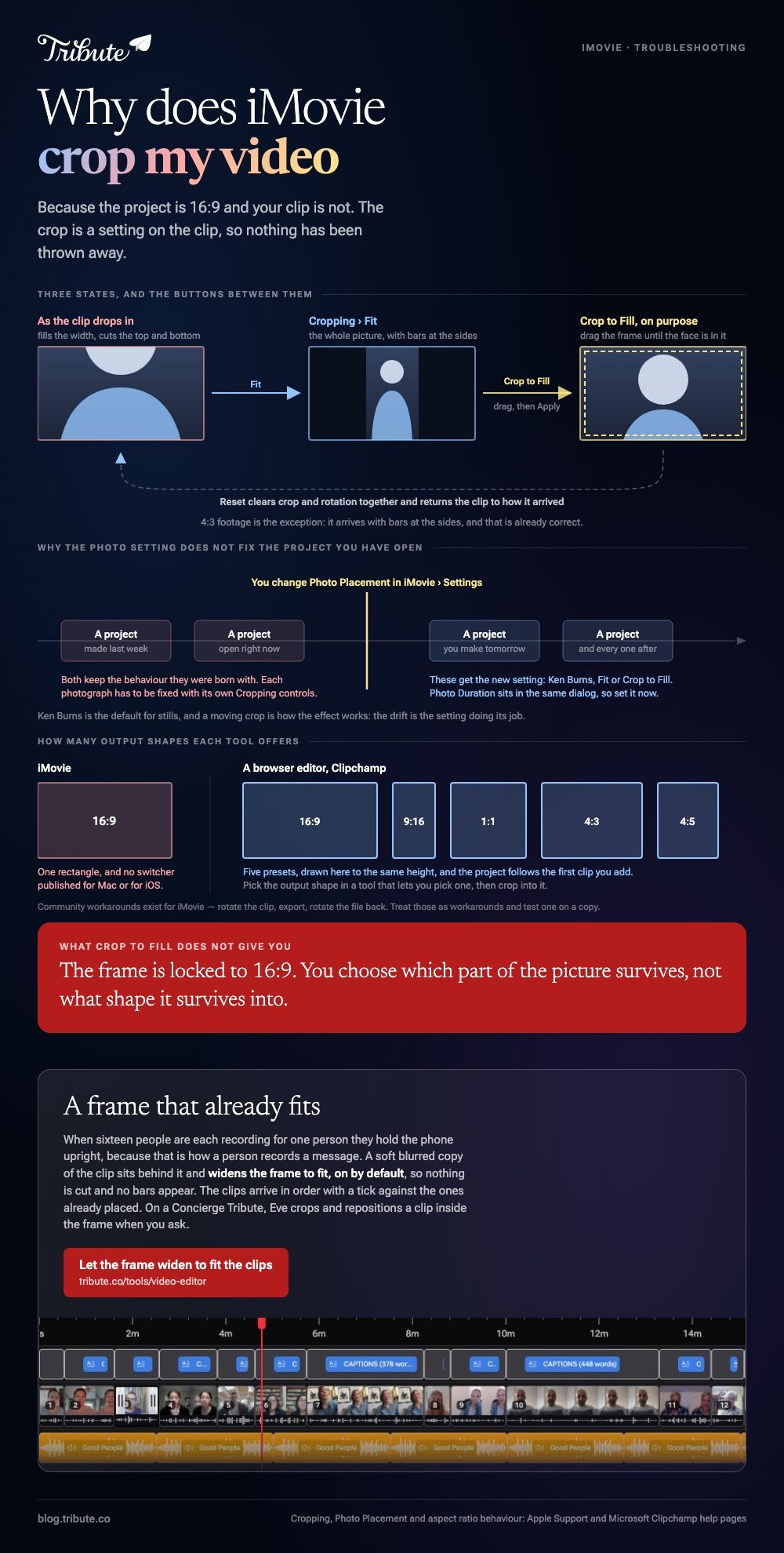
iMovie crops your video because the project is 16:9 and your clip is not. Anything taller or squarer gets pushed out to the edges of that frame. Select the clip, open the Cropping controls and click Fit to get the whole picture back.
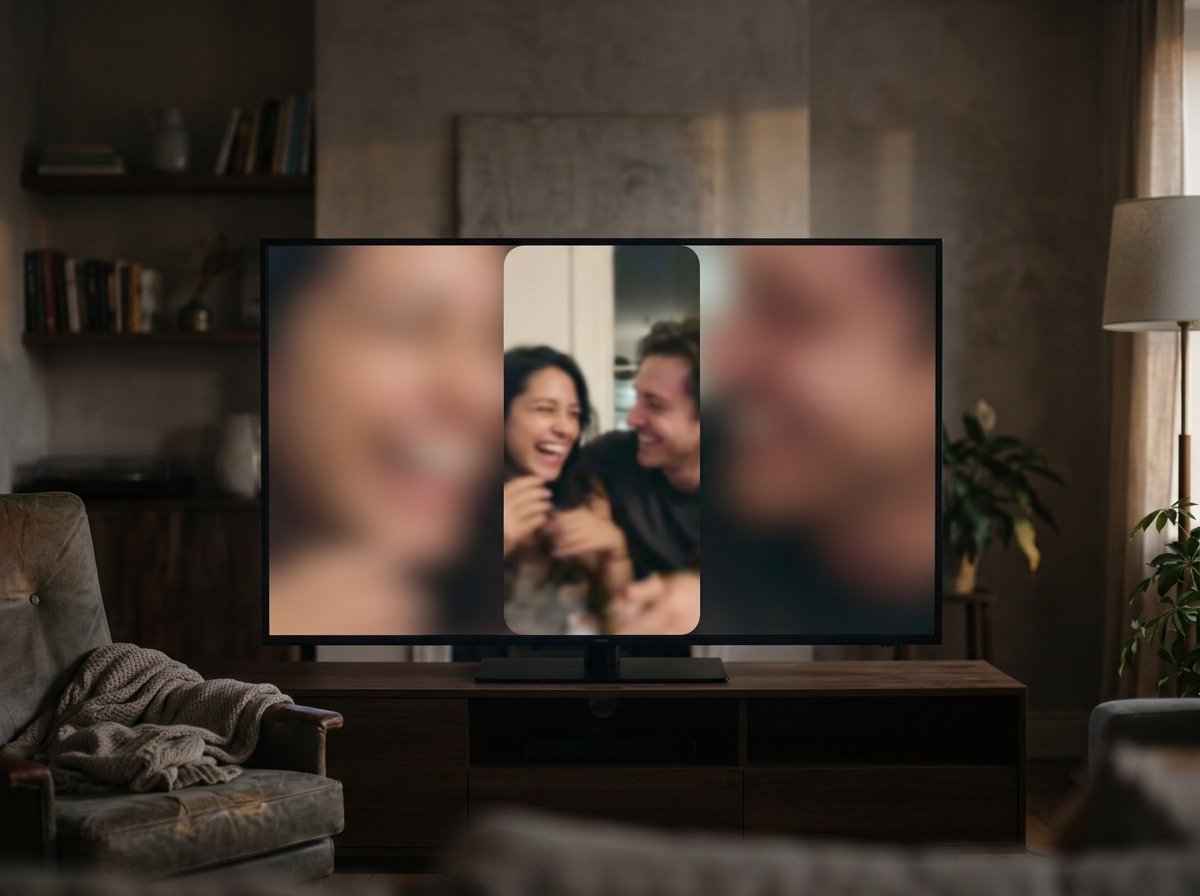
Why does iMovie crop my video when you drop it on the timeline?
Because the timeline has one shape and your footage has another.
An iMovie project is a 16:9 rectangle. A phone clip recorded upright is 9:16, which is the same rectangle stood on its end. Something has to give, and iMovie decides for you.
| What you added | What iMovie does | The fix |
|---|---|---|
| Upright phone clip | Fills the width, cuts top and bottom | Cropping > Fit |
| 4:3 older footage | Shows it with bars at the sides | Nothing, that is correct |
| A photograph | Adds a slow zoom and crops as it moves | Change Photo Placement |
| Square clip | Fills the width, cuts the top and bottom | Cropping > Fit |
None of this is a bug, which is why people search for it. iMovie cropped my video is the sound of a default doing its job on footage the default was not built for.
The thing to know before you start: the crop is a setting on the clip, not a change to the file. Nothing has been thrown away.
How do you crop a movie in iMovie, or take the crop back off?
Three buttons sit behind the Cropping control, and two of them are the ones you want.
Apple's crop a clip page covers both directions, and the order below is the one that fixes a clip that arrived cropped.
- Choose the clip or photo on the timeline.
- Click the Cropping button to open the cropping controls.
- Click Fit. The original shape comes back, with bars where the clip is narrower than the frame.
- To crop on purpose instead, click Crop to Fill, drag the frame, and click Apply.
- Reset undoes crop and rotation together.
One detail decides whether a deliberate crop will work for you: the Crop to Fill frame is locked to 16:9. You can choose which part of the picture survives, and you cannot choose a different shape to survive into.
Unlike a browser editor with aspect ratio presets, iMovie gives you one output rectangle and no way to ask for another. Compared with cropping before you import, doing it on the timeline keeps the original file intact.

Why does iMovie crop my photos with a slow zoom?
Because Ken Burns is the default for stills, and a moving crop is how the effect works.
The zoom is doing what it was asked to do. If every photograph you add drifts and loses its edges, the setting is one dialog away.
- Open iMovie > Settings, or press Command-Comma.
- Find Photo Placement.
- Choose Fit to keep the whole picture, or Crop to Fill to fill the frame without motion.
- Set Photo Duration in the same dialog while you are there.
Apple lists all three options on its settings page. The catch is that a change here applies to projects you create afterward, so an open project keeps the behavior it was born with and each photo has to be fixed on its own.
Why does iMovie crop my video on an iPhone too?
Same reason, smaller screen, fewer controls.
iMovie for iOS builds to the same wide rectangle, so an upright clip either loses its top and bottom or sits between bars. The desktop Cropping panel has no full equal in the phone app.
Apple does not publish a project aspect ratio switcher for either version. Community threads trade workarounds, including rotating a clip sideways, exporting, and rotating the file back in another player. Treat those as workarounds and test one on a copy.
Which means the question that brought you here, why does iMovie crop my video, has an honest answer that is not a setting: the app was built around one shape.
What should you do with a vertical clip instead?
Pick the output shape in a tool that lets you pick one, then crop into it.
Browser editors start where iMovie stops. Clipchamp's aspect ratio page lists presets for 16:9, 9:16, 1:1, 4:3 and 4:5, and the project follows the first clip you add.
| You want | Where to do it |
|---|---|
| Keep the whole upright frame | A 9:16 project in a browser editor |
| A wide video from an upright clip | Crop to Fill in iMovie, accepting the loss |
| A square for a feed | A 1:1 preset, cropped from the tallest source |
More routes in cropping video online and the browser crop tools compared, and the professional version of the same job in cropping in Premiere Pro.
What if the clips came from sixteen phones held sixteen ways?
Then no single project shape is right, because the footage never agreed on one.
The Tribute video editor is a browser-based group video editor: contributors record clips on their phones and Tribute assembles them on a timeline with the music balanced under the voices. It is ours, and it is the last thing on this page.
- Blurred edges fill the frame behind an upright clip, on by default, so no crop and no black bars
- Clips arrive in order on the timeline, each with a tick showing it is placed
- 9 3D layout effects for photos, including Tilt, Book, Floating, Billboard and Skewed
- 47 entrance and 47 exit animations, including Slow zoom, Drift and Breathe
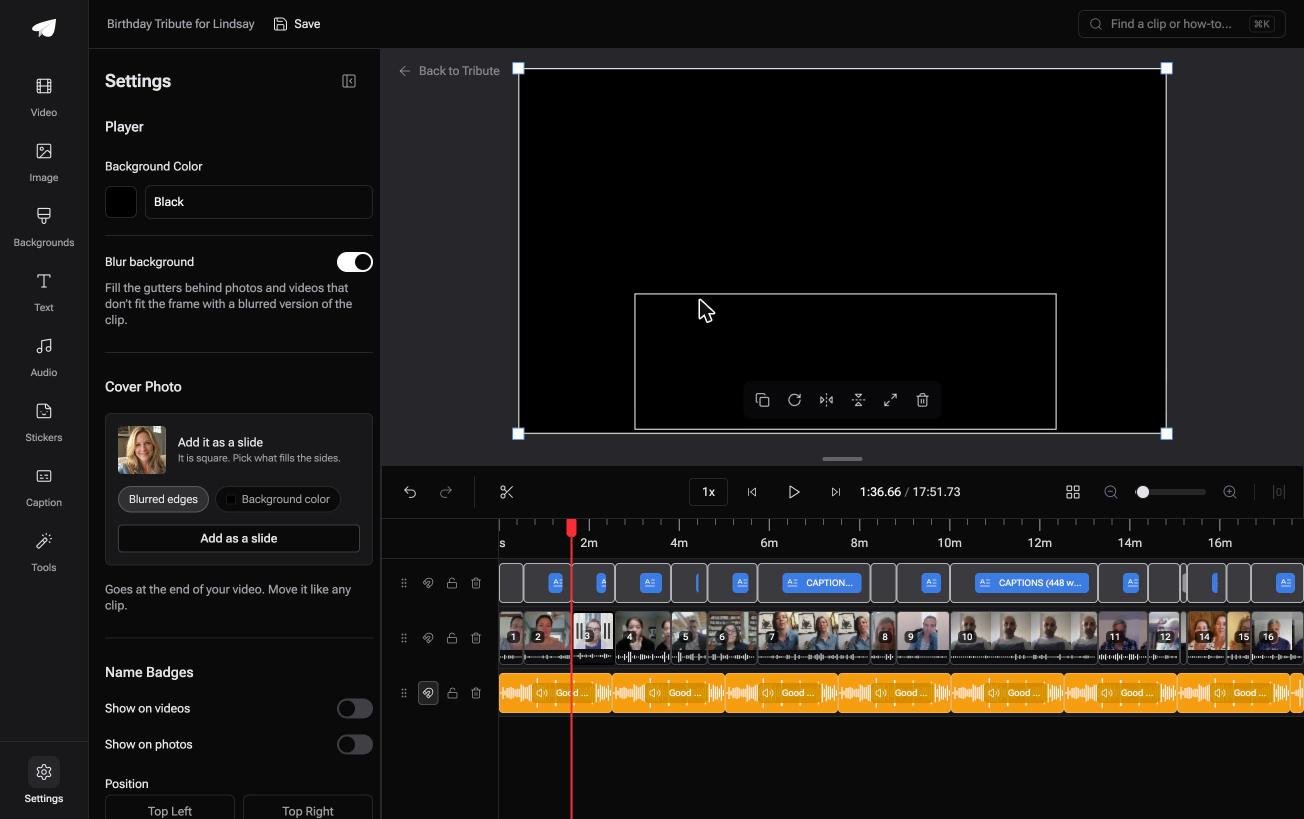
Best for: Clips that arrived in four different shapes, none of them the shape the project wants.
Why it works: Sixteen people hold their phones sixteen ways, and the gutters get filled instead of the faces getting cut.

Is there a version of this where nothing gets cut off?
This page started with a complaint about a rectangle.
Every fix above is a way of choosing what to lose. Fit loses the width, Crop to Fill loses the height, and the workarounds cost an export round trip.
The case: the clips are recorded for you
You are in it when several people each record something for one person.
A grandmother turning eighty. A colleague leaving after fifteen years. A memorial where the people who should speak are in four time zones.
Each one holds a phone at arm's length, upright, because that is how a person records a message. Nobody is matching a project setting.
Why the crop question never comes up
Because the empty space is filled rather than the picture being cut.
A soft blurred copy of the clip sits behind it and widens the frame to fit, on by default. That is how the Tribute video editor handles mixed footage: not a Fit button to find, but a frame that already fits.
What you do not have to decide
- Not what to lose. The frame widens behind an upright clip rather than cutting into it.
- Not a project setting before anybody records, because mixed shapes are the normal case here.
- Not the reframing on a Concierge Tribute: Eve, the assistant inside the editor, crops and repositions a clip inside the frame when you ask.
- Not the job at all, if Tribute's editors build the video for you on Concierge.
It does not have to stay a file
The finished video can arrive as a video book: a hardcover case with a screen inside that plays when you open it.
No export, no shape to choose, and nobody asking why half of their head is missing.

When this is the wrong answer: you shot one clip and you want it reframed. Then the Cropping panel at the top of this page is the whole job, and iMovie is already on the Mac.
The editor is also not a crop tool: it lives inside a paid Tribute. For an edit that mixes clips and photographs, see the video montage maker guide.
Frequently Asked Questions
How do I crop a movie in iMovie without losing the sides?
You cannot. Crop to Fill keeps a 16:9 slice and discards the rest of the frame. Click Fit instead and accept bars where the clip is narrower than the project.
Why is iMovie cropping my video only on some clips?
Because only some of them differ from 16:9. Footage already shot wide drops in untouched, while upright and square clips hit the default and get filled to the frame.
Can iMovie crop vertical video to keep it vertical?
Not as an output shape. The project stays wide, so an upright clip can be shown whole with bars or cropped to the wide frame, and there is no third option.
How do I stop iMovie zooming my photos?
Open iMovie Settings and change Photo Placement from Ken Burns to Fit or Crop to Fill. The change applies to new projects, so fix existing photos one at a time with the Cropping controls.
Does cropping in iMovie reduce quality?
It reduces resolution, because fewer pixels are being stretched across the same frame. A heavy crop of a 1080p clip starts to look soft on a television.
Is there a Reset for a crop I already applied?
Yes. Open the Cropping controls on that clip and click Reset, which clears crop and rotation together and returns the clip to how it arrived.
👉 Let the frame widen to fit the clips if sixteen people are each recording for one person, and no Fit button is needed.
