
YouTube to MP4 Crop: How to Reshape a Video You Have Downloaded
A YouTube to MP4 crop is two jobs, not one. YouTube Studio can trim a video in time but cannot change its frame, so cropping happens after you hold the file. Your own uploads are the clean way to get one.

What does a YouTube to MP4 crop change?
The edges of the picture, and nothing else.
Three words get used for three different operations, and mixing them up is why so many searches end in the wrong tool.
| Word | What moves | Where it happens |
|---|---|---|
| Crop | The edges of the frame | An editor, after download |
| Trim | The start and end in time | YouTube Studio, or an editor |
| Resize | The pixel count, same shape | On export |
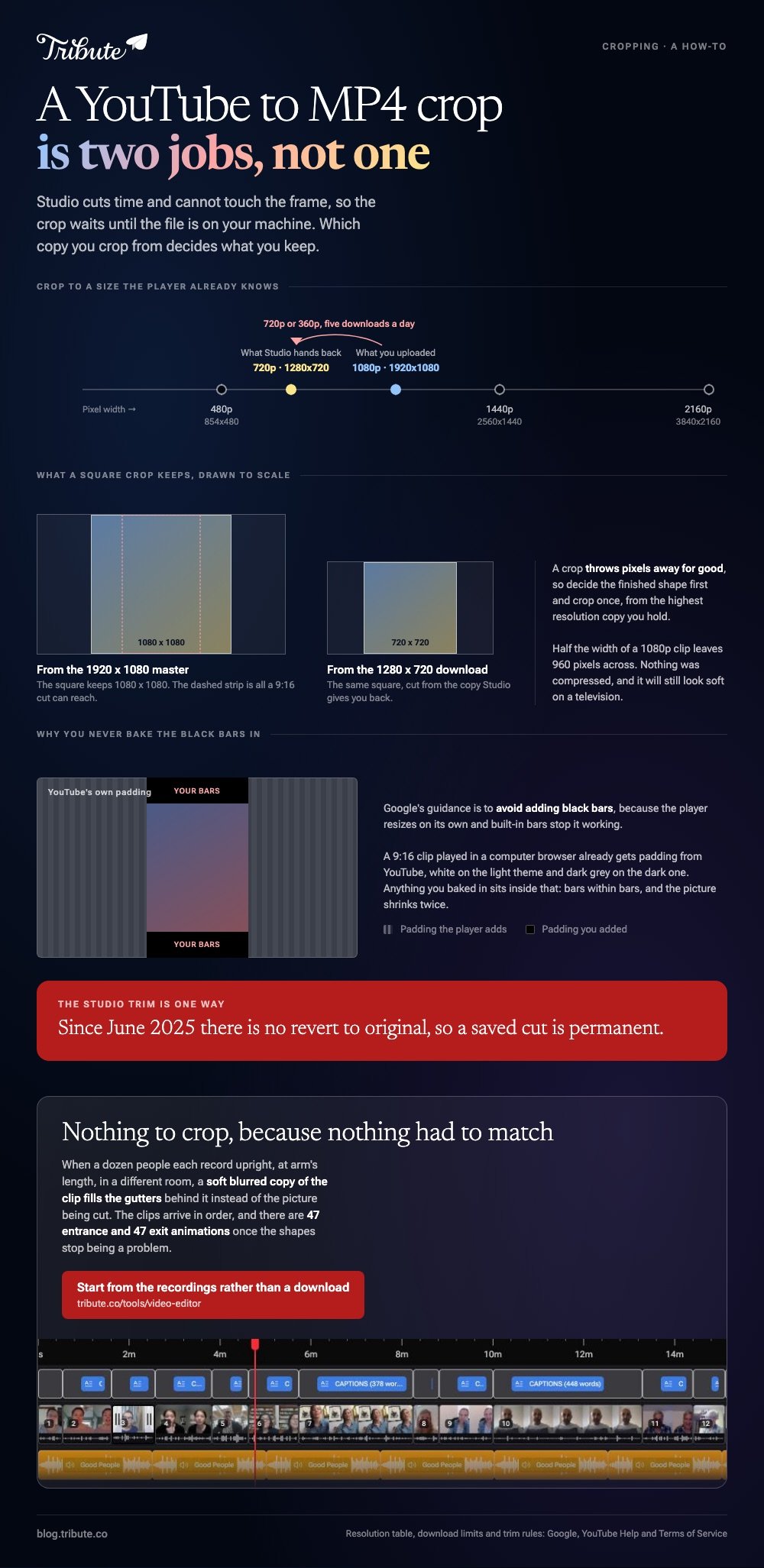
Crop throws pixels away for good. A 1920x1080 clip cropped to a square keeps 1080x1080 of the original and the rest is gone, which is why the order of operations matters more than the tool.
Decide the finished shape first. Then crop once, from the highest resolution copy you have.
Can you do a YouTube Studio crop video job in the Editor?
No. The Editor cuts time, blurs faces and adds end screens, and it has no frame control at all.
What it does do is useful, and it works on a video that is already published without changing the URL or the view count.
- Sign in to YouTube Studio and select Content in the left menu.
- Click the video's title or thumbnail, then select Editor.
- Select Trim & cut. A blue box appears over the timeline.
- Drag the sides of the box around the part you are keeping, or type exact times.
- Click Save.
Three limits are worth knowing before you start. The feature covers videos under six hours. On an unedited video past 100,000 views you may be blocked from saving anything except a face blur, unless the channel is in the Partner Program.
Since June 2025 there is no revert to original, so a saved cut is permanent. More on that path in trimming a YouTube MP4.
Which YouTube crop size should you use?
16:9, unless the video is going somewhere vertical on purpose.
YouTube's resolution guidance treats 16:9 as the standard shape on a computer and lists the encoding sizes that match it.
| Name | Pixels |
|---|---|
| 2160p (4K) | 3840x2160 |
| 1440p (2K) | 2560x1440 |
| 1080p (HD) | 1920x1080 |
| 720p (HD) | 1280x720 |
| 480p (SD) | 854x480 |
Crop to one of those numbers rather than to whatever the handle lands on. An odd size gets scaled by the player and the text in your video goes soft.
One rule overrides the whole YouTube video crop size question: do not bake padding into the file. Google says to avoid adding black bars, because the player resizes on its own and built-in bars stop it working.
A 9:16 clip played in a computer browser gets padding from YouTube itself, white on the light theme and dark gray on the dark one. Yours would sit inside that, bars within bars.

How do you get the MP4 before you can crop it?
From the video's owner, or from your own Studio account.
YouTube's terms list reproducing and downloading Content among the things you are not allowed to do, except where the Service authorizes it or YouTube gives written permission. A third party downloader is outside that.
Three routes stay inside it:
- Your own uploads. In Studio, open Content, select the video, then Menu and Download.
- A copy from the creator. For a family video somebody else posted, this is one message.
- Premium offline. Downloads stay inside the YouTube app for watching, so there is no file to crop.
Google documents the Studio route in detail: you get an MP4 at 720p or 360p depending on size, five downloads per video per day, and nothing at all if the video carries a strike or a preapproved audio track.
That 720p ceiling matters here. Compared with the 1080p master you uploaded, a 720p copy gives you 1280x720 to crop from, and a square cut out of it is 720x720.
Where do you crop the file once you have it?
In a browser, with no install, or in the editor already on the machine.
Both options below crop a YouTube video to MP4 without asking for a card, and both keep the audio untouched while the frame changes.
Clipchamp
- Open My media, add the MP4, and drag it onto the timeline.
- Click the 16:9 button and pick the shape you want first. Presets run 16:9, 9:16, 1:1, 4:3 and 4:5.
- Select the clip, then click the crop button on the floating toolbar above the preview.
- Drag the edge or corner handles, click done, and export at a matching resolution from the table above.
iMovie
- Drop the MP4 into a new project and select the clip on the timeline.
- Click the Cropping button above the viewer.
- Click Crop to Fill and drag the frame, which stays locked to 16:9.
- Click Apply, then Fit if you change your mind.
Unlike Clipchamp, iMovie gives you no choice of output shape: the project is 16:9 and the crop frame is too. Full steps for getting the file back out are in exporting an MP4 from iMovie, and a browser alternative in cropping video online.
Is a YouTube to MP3 crop the same job?
No, and the word means something different there.
Audio has no edges to crop, so a YouTube to MP3 crop is a trim: you are cutting the start and end of a waveform.
In a browser editor you right-click the clip, detach the audio onto its own row, cut it, and export sound without picture.
The sourcing rule has not changed. Pulling audio off somebody else's upload sits outside the terms in the same way the video does.
What if the footage is a dozen phone clips, not one download?
Then cropping is the wrong question, because nothing was shot in one shape to begin with.
The Tribute video editor is a browser-based group video editor: contributors record clips on their phones and Tribute assembles them on a timeline with the music balanced under the voices. It is ours, and it is the last thing on this page.
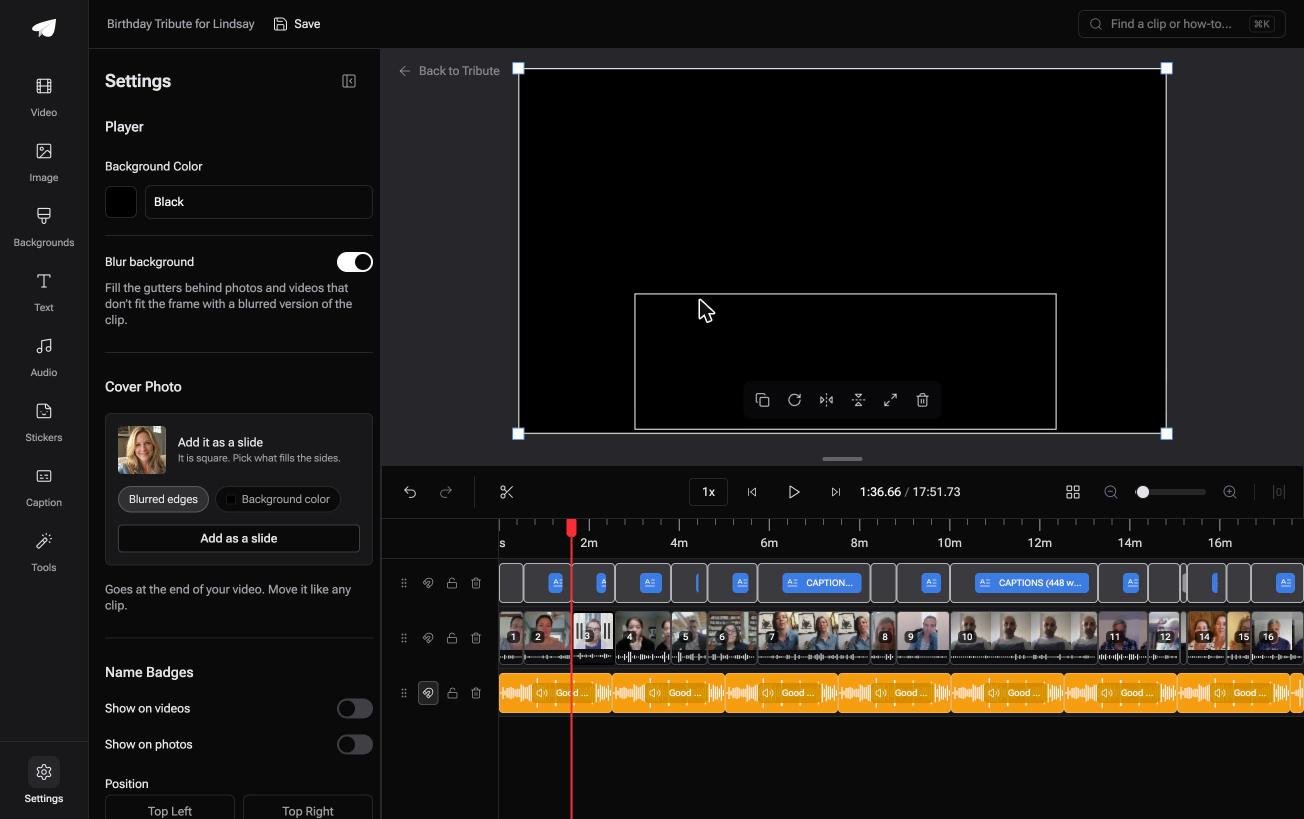
- Blurred edges fill the frame behind an upright phone clip, on by default, so no crop and no black bars
- Clips arrive in order on the timeline before you open it, each with a tick showing it is placed
- 9 3D layout effects for photos, including Tilt, Book, Floating, Billboard and Skewed
- 47 entrance and 47 exit animations, including Slow zoom, Drift and Breathe
Best for: Phone clips that were never one shape, so there is nothing to crop to.
Why it works: Sixteen people hold their phones sixteen ways, and the frame absorbs that instead of cropping somebody's head off.

What happens when every clip arrives a different shape?
Most of this page is an argument about the edges of a picture.
Which size, which ratio, which pixels to throw away. That argument only exists because you are reshaping footage somebody else framed.
The case: the clips are recorded for you
You are in it when several people each record something for one person.
A grandmother turning eighty. A colleague leaving after fifteen years. A memorial where the people who should speak are in four time zones.
Every one of them records upright, at arm's length, in a different room. Nobody is matching a format.
Why the crop never has to happen
Because the gutters get filled instead of the picture getting cut.
A soft blurred copy of the clip sits behind it and widens the frame to fit. That is how the Tribute video editor handles mixed shapes: not a crop size to pick, but a frame that absorbs whatever arrives.
What you do not have to do
- Download or convert. Each clip comes off a phone, not out of a URL.
- Choose a crop size. Blurred edges fill the frame behind upright footage, so nothing is cut away.
- Put them in order. They are in order on the timeline before you open it.
- Edit, on a Concierge Tribute. Tribute's editors build the video, and Concierge Deluxe returns it as a video book.
It does not have to stay a file
The finished video can arrive as a video book: a hardcover case with a screen inside that plays when you open it.
No download, no aspect ratio, no file to email at all.

When this is the wrong answer: you have one YouTube video and you want it square for a feed. Then the crop steps above are the whole job.
The editor is also not a downloader: it lives inside a paid Tribute. For an edit that mixes clips and photographs, see the video montage maker guide.
Frequently Asked Questions
Can I crop a YouTube video without downloading it?
Not into a new file. You can trim time in YouTube Studio on a video you own, and viewers can start playback at a timestamp, but the frame stays as uploaded.
Does cropping lower the quality?
It lowers the resolution, which is a different thing. Half the width of a 1080p clip leaves 960 pixels across, and that will look soft on a television even though nothing was compressed.
What size should a vertical crop be?
1080x1920 for a full-height phone frame. Crop from the tallest source you have, because a vertical cut out of a 16:9 clip keeps only the center strip of the original picture.
Is it legal to download a YouTube video to crop it?
Only where YouTube or the rightsholder allows it. The terms permit downloading when the Service authorizes it, which covers your own uploads and anything a creator hands you.
Why does my cropped video have black bars anyway?
Because the export shape and the crop shape disagree. Set the project ratio first, crop into it, then export at a matching size from the resolution table.
Can I crop and trim in the same pass?
In any editor, yes. In YouTube Studio, no: trim is all it offers, and the crop has to wait until the file is on your machine.
👉 Start from the recordings rather than a download if a dozen people are each recording for one person, and the crop size question never comes up.
