
YT Video Download Trim: Cut It First, Then Save the File
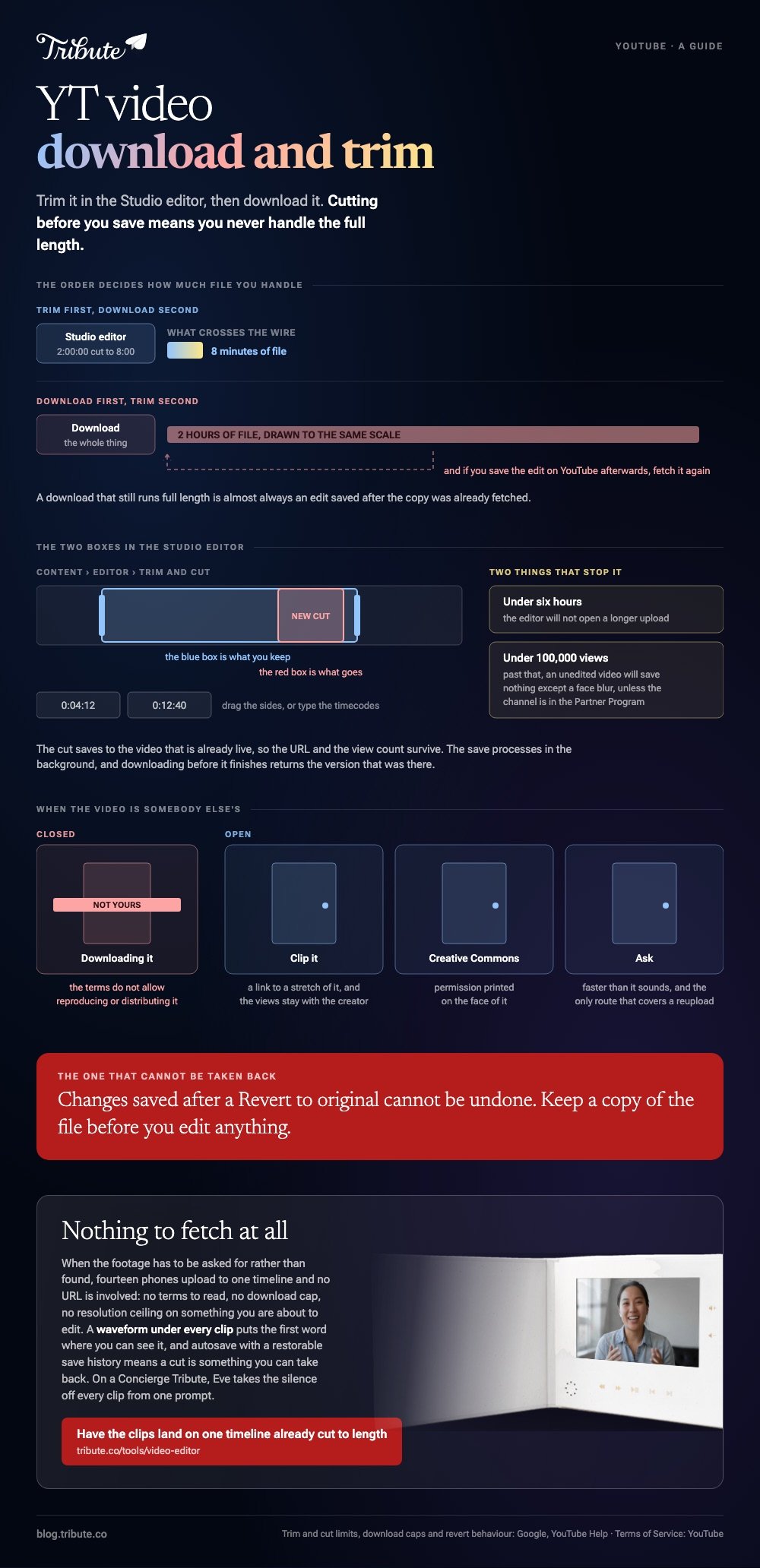
For your own upload, trim it in the YouTube Studio editor and download it afterwards: Content, then Editor, then Trim & cut, then Download from the video's options menu. Cutting before you save means you never handle the full length.

Which order works for a yt video download trim?
Trim on YouTube, download second. The reverse costs you a round trip.
- Sign in to YouTube Studio, open Content, and click the video.
- Choose Editor in the left menu, then Trim & cut.
- Drag the sides of the blue box over the part you want to keep, or type the timecodes into the boxes.
- For a section out of the middle, click New Cut, drag the sides of the red box over what should go, and confirm with the checkmark.
- Click Preview, then Save.
- Back in Content, open the video's options menu and choose Download.
Two limits are worth knowing before you start. The editor works on videos shorter than six hours, and an unedited video with more than 100,000 views may refuse to save anything except a face blur, unless the channel is in the Partner Program.
The file that comes back is an MP4 at 720p or 360p, and an individual video can be downloaded five times in twenty four hours. Save it somewhere rather than fetching it again.
What if the video is not yours?
Then the download is the part that is closed, not the trim.
YouTube's terms say you may not access, reproduce, download, distribute content except as the service allows or with written permission. A search for a yt video trimmer and downloader is a search for a way around that sentence.
Three things are open to you instead.
- Clip it on YouTube. The Clip control makes a short excerpt with its own link, which shares the moment without a file.
- Check the license. A video marked Creative Commons carries permission on its face.
- Ask. A message to whoever posted it is faster than it sounds, and it is the only route that covers a reupload.
Unlike a download, a clip link keeps the view count and the credit where they belong. For a group video you are assembling, that matters more than owning the file.
Where does a yt video download trim go wrong?
In the gap between the two halves.
| What happens | Why | What to do |
|---|---|---|
| The download still runs full length | The edit was saved after the copy was fetched | Download again, inside the five a day cap |
| Save is greyed out in the Editor | Over 100,000 views on an unedited video | Trim the file after downloading it |
| The file arrives at 360p | Studio chose the smaller version | Nothing. 720p is the ceiling there |
| Revert to original does nothing | Changes saved after a revert cannot be undone | Keep a copy of the file before editing |
A free video trimmer download is the wrong first move when the video is already on your own channel. The cut is there in the browser, and it costs nothing to make it before the file exists.
The order matters most on a long upload. Trim a two hour recording down to eight minutes first and the download is eight minutes of file rather than two hours of it.
Where should you trim the file once you have it?
In whatever is open, and once rather than twice.
- Clipchamp on Windows: drag the ends of the clip in, or press S to split and delete the middle.
- Photos on a Mac or phone: drag the handles and save a copy.
- CapCut: split at both ends and delete the piece between.
- A stream copy on a computer: the only route that does not re-encode the picture.
Skip VLC for this. It plays everything and cuts almost nothing well, and the files it writes carry timing that other tools misread: see trimming video in VLC.
Compared to trimming on YouTube, a desktop trim gives you frames instead of seconds and a cut from anywhere. It also costs an export, which is a second encode on a file that has already been through one.
A longer walk through both halves is in trimming a YouTube video and downloading it. The general version of the job is in how trimming a video should work.

What if the source was a group of people, not a link?
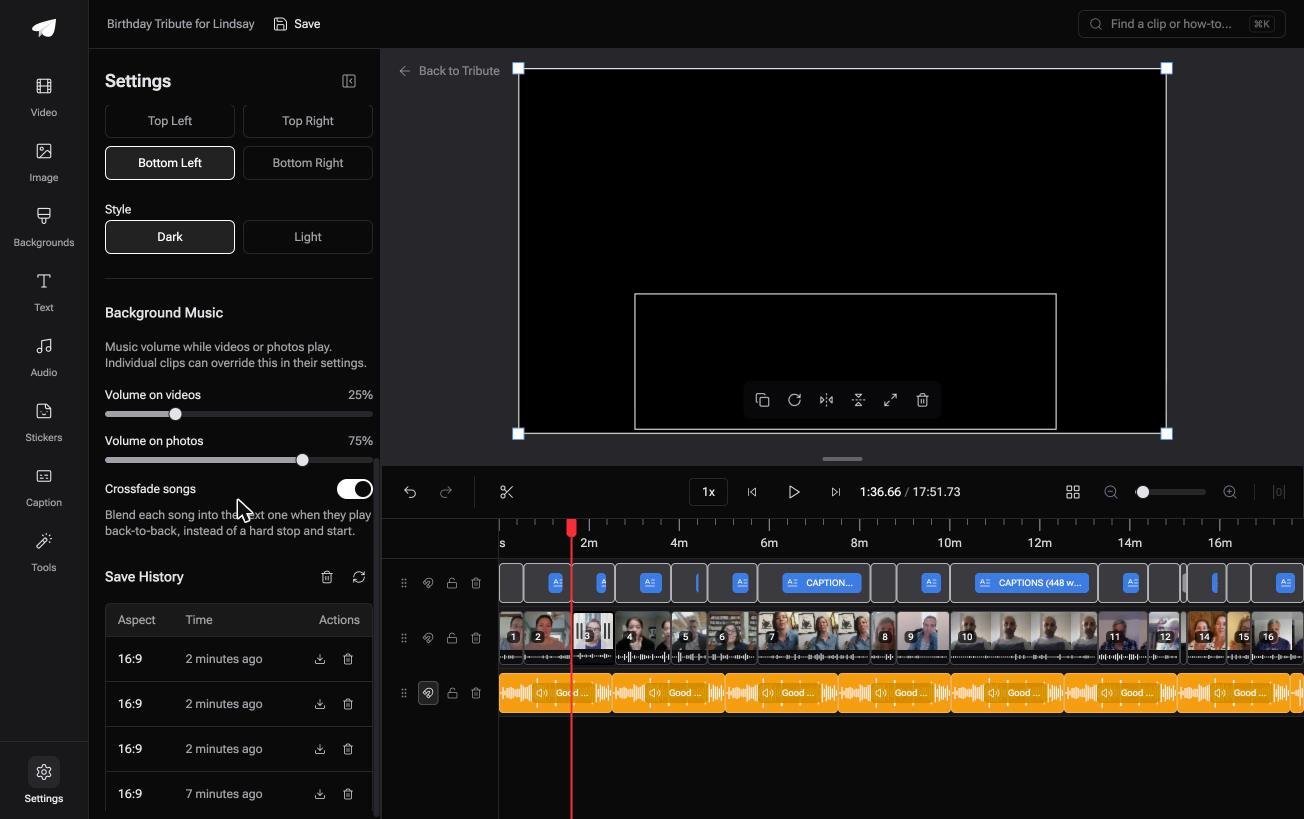
The Tribute video editor is a browser-based group video editor: contributors record clips on their phones and Tribute assembles them on a timeline with the music balanced under the voices.
It is ours, and it is the last thing on this page.
- Clips arrive in order on the timeline, with a tick marking the ones already placed
- Autosave and a restorable save history, so a cut is something you can take back
- A waveform under every clip, which puts the first word where you can see it
- Removed clips are recoverable rather than deleted, which no download-and-cut gives you
Best for: A video you are putting together out of other people's clips, with no link to start from.
Why it works: There is nothing to fetch and nothing to re-upload, so a trim is a drag rather than a round trip.
Where do the clips come from if not from YouTube?
Everything above starts with a video that somebody has already posted.
That is the right assumption for a lecture or a highlight reel. It is the wrong one for a video that has not been recorded yet. There is one case where no URL is involved at any point.
The case: the clips are a request, not a search
You are in it when the footage you want has to be asked for rather than found.
A grandmother turning eighty. A colleague leaving after fifteen years. Fourteen people who would each say something if somebody sent them a link and a deadline.
Why there is nothing to download
Because the clips land in the project, not in your downloads folder.
Each phone uploads one file to one timeline. No terms to read, no five a day cap, no 720p ceiling on something you are about to edit.
That is how the Tribute video editor gets its material: not a better downloader, but a project where the footage arrives on its own.
What you do not have to do
- Not the fetching. Fourteen phones upload to one timeline, and no URL is involved.
- Not the trimming. On a Concierge Tribute, Eve, the AI assistant inside the editor, takes the silence off every clip from one prompt.
- Not the ordering. The clips are numbered and in sequence when you arrive.
- Not the edit. Tribute's own editors finish it, and the preview matches what comes back.
When this is the wrong answer: the footage you need is a video already on YouTube. Then it is Studio for your own, and a clip link or a message for anyone else's. The editor is not a downloader: it lives inside a paid Tribute.

Frequently Asked Questions
Can I trim a YouTube video without reuploading it?
Yes, on your own channel. The Studio editor saves the cut to the video that is already live, so the URL and the view count survive.
How long does a Studio trim take to appear?
The save processes in the background and the trimmed version replaces the old one once it finishes. Downloading before that returns the version that was there.
What is the difference between a clip and a trim?
A clip is a link to a stretch of someone's video and leaves it untouched. A trim changes the video itself, which is why it is limited to your own uploads.
Why can I not save an edit on a popular video?
An unedited video with more than 100,000 views is restricted to face blurring, unless the channel is in the Partner Program. That protects the file people have already watched.
Does trimming on YouTube lower the quality?
Not on the live video, which keeps its existing renditions. The download is a separate copy capped at 720p, and that cap is the quality you take away.
What if I want one video made of fourteen people's clips?
Then the trim is the small part and the collecting is the job, as in making a video montage.
👉 Have the clips land on one timeline already cut to length if there is no link to trim because the video has not been recorded yet, and nothing has to be fetched at all.
