
Is Any Video Montage App Free?
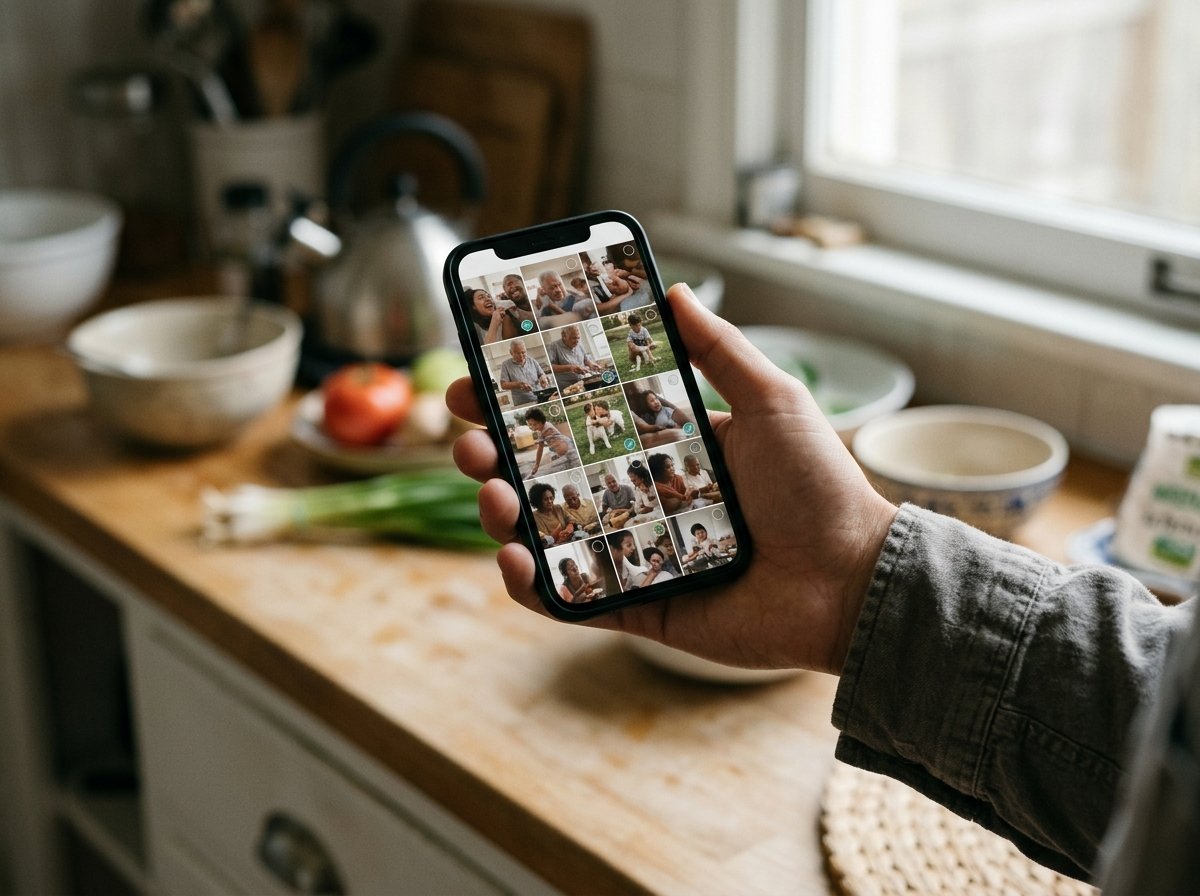
Free apps cover this job. CapCut, iMovie and Google Photos each build a video montage on a phone at no cost, and all three export a clean 1080p file. CapCut gives the most control, iMovie is the shortest route on an iPhone, and Google Photos builds one from your library.
| App | Best for | Price |
|---|---|---|
| CapCut | Speech, captions and per-clip volume | Free tier, Pro from $19.99 a month |
| iMovie | iPhone and iPad, fastest first result | No charge from Apple |
| Google Photos | A montage built from what is already in your library | No charge, included with the app |
| InShot | Short social clips and quick resizing | Free tier, paid Pro upgrade |
| Canva | Designed title cards and templates | Free tier, paid plans above it |
| The Tribute video editor | Clips sent in by many different people | Paid, DIY from $35 |
Prices as of October 2026.
What should you expect from a montage app on a phone?
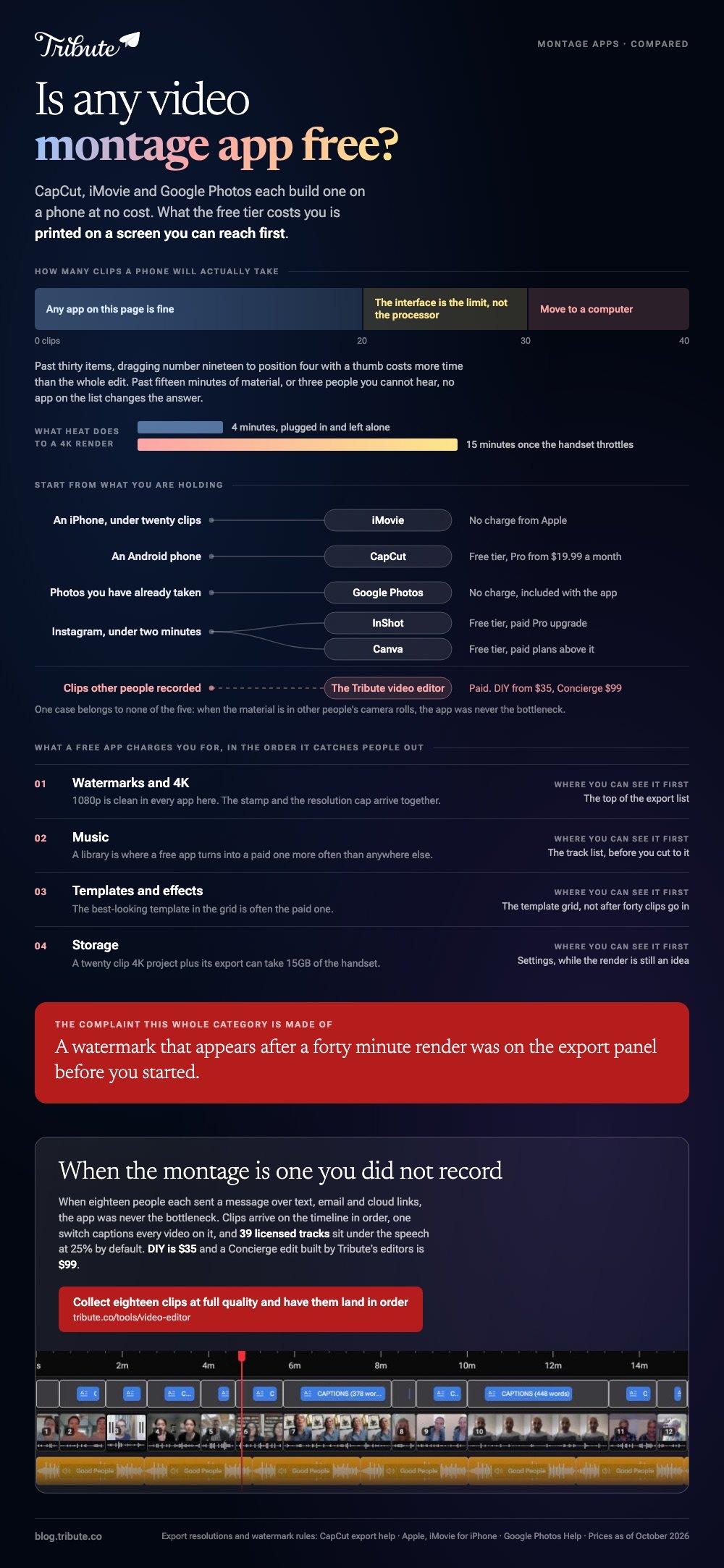
Phone editors have caught up with desktop software for anything under twenty items. You get a timeline, trim handles, per-clip volume, text, music and captions, and the render happens on the handset rather than a server.
Past twenty or thirty clips the small screen becomes the limit, because dragging item nineteen to position four with a thumb is slow work.
Three things separate a good montage app from a passable one. Whether you can set volume for one clip without affecting the rest, whether photos get a duration you can change in one place, and whether the export is clean at 1080p.
Check the export screen before you build anything. A watermark that appears after a forty minute render is the most common complaint in this category, and it is visible on the export panel beforehand in every free app worth using.
Battery and heat decide the rest. A long 4K render will warm a phone to the point where it throttles, which turns a four minute export into fifteen.
Plug in, close everything else, and start the render when you do not need the handset for half an hour.
Which video montage app, free tier included, is worth installing?
CapCut
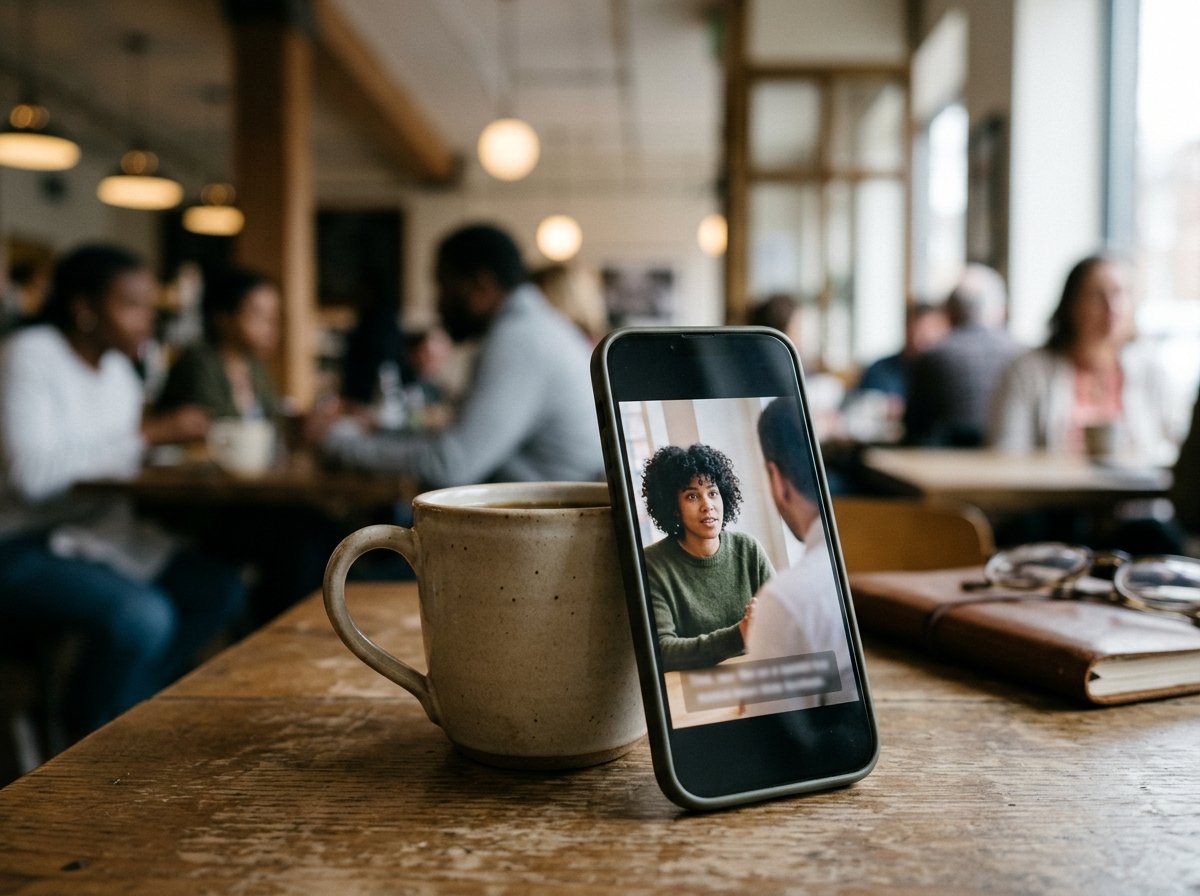
CapCut is the default answer on Android and a strong one on iPhone. Tap New project, select your clips and photos, drag them along the timeline into order, then tap Export at the top right, where the resolution label sits next to the button.
Tap a single clip and then Volume to set a level for that clip on its own, which is the control that stops a montage sounding like six different rooms.
CapCut's export help page lists 720P and 1080P on phones, with 2K and 4K depending on your device, region and app version, and it warns that accounts on the free tier may meet watermarks or bitrate limits at 4K.
Best for: Any montage with people talking in it.
Why it works: Per-clip volume and automatic captions are two taps from the timeline, and the same layout waits for you on a laptop when the project outgrows the phone.
iMovie
On an iPhone or iPad, iMovie is the fastest path from camera roll to finished video.
Tap Start New Project, then Movie, tap each clip and photo until a blue checkmark appears, and tap Create Movie, which Apple documents in its iMovie for iPhone guide.
Choose Magic Movie instead and iMovie builds the montage for you, soundtrack and transitions included, which you then adjust. For a photo-led montage this is the shortcut most people never find, and it turns an hour of work into about ten minutes of tidying.
Best for: iPhone owners who want something watchable today.
Why it works: Nothing uploads, nothing installs, and the Photos library is one tap away. Compared with a browser tool, there is no waiting for files to travel.

Google Photos
Google Photos builds what it calls a Highlight video, and on Android the steps are short. Tap Create at the bottom, tap Highlight video, tap Select content at the top, choose your photos and videos, tap Next, then tap Create video.
To rework it, open the video and tap Edit.
Touch and hold a clip to drag it into a new position, tap a clip then Remove to drop it, and tap Add Music for a soundtrack, with Volume for the balance between the song and the speech.
Google sets this out in its help page on making creations.
Best for: A montage from photos and clips you have already taken.
Why it works: The material is already there, so the gathering step disappears. The trade is a shallow editor: there is no fine trimming of individual clips inside a Highlight video.
InShot
InShot is a phone-only editor for iOS and Android, built around short social video. It leans on templates, stickers and fast resizing rather than a deep timeline, and it earns its place when the montage is ninety seconds long and headed for Instagram.
Read its export screen with particular care. InShot has a paid Pro upgrade and the boundary between the two tiers moves between versions, so confirm on the day what your export will carry.
One habit saves trouble here. Build the montage at the shape you will post in rather than resizing at the end, because a crop applied after the fact is where faces lose their heads at the top of the frame.
Best for: Short, vertical montages for social.
Why it works: The template route skips most of the decisions, which is the point when the video is under two minutes.
Canva
Canva treats video as a moving design, so a montage there looks like a sequence of slides with clips dropped in. For a birthday montage with title cards, captions and a consistent color, that is an advantage rather than a compromise.
It is the wrong tool for forty minutes of raw speech. Pick it when the montage is short, designed and photo-led, and pick CapCut when it is long and conversation-led. Compared with a timeline editor, Canva gives you fewer audio controls and far better type.
Best for: Designed montages by someone who already uses Canva for other things.
Why it works: No new interface to learn, and the title cards look considered rather than improvised.
The Tribute video editor
This is the paid entry, and the honest version first: if the clips are already in your camera roll, one of the five above will finish the job today.
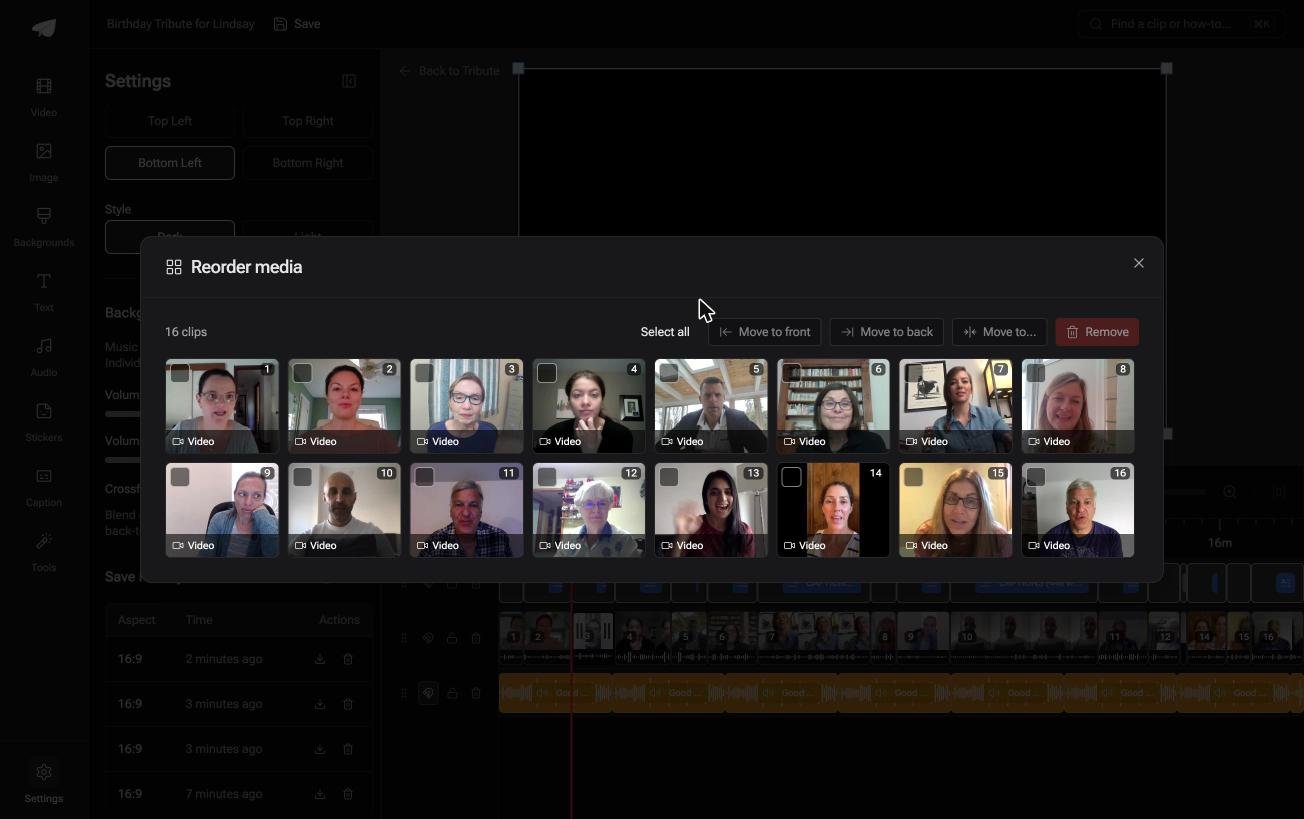
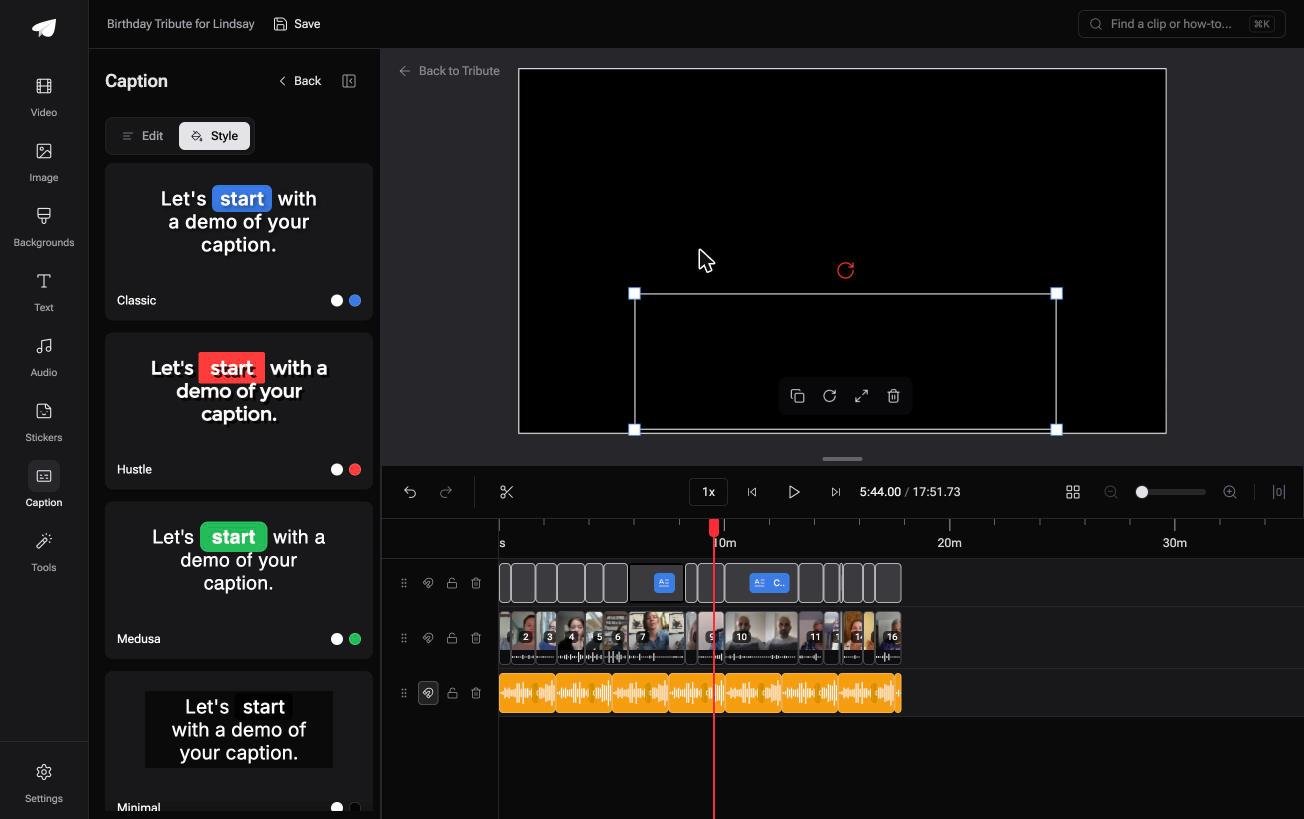
The Tribute video editor is a browser-based group video editor: contributors record clips on their phones and Tribute assembles them on a timeline with the music balanced under the voices. It runs inside a paid Tribute and cannot open a video from elsewhere.
Its case is the montage you did not video. Eighteen people each recorded a message for one person, the files came in over text, email and cloud links, and lining them up is the last small part of a long job.
Clips arrive on the timeline in order, one switch captions every video on it, and 39 licensed tracks sit under the speech at 25% by default.
Best for: An app hunt that ends the moment somebody else does the gathering.
Why it works: The collecting and the ordering are finished before the editing begins. DIY pricing starts at $35, and a Concierge edit built by Tribute's editors is $99.
What does a free app charge you for in the end?
Four places, in rough order of how often each one catches people out. None of them are hidden, and all four are printed on a screen you can reach before you start building anything.
Watermarks and 4K. 1080p is clean in every app here. The stamp and the resolution cap tend to arrive together, at the top of the export list.
Music. A library is where a free app turns into a paid one more often than anywhere else.
Pick the track before you cut to it, and remember that a chart song will get the montage muted on social platforms even if the app let you add it.
Templates and effects. The best-looking template in the grid is often the paid one, which you find out after you have poured forty clips into it.
Storage. Phone montages eat space.
A twenty clip 4K project plus its export can take 15GB, and 91% of US adults own a smartphone according to the Pew Research Center mobile fact sheet, which is a lot of households discovering this at the worst moment.
For the desktop equivalent of this list, see montage software compared, and for mixing stills with clips, photo and video editing apps.
How do you choose a montage app in five minutes?
Start from the handset. An iPhone with under twenty clips goes to iMovie, an Android phone to CapCut, and a library full of old photos to Google Photos. Anything headed for Instagram in under two minutes goes to InShot or Canva.
Then sanity check the material. Count the clips, add up their length, and listen to the two quietest ones on speakers rather than headphones.
If the total runs past fifteen minutes or three people are hard to hear, the phone is the wrong place to do this and no app on the list changes that.
Switch to a computer when the count climbs. Past thirty items, reordering on a phone costs more time than the whole edit, and a browser editor will do the same job with a mouse: merging clips online covers that route.
One case belongs to neither.
When the clips came from other people rather than from your own camera roll, the app is not the bottleneck, as we set out in how a group video maker handles thirty phones and in the main guide to making a video montage.

Frequently Asked Questions
Which is the best video montage app with music?
CapCut for control over how music sits under speech, Google Photos if you want a track fitted for you. Both include libraries you can use without paying, and neither will keep a commercial song out of trouble on social platforms.
Is there a montage app with no watermark?
iMovie and Google Photos never add one. CapCut and Canva are clean at the resolutions most people export, and InShot is the one to check on the export screen before you render.
Can I make a montage with photos and video together?
Yes, in every app here. Set the photo duration once rather than trimming each still, which is the setting that decides whether a photo montage drags or moves.
How many clips can a phone handle?
Twenty to thirty before the interface rather than the processor becomes the problem. Beyond that, move to a laptop or use a tool that puts the clips in order for you.
What size should a montage be for Instagram or TikTok?
Vertical, at 1080 by 1920, and under two minutes for a first post. CapCut and InShot both resize to that shape from a project you built in widescreen.
Does editing on a phone reduce quality?
Only at export. Choose the highest resolution offered, avoid re-exporting an export, and keep the originals until you have watched the final file start to finish.
Which app is best if I have never edited before?
Magic Movie in iMovie on an iPhone, or a Highlight video in Google Photos on Android. Both build a first version for you, which is a kinder starting point than an empty timeline.
👉 Collect them at full quality instead of over text if the montage clips are still in other people's camera rolls, and nothing has to be chased twice.
